把 Codex Taskboard 接入 DeepSeek Harness,在侧边栏新增任务面板入口,桥接到本地启动器管理的 Taskboard 运行时。

- 语言
- JavaScript
- License
- Apache-2.0
- 分支
- main
安装
$ dsh plugin --profile web add github:chuspeeism/dashi-taskboard#path:integrations/deepseek-harness在终端中运行以上命令,通过 dsh CLI 安装此插件。可在右上角切换 Profile。 第一次用 dsh?看这篇新手教程
对话式安装
帮我安装 DeepSeek Harness 插件 chuspeeism/dashi-taskboard/integrations/deepseek-harness:先查看仓库 https://github.com/chuspeeism/dashi-taskboard 确认安全性,然后执行安装命令并验证插件加载成功。
把这段指令粘贴给 DSH Web GUI 里的助手,由它代你完成安装与验证。
一句话定位
这是 Codex Taskboard 在 DeepSeek Harness 里的接入插件,它不内置任务面板本身,而是在 DSH 侧边栏添加一个"任务面板"按钮,把当前本地 Codex Taskboard 启动器的页面以内嵌网页的方式展开到 DSH 主区域里。
核心能力
- 在 DSH Web 端侧边栏底部新增"任务面板"按钮,点击后在主工作区右侧弹出侧边面板
- 面板内以 iframe 形式加载 Codex Taskboard 的运行页面,等价于在浏览器里直接打开本地 Taskboard
- 服务端在 DSH 内部注册一个跳转路由,把访问
/integrations/codex-taskboard的请求 307 重定向到本地启动器当前报告的活动地址 - 通过读取启动器写入的运行时描述文件来发现活动地址,不依赖固定端口,启动器换端口后插件不需要改配置
- 面板提供"刷新"按钮,可在 Taskboard 服务重启后重新加载内容,提供"关闭"按钮收起面板
- 当运行时描述文件缺失或格式不正确时,跳转路由返回 503 与"Codex Taskboard is not running"文本提示,避免空白错误页
技术实现
- 语言: 原生 JavaScript(ESM 模块,无构建步骤;
package.json中"type": "module",入口直接发布源码) - 关键依赖:
@deepseek-ai/dsh-client-ui-sidebar(DSH 官方客户端包,被 manifest 声明注入);@deepseek-ai/cordis(宿主注入框架,插件通过ctx.webServer.register注册路由、通过ctx.slots.inject注册侧边栏按钮);react(客户端 UI 在 DSH 渲染层里用React.createElement直接构造,未使用 JSX) - 架构模式: 双端 Cordis 补丁插件。
cordis.patch.yml在宿主启动时插入名为codex-taskboard的服务节点;服务端index.js通过export const inject = ["webServer"]拿到 webServer 句柄后注册 307 重定向路由;客户端client.js通过window.__ModuleLoader__.load注册前端模块,注入到sidebar.footer.action槽位 - 入口文件:
integrations/deepseek-harness/index.js(服务端激活入口,导出name、inject、apply(ctx));integrations/deepseek-harness/client.js(浏览器端激活入口,挂载apply(ctx)到 DSH 客户端运行时)
适用场景
已经在本机部署并使用 Codex Taskboard 的人,希望把任务列表从独立的浏览器标签或 App 收进 DSH 主窗口里、和对话流并排查看时,安装这个插件即可。它解决的问题是:DSH 默认不带任务管理 UI,而切换窗口来回看 Taskboard 打断思路。
前置依赖与兼容性
| 依赖 | 最低版本 | 说明 |
|---|---|---|
| DeepSeek Harness | 未声明 | 插件 package.json 没有声明 engines 或 peerDependencies;通过 dsh.bundle.patch 与 dsh.client manifest 字段接入宿主 |
| Node.js | 未声明 | 插件本身无 engines 字段;宿主 DSH 启动 DSH 进程时负责 Node 版本 |
| 平台 | 跨平台 | 客户端注入 platform: web,服务端无原生模块;不过默认运行时文件路径是 macOS 风格(见下) |
| 原生模块 | 无 | 仅使用 node:fs/promises、node:os、node:path 三个 Node 内置模块 |
| 本地 Codex Taskboard | 任意可工作版本 | 插件只是一个跳转壳,真正的 Taskboard 服务来自本机启动器 |
安装方式
dsh plugin --profile web add github:chuspeeism/dashi-taskboard/integrations/deepseek-harness
配置项
本插件没有用户可配置的字段;只通过一个环境变量影响运行时文件路径:
| 配置 | 类型 | 说明 | 默认值 |
|---|---|---|---|
CODEX_TASKBOARD_RUNTIME_FILE | 环境变量 | Codex Taskboard 启动器写出的活动地址描述文件绝对路径;插件从这里读取当前 URL 并做跳转 | ~/Library/Application Support/Codex Taskboard/launcher-runtime.json(macOS 默认) |
常见问题
Q: 这个插件能不能独立使用?
A: 不能。它只是一个 DSH 与 Codex Taskboard 之间的跳转桥;本机必须先有 Codex Taskboard 启动器跑起来,按钮才能跳转到真实页面。
Q: 安装后侧边栏没出现"任务面板"按钮?
A: 检查 DSH 是否按 Web profile 启动(--profile web),以及插件 manifest 声明的客户端平台是 web;非 web profile(如终端 profile)不会注入侧边栏 UI。
Q: 点了按钮但面板提示"Codex Taskboard is not running"?
A: 通常是启动器没跑或写入的描述文件路径不对;先启动 Codex Taskboard(npm run codex 或 macOS App),再点侧边栏按钮;也可以通过面板上的"刷新"按钮重试。
Q: 默认的运行时文件路径能直接用在 Windows / Linux 上吗?
A: 不能直接用。默认路径 ~/Library/Application Support/Codex Taskboard/launcher-runtime.json 是 macOS 风格的,Windows 上 Taskboard 数据通常在 %APPDATA%\Codex Taskboard、Linux 上一般需要 npm run codex 自己指定;在 Windows / Linux 上需要先设置 CODEX_TASKBOARD_RUNTIME_FILE 环境变量指向正确的描述文件。
Q: Taskboard 启动器换端口后插件需要改什么吗?
A: 不需要。插件不依赖固定端口,启动器把当前 URL 写入运行时描述文件、插件读最新值做跳转。
Q: 怎么卸载?
A: 用 dsh plugin --profile web remove 移除本插件即可;插件本身不存储任何持久数据,移除后下次启动 DSH 不会再注入侧边栏按钮和路由。
Q: 面板里的"刷新"按钮和"关闭"按钮各自做什么?
A: "刷新"会递增 iframe 的 key 值,强制 iframe 重新加载,跳过浏览器缓存;"关闭"收起右侧面板,保留侧边栏按钮的展开状态直到下次点击。
上手难度
入门 — 只需安装插件并确保本地 Codex Taskboard 启动器在跑,没有任何需要填写的高级配置项。
已知问题与限制
- 默认运行时文件路径
~/Library/Application Support/Codex Taskboard/launcher-runtime.json是 macOS 风格,在 Windows / Linux 上若不通过CODEX_TASKBOARD_RUNTIME_FILE覆盖,插件会找不到 Taskboard;本插件的package.json没有os字段做平台限制 - 运行时描述文件要求
version === 1且url为字符串,否则插件直接抛错并返回 503;如果启动器升级到新版本描述格式,需要更新插件判断逻辑 - 跳转路由使用 307 临时重定向并设
cache-control: no-store,但浏览器对 iframe 内的跨源行为仍受宿主 CSP 与启动器自身策略约束 - 源码中没有 TODO / FIXME / HACK 注释,暂无显式标注的 bug
Codex Taskboard
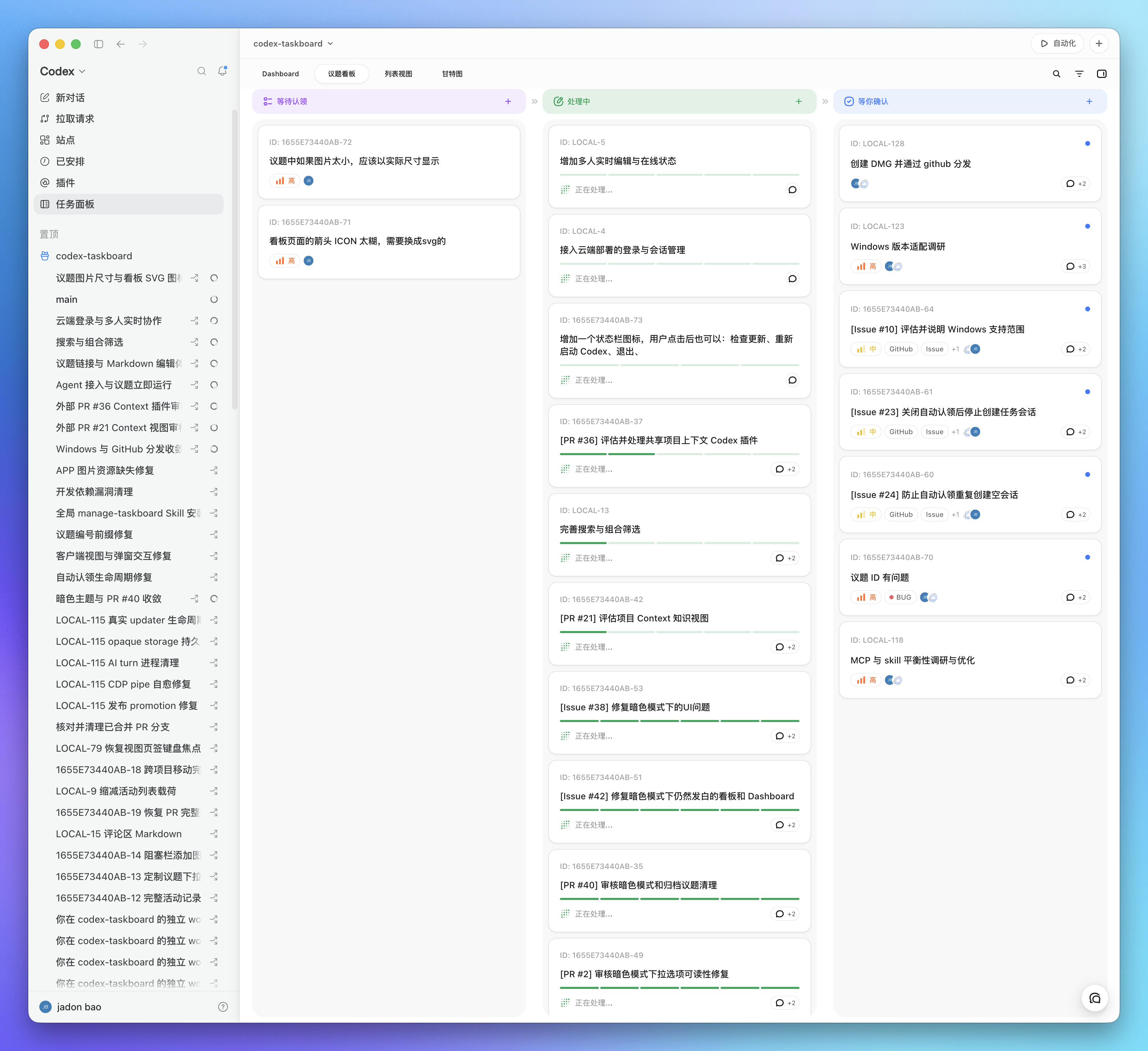
A local-first issue board that runs in a browser and can be embedded in Codex through the standalone CDP launcher or its injection script. The same HTTP API powers the React UI and the taskctl CLI used by the bundled Codex Skill.
Requirements
- Node.js 22.5 or newer
- macOS App and DMG builds: Xcode Command Line Tools and Rust 1.88 or newer with the
aarch64-apple-darwinandx86_64-apple-darwintargets.npm installinstalls the Tauri CLI used by this project. - Windows NSIS builds: the Microsoft Store Codex App, Rust 1.88 or newer, and Visual Studio Build Tools with the C++ workload and Windows SDK.
Run locally
npm install
npm run build
npm start
Open http://127.0.0.1:47823. The SQLite database is stored at .data/taskboard.sqlite.
For development with live frontend reload:
npm run dev
The Vite UI runs at http://127.0.0.1:5173 and proxies API requests to the local service.
Use the CLI
Run it from the project:
npm run taskctl -- project create \
  --id my-project \
  --name "My project" \
  --workspace-path /absolute/path/to/repository

npm run taskctl -- issue create \
  --project my-project \
  --title "Implement the next slice" \
  --status todo \
  --priority high \
  --labels product,mvp
Use npm link if you want taskctl on your shell path. Set CODEX_TASKBOARD_URL to point the CLI at another local or LAN service. Cloud deployments are configured through the loopback companion (device-local loopback service for auth and path mapping—not a chat persona) with taskctl cloud login.
Install the Codex Skill
Copy or symlink skills/manage-taskboard into the Codex skills directory, then start a new Codex task:
ln -s /absolute/path/to/codex-taskboard/skills/manage-taskboard \
  ~/.agents/skills/manage-taskboard
The desktop app keeps this same directory synchronized with its bundled Skill. The Skill teaches Codex to inspect an issue, move it to in_progress, use optimistic versions, verify the work, and then move it to in_review; it moves the issue to done only after the user explicitly confirms acceptance or asks to mark it complete.
Embed in Codex
Manual: use a dedicated CDP port
Keep the existing Codex window open. From the Taskboard repository, start a second Codex instance with a dedicated CDP port:
open -n -a /Applications/ChatGPT.app --args \
  --remote-debugging-port=9231 \
  --remote-allow-origins=http://127.0.0.1:9231
After the new Codex window appears, run the injector in another terminal:
CODEX_TASKBOARD_HOST=127.0.0.1 \
npm run codex:inject -- --port 9231 --open
Keep the injector terminal running while using the embedded panel. The original Codex window remains unchanged, and the new window receives the Taskboard sidebar entry. If port 9231 is occupied, use another port in both commands.
Recommended: launch an independent Taskboard window with one command
Keep existing Codex windows open and run:
CODEX_TASKBOARD_HOST=127.0.0.1 npm run codex
This starts the local Taskboard service when needed. It reuses an open Codex with a reachable CDP renderer, opens Taskboard in the native browser panel of an ordinary Codex without CDP, or launches the official macOS Codex app with an independent profile and loopback-only port 9231 when no Codex is open. It injects a native-looking Taskboard entry after Plugins when CDP is available and keeps watching both the service and replacement renderers. Keep this command running while using the embedded panel. The launcher does not modify ChatGPT.app or its app.asar.
The source launcher writes its authenticated endpoint to .data/launcher-runtime.json. A taskctl command installed with npm link reads this file by default, so a normal shell and a Codex task opened from the panel use the same Taskboard service without an extra environment variable.
macOS App: open and inject without a terminal
For Tauri development, run:
npm run app:dev
To build the local App and DMG, install the two Rust targets once, then run the build:
rustup target add aarch64-apple-darwin x86_64-apple-darwin
npm run app:build
Open src-tauri/target/universal-apple-darwin/release/bundle/macos/Codex Taskboard.app from Finder. The DMG is in src-tauri/target/universal-apple-darwin/release/bundle/dmg/. If you only want the stable App, download the current DMG from GitHub Releases.
The App contains its own Node runtime, Taskboard service, built web UI, Skill, CLI wrapper, and injection script. It starts the service, reuses an open Codex with a reachable CDP renderer, opens Taskboard in the native browser panel of an ordinary Codex without CDP, or launches the official Codex app when no Codex is open. It waits for the renderer, injects the sidebar entry when CDP is available, and opens the panel without showing a terminal window. The App can be copied away from this checkout; the target Mac only needs the official Codex app and does not need this repository, a system Node installation, or a separate Codex CLI installation. Taskboard data is stored in ~/Library/Application Support/Codex Taskboard, and launcher output is written to ~/Library/Logs/Codex Taskboard/codex-taskboard-launcher.log.
Windows code signing
For official Windows releases after the application is approved: Free code signing provided by SignPath.io, certificate by SignPath Foundation. Current Windows CI artifacts remain unsigned until that approval. See the Code signing policy, Privacy policy, and Windows uninstall instructions.
The local build uses ad-hoc code signing for direct verification. A public macOS download still needs Developer ID signing and Apple notarization.
Windows App: tray launcher and bundled Taskboard
Install the official Codex App from the Microsoft Store. To build the current-user NSIS installer on Windows x64, run:
npm ci
npm run app:build:windows
The installer is written to src-tauri/target/x86_64-pc-windows-msvc/release/bundle/nsis/. It installs a tray launcher, bundled Node runtime, local service, built web UI, Skill, taskctl.cmd, and injection script. Taskboard data is stored in %APPDATA%\Codex Taskboard; logs are stored in %LOCALAPPDATA%\Codex Taskboard\Logs; the Skill is copied to %USERPROFILE%\.agents\skills\manage-taskboard.
Windows CI artifacts are intentionally unsigned and do not auto-update. Review the code-signing policy before distributing a build. See Windows uninstall for retained-data behavior.
Codex 26.715.52143 ships a renderer CSP that blocks arbitrary HTTP iframes. The launcher therefore enables CDP CSP bypass, reloads that renderer once, installs the document-start script, and waits until the Taskboard OOPIF is actually loaded. CDP is unauthenticated to other processes on the same machine, so only run trusted local code while the launcher is active.
To inject into a Codex instance that was already launched with CDP by another method, run:
npm run codex:inject -- --port 9229 --open
This command also stays resident so the injected tab can restart Taskboard after a service exit. Stop it with Ctrl-C.
The script adds a Taskboard entry to the Codex sidebar and renders the iframe across Codex's complete main workspace, including the contextual titlebar area so Taskboard's own header does not leave an empty strip. That full rectangular header is placed above Electron's draggable layer and marked no-drag; because the native contextual actions are suppressed while Taskboard is active, its own actions use their normal edge padding without an artificial right-side gap. The native sidebar stays mounted, while the previous page selection and contextual header are temporarily suppressed; choosing another Codex page restores them.
“在对话中打开” selects the corresponding native Codex project when one is available and opens an unsent native composer with an e-taskboard instruction and the issue's actual identifier. The installed Skill is selected implicitly from that instruction, so the composer does not add a $manage-taskboard mention. A conversation is attributed only after it actually processes the issue: taskctl reads Codex's CODEX_THREAD_ID and records that ID on the issue or comment mutation. Recorded IDs are clickable through Codex's native route bridge. Each issue can bind either one Git branch or one worktree; the options are scanned from the selected Codex project's repository instead of being typed by hand. The integration uses Codex's existing project, composer, and route markers; it does not patch React, replace fetch, load private chunks, or edit Codex data files.
To use a different UI origin, set window.__CODEX_TASKBOARD_URL__ before the user script runs.
Configuration
| Variable | Default | Purpose |
|---|---|---|
CODEX_TASKBOARD_HOST | 0.0.0.0 | HTTP bind address; use 127.0.0.1 to disable LAN access |
CODEX_TASKBOARD_PORT | 47823 | Local HTTP port |
CODEX_TASKBOARD_DATA_DIR | .data | SQLite data directory |
CODEX_TASKBOARD_URL | http://127.0.0.1:47823 | CLI API origin |
npm start prints both the local URL and the available LAN URLs. Teammates on the same trusted network can open one of those LAN URLs and use the same taskboard service. Task, comment, and attachment changes are broadcast to every open client through server-sent events; reconnecting clients perform a full refresh so changes made while disconnected are not missed. A teammate using taskctl can point it at the shared service with CODEX_TASKBOARD_URL=http://<host-ip>:47823.
LAN mode has no account authentication: anyone on the trusted local network who can reach the URL can read and write the taskboard. Public internet and cloud deployment require an authenticated deployment boundary.
Share through Cloudflare
For two trusted collaborators, the taskboard can run on Cloudflare with Worker Static Assets and API routes, D1 as the authoritative business database, and a private R2 bucket for attachments. The deployment uses HTTPS Basic Authentication with a shared password and refreshes open boards after a global revision changes.
Each device keeps its own project checkout mapping and continues to use a local companion for Codex, Git/worktree, Skill, and MCP capabilities. Cloud mode never falls back to or double-writes the local SQLite database.
See Cloud collaboration for owner deployment, existing GitHub installation setup, password rotation, local path mapping, and the one-time local-data migration flow.
Verify
npm run check
This runs TypeScript checking, a production frontend build, the component tests, and the server/CLI/injection test suite.
Task Markdown
Task descriptions and comments support GFM, including tables and task lists. Fenced mermaid blocks are rendered as read-only diagrams after the viewer loads; the diagram source remains available when rendering fails. Markdown HTML comments, such as <!-- trace-analysis:v1 ... -->, are hidden from the rendered document. Raw HTML is not enabled.
查看使用指南 →
该插件的安装步骤、关键要点、FAQ 与兼容性说明(基于已收录字段派生)。
收录徽章

[](https://deepseek-plugin.org/plugins/chuspeeism/dashi-taskboard/integrations/deepseek-harness)把这段 markdown 粘贴到你的 GitHub README,链接回本插件详情页。徽章只声明已被本站收录,不代表安全认证。