Enables DeepSeek Harness Agent to read, write, and control other desktop applications on macOS through accessibility APIs without moving the system cursor or changing the foreground window.

- Language
- TypeScript
- License
- MIT
- Branch
- main
Install
$ dsh plugin --profile web add @anionex/dsh-computer-useRun the command above in your terminal to install this plugin via the dsh CLI. You can switch Profile in the top-right corner. New to dsh? Read the beginner tutorial
Install via your agent
Install the DeepSeek Harness plugin Anionex/dsh-computer-use for me: review the repository at https://github.com/Anionex/dsh-computer-use first, then run the install command and verify the plugin loads successfully.
Paste this instruction to the DSH Web GUI assistant — it will install and verify for you.
One-Line Pitch
Let DeepSeek Harness Agent operate other desktop apps on macOS like a local user who can see the screen: first read the Accessibility element tree, then click, type, scroll, or drag — all without stealing focus or moving your actual mouse cursor.
Core Capabilities
- Enumerate current visible macOS apps showing process ID, Bundle ID, and frontmost status
- Capture the target app's Accessibility element tree and current state, with optional screenshot
- Initiate clicks, value setting, typing, key presses, scrolling, and dragging through Accessibility semantics (by role, value, executable actions)
- For visual issues in screenshots, automatically hand off the artifacts to the vision-tools Skill for processing (OCR, positioning, cropping)
- Grant "read-only" or "controllable" permissions per app dimension, with high-risk actions requiring a one-time confirmation token
- Provide a
/computer-use/settingspage in the web client showing health status, permission state, and app authorizations
Technical Implementation
- Language: TypeScript (host plugin) + Swift (native helper process) + a JSON configuration
- Key Dependencies:
@deepseek-ai/cordis,@deepseek-ai/dsh-tools,@deepseek-ai/schemastery,zod - Architecture Pattern: Cordis Service starts macOS Provider → During initialization, register
computer-useSkill and acomputer_use_activatebootstrap tool viainstallComputerUseConsumer; when Agent calls this tool to load the Skill in-session,exposure.tsexposes 11computer_*tools to the model at the Agent granularity level - Entry Files:
src/index.ts(exportsComputerUseBundle),native/macos/manifest.json(locks native Helper's SHA-256, architecture, and minimum macOS version)
Use Cases
Use when the Agent needs to operate a macOS native app that has no dedicated connector, CLI, or API — for example, filling out a form that can only be opened in a desktop app, extracting data from a GUI workflow, or completing a step in an app other than Safari that browser automation can't handle. Use browser automation for browser tasks, and API/CLI where those can solve the problem.
Prerequisites & Compatibility
| Dependency | Minimum Version | Notes |
|---|---|---|
| DeepSeek Harness | 0.1.0-rc.6 | All DSH peerDependencies require ^0.1.0-rc.6; @deepseek-ai/dsh-host-webserver is optional |
| Node.js | ^22.19.0 or >=24.0.0 | Only needed when building this repo from source; precompiled artifacts installed via dsh plugin manager don't enforce this |
| macOS | 14.0+ | Native Helper is an ad-hoc signed universal binary (arm64 + x86_64), SHA-256 locked in native/macos/manifest.json |
| macOS Accessibility | User manual authorization | Required for reading Accessibility tree and clicking; enable in System Settings → Privacy & Security → Accessibility |
| macOS Screen Recording | User manual authorization | Only needed when computer_observe screenshot is requested |
| Third-party vision capabilities | dsh-vision-toolkit (optional) | When screenshots need OCR, visual positioning, or pixel analysis, load the vision-tools Skill; this plugin passes the screenshot Artifact path to it |
Installation
dsh plugin --profile web add github:Anionex/dsh-computer-use
This command only works for Web Profile; for Headless Profile, replace
webwithheadlessat the end and install separately. The official package on npm is@anionex/dsh-computer-use, installed via GitHub source using the command form in this marketplace.
Configuration Options
| Config | Type | Description | Default |
|---|---|---|---|
observationTtlMs | Integer 0 or 1000~86400000 | Validity period for one observation result; 0 means never expires | 0 |
confirmationTtlMs | Integer 1000~900000 | Validity period for one-time sensitive action confirmation token (ms) | 300000 |
actionTimeoutMs | Integer 1000~120000 | Maximum wait time for a single native action (ms) | 15000 |
settleMs | Integer 0~10000 | How long to wait for interface to stabilize after an action (ms) | 250 |
maxSettleMs | Integer 100~60000 | Maximum wait time after an action completes (ms) | 5000 |
maxNodes | Integer 10~5000 | Maximum number of Accessibility nodes returned per observation | 500 |
maxDepth | Integer 1~64 | Maximum depth for traversing Accessibility tree in single observation | 14 |
maxTextBytes | Integer 1024~1048576 | Maximum bytes for tree text | 64000 |
maxScreenshotBytes | Integer 1024~268435456 | Maximum bytes for screenshot artifacts | 33554432 (32 MiB) |
artifactRoot | String | Screenshot artifact directory; must be relative path under workspace, no .. allowed | .dsh-computer-use/artifacts |
helper.path | String | Custom external Helper executable path; empty uses default Helper | Not set |
helper.allowSourceBuild | Boolean | Whether to allow temporary source build when built-in Helper is missing | false |
interaction.focusPolicy | String | Whether to allow bringing target app to foreground: preserve (default, don't steal focus) or activate | preserve |
interaction.keyboardPolicy | String | Whether to bring target app to foreground before keyboard input: preserve or activate | preserve (Bundle defaults to activate, overridden by cordis.patch.yml) |
interaction.pointerInputPolicy | String | Whether to allow mouse/scroll/drag targeting the target process: targeted (allow) or deny (forbid) | targeted |
interaction.cursorVisualization | String | Whether Agent's small cursor is visible: visible (show) or hidden (hide) | visible |
interaction.cursorMotionMs | Integer 0~2000 | Animation duration for Agent's small cursor moving from point to point (ms) | 180 |
interaction.cursorAutoHideMs | Integer 0~30000 | How long before Agent's small cursor auto-hides when idle; 0 means always show | 0 |
allowAllApps | Boolean | Whether to grant read-only and control to all running apps at once; if enabled, ignores grants list | false |
grants | Array | Grant read-only or control by exact Bundle ID; control implies read; wildcards not supported | [] |
At Bundle startup,
cordis.patch.ymlsetsfocusPolicytopreserveandkeyboardPolicytoactivate, which differs from the bare Schema defaults above; override in Settings if changes are needed.
FAQ
Q: I installed it, but I can't see computer_click and other tools in the Agent. What should I do?
A: After installation, only computer_use_activate is available as a bootstrap tool. Have the Agent execute /computer-use in the current session to load the Skill, or directly invoke computer_use_activate. Once loaded, the 11 executable computer_* tools will appear in the tool list. Restarting dsh web host and creating a new Session is also a common cause.
Q: The content in screenshots is blurry, how do I let the Agent read the images?
A: This plugin doesn't perform OCR itself. When computer_observe returns a screenshot, it simultaneously passes the Artifact path to the current Agent; the Agent should load the vision-tools Skill, then pass this path to vision_glance, vision_ground, vision_detect, vision_crop, or vision_long_screenshot_ocr. Don't use tesseract, screencapture, or temporary Swift scripts as alternatives.
Q: Why did my "frontmost App" change after the Agent finished operating?
A: Under the default policy, semantic Accessibility actions and pointer input with target process don't steal focus. If you see the foreground switched away, it's likely focusPolicy: activate or keyboardPolicy: activate was enabled, or the target app caused side effects. Reverting the policy to preserve restores the default behavior.
Q: Some apps have Accessibility enabled but the Agent still fails. What's the issue?
A: This is by design — "fail closed." Custom canvas, games, apps with custom input handling, and future macOS versions may reject pointer or keyboard events delivered via SkyLight. Use semantic Accessibility (by role, value, advertised actions) where possible; coordinate clicking is a fallback, not the first choice.
Q: Can I grant "read-only" access to an app without granting "control"?
A: Yes. In Web Settings under "Application access," add an exact Bundle ID authorization, check read but leave control unchecked. control: true automatically includes read, but not vice versa.
Q: After removing the plugin, do screenshots and authorization records disappear together?
A: No. dsh plugin remove only unregisters the Skill, tools, process-level observations, and confirmation tokens. Screenshot files (under artifactRoot) and computer_use_state sidecar files are retained and require manual cleanup.
Difficulty Level
Advanced — requires granting Accessibility/Screen Recording permissions in macOS System Settings first, then configuring app authorization by Bundle ID in Web Settings. Users must also understand the "observe → lock target → input" protocol to create stable Agent workflows, so there's a learning curve for first-time users.
Known Issues & Limitations
- macOS only; Windows UI Automation and Linux providers are not yet implemented
- State is early at
0.1.0; model-facing (Skill copy, tool signatures) and provider behavior may change before stable release - Pointer delivery depends on dynamically resolved SkyLight SPI; if that SPI is unavailable on the current macOS, fallback to coordinate clicking fails closed rather than switching to global mouse
- Click coordinates must fall within a visible window of the target app; the Helper automatically resolves the topmost matching window under the click point, but minimized, hidden, or windowless targets are rejected
- Custom canvas, games, hardened input surfaces, and future macOS versions may reject target process-level pointer or keyboard events; semantic Accessibility is recommended whenever possible
focusPolicy: activateandkeyboardPolicy: activateare breaking policies reserved for compatibility, to be used only when explicitly requested by the operator- The plugin only captures "on-demand" observations and doesn't maintain a real-time desktop stream; for continuous viewing, use screen recording or dedicated vision solutions
- Continue using browser automation for browser tasks, as DOM/CDP state is narrower and more accurate
- DSH's
danger-full-accessbuilt-in authorization policy isapproval/policy: never, which blocks unauthorized apps before the popup appears; in such cases the plugin reportsCOMPUTER_PERMISSION_REQUIRED, which is not treated as user rejection




Native macOS control for DeepSeek Harness that keeps your real cursor and foreground application alone by default; the Bundle may bring the target app forward before keyboard input for reliable typing.
DSH Computer Use gives an Agent fresh Accessibility observations, exact process/window targeting, stale-state rejection, scoped application access, and verified post-action state. Semantic Accessibility comes first; mouse, drag, wheel, and keyboard fallback are routed to the selected process instead of the global desktop.
English | 中文
Why it is different
Accessibility permission lets a process inspect and operate macOS UI elements, but the permission itself does not prevent focus stealing or cursor movement. Those behaviors depend on the input route.
The default DSH Computer Use route is deliberately non-interfering:
- No system-cursor movement: the helper contains no cursor-warp path.
- No global pointer injection: click, scroll, and drag fallback use a pid/window-targeted SkyLight route, not the global HID event stream.
- No pointer-triggered activation: semantic Accessibility, process-targeted pointer input, and
keyboardPolicy: preserverun without activation;keyboardPolicy: activate(Bundle default) brings the target app forward before keyboard fallback, matching Codex Computer Use. - A separate Agent cursor: click, scroll, and drag actions animate a click-through, nonactivating software cursor while the macOS system cursor remains untouched. It is visible by default and stays at the action position until the bound window changes or a hide command;
cursorAutoHideMscan opt into timed auto-hide. - No blind replay: every action is tied to an exact, unexpired observation and returns fresh state.
The result is a native action layer that can operate many background applications while the user continues working in the current foreground application.
What it adds
- Observe before acting. Return a bounded Accessibility tree, indexed elements, exact app/process/window metadata, permission state, and an optional screenshot Artifact.
- Bind actions to state. Every element exposes an observation-local index and opaque
targetHandle; exact lookup remains compatible, while explicitly allowed rebinding accepts only a unique native or semantic identity inside the same process and window. - Prefer semantic input. Use
AXPress, editable values, selected-text assignment, and advertised Accessibility actions before pointer fallback. - Route fallback to the target. Keyboard input goes to the selected pid; pointer input goes to the selected pid and
CGWindowIDwith window-local coordinates, resolving the app window under the point so arbitrary screen coordinates work. - Return fresh evidence. Every successful action settles for a bounded interval and returns a new full or diff observation.
- Scope application access. Read and control leases are separated by Agent, Session, turn, and exact bundle id; high-impact actions require one-use confirmation.
- Keep the model surface focused. Execution Tools appear only after the current Agent loads the Computer Use Skill.
Proof: a never-active background fixture
The repository includes a deterministic AppKit fixture and a universal native helper. Release tests start the fixture with open -g in background mode, then use the same protocol exposed to the Agent.
observe exact bundle id + pid
-> element: "Targeted pointer probe", no AXPress action
-> computer_click with observationId + element index + allowCoordinateFallback
-> fresh observation
-> activation "not-requested"; pointerRouting "target-process"
-> status "Status: pointer click"
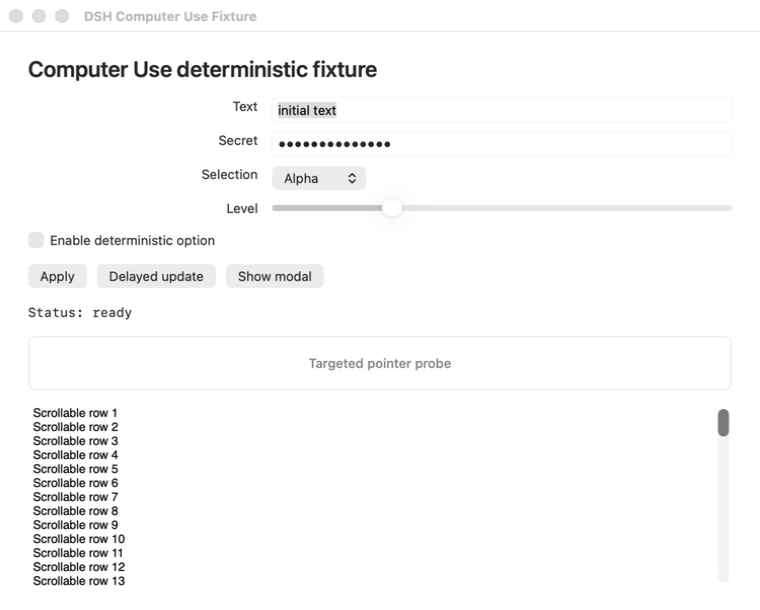
The fixture records every applicationDidBecomeActive callback. An independent native monitor also samples the system cursor and frontmost pid every millisecond throughout click, scroll, and drag. The default release path must not increase activationCount; it also requires unchanged cursor coordinates, an unchanged frontmost pid, exact click/scroll counts, and one complete down/up drag gesture.
See Foreground-safe input policy for the requirements, architecture, decisions, evidence, and compatibility limits.
Scope
dsh-computer-use is the native action layer. It does not replace narrower interfaces:
- browser tasks should use browser automation and DOM/CDP state;
- APIs, CLIs, and purpose-built application plugins remain preferable when available;
- OCR, visual grounding, and pixel interpretation should use the separately installed
dsh-vision-toolkit: load thevision-toolsSkill and pass the exact screenshot Artifact path tovision_glance,vision_ground,vision_detect,vision_crop, orvision_long_screenshot_ocr; do not replace those tools with shell-driventesseract,screencapture, or ad hoc Swift/Python OCR; - domain bundles such as
dsh-designcan compose Computer Use when a workflow crosses into a native application.
Quick start
Prerequisites
- macOS 14 or newer.
- DeepSeek Harness with a Web or Headless Profile and the Skill Tool mounted.
- macOS Accessibility permission for observation and native actions.
- macOS Screen Recording permission only when a screenshot is requested.
- Node.js
^22.19.0or>=24.0.0when building this repository.
Install the Web and Headless bundles directly from npm:
dsh plugin --profile web add @anionex/dsh-computer-use
dsh plugin --profile headless add @anionex/dsh-computer-use

dsh --profile web --dump-config | grep computer-use
dsh --profile headless --dump-config | grep computer-use
For local development, replace the package name with an absolute checkout path.
Restart a running dsh web host after changing the installed plugin, then start a new Session so the host reloads the Bundle and Skill catalog.
Load the Skill in that Session:
/computer-use
Then try:
Use Computer Use to inspect the running DSH Computer Use Fixture, enable its deterministic option, and report the fresh status. Prefer Accessibility elements and do not reuse an old observation.
How it works
flowchart LR
    A["Select exact bundle id and pid"] --> B["Acquire scoped read access"]
    B --> C["Observe AX tree and optional screenshot"]
    C --> D["Choose target handle, index, or window-relative point"]
    D --> E["Acquire control and optional one-use confirmation"]
    E --> F["Re-observe and validate exact target"]
    F --> G{"Input route"}
    G -->|"Semantic"| H["Accessibility action or value"]
    G -->|"Keyboard"| I["Post to target pid"]
    G -->|"Pointer"| J["Post to target pid + window"]
    H --> K["Wait for settlement"]
    I --> K
    J --> K
    K --> L["Return fresh full or diff observation"]
Every observed element has an observation-local compatibility index and an opaque targetHandle. Index-only actions retain exact locator behavior. A low-risk element action may pass targetHandle with allowRebind: true; immediately before input, the provider-independent resolver obtains fresh Accessibility state and checks, in order, the original locator, a unique provider-native identifier such as macOS AXIdentifier, then one unique semantic match over role, accessible name, advertised actions, and stable ancestor fingerprint. The resolver keeps the exact bundle id, pid, and selected-window identity, and fails closed with COMPUTER_TARGET_AMBIGUOUS or COMPUTER_TARGET_LOW_CONFIDENCE instead of guessing. Coordinate actions still require the complete referenced window state to remain current.
Successful element actions report resolution.mode, confidence, candidateCount, and targetChanged. A sensitive target that needs rebinding invalidates the prior one-use confirmation and returns COMPUTER_TARGET_REBIND_REQUIRES_CONFIRMATION; the caller must observe the current UI and confirm the newly selected handle. Visual coordinates are not target handles and never authorize sensitive rebinding. Provider-native visual hit-testing is not part of this foundation release and remains follow-up work.
The default interaction policy is:
interaction:
  focusPolicy: preserve
  keyboardPolicy: activate
  pointerInputPolicy: targeted
  cursorVisualization: visible
  cursorMotionMs: 180
  cursorAutoHideMs: 0
cursorVisualization: visible displays the Agent's own non-interactive cursor for click, scroll, and drag. It never replaces or moves the macOS system cursor. Set it to hidden when visual feedback is unwanted. pointerInputPolicy: deny disables coordinate click/fallback, scroll, and drag. keyboardPolicy: activate (Bundle default) makes type-text keyboard fallback and press-key reliable by activating the target app first; focusPolicy: activate is the broader compatibility mode that also activates before pointer input. After activation, the helper re-observes and revalidates the exact target before input.
The cursor is a 28x28 transparent whole-image cursor (Cursor arrow plus DeepSeek whale, assets/cursor.png) with the hotspot at the image's top-left corner. It is a separate process, click-through, nonactivating, and bound to the exact observed pid, window, and frame so it disappears if the target window closes, moves, resizes, or is minimized.
The helper executable is an internal DSH transport rather than a public authorization API. It requires an isolated process group plus parent-owned standard transports, so ordinary shell redirection fails closed before command parsing. This is defense in depth, not authentication against arbitrary code running as the same macOS user: a deliberately constructed detached parent can reproduce that transport topology. Use the registered Tools so application leases, sensitive-action confirmation, and host policy checks remain in force; danger-full-access must not be treated as protection against direct native invocation.
Successful action results include:
activation: 'not-requested' | 'already-frontmost' | 'activated'
pointerInput: boolean
pointerRouting: 'none' | 'target-process'
resolution?: {
  mode: 'exact-locator' | 'native-identifier' | 'semantic-rebind'
  confidence: number
  candidateCount: number
  targetChanged: boolean
}
The model cannot override these host policies through Tool arguments.
Model Tools
The Bundle initially contributes only computer_use_activate. Loading the Skill exposes the focused execution vocabulary for that Agent.
Show the complete Tool vocabulary
| Tool | Purpose |
|---|---|
computer_list_apps | List bounded user-facing applications with bundle id, pid, frontmost state, and permission diagnostics |
computer_observe | Return a fresh full/diff Accessibility observation and optional screenshot Artifact |
computer_click | Prefer AXPress; accept an exact index or opaque target handle, with optional safe rebinding, before target-process coordinate fallback |
computer_set_value | Set or clear an editable Accessibility value through an exact index or opaque target handle without using the clipboard |
computer_type_text | Insert Unicode through Accessibility when supported, with a process-targeted keyboard fallback |
computer_press_key | Send one key from a finite vocabulary to the selected process, with optional modifiers |
computer_scroll | Send bounded directional scrolling to the selected process and window at a resolved element or window/screen coordinate |
computer_drag | Drag between two window/screen points in the referenced observation |
computer_perform_action | Execute one Accessibility action advertised by an exact or safely rebound selected element |
computer_wait | Poll one bounded text/role/title condition and return fresh state without modifying the app |
computer_confirm | Obtain a one-use token bound to one exact sensitive action |
No Tool accepts AppleScript, JXA, shell, Swift, Objective-C, native selectors, arbitrary Accessibility constants, or source code.
Observation, permissions, and sensitive actions
An observation contains an opaque id and expiry, exact app identity, frontmost/window metadata, bounded tree text, current elements with opaque target handles, optional screenshot metadata, and permission state. Target handles expose no provider object reference or native identifier. Secure text values are emitted as [secure]; they do not enter target descriptors, tree text, Tool results, screenshot metadata, or native errors. A screenshot can still contain other visible application data and should be treated as sensitive.
The technical access model has two exact-bundle-id leases:
read: inspect Accessibility state and a requested screenshot;control: send UI input to the selected application.
Without a configured grant, DSH asks for approval. Read approval lasts for the Session; control approval lasts for the current turn. A user rejection is final for that app and scope for the rest of the Session.
The Bundle keeps Session-wide read grants and rejected app/scope decisions in its own computer_use_state storage-domain sidecar, fenced by the Session header's createdAt and cwd. It does not add Computer Use events to the official Session log or modify DSH Core. The Web Profile already composes @deepseek-ai/dsh-storage-domain; a custom Profile must compose it before this Bundle if interactive read grants or durable rejections are needed. Exact grants configured in Settings remain available without storage-domain, and an allowed control decision remains process-local for the current turn. When a durable interactive decision cannot be stored, the operation fails clearly instead of silently weakening its lifetime.
The DSH danger-full-access preset uses approval/policy: never, so an ungranted app is policy-blocked before any prompt. The plugin reports an actionable COMPUTER_PERMISSION_REQUIRED error and does not record that outcome as a user rejection. Add the exact bundle id in Computer Use Settings or use a preset whose approval policy is ask.
High-impact communication, sensitive-data transmission, irreversible deletion, account/security/privacy changes, unrequested installation, legal acceptance, and financial completion beyond explicit authorization require computer_confirm immediately before execution. The token is short-lived, one-use, and bound to the exact app, process, observation, target handle, and action. Grants do not bypass it. If resolution moves beyond the exact locator, the token is invalidated and a fresh observation plus confirmation is required.
macOS permissions and native integrity
The Web Settings section reports helper integrity, Accessibility and Screen Recording status, active generation, interaction policy, limits, and exact application grants. Its buttons can open the relevant macOS privacy pane after a user click; the plugin cannot grant TCC permission itself.
Accessibility and Screen Recording are UI permissions, not filesystem permissions. Normal use stays under DSH workspace-write: screenshots remain in the Session workspace, transient files use Session-private temporary storage, and the Bundle does not require danger-full-access.
The committed helper is an ad-hoc-signed universal arm64 + x86_64 binary targeting macOS 14 or newer. native/macos/manifest.json pins its SHA-256, source digest, architectures, and deployment target. pnpm run check:native also checks the target-process-only pointer route and rejects system-cursor warp or global pointer-post symbols.
Configuration
Show Bundle configuration fields
| Field | Purpose |
|---|---|
observationTtlMs | Lifetime of an observation before reuse is rejected; default 0 disables expiry, or set any value up to 86400000 ms (24 hours) |
confirmationTtlMs | Lifetime of a one-use sensitive-action confirmation |
actionTimeoutMs | Hard native action timeout from 1000 to 120000 ms |
settleMs | Interval between post-action state checks from 0 to 10000 ms |
maxSettleMs | Maximum post-action settlement budget from 100 to 60000 ms |
maxNodes / maxDepth / maxTextBytes | Accessibility traversal and model-visible text bounds |
maxScreenshotBytes | Maximum PNG Artifact size |
artifactRoot | Workspace-relative screenshot directory |
helper.path | Optional explicit external helper executable |
helper.allowSourceBuild | Permit an explicit managed-source rebuild when the committed helper is absent; default false |
interaction.focusPolicy | preserve (default) avoids target-app activation; activate explicitly permits it and requires re-observation/revalidation |
interaction.keyboardPolicy | preserve keeps keyboard events routed without activation; activate (Bundle default) activates the target app before keyboard fallback |
interaction.pointerInputPolicy | targeted (default) permits pid/window-targeted pointer input; deny disables click fallback, scroll, and drag |
interaction.cursorVisualization | visible (default) shows the separate Agent cursor; hidden disables only the overlay |
interaction.cursorMotionMs | Animated Agent-cursor travel duration, default 180 ms |
interaction.cursorAutoHideMs | Idle time before the Agent cursor hides; default 0 keeps it visible until the bound window changes or a hide command, or set a finite value up to 30000 ms |
allowAllApps | Grant read and control to every running app; default false. When enabled, exact grants are ignored |
grants | Exact non-wildcard bundle-id read/control policy; control: true implies read |
Settings updates replace the active provider generation only after validation and health checks pass. Replacement invalidates existing observations and pending confirmations.
Status and limitations
- Status: early
0.1.0; model-facing and provider behavior may change before a stable release. - The current provider is macOS-only. Windows UI Automation and Linux providers are not implemented.
- Target-process pointer delivery uses dynamically resolved SkyLight SPI. If it is unavailable, pointer fallback fails closed rather than switching to global input.
- The clicked point must fall inside an on-screen window of the selected app; the helper resolves the topmost matching window so ambiguous frame/title matches no longer block coordinate actions. Minimized, hidden, or windowless targets fail closed.
- Custom canvases, games, hardened input surfaces, and future macOS releases may reject target-process pointer or keyboard events. Prefer semantic Accessibility whenever possible.
focusPolicy: activateandkeyboardPolicy: activateare intentionally disruptive and exist as operator-selected compatibility modes.- A target application may change its own activation or focus as a side effect of an accepted action.
- The package captures requested discrete observations, not a live desktop feed.
- Browser work should continue to use browser automation because DOM/CDP state is narrower and more precise.
- The public npm package installs into both Web and Headless profiles as
@anionex/dsh-computer-use.
Development and release verification
Place this repository beside a DeepSeek Harness checkout so TypeScript and Vitest resolve the exact DSH peer declarations and runtime modules:
workspace/
├── packages/
├── vendor/
└── dsh-computer-use/
Then run:
pnpm install --frozen-lockfile
pnpm run build
DSH_COMPUTER_USE_REQUIRE_TCC=1 pnpm test
pnpm run check:native
pnpm pack --dry-run
pnpm run validate
pnpm run validate runs the keyless local and clean Web/Headless Profile lanes. The real-model release lane needs DEEPSEEK_API_KEY and accepts an optional DEEPSEEK_BASE_URL:
pnpm run validate:model
# or keyless validation followed by the real-model lane
pnpm run validate:release
Removal
dsh plugin --profile web remove @anionex/dsh-computer-use
dsh plugin --profile headless remove @anionex/dsh-computer-use
Removing or disabling the Bundle unregisters the Skill and Tools, cancels helper work, releases process-local Agent observations, turn control grants, and confirmations, closes its storage-domain handle, and removes Web contributions. Existing screenshot files and the plugin-owned computer_use_state sidecar remain for explicit user cleanup.
Security, community, and support
- Report suspected vulnerabilities privately through SECURITY.md.
- Read CONTRIBUTING.md before changing code or documentation.
- Use SUPPORT.md for installation, permission, configuration, and workflow questions.
- Follow the Code of Conduct in project spaces.
- See CHANGELOG.md for release history.
- See FUNDING.md to support maintenance without purchasing roadmap control or private support.
About
DSH Computer Use is maintained by anionex. If you would like to follow my future work, follow me on X or GitHub.
License
MIT © 2026 anionex.
Read the usage guide →
Install steps, key points, FAQ and compatibility for this plugin — auto-derived from indexed fields.
Listing badge

[](https://deepseek-plugin.org/plugins/Anionex/dsh-computer-use)Paste this markdown into your GitHub README to link back to this listing. The badge only states the listing — not a security endorsement.