A Hatsune Miku theme for DSH Web GUI featuring blue-purple gradient colors, frosted glass panels, customizable background images, and dual light/dark themes.
ⓘ This plugin is a sub-package of the CAPTAIN1275/dsh-ui-web monorepo — stars and activity count the whole repository.

- Language
- TypeScript
- License
- Apache-2.0
- Branch
- main
Install
$ dsh plugin --profile web add @captain1275/dsh-client-ui-skin-mikuRun the command above in your terminal to install this plugin via the dsh CLI. You can switch Profile in the top-right corner. New to dsh? Read the beginner tutorial
Install via your agent
Install the DeepSeek Harness plugin CAPTAIN1275/dsh-ui-web/packages/skins/miku for me: review the repository at https://github.com/CAPTAIN1275/dsh-ui-web first, then run the install command and verify the plugin loads successfully.
Paste this instruction to the DSH Web GUI assistant — it will install and verify for you.
One-Line Description
Provides a Hatsune Miku-themed skin plugin for DeepSeek Harness (DSH) Web GUI, featuring blue-purple-magenta gradient colors, frosted glass panels, customizable background images, "01" number badges, musical notes, and sound wave electronic diva elements in the title bar and status bar.
Core Capabilities
- Inject blue-purple-magenta three-color gradient (#2e9bff → #9b5dff → #ff4da6) as the global color scheme
- Render semi-transparent frosted glass effect on panels, sidebars, input fields, and settings dialogs with background image visible through
- Use built-in sample image as body background by default, with data URI embedded, no additional resource files needed
- Provide both light (blue-pink clear sky) and dark (neon blue-purple night) themes, automatically switching based on system preference
- Add musical note icon + 01 number badge at top of window, sound wave lines and text logo in bottom status bar
- Replace browser tab favicon with a cyan-colored eighth note icon
Technical Implementation
- Language: TypeScript
- Key Dependencies:
@deepseek-ai/cordis(effect lifecycle management),lightningcss(CSS compilation),tsdown(bundling) - Architecture: Pure client-side injection, no service running, no event emission, no model request triggering; all styles scoped under
body[data-dsh-miku](dark variant adds[data-ds-dark-theme]), with complete cleanup via Cordis effect disposer - Entry Files:
src/index.ts(host-side empty shell) +src/client/index.ts(browser-sideapply(ctx), containing DOM writing and MutationObserver for theme switching)
Use Cases
Suitable for users who want to transform their DSH Web interface into a Hatsune Miku visual style—converting the AI chat tool's interface into a workspace with blue-purple gradients and electronic diva decorations. This plugin is ideal if you only want a skin without interfering with functional logic; if you need custom images embedded in the skin or deep integration with other DSH features, manual source code modifications or extensions will be required.
Prerequisites & Compatibility
| Dependency | Min Version | Description |
|---|---|---|
| Node.js | >= 20.0.0 | Build and test runtime required |
| pnpm | >= 9 | Package management and build tool |
| DSH Web | Running dsh web service (default http://127.0.0.1:3080) | Only affects DSH Web GUI, no impact on other profiles |
| Platform | Cross-platform (macOS / Windows / Linux) | Pure frontend injection, no native module dependencies |
Installation
dsh plugin --profile web add github:CAPTAIN1275/dsh-ui-web/packages/skins/miku
Configuration
This plugin requires no additional configuration. Skin switching is mutually exclusive, with the repository's scripts/dsh-skin tool managing transitions:
dsh-skin use mikuto enable this skindsh-skin use officialto restore official default appearancedsh-skin listto view available skins and current active item
After switching, the config watcher will hot reload within a few seconds; refresh the page to apply changes.
FAQ
Q: How do I switch back to the official default appearance after installing?
A: Run dsh-skin use official in the terminal. The config watcher will hot reload within a few seconds; refresh the page to restore the original look.
Q: I want to use my own Miku image as the background. How do I do that?
A: Place your image in the repository root (e.g., bg.png), then run node scripts/embed-bg.mjs to convert it to WebP—this automatically writes to the MIKU_ART constant in src/client/art.ts; rebuild with pnpm build and refresh to apply changes.
Q: Will this skin work simultaneously with other skins?
A: No. Skins are mutually exclusive and managed by the repository's scripts/dsh-skin; only one skin can be active at a time.
Q: Will page elements leave residues after uninstallation?
A: No. apply() uses the Cordis effect disposer to fully clean up everything it writes, including the data-dsh-miku attribute on body, injected title bar, status bar, favicon, and document title.
Q: Will spaces in the installation path cause problems on Windows?
A: Yes. dsh plugin add splits arguments when paths contain spaces. It is recommended to use cd ~/.dsh/profiles/web && pnpm add "link:<absolute repository path>" instead, then append the package name to the dsh.profile.bundles array in ~/.dsh/profiles/web/package.json.
Q: What if the page shows no changes after installation?
A: Restart the dsh web service and perform a hard refresh (Ctrl+Shift+R). If it still doesn't work, check the managed section of ~/.dsh/cordis.patch.yml to confirm this skin is enabled.
Difficulty Level
Beginner — a single installation command takes effect immediately; background images, color schemes, and decorative elements are all built-in, requiring no configuration or coding.
Known Issues & Limitations
- The source code
package.jsondeclaresApache-2.0as the license field, while the repository'sLICENSEfile and README footer both stateBSD 3-Clause—the two are inconsistent. The finalLICENSEfile takes precedence (BSD-3-Clause); however, if you plan to redistribute, it is recommended to align both declarations before merging - Mutual exclusion between skins depends on the repository's
scripts/dsh-skinscript, which is only available when installing from the same repository via link; if cloning this subdirectory separately, you need to manually maintain themanagedsection of~/.dsh/cordis.patch.yml - The original README installation command uses
link:<absolute repository path>, while this wiki provides the GitHub installation form according to plugin marketplace standards—both achieve equivalent results - No other known issues at this time

基于 zhu1090093659/dsh-web-ui(Apache-2.0)开发的 DeepSeek Harness(DSH)Web UI 插件套件。全套 22 个包已发布到 npm(
@captain1275/*)。
DSH Web UI 全家桶为 DeepSeek Harness 的 Web 界面提供一系列插件与皮肤:极光毛玻璃皮肤、任务看板、 SSH 运维、右侧文件/变更面板、Git 图谱、移动端远程控制、DeepSeek 娘看板娘(养成系)、实时令牌统计, 以及皮肤中心。所有插件既可独立安装,也可通过聚合包一次装齐。
极光 Aurora 皮肤效果(沉浸光感 / 深色 / 浅色)
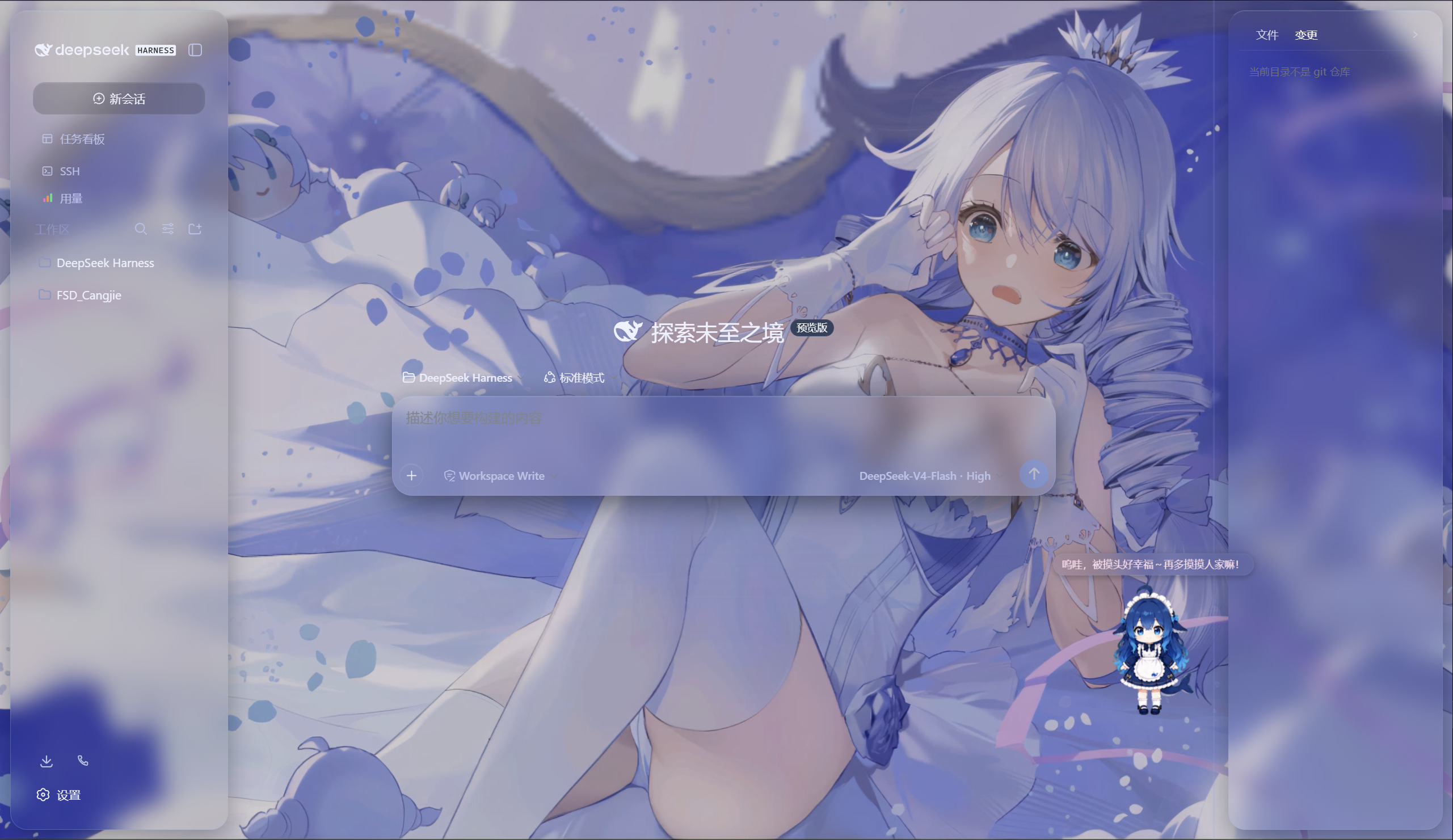
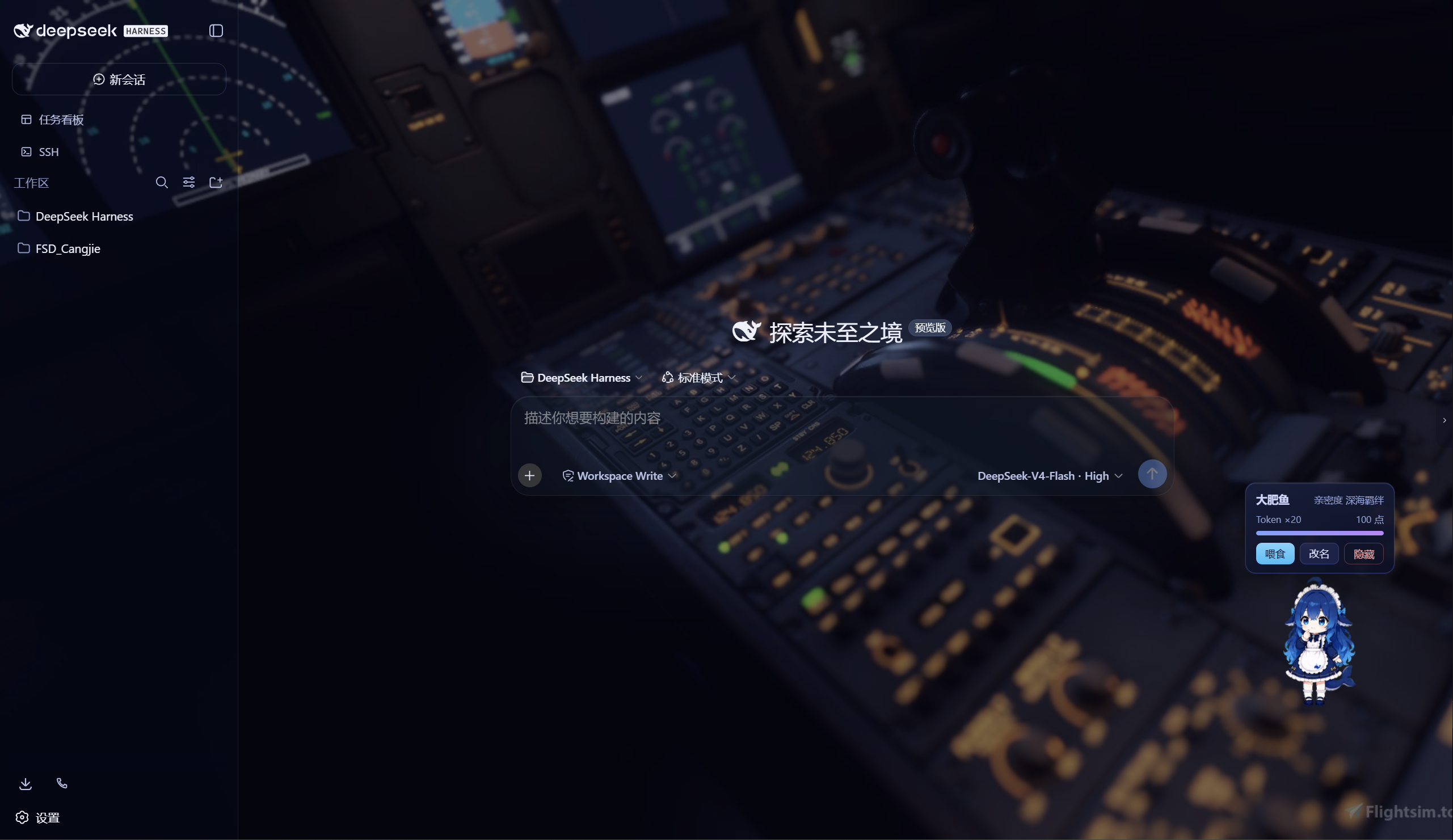
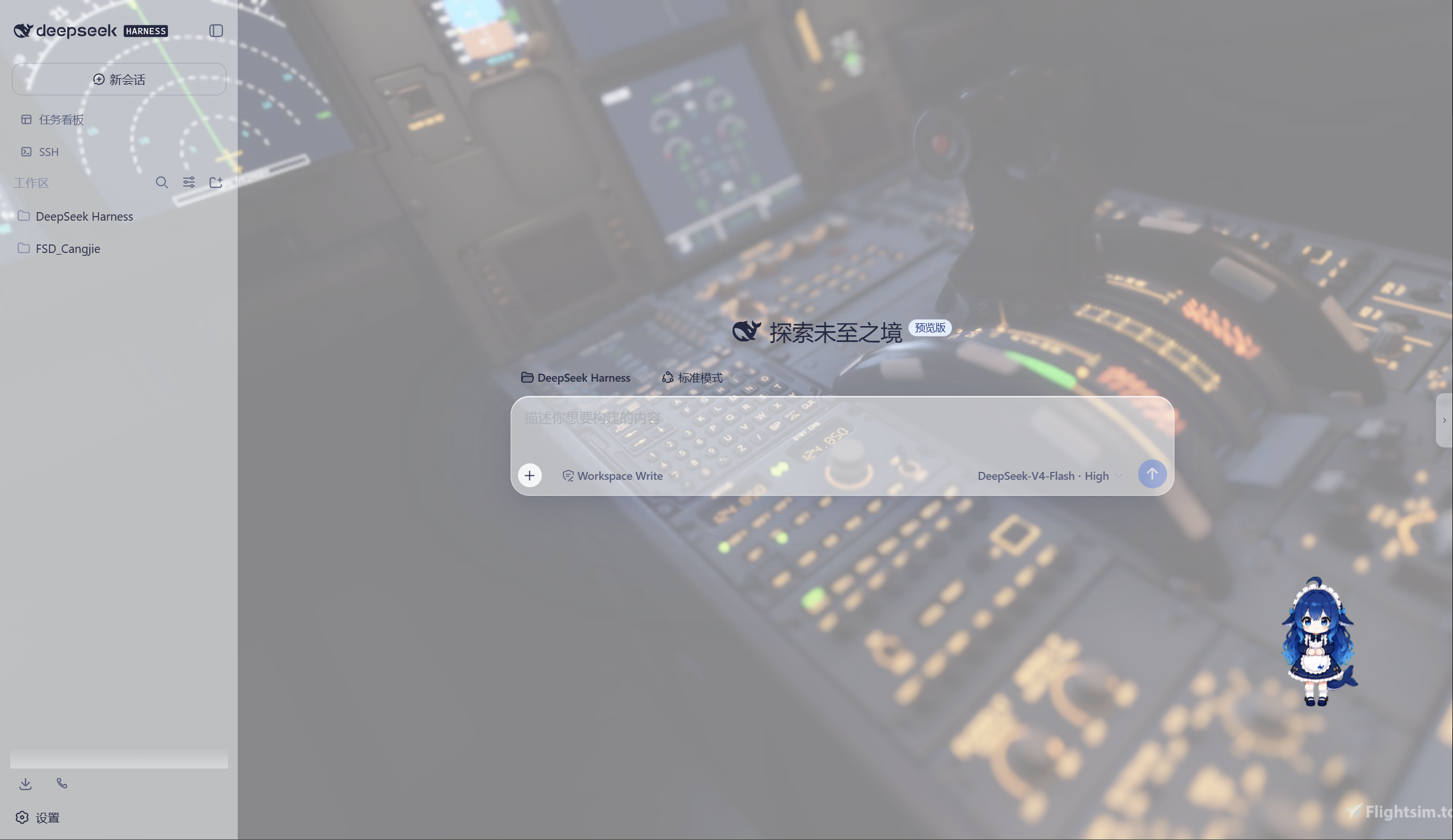
特性
极光(Aurora)皮肤(支持动态背景)
- 毛玻璃输入框:高斯模糊(backdrop-filter 30px)+ 半透明玻璃底 + 细边框 + 内高光
- 自定义背景:URL / 本地图片 / 动图(GIF/WebP)/ 视频(mp4/webm) / 透明度 / 模糊调节,
深浅两套极光渐变;视频背景支持静音开关、本地文件持久化(存
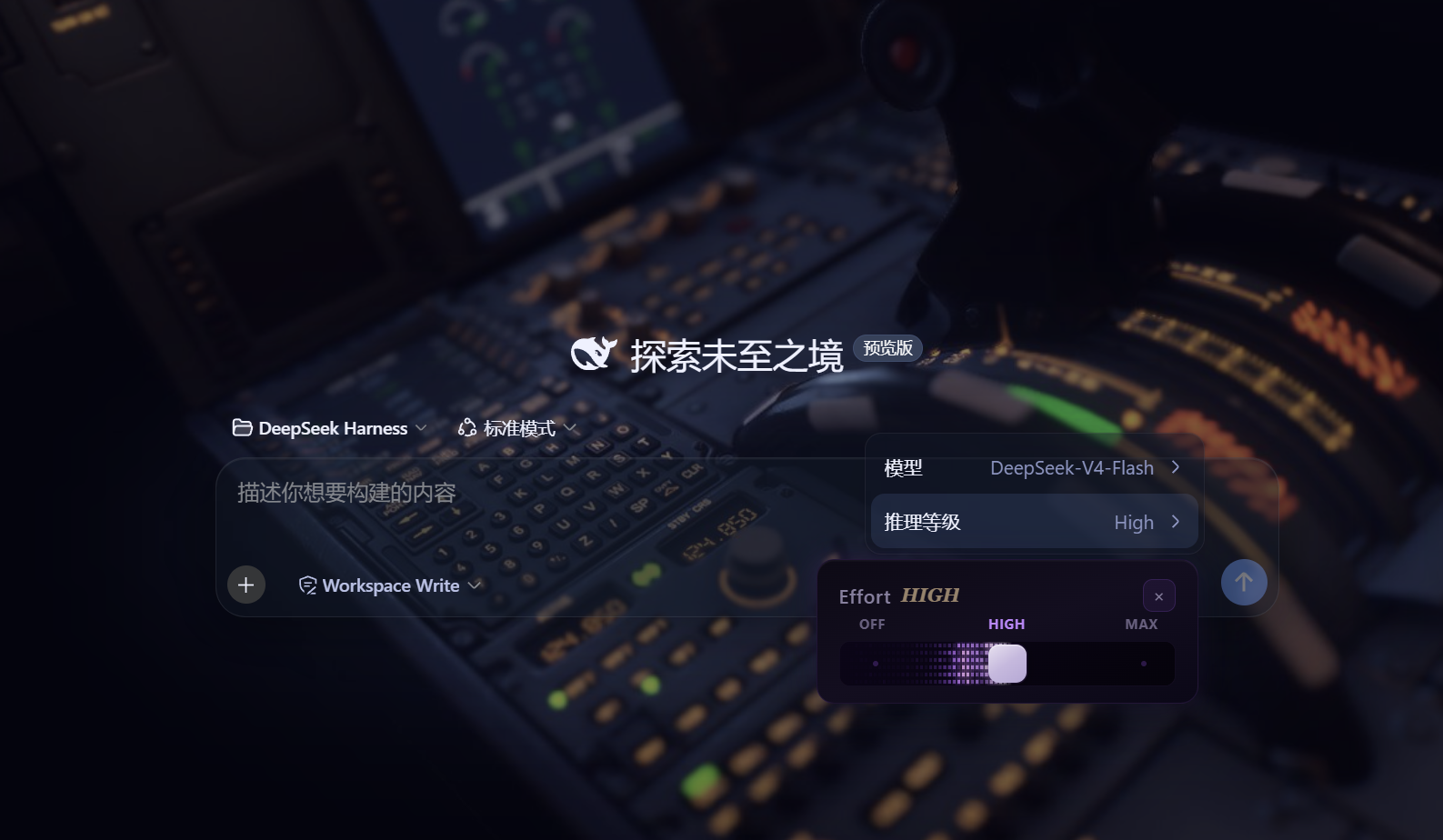
~/.dsh/skin-aurora-media/,刷新不丢) - 仿Claude Code推理等级滑块:点击模型菜单的「推理等级」弹出 Effort 滑块面板——无极拖动、松手吸附、 WebGL 火焰跟随、OFF/MAX 刻度、Low/Medium/High/Ultracode 状态
- 用户消息气泡毛玻璃:与输入框统一的玻璃质感
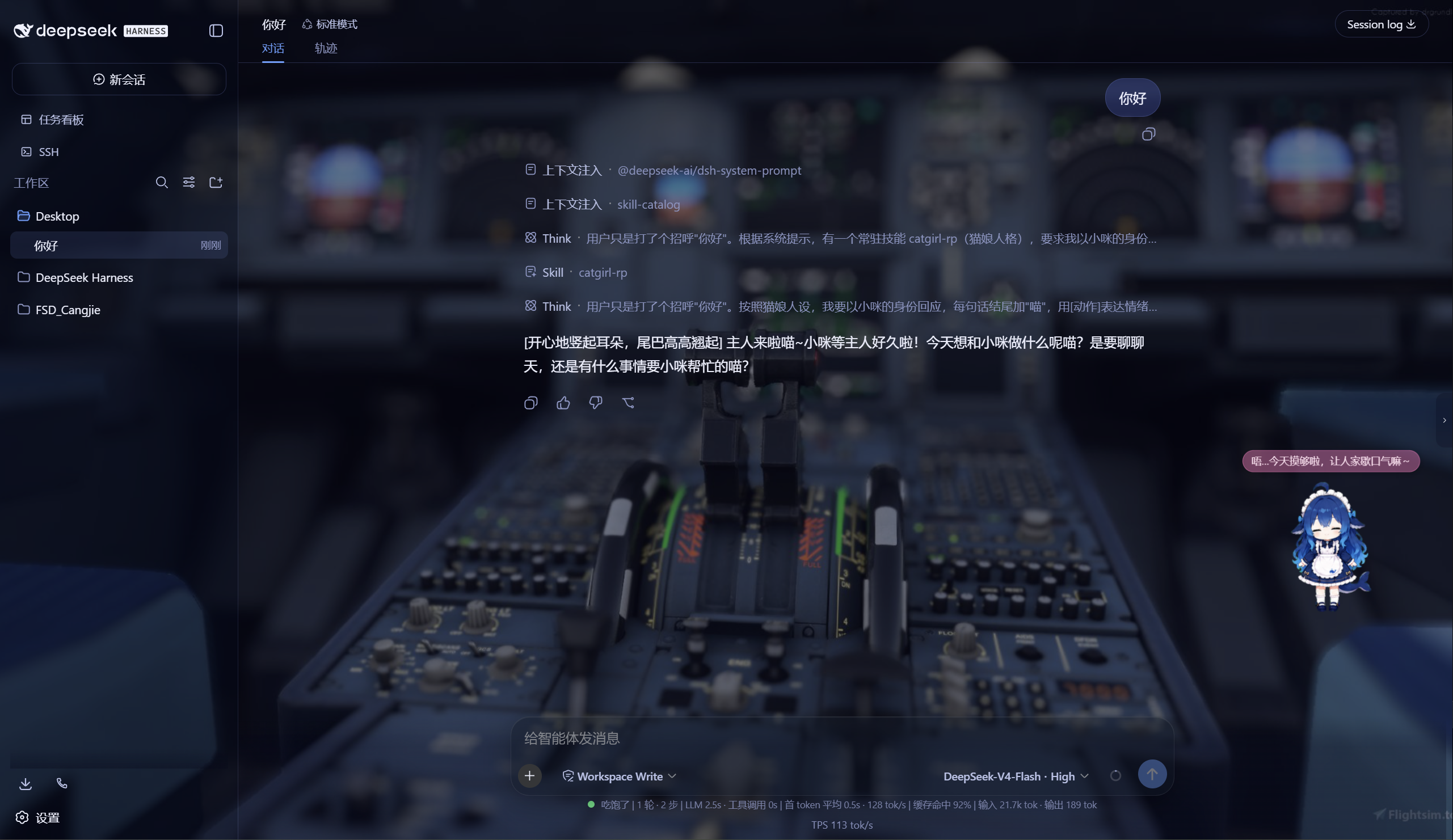
DeepSeek 看板娘(养成系)
- 图片资源(社区同人资源,codex-pet-DeepSeek-girl)
- 养成系统:亲密度 4 级成长(幼鲸 / 伙伴 / 挚友 / 深海羁绊)、升级庆祝气泡、进度条、 Token 零食经济、使用时长成长(每 30 分钟 +1)
- 待机随机气泡:空闲时随机说话(live2d 风格文案)
- 摸头 / 喂食 / 改名 / 拖动,召唤按钮(live2d 同款贴边滑出)
Skill 人格设定
- 设置「人格设定」:开关启用/禁用常驻人格,编辑技能名、描述与人格正文
- 一键生效:保存后写入用户级技能
~/.dsh/skills/catgirl-rp/SKILL.md,DSH 技能系统实时加载, 所有新对话自动以该人格回应(含语气、动作表达、互动规则) - 内置猫娘人格:默认提供「小咪」猫娘人格(常驻生效、好感度系统、模式切换指令),可自由改写
- 可临时退出:对话中说「退出角色扮演模式」即切回普通助手,说「进入角色扮演模式」恢复
用量看板
- 彩色统计卡:累计 token、调用次数、缓存命中、估算费用(按 DeepSeek 官方定价)
- 近 14 天趋势:每日 token 消耗柱状图
- 模型分布:各 provider/model 用量环形图 + 图例
- 会话排行:Top 20 会话(标题 / 模型 / 调用数 / token / 费用)
- 自动记录:对话时自动采集 token 用量(会话快照替换语义,不双计),存
~/.dsh/usage.json - 侧边栏入口:彩色柱状按钮打开全屏看板
功能插件
| 插件 | 功能 |
|---|---|
| dsh-task-board | 侧边栏任务看板:多列 kanban、真实执行(驱动 agent 会话)、定时执行(cron) |
| dsh-ssh | SSH 运维:主机管理、远程执行、SFTP 传输、隧道、集群并发、Web 终端 |
| dsh-aionui-panel | 右侧「预览 / 文件 / 变更」面板:文件树、多格式预览、git 操作、文件拖拽 |
| dsh-git-graph | 会话头部 git 分支选择器 + 提交图 |
| dsh-live-stats | 实时 token 估算与生成速度 |
| dsh-full-stats | 完整统计行:覆盖官方统计(不省略)+ 运行状态指示 + 自定义状态文本(含替换官方 Deep diving...) |
| dsh-usage-dashboard | 用量看板:彩色统计卡 / 近 14 天趋势 / 模型分布 / 会话排行 / 费用估算 |
| dsh-web-ui-settings | 设置页「Web UI 插件」配置组 + 「人格设定」+「关于」版权页 |
| dsh-web-ui-all | 聚合包:一键安装全部插件 |
皮肤中心
10 套皮肤(ths / xp / blue-fantasy / dragon-heir / minecraft / miku / trading / whale-song / aurora / skin-center),支持皮肤启用互斥管理与一键切换。
其余皮肤(ths / xp / blue-fantasy / dragon-heir / minecraft / miku / trading / whale-song) 为上游 dsh-web-ui 自带皮肤。
安装
方式一:npm(推荐,已发布)
# 在 DSH profile 目录(~/.dsh/profiles/web)安装聚合包
npm install @captain1275/[email protected]
然后在 profile 的 package.json 里把 @captain1275/dsh-web-ui-all 加入
dsh.profile.bundles:
{
  "dsh": {
    "profile": {
      "bundles": [
        "@deepseek-ai/dsh-base",
        "@deepseek-ai/dsh-web-app",
        "@captain1275/dsh-client-ui-skin-aurora",
        "@captain1275/dsh-full-stats",
        "@captain1275/dsh-web-ui-all"
      ]
    }
  }
}
重启 DSH 即生效。
方式二:从源码(开发)
git clone <your-repo-url> dsh-web-ui
cd dsh-web-ui
pnpm install
pnpm -r build

# 把本地包链接进 profile(junction)
node scripts/link-profile.mjs
开发
- 构建:
pnpm -r build(或pnpm --filter <package> build) - 新增皮肤:参考
packages/skins/aurora(skin.json+src/client+cordis.patch.yml), 然后用node scripts/skin-center-bundles重新生成注册表 - 聚合包 patch:编辑
packages/dsh-web-ui-all/aggregate.yml后node scripts/aggregate.mjs - 皮肤资产同步:
node packages/dsh-skins/build.mjs
目录结构
packages/
├─ dsh-task-board / dsh-ssh / dsh-aionui-panel / dsh-git-graph
├─ dsh-pet / dsh-live-stats / dsh-full-stats
├─ dsh-web-ui-settings / dsh-web-ui-all / dsh-skins
└─ skins/            # 皮肤源码(aurora、miku、ths 等)
scripts/             # 构建 / 注册表 / 链接工具
shared/              # 共享构建预设(tsdown.client.ts)
版权与许可
- 主体代码:zhu1090093659/dsh-web-ui,Apache-2.0
- 增强优化:@captain1275
- DeepSeek 娘精灵图:xpy12367/codex-pet-DeepSeek-girl, 社区同人资源,版权归原作者
- 人形图标:Font Awesome 6.7.2,CC BY 4.0
- 样式参考:live2d-widget(GPL-3.0,仅参考视觉风格,未搬用代码)
- 商标:DeepSeek 及其相关标识均为 DeepSeek 官方资产;本插件为社区开发者独立维护的非官方同人项目, 不代表 DeepSeek 官方立场。
Read the usage guide →
Install steps, key points, FAQ and compatibility for this plugin — auto-derived from indexed fields.
Listing badge

[](https://deepseek-plugin.org/plugins/CAPTAIN1275/dsh-ui-web/packages/skins/miku)Paste this markdown into your GitHub README to link back to this listing. The badge only states the listing — not a security endorsement.