Place a pixel whale in the DeepSeek Harness web page that automatically switches between 9 animations based on session state, with a local settings panel and mini follow-up input.

- Language
- TypeScript
- License
- MIT
- Branch
- main
Install
$ dsh plugin --profile web add --allow-build=harness-pet github:cakeni/harness-petRun the command above in your terminal to install this plugin via the dsh CLI. You can switch Profile in the top-right corner. New to dsh? Read the beginner tutorial
Install via your agent
Install the DeepSeek Harness plugin cakeni/harness-pet for me: review the repository at https://github.com/cakeni/harness-pet first, then run the install command and verify the plugin loads successfully.
Paste this instruction to the DSH Web GUI assistant — it will install and verify for you.
One-Line Description
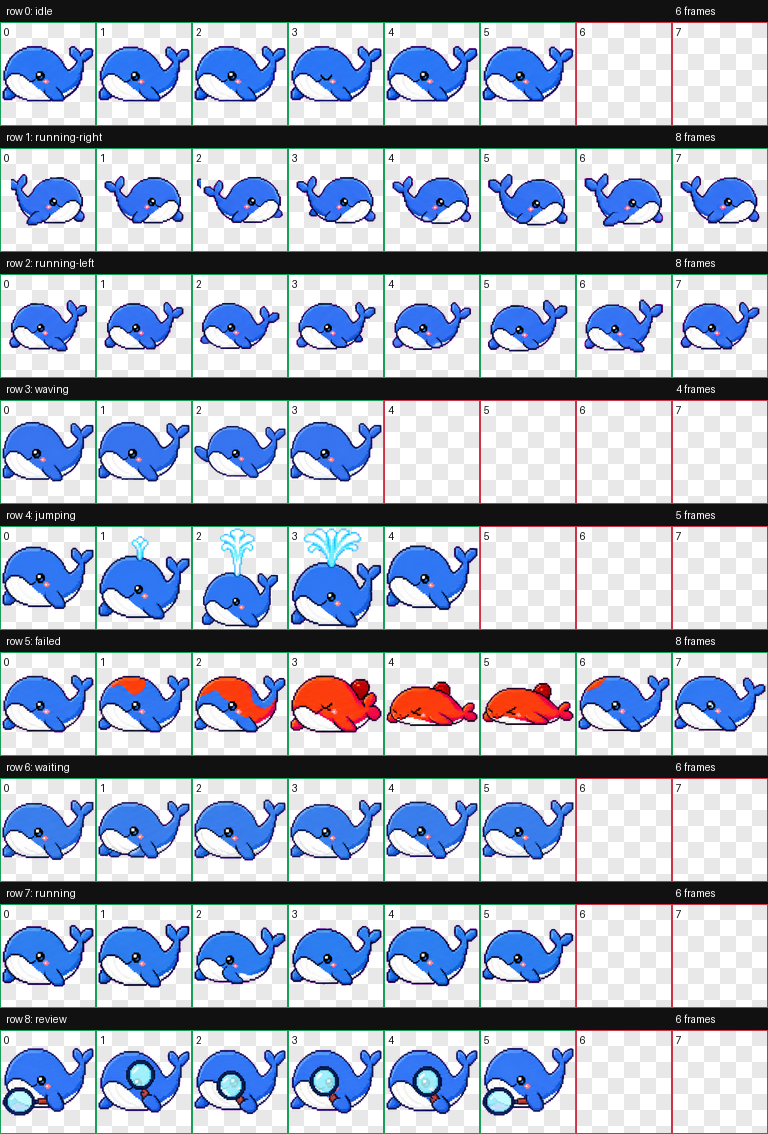
A unique pixel whale for the DeepSeek Harness page, which automatically switches between 9 animation states based on official session signals, displays dialogue bubbles, and offers draggable positioning, local settings panel, and optional independent floating window.
Core Features
- Switches between nine animation states (
idle / thinking / working / searching / bash / editing / waiting / error / success) based on Harness official session signals (streaming output, running tools, pending approval, reconnection, errors, etc.) - Displays a dialogue bubble card above the whale showing the latest local user question and Harness real-time or final reply; long replies automatically follow the latest streaming text but content is not persisted
- Single click on whale plays a brief fin-wave interaction; drag left/right uses independent left/right swimming animation; position is clamped to viewport and automatically written to
localStorage - Built-in interface languages: English (default), Simplified Chinese, Japanese, Korean with instant switching; supports
prefers-reduced-motionand panel Reduce Motion - Sends follow-up input directly to the current Harness session via official
SessionFace.prompt(..., 'queue'), preserving drafts and displaying error messages on send failure - In Chromium 116+ browsers, an independent Document Picture-in-Picture floating window can be enabled; the whale remains visible even when the main Harness window is minimized
- Settings panel provides enable toggle, size (72-160 px), opacity (0.3-1), Reset Position, Debug State force switch, automatic 9-state cycling, and real-time status badge
Technical Implementation
- Language: TypeScript
- Key Dependencies:
@deepseek-ai/dsh-client-connection,@deepseek-ai/dsh-client-runtime(peerDependencies, injected by host at runtime); build side usestsdown+vitest, no UI framework - Architecture Pattern: Cordis client plugin;
package.jsonusesdsh.bundle.patch(pointing tocordis.patch.yml) to insertharness-petinto host Cordis tree, declares required services viadsh.client.inject: ['sessions','connection']; client product subscribes toctx.sessionsandctx.connection.hostDescriptionviaapply(ctx)on browser side, all Harness field meaning analysis consolidated in pure functions(SignalSnapshot) → PetStatusinsrc/adapters/deepseek-harness.ts - Entry Files: Browser-side
src/client/index.ts(compiled tolib/client.js, registered via__ModuleLoader__.load), host-side placeholdersrc/index.ts, 8×9 pixel animation atlas inlined as base64 into client bundle
Use Cases
For users who want a reactive presence in the corner of their desktop while using Harness without letting the pet overshadow the main workflow. The whale instantly changes states and bubble icons when Harness executes searches, runs commands, edits files, waits for approval, encounters errors, or completes tasks—allowing you to judge at a glance whether it's thinking or stuck, without repeatedly switching back to the Harness main window.
Prerequisites & Compatibility
| Dependency | Min Version | Description |
|---|---|---|
| DeepSeek Harness | >=0.1.0-rc.6 | peerDependencies in package.json lock @deepseek-ai/dsh-client-connection and @deepseek-ai/dsh-client-runtime to ^0.1.0-rc.6; later 0.1.x pre-release versions not verified |
| Node.js (build time) | >=22 | Server build target node22, client target es2022 in tsdown.config.ts |
| Browser Platform | Web Cross-platform | Runs only as DSH Web plugin; desktop window additionally requires Chromium 116+ |
| Native Modules | None | Client is pure DOM/Canvas; server only exports types |
Installation
dsh plugin --profile web add github:cakeni/harness-pet
Configuration Options
| Config | Type | Description | Default |
|---|---|---|---|
| Language | Select | Switch interface language (English / 简体中文 / 日语 / 한국어), takes effect instantly | en-US |
| Enable Pet | Toggle | After disabling, gear icon in bottom-right remains; re-enable to restore | true |
| Pet Size | Slider | Whale rendering size in pixels | 112 |
| Opacity | Slider | Overall whale opacity | 0.95 |
| Reduced Motion | Toggle | Disables continuous animation and click wave; static frames for states remain correct | false |
| Debug State | Select | Force override to a specific state, or follow Harness auto-detection | auto |
| Auto-cycle | Toggle | Periodically cycle through all nine states for preview when no task is active | false |
| Reset Position | Button | Reset whale position to default bottom-right corner | — |
| Show Dialog | Button | Manually re-display dialogue card after current session bubble is closed | — |
| Open Floating Pet / Return to Harness | Button | Open or close independent floating window in Chromium 116+; disabled in unsupported browsers | — |
FAQ
Q: No whale appears in the bottom-right corner after installation?
A: First open browser DevTools Console to check if window.__DSH_BOOT__.entries contains harness-pet, then use Network panel to confirm /plugins/harness-pet/client.js returns HTTP 200; after first installation or plugin removal, restart the dsh web process to let the host rescan the plugin list—refreshing the page alone won't remount new plugins.
Q: Is this an official DeepSeek project?
A: No. This is an unofficial community project. The README, UI footer, and plugin description all clearly state "Not affiliated with, endorsed by, or maintained by DeepSeek." DeepSeek and related trademarks belong to their respective owners.
Q: Does the plugin upload my conversation content?
A: No. The plugin code doesn't make any independent fetch calls, doesn't integrate any analytics or telemetry, and conversation text is only rendered locally in the DOM, disappearing on refresh or session switch; only when you manually send text in the follow-up input box above the whale does that text get submitted to Harness's own session channel via official SessionFace.prompt. Settings are only written to localStorage, and the plugin requests no browser permissions.
Q: What if no state matches the current tool?
A: The adapter's tool name table only covers officially public names (web_search / tool_web / bash / tool_bash / pwsh / str-replace-editor / apply_patch / write_file, etc.). Unrecognized running tools are downgraded to generic working without being faked as searching/bash/editing—so even if Harness 1.0 renames tools, it won't display incorrect states.
Q: "Open Floating Pet" button does nothing when clicked?
A: This feature depends on the Document Picture-in-Picture API in Chromium 116+; browsers like Firefox/Safari that don't support it will gray out and disable the button directly. The browser process and corresponding tab must both remain open for the whale to stay in the independent floating window.
Q: Where are settings saved? Will they be lost after deleting account login?
A: Saved only in browser localStorage under key harness-pet:settings, containing language, enable status, size, opacity, reduced motion, debug state, auto-cycle, and position. Clearing browser data or switching browsers will lose the settings and require reconfiguration.
Q: How to uninstall?
A: Run dsh plugin --profile web remove harness-pet, then restart dsh web; for local link installation, remove the corresponding record from link:../harness-pet and restart the host.
Q: Will reduced motion toggle completely stop animations?
A: No. This toggle, like the system's prefers-reduced-motion: reduce, only stops continuous floating and frame animations but still preserves the correct static frame for the current state—so the pet can still reflect what Harness is doing without flickering.
Difficulty Level
Beginner — copy one installation command, restart the host, and the whale appears. All advanced options are concentrated in the graphical controls of the settings panel, requiring no code or configuration file writing.
Known Issues & Limitations
- Unrecognized running tool names only display as generic
working; if Harness 1.0 renames tools, it may temporarily fail to triggersearching/bash/editingstates - Document Picture-in-Picture desktop window is only available in Chromium 116+ and requires both the browser process and corresponding tab to remain open
- Client pixel atlas is inlined as base64 into the bundle, making secondary load have no network requests but initial download size is larger
A tiny whale that lives inside DeepSeek Harness.
This is an unofficial community project. Not affiliated with, endorsed by, or maintained by DeepSeek. DeepSeek and related marks belong to their respective owners.
dsh plugin --profile web add github:cakeni/harness-pet
Harness Pet is an open-source, native DSH web plugin—not a browser extension. It renders an original pixel whale inside the Harness page and reacts to structured session signals exposed by the official client runtime.
Features
- Nine visual states: idle, thinking, working, searching, bash, editing, waiting, error, and success.
- A QA-validated 8×9 atlas with fixed 192×208 cells: calm idle, directional drag movement, wave/click, connected water-spout success, red-hot fault/error, waiting, active work, and magnifying-glass search animations.
- A Codex Pet-style card above the whale showing the latest local user prompt, live/final Harness reply, and progress; long streams follow the newest text while remaining scrollable, and displayed text is never persisted.
- Dragging uses dedicated left/right swimming rows; clicking plays a short flipper wave without sprite overflow.
- Optional Chromium desktop-window mode keeps the pet visible in an always-on-top Document Picture-in-Picture window while the main Harness window is minimized.
- Draggable, viewport-clamped position saved in
localStorage. - Pet size, opacity, enable/disable, reset position, and reduced-motion controls.
- Instant, persisted interface switching between English (default), Simplified Chinese, Japanese, and Korean.
- Debug state override, automatic state cycling, and a live status badge.
- Original pixel sprites embedded directly into the client bundle, with the procedural Canvas whale retained as a fallback.
- Full cleanup for subscriptions, timers, animation frames, media listeners, and resize listeners.
Install
Harness 0.1.0-rc.6 and pnpm on PATH are required. Installing or removing a plugin changes the host roster, so restart the dsh web process after one of these commands. A code-only rebuild of an existing link installation needs only a page refresh.
npm
The package name is reserved for a future npm release. Until it is published, use the Git or local-link installation below.
dsh plugin --profile web add harness-pet
Git
dsh plugin --profile web add github:cakeni/harness-pet
Git dependencies run this package's prepare build. If pnpm blocks that build, add the exact package key printed by the CLI to the profile's pnpm-workspace.yaml, for example:
allowBuilds:
  harness-pet: true
Then repeat the install command. The profile is normally under $DSH_HOME/profiles/web.
Local development link
Run this from the repository's parent directory:
dsh plugin --profile web add link:../harness-pet
Build and refresh during development:
cd harness-pet
pnpm bundle
Do not run more than one link installation for the same profile.
State detection
The adapter subscribes to the current ctx.sessions list and SessionFace snapshot. It also observes ctx.connection.hostDescription; after a connection has existed, that structured value becoming absent indicates reconnecting. It never matches translated UI text or scrapes the DOM.
Priority is: error > success > waiting > searching/bash/editing > working > thinking > idle.
| Pet state | Structured detection | Confidence | Failure degradation |
|---|---|---|---|
idle | No higher-priority signal | High | Remains idle |
thinking | partial is present and no tool is running | High | Idle if the field is absent or malformed |
working | running === true, or non-empty unknown runningCalls | High | Idle after all running signals clear |
searching | Running tool name matches the adapter's web-tool table | Medium | Unknown tool names degrade to working |
bash | Running tool name matches the adapter's shell-tool table | Medium | Unknown tool names degrade to working |
editing | Running tool name matches the adapter's file-write/editor table | Medium | Unknown tool names degrade to working |
waiting | Non-empty pending, or a queue item with placement: 'queued' | High | Falls through to the active lower-priority state |
error | promptError, latest turn-error, lastAgentError, or reconnecting | High | Falls through when the structured error clears |
success | Derived from a clean running: true → false edge for about 3 seconds | Derived | Returns to the latest real state, usually idle |
The tool-name table is intentionally isolated in src/adapters/deepseek-harness.ts. Pre-1.0 Harness releases may rename tools; an unrecognized active tool is reported only as working, never fabricated as a specialized state.
Controls
- Click the whale for a short flipper-wave interaction.
- Drag it to move it; the position is persisted locally.
- Click the gray follow-up icon to open an input. Enter submits the text to the current Harness session through its official
SessionFace.prompt(..., 'queue')method. - Close the conversation card with its
×button when it gets in the way. It stays closed for the current session; use Show Dialog in settings to restore it. A different session opens the card again. - Double-click, long-press, or use the gear button to open settings. Drag the settings title bar to move that panel independently of the whale.
- Choose Language in settings to switch all pet controls, status text, dialog prompts, and desktop-window messages immediately.
- When Open Floating Pet is enabled in settings, the main Harness window may be minimized while the pet remains in its independent always-on-top window. The Harness tab and browser process must remain open.
- If the pet is disabled, the gear remains at the lower-right so it can be enabled again.
- Debug State can follow Harness or force any visual state. Auto-cycle rotates through all nine states.
Both the operating-system prefers-reduced-motion: reduce preference and the manual Reduced Motion setting stop continuous animation while retaining the correct static state.
Privacy
No telemetry. Harness Pet sends no conversation data to any third party.
The plugin makes no independent fetch, analytics, telemetry, cloud-sync, or third-party request. It reads the minimum structured fields needed to render the latest local user prompt and Harness reply. Displayed conversation text is never persisted. Only when you explicitly submit the follow-up input is that text delivered to the current Harness session through Harness's existing official transport. Only settings are stored in browser localStorage; the plugin asks for no browser permissions.
Compatibility
| Harness client API | Status |
|---|---|
0.1.0-rc.6 | Targeted and type-checked against the published client contracts |
Later 0.1.x prereleases | Unverified; the client API is pre-1.0 and may change |
| Browser extension mode | Unsupported; this project is a native DSH plugin |
| Desktop window | Chromium 116+ Document Picture-in-Picture; unsupported browsers keep the control disabled |
All Harness coupling is kept in the adapter so API updates have one repair point.
Development and tests
pnpm install
pnpm run typecheck
pnpm test
pnpm bundle
The bundle must start with a window.__ModuleLoader__.load registration for harness-pet and export { apply, inject } from its factory.
Automated tests cover the state mapper and priority, success transitions and timeout, unknown-signal degradation, corrupt storage, singleton reuse, and subscription/timer cleanup. Loading inside a real Harness page, drag behavior, visual animation, SPA navigation, and long-running leak checks still require manual browser verification.
Manual verification
After installing and restarting dsh web yourself:
- Confirm
window.__DSH_BOOT__.entriescontainsharness-pet. - Confirm
/plugins/harness-pet/client.jsreturns HTTP 200. - Confirm the whale and its card render without console errors, the card shows the latest local prompt plus streaming/final reply, and every Debug State is distinct.
- Open the gray follow-up input, send a test message, and confirm it appears in the current Harness session; also verify an admission failure keeps the draft and shows an error.
- Test dragging, reload position persistence, enable/disable, size, opacity, and reset.
- Enable reduced motion at OS and panel levels and confirm continuous motion stops.
- Open Desktop Window, minimize the main Harness window, and confirm the pet stays visible; close it and confirm the pet returns to Harness.
- Navigate between sessions and SPA routes, then refresh; confirm only one pet exists.
- Run a real search, shell command, edit, pending interaction, successful turn, error, and reconnect where available.
- Leave the page open for an extended session and check that subscriptions and timers do not accumulate.
Replacing or adding artwork
The current 8×9 animation atlas is embedded into client.js, so the plugin performs no asset request at runtime. It uses fixed 192×208 cells and transparent unused slots; semantic effects are connected to the whale and remain inside their frame—water from the blowhole, a magnifier held by the flipper, and red-hot fault coloring. To replace or add a sprite:
- Add authorized expression/state files under
assets/whale/. - Record its source, author, and license in
assets/whale/ATTRIBUTION.md. Unregistered assets must not be distributed. - Bundle the bytes into
client.js(for example as an imported data URL) instead of fetching a remote URL at runtime. - Keep the procedural draw path as the fallback and verify reduced-motion behavior.
Never download or include artwork of unknown provenance.
License
Read the usage guide →
Install steps, key points, FAQ and compatibility for this plugin — auto-derived from indexed fields.
Listing badge

[](https://deepseek-plugin.org/plugins/cakeni/harness-pet)Paste this markdown into your GitHub README to link back to this listing. The badge only states the listing — not a security endorsement.