Records token usage and cost for each DSH LLM call, calculates fees using DeepSeek's peak/off-peak pricing, supports balance queries, usage calendar, and CSV/JSON/PNG export, with data automatically saved to a fixed directory.

- Language
- JavaScript
- License
- MIT
- Branch
- main
Install
$ dsh plugin --profile web add @feiyang666/dsh-usage-pluginRun the command above in your terminal to install this plugin via the dsh CLI. You can switch Profile in the top-right corner. New to dsh? Read the beginner tutorial
Install via your agent
Install the DeepSeek Harness plugin feiyang-dev/dsh-usage-plugin for me: review the repository at https://github.com/feiyang-dev/dsh-usage-plugin first, then run the install command and verify the plugin loads successfully.
Paste this instruction to the DSH Web GUI assistant — it will install and verify for you.
One-Line Description
A usage and consumption statistics plugin for DeepSeek Harness. After installation, two additional tabs appear at the top of the WebUI: "Usage & Consumption" and "Balance Inquiry". It automatically records tokens and costs for each model invocation.
Core Features
- Automatically records input, output, cache hits, cache writes, inference tokens, and completion reason for each model call
- Automatically calculates consumption based on DeepSeek's official peak/off-peak pricing (peak hours: Beijing time 9:00–12:00 / 14:00–18:00), switches to peak/off-peak pricing after 2026-08-17
- Provides aggregated tables by model and by "provider × model", supporting filtering for today / last 7 days / last 30 days / all / custom date range
- Monthly usage calendar heatmap with daily detail view
- Queries DeepSeek / SiliconFlow / DigitalOcean account balances; panel allows managing DigitalOcean account-level Tokens
- Export to CSV / JSON / PNG long image (up to 2000 recent records), optional default directory or system native folder picker, automatically opens directory after export
- Import CSV / JSON and deduplicate merge with existing records by timestamp; price table can be edited and persisted within the panel
Technical Implementation
- Language: JavaScript (ES Module,
"type": "module", no TypeScript) - Key Dependencies:
@deepseek-ai/cordis(peer, ^4.0.1), host-providedwebServer/fs/subprocess/credentials/settings/sandboxPolicy/agentsCordis services; no third-party runtime dependencies - Architecture Pattern: Dual half-package (Host + Client) integration:
lib/index.jsis the host page Cordis plugin, subscribes tollm/streamevents to capture usage chunks and exposesPOST /usage/api;lib/client.jsis the browser page React component, mounts two tabs viaslots.inject("conversation.view")andslots.inject("settings.section"); automatically recognized and loaded by DSH throughdsh.bundle.patch(cordis.patch.yml) +dsh.clientdeclaration - Entry Files:
lib/index.js(host,exports.defaultis the Cordis plugin object),lib/client.js(client, exposed viaexports["./client"])
Use Cases
DSH users who need to continuously track multi-provider account balances and token consumption such as DeepSeek / SiliconFlow / DigitalOcean. Especially suitable for monthly bill reconciliation, estimating cost differences between peak and off-peak hours, team cost allocation, and bringing historical usage data to external analysis tools (CSV/JSON export).
Prerequisites and Compatibility
| Dependency | Minimum Version | Description |
|---|---|---|
| DSH (DeepSeek Harness) | Not declared | Connects via @deepseek-ai/cordis ^4.0.1 interface, requires host support for webServer / fs / subprocess / credentials / settings / sandboxPolicy / agents seven services |
| Node | >= 18 | package.json#engines.node declaration |
| Operating System | macOS / Windows / Linux | Directory picker uses system native: macOS uses osascript, Linux uses zenity or kdialog, Windows uses PowerShell FolderBrowserDialog |
| Native Modules | None | No node-gyp native extensions required, persistence via host process node:fs direct read/write |
Installation
dsh plugin --profile web add github:feiyang-dev/dsh-usage-plugin
Configuration
This plugin requires no additional configuration. All behavior is determined by the package's internal PRICING / path resolution logic and the host's settings.llm-pi-ai provider configuration. Prices can be adjusted in the panel's "Price Table" tab and persisted to <data root>/dsh-usage/pricing.json. The DSH_USAGE_DATA_DIR environment variable can be used to override the default data directory when needed.
FAQ
Q: After installation, the "Usage & Consumption" and "Balance Inquiry" tabs don't appear. What should I do?
A: This is usually because the plugin's inject list is missing or truncated. Check whether dsh-usage-boot.log was generated in the data root (default Windows %LOCALAPPDATA%\dsh-usage-plugin\dsh-usage\, macOS/Linux ~/dsh-usage-data/dsh-usage/). It will indicate which specific step failed during activation; normally you should see a route-registered line. If the patch file was manually edited and lost fields, run npm run wire to execute scripts/wire.js and rewire everything.
Q: Where is data stored? Will switching workspaces cause data loss?
A: Starting from v1.9.2, data goes to an independent directory, and v1.9.4 uses the host process node:fs directly, completely bypassing the workspace sandbox: defaults to Windows %LOCALAPPDATA%\dsh-usage-plugin\dsh-usage\ and macOS/Linux ~/dsh-usage-data/dsh-usage\. Switching workspaces no longer causes loss, and uninstalling the DSH desktop app won't clear it together. Records scattered in the user home directory or old workspaces from previous versions get deduplicated and merged when this version first runs based on the time field. Use the DSH_USAGE_DATA_DIR environment variable to force pointing to any path.
Q: How do I check DeepSeek / SiliconFlow / DigitalOcean account balances?
A: Go to the "Balance Inquiry" tab, select a provider and click query. DeepSeek uses the DEEPSEEK_API_KEY configured in "Settings → Models"; SiliconFlow reuses the API Key referenced by the provider with Provider ID or display name "siliconflow" in "Settings → Models"; DigitalOcean requires saving an account-level Personal Access Token starting with dop_v1_ in the panel first (DO AI Inference Key won't work). AMD GPU Cloud shows "Balance query endpoint currently not publicly available".
Q: What does the "Persistence not enabled" prompt mean?
A: This fallback message appears only when all three candidate paths—environment variable, AppData, and user home directory dsh-usage-data—are unwritable. Data then falls back to the current workspace. This indicates abnormal permissions or disk space, often occurring in restricted containers. After seeing this, please check write permissions for those directories, or use DSH_USAGE_DATA_DIR to point to a writable location.
Q: What formats can be exported? Does it automatically open the directory after export?
A: CSV, JSON, and PNG long image. Export directory can be the default (under data root: csv/, json/, images/) or select via "Export Target Directory / Choose Directory…", which opens the system's native folder picker on Linux/macOS/Windows. After export completes, it uses open / xdg-open / explorer.exe to automatically open the directory. PNG long image displays up to 2000 recent records; exceeding this shows a prompt.
Q: Can I migrate records from another device or old version?
A: Just import via CSV or JSON file, which deduplicates and merges using the time field; if you just want to continue using it on another machine, copy usage-records.json from the old data root to the new machine's same location—no import needed.
Q: When do peak/off-peak pricing take effect? How do I change it?
A: Peak/off-peak pricing automatically activates at Beijing time 2026-08-17 00:00; prior historical calls are billed at base pricing. Peak hours are Beijing time 9:00–12:00 / 14:00–18:00. The panel's "Price Table" tab allows runtime modification with immediate persistence, and "Restore Defaults" resets everything with one click.
Q: How do I uninstall?
A: Recommended: dsh plugin --profile web remove @feiyang666/dsh-usage-plugin. If manually installed, please delete the usage-plugin line from cordis.patch.yml and then run pnpm remove / npm uninstall on that package. Uninstalling won't delete the data directory—if no longer needed, please clean it up manually.
Difficulty Level
Beginner — one-command installation with no config file required. Just fill in the API Key for the corresponding provider in "Settings → Models" before querying balances.
Known Issues and Limitations
- AMD GPU Cloud currently has no publicly available balance query endpoint callable via inference API Key; clicking query in the panel only shows a prompt and directs to AMD Developer Cloud console (lib/balance.js:31-40)
- DigitalOcean balance queries only work with account-level
dop_v1_...Personal Access Tokens—DigitalOcean AI Inference Keys can't be used for this interface (lib/index.js:749-751, lib/balance.js:21-30) - The old npm package
@feiyang666/deepseekharnessdesktopis no longer maintained; use@feiyang666/dsh-usage-pluginfor new installations (README.zh.md:19-26) - Don't manually modify files under
~/.dsh/profiles/<name>/node_modules/@feiyang666/dsh-usage-plugin/, as everypnpm updateor upgrade repackages from npm and overwrites locally—your changes will be silently discarded (README.zh.md:230) - Only DeepSeek official, SiliconFlow, and DigitalOcean (USD) have billing price tables; consumption for other third-party provider calls (
amd/aliyun/qwenetc.) is counted as 0 (lib/index.js:107-148)
DeepSeek Harness Usage & Cost Tracker (dsh-usage-plugin)
English · 简体中文
A community plugin for DeepSeek Harness — records token usage and cost for every model call, with peak/off-peak billing, balance query, a calendar heatmap, and CSV / JSON / PNG export.



🔔 Important Notice (2026-08-16): npm package renamed
The npm package has been renamed from
@feiyang666/deepseekharnessdesktopto@feiyang666/dsh-usage-plugin(matching the GitHub repofeiyang-dev/dsh-usage-plugin).
- Use the new package name for install / upgrade:
dsh plugin --profile web add @feiyang666/dsh-usage-plugin- The old package
@feiyang666/deepseekharnessdesktopremains published for a while, but it is no longer maintained and will not receive updates — please migrate soon.- The desktop client (
DeepSeek Harness Desktop) supports both package names and will auto-detect old-name installs with a one-click update to the new name.
Overview
dsh-usage-plugin is a usage & cost tracker plugin in the DeepSeek Harness ecosystem (a DSH plugin shipped as a Host + Client two-in-one package). After installation, "Usage & Cost" and "Balance Query" tabs appear in the Web UI, right after "Conversation" and "Trace":
Supports Windows / macOS / Linux: paths are handled per platform (
node:path), and the folder picker / "reveal in file manager" use each OS's native mechanism (macOS:osascript/open; Linux:zenity/xdg-open). Balance query and export do not depend on Windows-only commands.
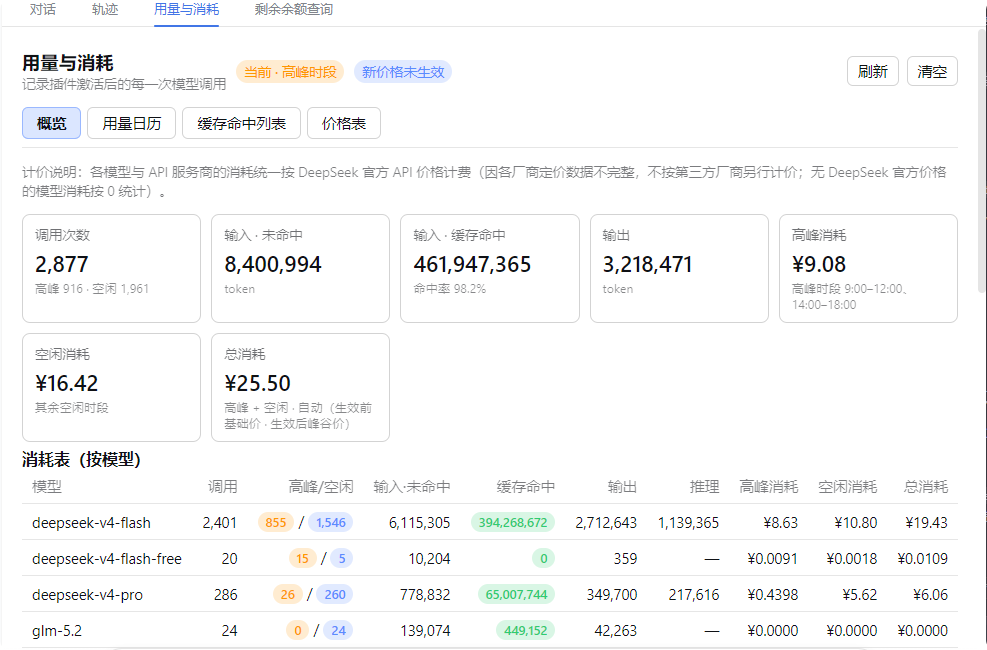
- Usage & Cost: records each model call's token usage and cache hits (input miss / cache hit / cache write / output / reasoning / finish reason), and computes cost using DeepSeek's peak/valley or base pricing (peak hours are automatically priced by Beijing time 09:00–12:00 and 14:00–18:00). Model names come from the actual request parameters, so non-DeepSeek models are shown truthfully instead of "unknown model"; models without an official price are counted as 0. The overview shows a by-model table plus a by-API-provider × model drill-down (each provider grouped with every model's calls and peak/off-peak cost split) and a grand total row. The overview also supports date filtering (Today / Last 7 days / Last 30 days / All, plus a custom start–end range), so the aggregate stats can be scoped to any single day or date range.
- Usage Calendar: a monthly daily-usage heatmap (colored by cost or call count), hover for details including the peak/off-peak cost split, click a day for its call list and peak/off-peak totals, plus a per-day statistics table with peak cost / off-peak cost / total columns and monthly rollups.
- Cache Hit List: newest-first, fully scrollable, with quick filters (Today / 7 days / 30 days / All) and custom date ranges; the summary line and footer total split peak vs off-peak consumption with a grand cost total. The list is paginated (100 rows per page), so it stays smooth even with large data volumes.
- Price Table: the official DeepSeek API price table — base and peak/valley unit prices shown side by side (peak vs off-peak), editable in-panel and persisted to
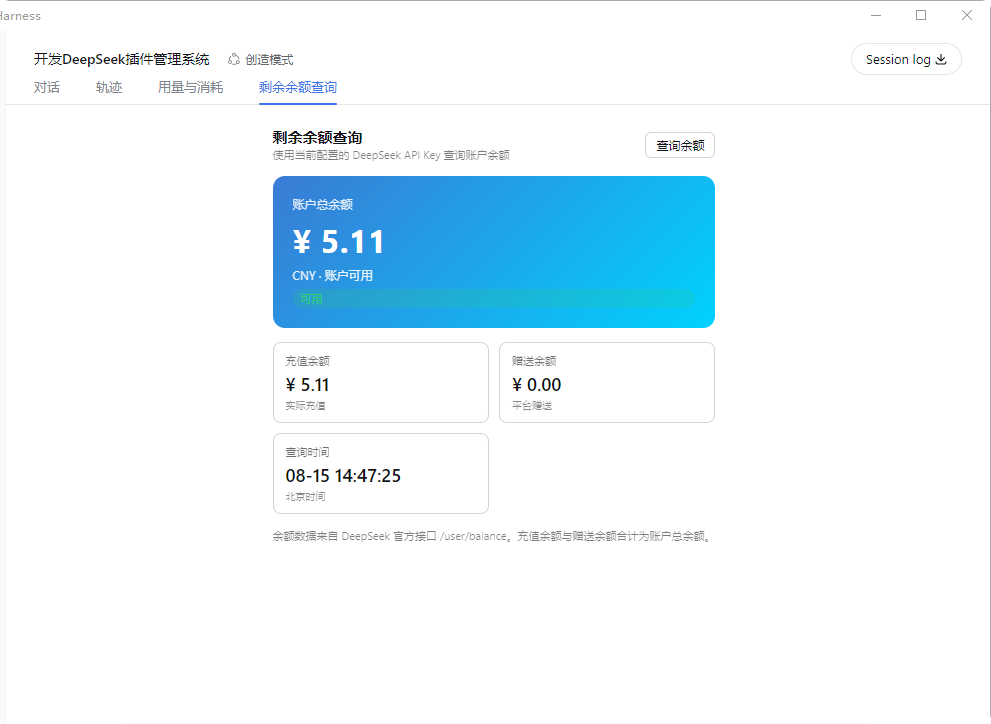
pricing.json, with a reset-to-default option. - Balance Query: queries your DeepSeek account balance using the configured
DEEPSEEK_API_KEY. - Export: CSV / JSON / PNG long image (newest-first, up to the latest 2000 records, warns if exceeded; the PNG report includes peak/off-peak cost columns), to any directory (native picker), auto-opens the folder after export.
- Import: merge-imports JSON / CSV files, deduplicated by time.
- Persistence: records are written live to
<session workspace>/dsh-usage/usage-records.jsonand restored on restart (cap 100000 records). - UI adaptation: panel typography scales with the app's display-size setting (em-relative fonts); table wrapping and spacing are tuned so large display sizes stay readable.
Screenshots
Usage & Consumption
Balance Query
Recommended Installation
Either method works and is equivalent. We recommend the desktop app — fully graphical, no command line needed.
Option 1 (recommended): One-click via the desktop app
Install DeepSeek Harness Desktop, open it, then go to "Install Plugins" → Recommended → Usage & Cost Tracker → Install and click "Restart Service Now" to activate.
Option 2: Command line
# Prerequisite: install dsh (npm install -g @deepseek-ai/dsh)
dsh plugin --profile web add @feiyang666/dsh-usage-plugin
Or install to another profile:
dsh plugin --profile web add @feiyang666/dsh-usage-plugin
dsh plugin --profile headless add @feiyang666/dsh-usage-plugin
Restart the dsh web service after installation. Detailed manual install / wiring / uninstall / troubleshooting follows below.
What's in the package
One npm package = a host half (Node-side Cordis plugin: recording, billing, balance query, export — see lib/index.js) + a client half (browser-side panel — see lib/client.js, which talks to the host via /usage/api).
The package integrates with DSH through two declarations:
| Declaration | Purpose |
|---|---|
dsh.bundle.patch (cordis.patch.yml) | Lets DSH recognize it as a standard bundle plugin package: dsh plugin --profile <name> add <package> installs and wires it in one command, no manual config editing |
dsh.client + exports["./client"] | Lets the web client auto-load the browser panel at /plugins/<package>/client.js |
So for users, installation is one command — no YAML editing, no manual file copying.
Installation (for users)
0. Prerequisites
- DeepSeek Harness installed (
npm install -g @deepseek-ai/dsh, or a desktop app built on it, ornpx @deepseek-ai/dsh web). - Option A (recommended) needs pnpm:
npm install -g pnpm(orcorepack enable). - Make sure
dshis on PATH (for the desktop app, run in its bundled terminal).
1. Method A (recommended): one command
dsh plugin --profile web add @feiyang666/dsh-usage-plugin
This does three things (all automatic):
- Installs the package via pnpm into
~/.dsh/profiles/web(auto-initializes the profile on first use); - Detects the package's
dsh.bundledeclaration and writes the package name into the profile'sdsh.profile.bundleslayer list; - After restart, DSH reads the package's
cordis.patch.ymland mounts the plugin row into the app tree — no manual config editing.
Same for other profiles (replace web with your profile name, e.g. dsh plugin --profile headless add ...; dsh web equals dsh --profile web).
Test a local tarball:
dsh plugin --profile web add C:\path\to\feiyang666-dsh-usage-plugin-1.9.0.tgz
2. Method B: manual install (no pnpm / no dsh plugin)
Only for when you have no pnpm or want full manual control. Do not npm install directly at ~/.dsh/profiles (that dir has no package.json; npm would treat the whole node_modules as residue and wipe it).
B1. Use pnpm but not dsh plugin:
cd ~/.dsh/profiles/web
pnpm add @feiyang666/dsh-usage-plugin
# then manually append the plugin row to web/cordis.patch.yml (see B3) and restart
B2. Or use npm: add a minimal package.json to the profile first, then install:
cd ~/.dsh/profiles/web
# if no package.json exists there yet (only after `dsh plugin` init):
# echo '{"name":"dsh-profile-web","private":true,"dependencies":{}}' > package.json
npm install @feiyang666/dsh-usage-plugin
B3. Wire it up (once, idempotent): append to ~/.dsh/profiles/web/cordis.patch.yml:
- insert:
    - id: usage-plugin
      name: '@feiyang666/dsh-usage-plugin'
      inject:
        - fs
        - webServer
        - subprocess
        - credentials
        - sandboxPolicy
        - agents
Or just run the package's built-in wiring script (auto-finds the profile and appends, idempotent):
node node_modules/@feiyang666/dsh-usage-plugin/scripts/wire.js
⚠️ The
injectlist is required: it makes Cordis wait untilfs/webServer/subprocess/credentials/sandboxPolicy/agentsare ready before activating the plugin. Without it the/usage/apiroute never registers and the panel fails withUnexpected end of JSON input.
3. Method C: desktop app
The desktop app (e.g. DeepSeek Harness Desktop) uses the same ~/.dsh/profiles underneath. Run Method A's command in any terminal, restart the app, and the plugin activates automatically (the app starts the same dsh web).
4. Restart and verify
Restart the DeepSeek Harness web app (command line: kill the old process and re-run dsh web; desktop: fully quit and reopen). Then:
- Refresh http://127.0.0.1:3080 — after "Conversation" and "Trace", you should see "Usage & Cost" and "Balance Query" tabs; there are entries in Settings too.
- The "Usage & Cost" panel contains Overview / Usage Calendar / Cache Hit List / Price Table subtabs.
- Send a message and the "Usage & Cost" panel should show this call's token / cost record.
5. Configuration (for balance query)
"Balance Query" uses the configured DEEPSEEK_API_KEY: set the API Key in Settings → Models (same key used for chats), then open the "Balance Query" tab and click "Query Balance".
Uninstall
dsh plugin --profile web remove @feiyang666/dsh-usage-plugin
(Equivalent to pnpm remove; dsh plugin auto-removes the package name from the dsh.profile.bundles layer list.) Restart the app afterward.
For manual installs (Method B), do it in reverse: remove the usage-plugin row from cordis.patch.yml, then pnpm remove / npm uninstall the package, and restart.
Upgrading from a 1.0.x manual-wiring install to 1.1.x: first remove the old
usage-pluginrow fromcordis.patch.yml(or follow the uninstall flow), then reinstall via Method A to avoid mounting the plugin twice.
How to update
Releasing happens on npm, so updating just means pulling the latest published package. Your usage history is safe — since v1.9.2 it lives in a fixed dedicated directory (not in any profile / workspace), so an update never wipes it.
Desktop app
Open "Install Plugins" → find Usage & Cost Tracker → click Update (or Re-install) → "Restart Service Now". If there is no Update button, just remove then re-add it.
Command line (Method A)
Re-running add is idempotent and pulls the newest version:
dsh plugin --profile web add @feiyang666/dsh-usage-plugin
dsh web   # restart
Pin a specific version:
dsh plugin --profile web add @feiyang666/[email protected]
Manual install (Method B)
In the profile dir:
cd ~/.dsh/profiles/web
pnpm update @feiyang666/dsh-usage-plugin   # or: npm update @feiyang666/dsh-usage-plugin
Verify the installed version
npm ls @feiyang666/dsh-usage-plugin --prefix ~/.dsh/profiles/web
⚠️ Do not hand-edit files under
~/.dsh/profiles/web/node_modules/@feiyang666/dsh-usage-plugin/(e.g.lib/index.js/lib/client.js). Every update re-extracts the package from npm and overwrites those files, so local edits are silently lost. To change behavior, fork the repo and publish your own version, or contribute upstream.
Data & locations
Since v1.9.2, records are stored in a fixed, dedicated data directory (fixes #4). The path no longer follows the session workspace /
~/.dsh/ desktop-app install dir, so your history never "disappears" (counted as 0) when the workspace changes, and the path shown in the UI equals the on-disk path.
- Records:
<data root>/dsh-usage/usage-records.json- Resolution order for the data root (data always lands in the first writable dir of this list, never in the workspace unless all of the below are unwritable):
- env var
DSH_USAGE_DATA_DIR(if set) — overrides everything; - Windows:
%LOCALAPPDATA%\dsh-usage-plugin(falls back to%APPDATA%ifLOCALAPPDATAis unset); - user home dir:
~/dsh-usage-data(Windows%USERPROFILE%\dsh-usage-data, macOS/Linux~/dsh-usage-data); - fallback (rare): current workspace
<workspace>/dsh-usage— only used when all system/user dirs above are unwritable, and the panel will show a "persistence disabled" warning.
- env var
- Writes bypass the model sandbox: persistence is done by the host plugin process's own filesystem, not subject to the
workspace-writesandbox, so the fixed directory is always writable and data is not lost when switching workspaces. - Default on Windows:
%LOCALAPPDATA%\dsh-usage-plugin\dsh-usage\usage-records.json
- Resolution order for the data root (data always lands in the first writable dir of this list, never in the workspace unless all of the below are unwritable):
- Legacy data auto-merge: on first start, records previously scattered in
%USERPROFILE%\dsh-usage,~/.dsh/dsh-usage, and each workspace'sdsh-usage(or.dsh-usage-records.json) are merged into the fixed root, deduplicated bytime— no manual migration needed. - Price config (edited & saved in the panel):
<data root>/dsh-usage/pricing.json - Default export dir:
<data root>/dsh-usage/{csv,json,images}/ - Custom export dir: set in the panel's "Export target directory" or click "Choose directory…"
- Startup diagnostics (if the plugin fails to activate):
dsh-usage-boot.lognext to the data root
FAQ
| Symptom | Cause / Fix |
|---|---|
Panel reports Unexpected end of JSON input | The plugin row is missing the inject list, so the route isn't registered. Add the inject list per Method B3 and restart |
| Panel blank / no top tab | Plugin not activated. Check dsh-usage-boot.log; confirm the cordis.patch.yml row exists with the correct name |
| Balance query fails with "DEEPSEEK_API_KEY not configured" | Set the API Key in Settings → Models |
| Balance query network error | Ensure api.deepseek.com is reachable (configure a proxy if needed) |
dsh plugin reports pnpm not found | Install pnpm: npm install -g pnpm |
| Install can't reach the npm registry | Set a mirror: npm config set registry https://registry.npmmirror.com (or pnpm config set registry ...) and retry |
After uninstall, still reports Cannot find package '@feiyang666/...' | A package reference remains in the profile. Remove the corresponding row from cordis.patch.yml and the package name from dsh.profile.bundles, then restart |
Related Projects
| Project | Description | Installation |
|---|---|---|
| DeepSeek Harness Desktop | Windows desktop console: install/start/stop/restart the dsh web service with one click, built-in plugin management — install this plugin from its Recommended section | Download the desktop app and click a few buttons |
| Data Vault (dsh-vault) | Auto backup / wipe detection / one-click restore — protects chat history and workspace data | One-click from the desktop app, or dsh plugin add @feiyang666/dsh-vault |
| DeepSeek-Harness | Official CLI / Web service | Quick start below |
Running DeepSeek Harness
Quick start (via npm)
Install Node.js, then run:
npx @deepseek-ai/dsh web
This command starts the Web UI at the default address http://127.0.0.1:3080. See the Web UI Guide for details.
Run from source
To run from the repository source:
git clone https://github.com/deepseek-ai/deepseek-harness.git
cd deepseek-harness
pnpm install
pnpm run build
pnpm dsh web
Acknowledgements
- @Martin-soaring-dev: prepared the plugin for public contribution (packaging, plugin-contract checks, docs & CI) and submitted the contribution branch that became the basis for the open-source releases (#6).
- @mumuer1024: reported and diagnosed the persistence-path drift across workspaces (history "disappearing" / counted as 0) and proposed storing data in a fixed, dedicated directory (#4).
- @liu3734: reported and diagnosed the Windows-only path handling / spawn issues on macOS (POSIX) and proposed the cross-platform fix (#1).
License
MIT © dsh-usage-plugin
Read the usage guide →
Install steps, key points, FAQ and compatibility for this plugin — auto-derived from indexed fields.
Listing badge

[](https://deepseek-plugin.org/plugins/feiyang-dev/dsh-usage-plugin)Paste this markdown into your GitHub README to link back to this listing. The badge only states the listing — not a security endorsement.