为 DSH Desktop 增加远程访问能力,把手机、浏览器、其它电脑变成另一台工作的窗口,本地 UI 与文件按需转发到远端。
ⓘ 此插件是大仓库 liguobao/deepseek-harness-remote 的子包,星数与活跃度统计的是整个仓库。

- 语言
- TypeScript
- 分支
- main
安装
$ dsh plugin --profile web add github:liguobao/deepseek-harness-remote/packages/plugin在终端中运行以上命令,通过 dsh CLI 安装此插件。可在右上角切换 Profile。 第一次用 dsh?看这篇新手教程
对话式安装
帮我安装 DeepSeek Harness 插件 liguobao/deepseek-harness-remote/packages/plugin:先查看仓库 https://github.com/liguobao/deepseek-harness-remote.git 确认安全性,然后执行安装命令并验证插件加载成功。
把这段指令粘贴给 DSH Web GUI 里的助手,由它代你完成安装与验证。
一句话定位
为 DSH Desktop 增加远程访问能力,让你从手机、浏览器或另一台电脑继续使用同一台电脑上运行的 DeepSeek Harness 工作区,无需把项目搬到云端。
核心能力
- 把当前电脑设为远程 Host,让其它设备在浏览器或本地 Harness 客户端里继续访问相同的工作区和会话
- 在侧栏 Remote 入口浏览已授权的远端主机列表,选择一台主机后浏览其只读目录、打开 Workspace
- 通过官方 ApiProxy 白名单转发会话、子代理、命令、模型目录等能力,端到端加密
- 断线时自动切回本地 ApiProxy,会话继续在本地 Harness UI 中工作
- 配合 dsh-file-viewer 插件,提供只读的文件预览:元信息、按块读取(每块 ≤512 KiB)、目录列表
- 自动选择传输线路:局域网直连 → P2P → TURN 中继 → 服务器转发,全程端到端加密
- 支持账号密码登录、知乎扫码登录、一次性设备授权码三种方式
技术实现
- 语言: TypeScript
- 关键依赖: @deepseek-ai/schemastery(配置 schema)、zod(运行时校验)、werift(纯 TypeScript WebRTC)、qrcode(二维码登录)、@dsh-remote/crypto(X25519/Noise IK)
- 架构模式: 通过 Cordis 插件钩子注入宿主:在
apply()中等待settings / apiProxy / connection / typertGateway服务就绪后激活 Host 与 Client 双运行时;配置写入$DSH_HOME/settings.yaml的dsh-remote命名空间,修改需重启 - 入口文件: packages/plugin/src/index.ts(apply/activate 入口)、packages/plugin/src/service.ts(HostPluginRuntime)、packages/plugin/src/client-runtime.ts(ClientModeRuntime)
适用场景
正在使用 DeepSeek Harness 跑长任务(训练、批量生成、大文档审阅),需要临时离开工作电脑,又不希望把代码同步到云端或中断会话。安装本插件后,手机、另一台电脑或浏览器即可继续查看、发送指令、回复权限请求,回到本地电脑时无缝衔接。
前置依赖与兼容性
| 依赖 | 最低版本 | 说明 |
|---|---|---|
| DeepSeek Harness(cordis) | >=4.0.1 <5 | 宿主框架 |
| dsh-client-* / dsh-host-apiproxy / dsh-settings | >=0.1.0-rc.6 <0.2.0 | 客户端 UI 钩子、ApiProxy、设置存储 |
| React | >=18.2.0 <19 | 客户端 UI 渲染 |
| Node.js | 随 DSH 宿主 | 未单独声明 engines 字段,沿用宿主要求 |
| 平台 | macOS / Windows / Linux | Host 在多平台均经过身份存储与权限处理(identity-store.ts:191 等位置跳过 win32 chmod) |
| 原生模块 | 无 | werift 是纯 TypeScript 实现,不依赖 node-gyp |
安装方式
dsh plugin --profile web add github:liguobao/deepseek-harness-remote/packages/plugin
配置项
配置写入 $DSH_HOME/settings.yaml 的 dsh-remote 节点,修改后需要重启 DSH。也可以通过环境变量 DSH_REMOTE_SERVER 提供默认 Server 地址。
| 配置 | 类型 | 说明 | 默认值 |
|---|---|---|---|
| enabled | boolean | 是否启用 Remote 插件;关闭后插件静默退出 | true |
| role | host / client / both | 运行哪些角色。Host 让本机可被远端访问,Client 让本机去访问其它 Host | host |
| serverUrl | HTTPS URL | Remote Server 地址,用于账号授权、设备注册和中继转发;只接受 HTTPS,localhost 例外;不能包含路径、查询串、用户名密码 | 无(也可由环境变量 DSH_REMOTE_SERVER 提供) |
| deviceName | string (1-80 字符) | 本机在远端设备列表中显示的名字 | 主机名 |
| forceRelay | boolean | 强制走服务器中继,禁用 WebRTC 直连/TURN;适用于企业内网或无法建立直连的环境 | false |
| logLevel | debug / info / warn / error | 日志级别;敏感字段(authorization/token/payload/prompt 等)会被自动脱敏 | info |
| reconnect | boolean 或对象 | 是否在断线后自动重连;可设置 initialDelayMs(100-60000)、maxDelayMs(1000-300000)、jitter(0-1) | enabled,1s→30s,jitter 0.2 |
常见问题
Q: 这个插件是干什么的?
A: 它让你从手机、浏览器或另一台电脑继续访问正在自己电脑上运行的 DeepSeek Harness 工作区。Harness 进程始终跑在工作电脑上,Remote 只是把会话、Workspace、文件预览能力转发到另一台设备的浏览器或本地客户端。
Q: 安装之后还需要做什么?
A: 默认是 Host 模式,重启 DSH 后在侧栏 Remote 入口登录账号(账号密码、知乎扫码或一次性设备授权码),再允许本机被控制。之后它就会出现在你的其它设备的 Host 列表里。
Q: 会泄露我的代码或对话内容吗?
A: 不会。Host 只发起对外 HTTPS/WSS 连接,不开公网端口;所有会话数据走 Noise IK 加密通道(X25519 + ChaCha20-Poly1305),服务器只能转发密文,无法解密内容,也无法读取你的代码或对话。
Q: 是不是可以远程执行 Shell、看桌面?
A: 不可以。本插件显式禁用了这些能力,只暴露官方 ApiProxy 白名单内的会话、子代理、命令、Workspace 等方法。Shell、PTY、远程桌面、文件写入、上传、执行均不在白名单内。
Q: 怎么预览远端文件?
A: 需要在 Host 与 Client 两侧都安装 dsh-file-viewer 插件。它通过只读 stat、按块读取(单块 ≤512 KiB)和目录列表三个 RPC 提供预览;读取路径仍由 File Viewer provider 授权,根目录之外的内容看不到。
Q: 断线了怎么办?
A: 插件会自动按 LAN → P2P → TURN → Relay 顺序切换线路。如果 Relay 也连不上,会按配置的 reconnect 间隔(默认 1s → 30s)自动重连,重连期间 ApiProxy 路由切回本机,本地工作不会中断。
Q: 需要开公网端口吗?
A: 不需要。Host 只发起对外连接,不开放任何监听端口。首次连接仍依赖外部 Relay Server 完成握手。
Q: 如何退出远端模式回到本地?
A: 在 Remote 弹窗里点击「退出」或在 Host 列表选择「此设备(本地)」,ApiProxy 路由会立即切回本机。
上手难度
进阶 — 默认 Host 模式开箱可用,但要理解 Server 地址、设备授权码、Host/Client 角色等概念;想用全部能力(账号授权、设备列表、目录浏览、文件预览)需要按文档配置并理解加密通道的工作方式。
已知问题与限制
- 真实多机 E2E 验证尚未完成:仓库 TODO 列出了「在真实 dsh-desktop 中验证 GitHub 安装、重启、Host/Client 配置和 Bundle 入口」「用两台真实 Harness + 外部 Server 跑通同账号授权、选择 Remote、创建/继续会话」等 P0 项。
- WebRTC 实现基于纯 TypeScript 的 werift,无原生编译依赖;但在 macOS 等多接口环境下,需要插件自动挑选单一最优 IPv4 接口才能避免 ICE 选路失败。
- serverUrl 校验严格:必须是 HTTPS origin(localhost 允许 HTTP),且不能带路径、查询串、用户名密码;填错会启动失败。
- 私钥权限敏感:在 Unix 系统上要求私钥文件权限为 0600,否则会被识别为无效身份并要求重新生成。
- Host 在
process.platform === 'win32'下会跳过部分权限收紧逻辑(chmod),Windows 用户需依赖 NTFS 自身的 ACL 保护私钥文件。 - Plugin 与 Server 协议版本不兼容时会显示「Plugin 与 Server 的协议版本不兼容」错误,需等待 Server 仓库同步升级。
- Transport 自动降级期间,ApiProxy mutation 必须避免重复提交,复杂切换场景下需要参考 transport 状态机文档。
English | 中文
Connect once. Ready whenever you are.
Continue a DeepSeek Harness session from your phone, tablet, or any browser.
Return to the same Harness session from whichever device is with you. Harness keeps running on your work computer, with the same workspaces, tools, and project setup. Remote is simply another window into that environment.
Developer preview — pin an explicit version when installing.
What you can do
- Follow an active session and review its latest progress
- Send new instructions or change direction
- Answer questions and respond to permission requests
- Open workspaces from any connected computer
- Preview files from a remote workspace with the optional
dsh-file-viewerplugin - Move between devices without moving your work
Remote is available in a browser and through the Remote workspace entry in Harness on another computer.
A developer-preview VS Code client also lives in apps/vscode. It can sign in,
pin and connect to an authorized Host, browse Host workspaces/sessions, and open conversations beside the Activity Bar.
Build it with pnpm --filter deepseek-harness-remote-vscode build; see its README.
Install the Host plugin
Install the plugin on the computer where Harness and your projects run.
In DSH Desktop, open Extensions → Manage plugins… and install:
ds-harness-remote
Or install it for the web profile:
dsh plugin --profile web add ds-harness-remote
To pin a GitHub release instead, install github:liguobao/deepseek-harness-remote#v0.3.22.
Restart Harness after installation.
The 0.3.22 Client remains compatible with 0.3.15 Hosts for Remote
workspaces and sessions. Features introduced later, such as the remote command
catalog and file viewing, are enabled only when the selected Host supports
them.
Sign in and connect
- Open Remote from the Harness sidebar.
- Sign in by scanning a GitHub or Zhihu QR code, or use your account and password. New password accounts can register with invitation code NRAE-NUUM-C9UY.
- Enable remote control for the current computer to make it available from your other devices, or select another online computer to control it directly.
- Choose an existing workspace or browse remote directories to open one.
Note: A self-hosted relay node option will be provided later.
A quick tour
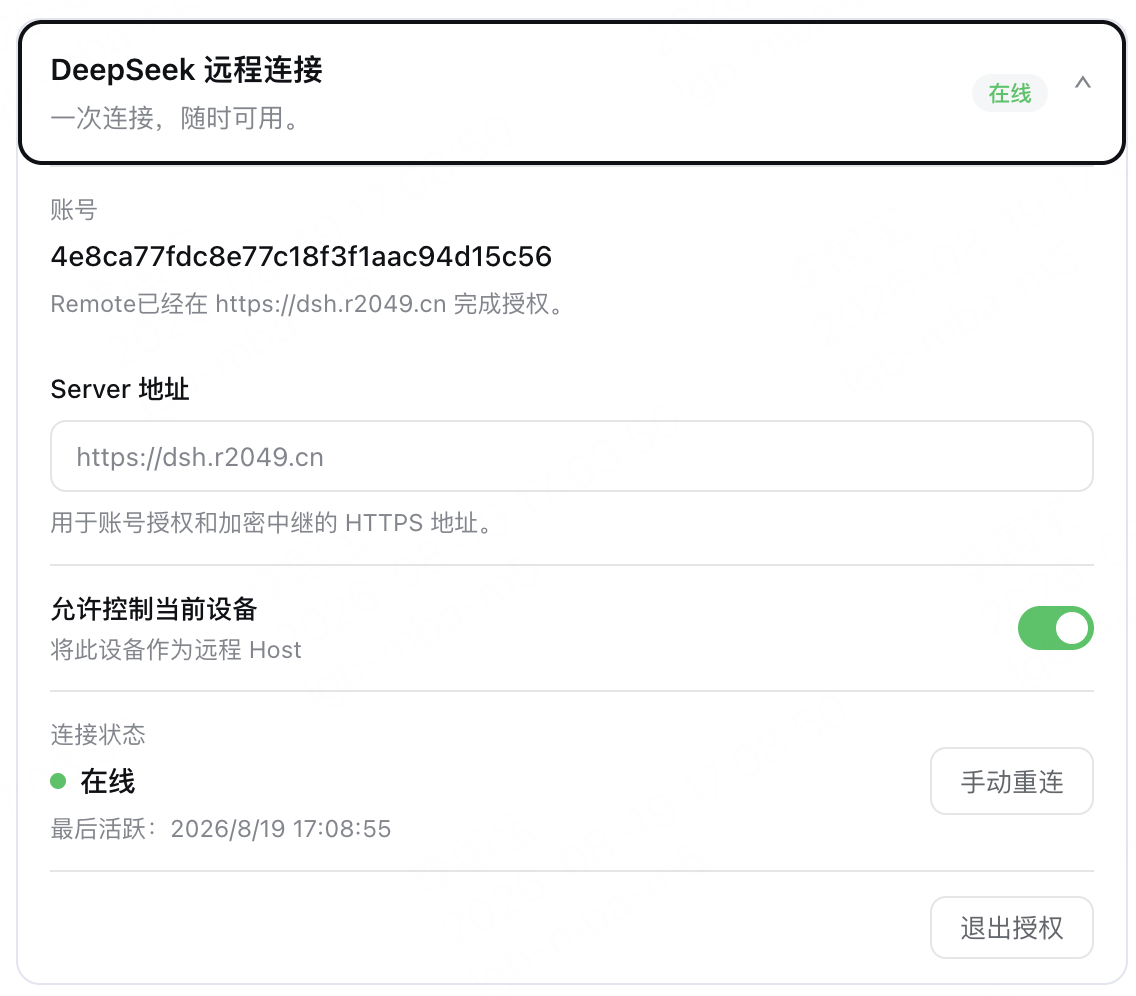
Enable Allow control of this device in Remote settings to make the current computer available as a Host.
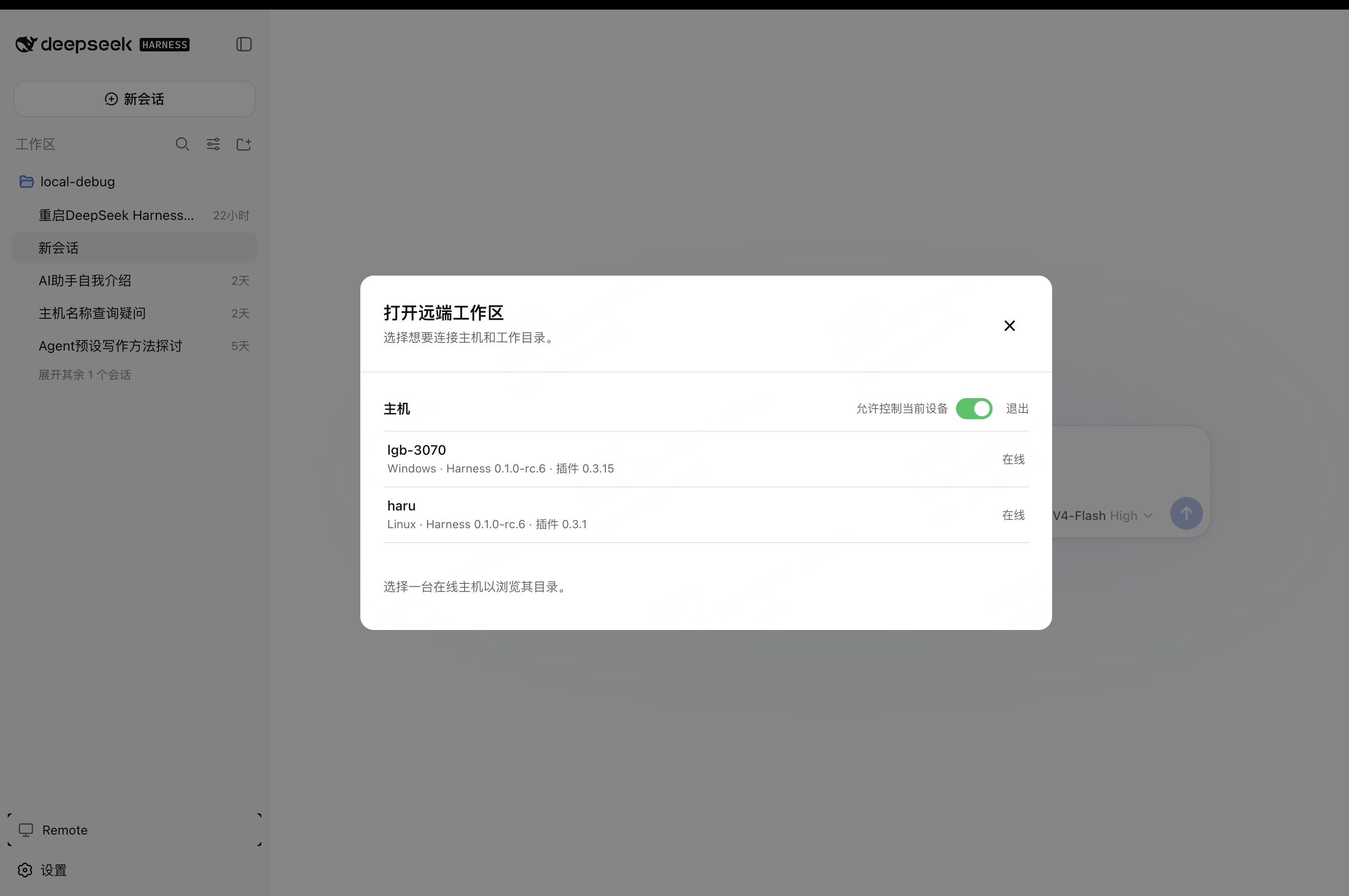
Open Remote on another computer, select an online Host, then choose or browse for a workspace.
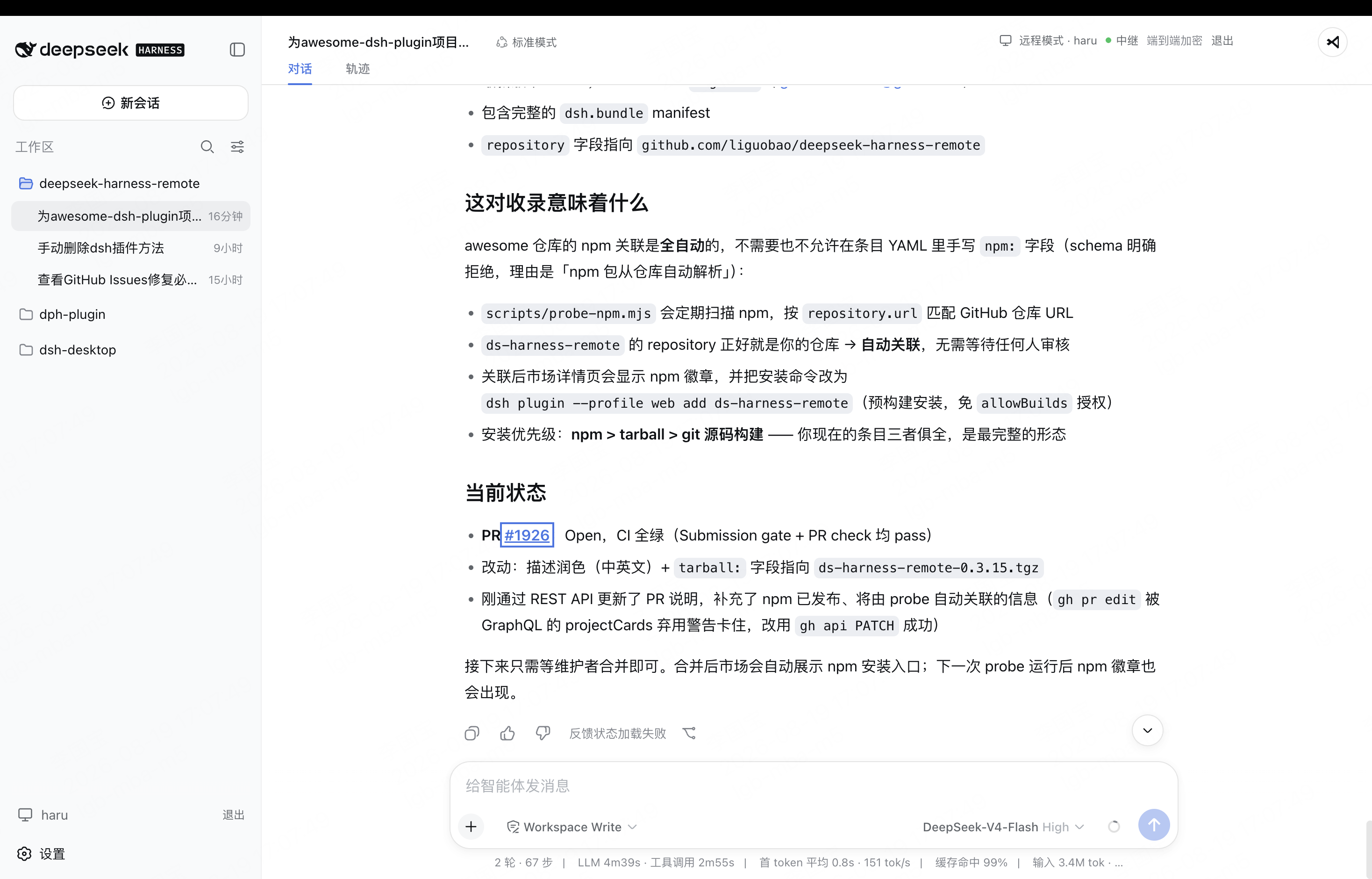
The workspace opens in the native Harness interface, with the active Host and encrypted connection status shown in the header.
Secure by design
- The Host makes outbound connections only. No public port is opened.
- Session traffic is end-to-end encrypted. The service relays ciphertext without storing session plaintext or device private keys.
- Remote exposes only the Harness capabilities required by the interface. It does not provide a shell or remote desktop.
- The workspace picker lists folders only. When
dsh-file-vieweris installed on both devices, its existing read-only viewer can additionally preview files through bounded, encrypted range reads. - Remote file preview cannot write, delete, upload, execute, or open a path in an external application. File Viewer providers continue to enforce their own allowed roots and locator authorization.
- Removing a device immediately revokes its Remote access.
For implementation details, see the Plugin guide, documentation index, and Remote Protocol.
License
收录徽章

[](https://deepseek-plugin.org/plugins/liguobao/deepseek-harness-remote/packages/plugin)把这段 markdown 粘贴到你的 GitHub README,链接回本插件详情页。徽章只声明已被本站收录,不代表安全认证。