An npm package with 11 built-in DSH Web theme skins and skin center cards, supporting one-click preview and switching without service restart.
ⓘ This plugin is a sub-package of the ningbainb/deepseek-harness-desktop monorepo — stars and activity count the whole repository.

- Language
- TypeScript
- License
- BSD-3-Clause
- Branch
- main
Install
$ dsh plugin --profile web add @linxin666/dsh-skinsRun the command above in your terminal to install this plugin via the dsh CLI. You can switch Profile in the top-right corner. New to dsh? Read the beginner tutorial
Install via your agent
Install the DeepSeek Harness plugin ningbainb/deepseek-harness-desktop/packages/dsh-skins for me: review the repository at https://github.com/ningbainb/deepseek-harness-desktop first, then run the install command and verify the plugin loads successfully.
Paste this instruction to the DSH Web GUI assistant — it will install and verify for you.
One-Line Description
A skin bundle aggregator for the DSH Web chat client: once installed, you'll see a "Skin Center" card in the plugin configuration page, listing 11 built-in theme skins (QQ retro, Tonghuashun, Windows XP, Dragon's Descendant, Minecraft, Hatsune Miku, Whale Song, Trading Terminal, Xigang, etc.), supporting online try-on and one-click switching.
Core Features
- Insert a Skin Center card in "Plugin Config → Web UI Plugins" listing official defaults and all installed skins
- Try on any skin online (not persisted): instant preview, light/dark theme toggle, full restore on exit
- One-click apply skin: writes to
~/.dsh/profiles/<profile>/cordis.patch.yml, hot-loaded by host config listener within seconds, no restart needed - Skins are mutually exclusive: only one active at a time (enforced by patch's managed section)
- Background opacity slider (only effective for skins with background images)
- Single npm package bundles all skin assets, no separate npm package names needed per skin
Technical Implementation
- Language: TypeScript + Node.js (aggregator as ESM, build scripts as Node scripts)
- Key Dependencies:
@deepseek-ai/dsh-host-webserver(host-side routing),@deepseek-ai/dsh-client-runtime&@deepseek-ai/dsh-client-ui-theme(client runtime & theme),schemastery(background config schema),react(Skin Center card UI) - Architecture Pattern: Cordis plugin (host + client dual half-segments) + in-process
dsh-skin useESM port (src/skin-switch.ts, avoids external CLI dependency), communicates with browser half-segment via native HTTP routes/api/skin-center/* - Entry Files: Aggregator entry
packages/dsh-skins/build.mjs; Skin Center host entrypackages/skins/skin-center/src/index.ts; client entrypackages/skins/skin-center/src/client/index.ts
Use Cases
Regular users who want to change the DSH Web chat interface style without command-line hassle: install one package to get 11 themes, from QQ 2008 retro, Windows XP Luna to current popular styles like Hatsune Miku and Trading Terminal.
Developers and heavy customizers who don't want the Skin Center card but prefer manual dsh-skin use switching can also use it: the aggregator bundles each skin's complete skin.json + lib/client.js, and the dsh-skin CLI can directly recognize them.
Prerequisites & Compatibility
| Dependency | Minimum Version | Notes |
|---|---|---|
| DSH | 0.1.0-rc.7+ | Inferred from @deepseek-ai/* packages in devDependencies being ^0.1.0-rc.7 |
| Node | >=22.19.0 | From engines field in repository root package.json (^22.19.0 || >=24.0.0) |
| Platform | Web | Bundle only declares platform: "web", scoped to DSH Web GUI |
| Native Modules | None | Falls back to directory junctions (junctions) on Windows symlink failure, no native module dependency |
Installation
dsh plugin --profile web add github:ningbainb/deepseek-harness-desktop/packages/dsh-skins
Configuration Options
| Config | Type | Description | Default |
|---|---|---|---|
backgroundOpacity | Number (0-100, step 5) | Main interface background blocking opacity; higher values make background darker; only visible effect on skins with built-in backgrounds (e.g., blue-fantasy / whale-song) | 0 |
FAQ
Q: Do I need to restart the dsh web service after switching skins?
A: No. After clicking "Apply", the Skin Center writes changes to ~/.dsh/profiles/<profile>/cordis.patch.yml. The host config listener hot-reloads within seconds; refresh the browser to see the new skin.
Q: Can I enable two skins at the same time?
A: No. The Skin Center enforces only one active skin through the patch file's dsh-skin managed section; other skins are written as disabled: true.
Q: Will switching skins affect model requests or conversation content?
A: No. Skins only modify browser DOM (CSS, title bar, status bar, background image); they don't intercept or modify any requests sent to models.
Q: After installation, the skin list is empty or missing some skins. What should I do?
A: Check the skin directory under the current profile: the Skin Center scans packages/skins/<id> or node_modules/@linxin666/dsh-skins/skins/<id>. Each skin directory must have both skin.json and lib/client.js; missing either will be skipped by the build script.
Q: On Windows, switching reports insufficient symlink permissions. What should I do?
A: The switching logic automatically falls back to directory junctions (junctions) on symlink failure; developer mode is not needed. If it still fails, run dsh as administrator, or manually place the skin package in the profile's node_modules.
Q: How do I add my own skin?
A: Place skin.json (containing id, name, tagline, bodyAttr, wiring.id fields) and the built lib/client.js / lib/index.js under packages/skins/<your-id>/, run pnpm --filter @linxin666/dsh-skins build, reinstall the aggregator, and you'll see it in the Skin Center.
Q: How do I remove a skin and revert to the official default?
A: The Skin Center card has an "Official Default" entry; click to apply. To completely uninstall the plugin, use dsh plugin --profile web remove @linxin666/dsh-skins.
Q: Does the background opacity slider work on all skins?
A: It only works on skins with background images (currently blue-fantasy and whale-song). The background transparency slider won't change the appearance of official default and other solid-color skins.
Learning Curve
Beginner — install it and the Skin Center card appears directly in the Web plugin configuration; no extra configuration needed. You only need to look at build.mjs and skin.json fields when adding or adjusting skins.
Known Issues & Limitations
- Browser bundle targets only DSH Web GUI, scoped to web side (
packages/dsh-skins/README.md:33/packages/skins/skin-center/package.json'sdsh.client.platform) - Skins only modify DOM (CSS, titles, status bar, background images, etc.), don't touch any model requests (
packages/dsh-skins/README.md:33) - Legacy Desktop 2.2/2.3 global
~/.dsh/cordis.patch.ymlmanaged section is auto-migrated to current profile on first switch and deleted from global file (one-time behavior,packages/skins/skin-center/src/skin-switch.ts:963-972)
中文 | English
DeepSeek Harness Desktop 是社区维护的开源 Windows AI 编程桌面客户端:它把完整的 DeepSeek Harness Web Surface、官方 DSH 本地主机、插件、Skills、主题和自动更新打包进一个 Windows x64 安装器。支持 Windows 10/11,免费采用 BSD-3-Clause 许可证,安装后无需另配 Node.js。
社区用户交流群
QQ 群:1105158177 · 点击一键加入 QQ 群
Windows 桌面版
DeepSeek Harness Desktop 将原版 DSH Web 界面完整装进 Windows EXE:不是重写页面,而是用安全的 Electron 窗口启动官方 @deepseek-ai/dsh 本地主机,再原样加载本仓库的全部插件与皮肤。
浏览产品介绍 · 下载 Windows x64 安装器 · 桌面版技术说明 · Task Board v3 说明 · 发布与交接工作流 · 更新日志
如果这个项目对你有帮助,欢迎在 GitHub 仓库 点 Star,帮助更多桌面版用户发现它。
最新版:2.7.0
desktop-v2.7.0 是当前稳定版:查看完整发布说明 · 直接下载安装包 · 下载 SHA-256 校验文件
| 版本 | 主要更新 |
|---|---|
| 2.7.0 | 修复 Windows 8% Runtime 启动故障并升级到 DSH rc.7;新增托盘后台自动化、Host 持久任务调度、插件兼容声明/锁、browser-safe Desktop SDK、安全工作区外部打开和 Candidate Matrix。 |
| 2.6.0 | Task Board v3 引入 Project、Task Run、Evidence 与 Git Worktree 审核流;Runtime Provider 缺少可选能力时显式回退 shared-workspace,并加入 Candidate 执行兼容夹具与有界匿名产品统计。 |
| 2.5.0 | 新增 Runtime Adapter 与上游兼容防线、安全 .dshpreset 和 Web Profile 迁移、原子插件批量事务、严格 Deep Link/文件关联与结构化通知。 |
| 2.4.0 | 新增可靠更新关停回执 v2、主界面/扩展坞权限拆分、Desktop Contract v1,以及 Task Board Host 文件存储 v2。 |
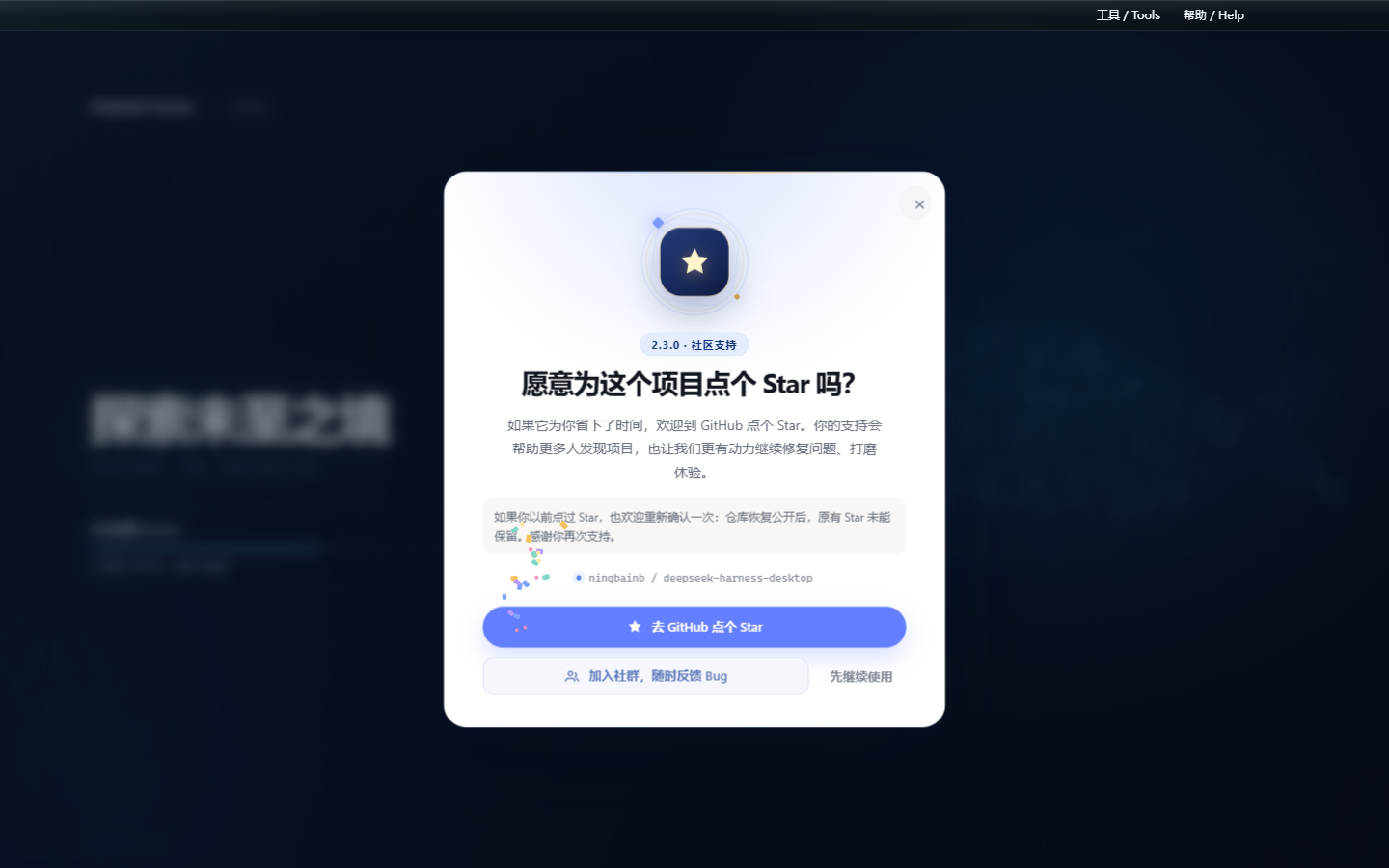
| 2.3.0 | 新增只出现一次的 GitHub Star 动画引导与“加入社群”反馈入口;安装预检可识别外部 PowerShell/CMD/Node 宿主、EncodedCommand 与 Windows 短路径,兼容 0.1.9 直接升级,并通过独立 profile 与端口回退和官方 Web 端共存。 |
| 2.2.0 | 隐藏 Windows 终端及其后代窗口;升级时自动清理旧应用和插件后台、迁移可识别旧依赖与旧安全模式误判;重启复用端口,安全模式支持可见提示与一键恢复。 |
| 2.1.0 | 新增国内更新镜像自动测速与回退、插件快照/自动隔离/安全模式三层容灾;统一皮肤持久化,修复升级文件占用、隐藏命令框、中文工作区重启循环,并从工具菜单直接打开扩展坞。 |
| 2.0.0 | 修复取消后排队消息滞留与运行时损坏循环;新增 Skills 菜单、模型 API 有界重试、思考区吸顶和 SSH 实时监控;统一 Harness 原生视觉并完善粒子鲸鱼启动页。 |
| 0.1.9 | 修复对话气泡与整段内容复制;更新改为后台下载并加入毛玻璃更新面板与粒子鲸鱼启动页;新增社区插件适配检测、离线切换、失败回滚与性能保护。 |
| 0.1.8 | 内置 ChatGPT OAuth 与 OpenAI Codex 模型、模型推理强度滑块、帮助菜单社群与建议入口;默认只保留 dshmarket,并修复空补丁、旧市场和皮肤链接迁移。 |
| 0.1.7 | 全新深海启动界面与状态驱动进度;32px macOS 风格磨砂玻璃窗口栏;收紧大文件预览内存、Git 轮询和 SSH 传输边界,并提升首次安装后的冷启动容错与发布门禁。 |
| 0.1.6 | 内置腾讯官方 QQ Bot 与扫码 Connector;在扩展坞完成二维码绑定、刷新、取消、重新绑定和解绑,QQ 私聊与群聊可直接接入桌面版 Harness。AppSecret 使用 Windows 凭据保护加密,只注入 DSH 子进程。 |
| 0.1.5 | 原生标题栏跟随亮色/暗色主题;全屏弹窗避开标题栏安全区;修复安装版皮肤发现与切换,并内置 dshmarket 和 dsh-plugin-hub。 |
| 0.1.4 | 桌宠迁移到全局 Shell Overlay,首页和设置页均可见;恢复五张 Web UI 插件配置卡;皮肤中心完整展示安装版随附的九套皮肤。 |
| 0.1.3 | 加入稳定版 GitHub Release 更新检查、双语更新说明、用户确认下载、任务栏进度和二次确认安装。 |
2.7.0 功能亮点
- 可靠 Windows 启动:移除 PowerShell 5.1
-WindowStyle Hidden与 Electron Node 模式的冲突,隐藏窗口仍由spawn的windowsHide处理;空旧补丁、状态订阅竞态和 IPC 错误不会再把启动页永久留在 8%。 - 验证过的 Runtime 组合:内置
@deepseek-ai/dsh0.1.0-rc.7、dshmarket1.15.0、Web UI 聚合0.2.3、兼容 rc.7 的 Codex Connect 与dsh-live-stats0.1.20,Stable 继续精确锁定而非追随latest。 - 托盘与后台自动化需显式选择:默认关闭仍会退出。选择“最小化到托盘并启用后台自动化”后,关闭主窗口才保留 Runtime 和到期任务;显式退出、更新、安全模式和崩溃路径一律完整停止。
- Host 持久任务调度:Task Board 保存时区、cron 槽位、租约、misfire/running 策略和确定性运行键;启用后台自动化时通过真实 DSH Session 执行并回写 Task Run,Host 不可用时仍回退浏览器调度。
- 可审计的扩展边界:扩展坞校验
dsh.compatibility的版本、Desktop API、能力、Surface 与运行时证据,并在 profile 写入desktop-plugins.lock.json。browser-safe SDK 不导入 Electron 或私有 DSH 模块;预览的外部打开仅传工作区根和相对路径,Host 验证后才交给系统。 - Candidate Matrix:候选 DSH 在临时 worktree 中收集矩阵、Stable 支持和离线社区插件质量证据;候选永远不能自动改写 Stable 依赖、lockfile、更新元数据或发布。
2.6.0 功能亮点
- Task Board v3:任务可关联 Project,明确选择 shared-workspace 或 Git Worktree;旧账本复制迁移到 Host-owned v3,原 v2 文件保留为备份。
- 可审阅执行结果:每次执行生成紧凑 Task Run 与派生 Evidence,展示文件、增删统计、有限 diff 预览、Session/运行入口和 Provider 能力证据,不保存完整会话或 Secret。
- 受控 Git Worktree:Host 只接受不透明 id,固定 Worktree 根目录、分支命名、realpath、clean/conflict/operation 预检;Commit、Merge、Keep、Discard 都是明确审核动作,Discard 需要二次确认。
- 安全兼容回退:Stable Provider 仍可只提供生命周期和 Profile 能力;缺少 Worktree 所需能力时记录原因并使用现有 shared-workspace 执行,不伪造隔离状态。
- Candidate 执行门禁:真实临时 Git 仓库夹具验证 Session CWD、生命周期事件、取消与重启恢复,失败只阻断 Candidate,不改 Stable 图或发布元数据。
- 匿名统计边界:官方正式版默认启用仅用于产品改进的有界匿名统计,不提供应用内关闭开关;不收集身份、对话、文件、路径、凭据或日志,不保留原始事件,源码与 Fork 构建不包含官方统计端点。完整范围见 隐私政策。
2.5.0 功能亮点
- Runtime 兼容防线:Adapter v1、直接 import 边界、Known Good、patch registry 与耦合审计共同保护稳定 DSH 图;Candidate Lite 只生成报告,不自动升级 Stable。
- 安全 Desktop Preset:
.dshpresetv1 在主进程检查完整性、路径、压缩比、脚本、Secret、Git URL 与精确版本,Renderer 只获得审阅计划。 - 全环境原子回滚:批量插件、设置、Skills 与任务模板使用一次 Runtime 停止/启动事务;任何包或健康检查失败都会恢复旧环境。
- Web Profile 选择性迁移:迁移前显示可安装、更新、缺失、不兼容、未声明、已满足和 Desktop 管理项;所选插件与可归属的非敏感 Profile 配置在同一事务中应用或回滚。
- 明确后续动作:插件变更后突出显示“刷新”;改变 bundle 图时同时提供“Restart DeepSeek Harness”,Preset 进度完整显示提交或恢复状态。
- 严格系统入口:
dsh://仅允许固定导航路由和安全 ID;.dshpreset双击只打开预览,不把文件路径交给 Renderer,也不会静默安装。 - 结构化通知:Desktop Contract 1.1 校验通知分类、ID、文本与 Deep Link,支持去重、限频、前台抑制和白名单点击路由。
- 稳定版不追 latest:当前 Runtime 继续精确锁定验证版本;Candidate 失败不会影响主分支、lockfile、发布说明或 updater 元数据。
2.5.0 体验与更新改进
- 全页粒子主题:粒子鲸鱼从启动页延伸到主界面,并按普通浏览、输入聚焦、弹窗、减少动态效果和后台状态自动调低密度、透明度与速度;可在「设置 > 插件配置 > 粒子主题」中开关和调整。
- 可调设置窗口:设置面板可拖动、从八个边/角缩放并记住上次位置和尺寸;最小尺寸、响应式布局和屏幕约束可避免内容重叠、溢出或移出可见区域。
- 明确的更新下载路径:GitHub Releases 是唯一默认下载源;更新窗口提供「前往 GitHub 下载」「加入用户群」「稍后更新」。若 GitHub 下载较慢,可加入 QQ 用户群获取同步安装包。
- 覆盖更新不再依赖旧卸载器:安装器会在严格进程与文件锁检查后迁移旧程序并清理精确注册项;即使旧 2.5.0 已带修复标记,也不会再次进入有缺陷的卸载流程。
完整桌面能力
- 排队消息可靠续传:智能体工作时发送的消息继续按 FIFO 顺序排队;取消当前执行后,队列会自动恢复,不丢失、不重复、不乱序。
- 对话栏 Skills 技能库:输入框左下角直接搜索已安装技能,支持最近使用、来源与描述展示、方向键导航、Enter 插入和 Esc 关闭。
- 模型 API 自动恢复:对限流、超时、断网和可恢复服务端错误执行有界退避重试;恢复后继续当前请求,手动取消仍会立即生效。
- SSH 实时监控与安全操作:每三秒刷新 CPU、内存、磁盘、负载、进程与失败服务;经过确认后可终止进程或重启 systemd 服务。
- 长思考随时折叠:思考区展开后,折叠控制会吸附在会话顶部,不必滚回长内容起点。
- 运行时完整性预检:启动前检查关键文件,安装不完整时停止重启循环并给出明确的重新安装提示。
- 更新与安装更可靠:GitHub 官方源优先,发现新版后后台下载,完成后再确认重启安装;GitHub 下载较慢时可从用户群获取同步安装包,退出时完整回收 DSH 子进程。
- Harness 原生视觉统一:标题栏、扩展坞、启动页和主界面使用一致的系统视觉;全页粒子鲸鱼会按交互场景自动安静下来,并尊重减少动态效果设置。
Harness 主界面
2.3.0 桌面界面
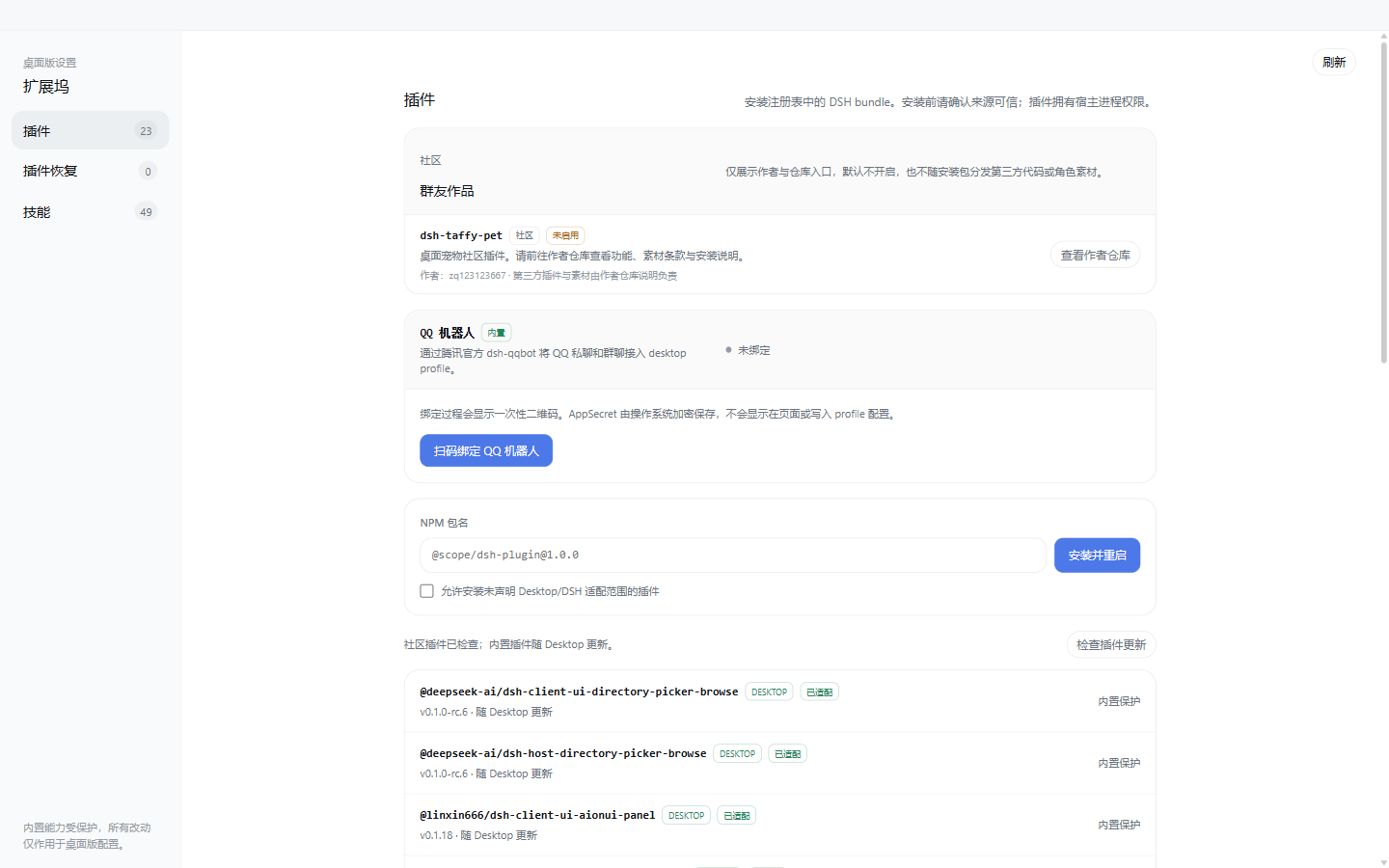
| 粒子鲸鱼启动界面 | 插件与技能扩展坞 |
|---|---|
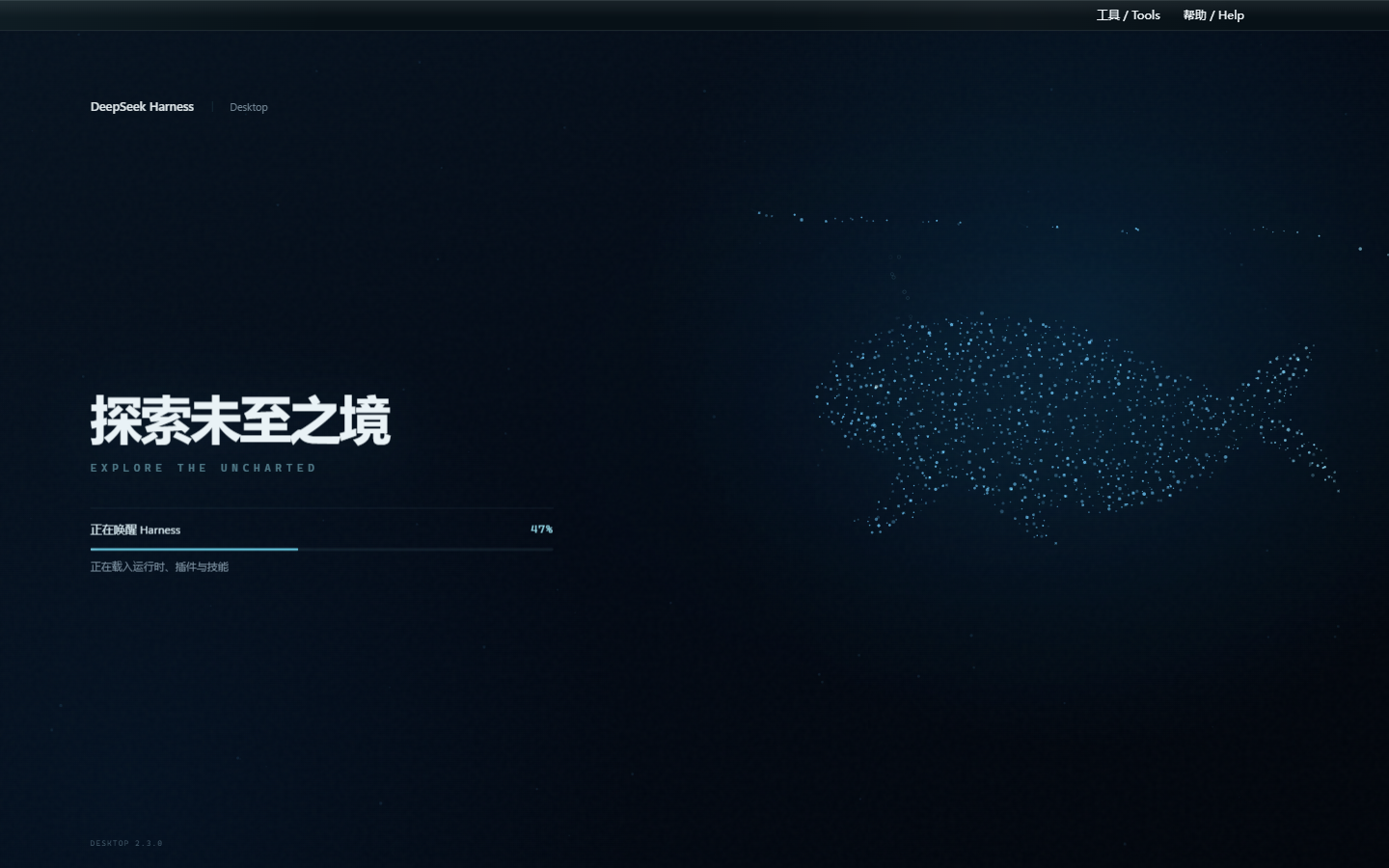 |  |
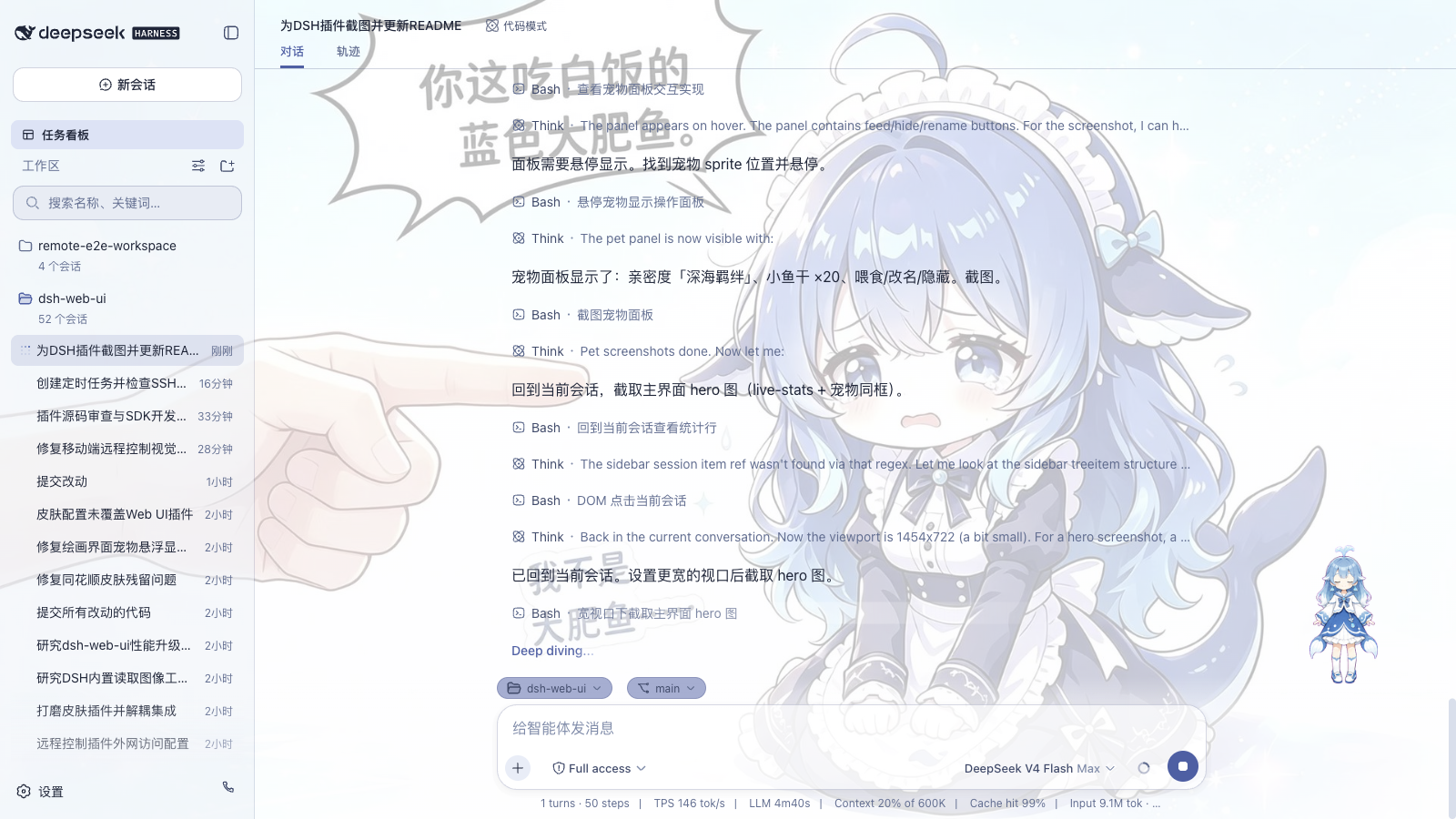
- 内置 dsh-web-ui 0.1.18 套件,保留任务看板、Git 图谱、右侧面板、SSH、移动端远程、实时统计、宠物,并加入独立的全页粒子主题、图像描述与量身 Agent;
- 内置腾讯官方 QQ Bot,可在扩展坞扫码绑定 QQ 私聊与群聊,无需编辑 YAML 或打开后台终端;
- 内置 ChatGPT OAuth、OpenAI Codex 模型与推理强度滑块,登录使用系统浏览器,凭据保存在本机;
- 独立
desktopprofile,不覆盖既有 DSH 配置,运行时仅监听回环地址; - 内置崩溃恢复、日志脱敏与轮转、窗口状态恢复、严格导航与权限策略;
- 内置 GitHub Release 更新检查,发现新版后在后台下载,完成后再由用户阅读说明并确认重启安装;
- 扩展坞支持社区 DSH bundle 安装/回滚、内置插件市场,以及项目、DSH、Agents 技能发现与安全导入;
- 安装包自带官方 DSH、pnpm 与原生依赖,无需另外安装 Node.js。
桌面版已预装任务看板、Git 图谱、右侧面板、移动端远程、远程连接、鲸鱼娘宠物、全页粒子主题、实时令牌统计、Codex Connect、推理强度滑块、插件市场和皮肤中心。下载安装 EXE 即可使用,不需要另外安装 DSH、Node.js 或执行插件命令。
功能插件
QQ 机器人扫码接入(桌面版 0.1.6)
桌面版内置腾讯官方 @tencent-connect/dsh-qqbot 0.3.0 和 @tencent-connect/qqbot-connector 1.2.0。在扩展坞打开 QQ Bot 卡片即可获取自动刷新的二维码,使用手机 QQ 扫码后,QQ 私聊与群聊便可连接到本机 Harness;同时支持取消、重新绑定和彻底解绑。
未绑定时插件保持禁用,不会让隐藏的后台进程等待终端扫码,也不会拖慢 Web UI 启动。绑定成功后桌面端会自动启用插件并重启 DSH。AppSecret 由 Electron safeStorage 结合 Windows 系统凭据保护加密保存,不会发送到渲染页面、写入日志或明文进入 cordis.patch.yml;运行时只通过子进程环境注入。
Codex 模型与推理强度(桌面版 0.1.8)
桌面版内置 dsh-codex-connect 0.1.0-alpha.4.5,可在设置页通过系统浏览器完成 ChatGPT OAuth,并启用 OpenAI Codex 模型。它不会默认替换当前模型、接管全局搜索或启用远程图片工具;检测到已有 Codex Provider 时会保留现有配置,OAuth 凭据只保存在本机 DSH home。
内置 reasoning-slider 0.0.2,在模型选择器中只展示模型实际支持的推理强度,切换模型时会自动回退到有效档位。顶部帮助菜单同时提供 QQ 群二维码、一键加群与 GitHub 建议入口,所有外链均交由系统浏览器打开。
任务看板
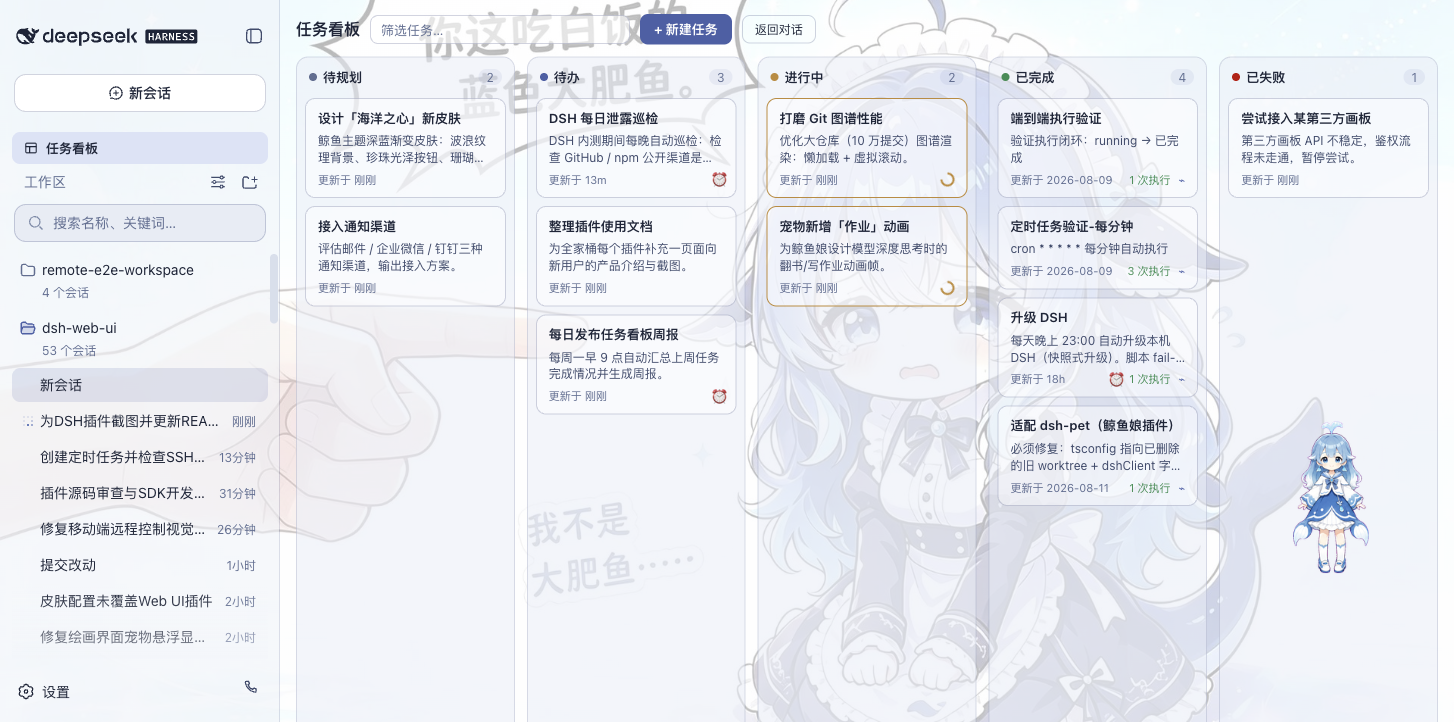
在侧边栏点击「任务看板」进入。任务按五列状态组织:待规划、待办、进行中、已完成、已失败。点击卡片上的「执行」,任务将由真实的 DSH 智能体会话执行,完成后状态自动回写;需要复盘时,可直接跳转到执行会话查看完整过程。
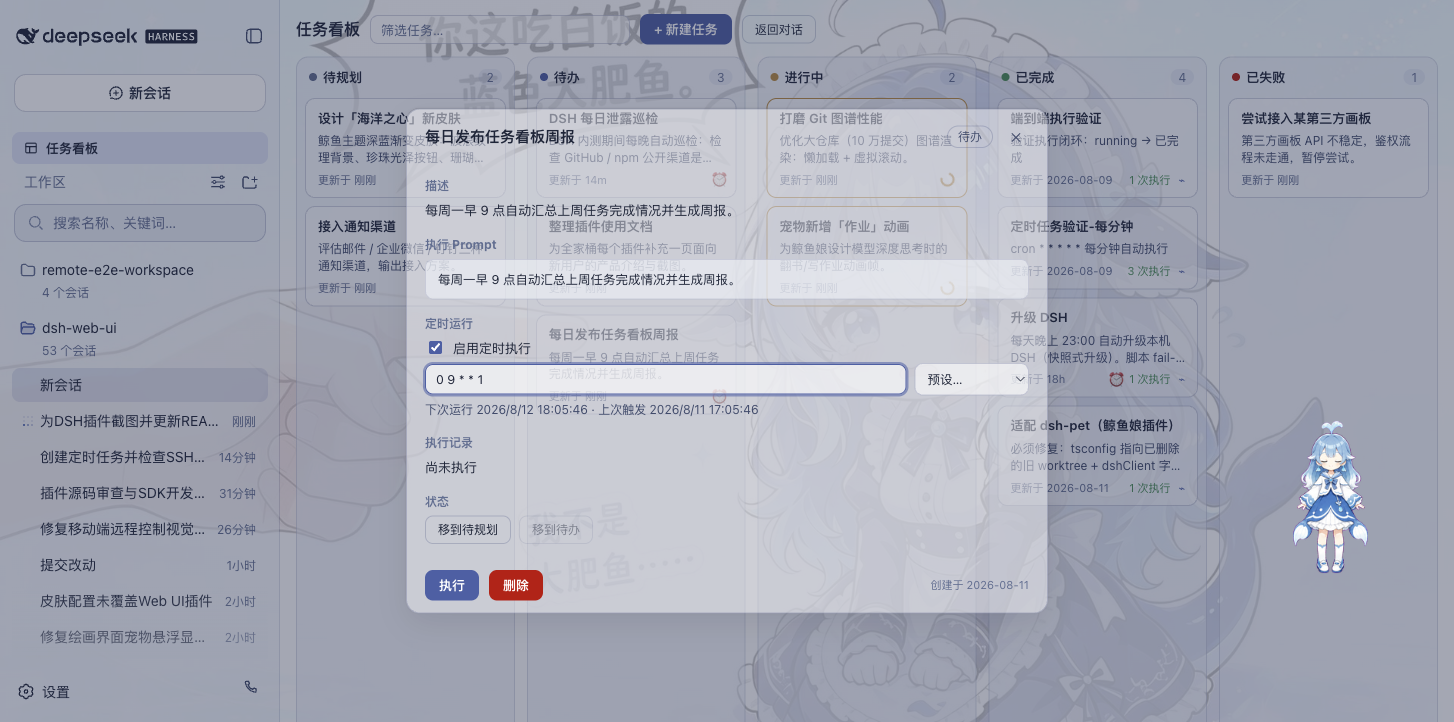
任务支持定时执行:在详情中配置 cron 表达式(如每天 23:00 自动升级 DSH、每周一 09:00 生成周报),页面保持打开时会在到点后自动开工。任务台账存于当前 DSH profile 的 Host 文件,浏览器旧数据在校验迁移后继续保留用于降级。
| 多列看板 | 定时执行 |
|---|---|
 |  |
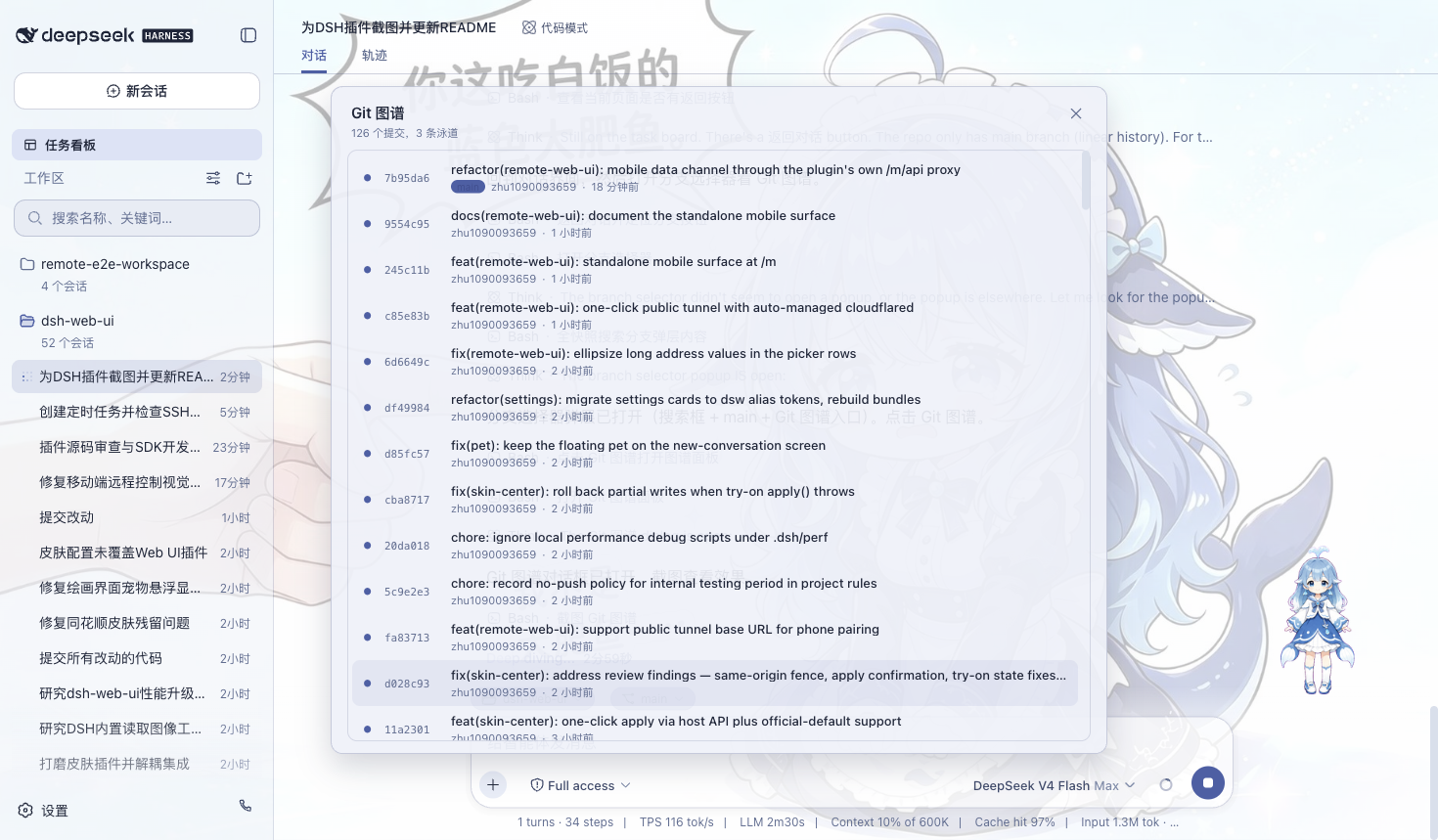
Git 图谱
输入框上方的分支选择器,支持切换分支与查看提交历史;Git 图谱将分支泳道与提交历史可视化,仓库再大也能顺着时间线快速定位变更。
右侧面板
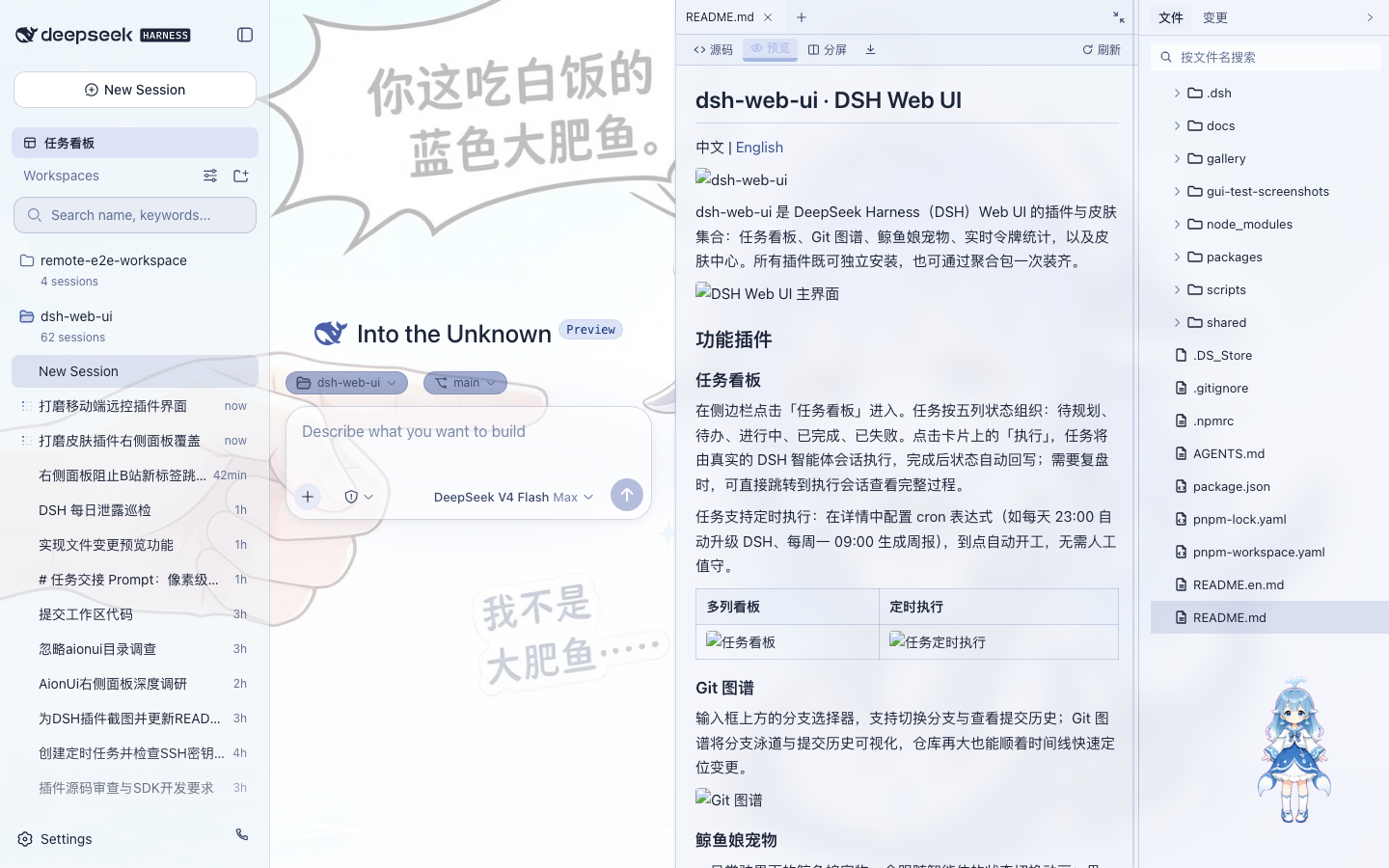
项目会话打开时,聊天区右侧出现「预览」与「文件/变更」两块面板:
- 文件树:浏览工作目录,点击文件即在预览面板打开,整行点击展开文件夹,支持按文件名搜索定位;
- 预览:多标签预览 markdown、HTML、代码、diff、CSV、PDF、Office、图片与文本等格式,支持源码 / 预览切换、分屏编辑与保存;
- 变更(SCM):真实 git 变更面板,支持 stage / unstage / discard;
- 面板宽度可拖拽调整,双击把手复位默认宽度,折叠状态与宽度按项目持久化;
- 11 款皮肤全部适配右侧面板,换肤后面板随之融入主题。
鲸鱼娘宠物
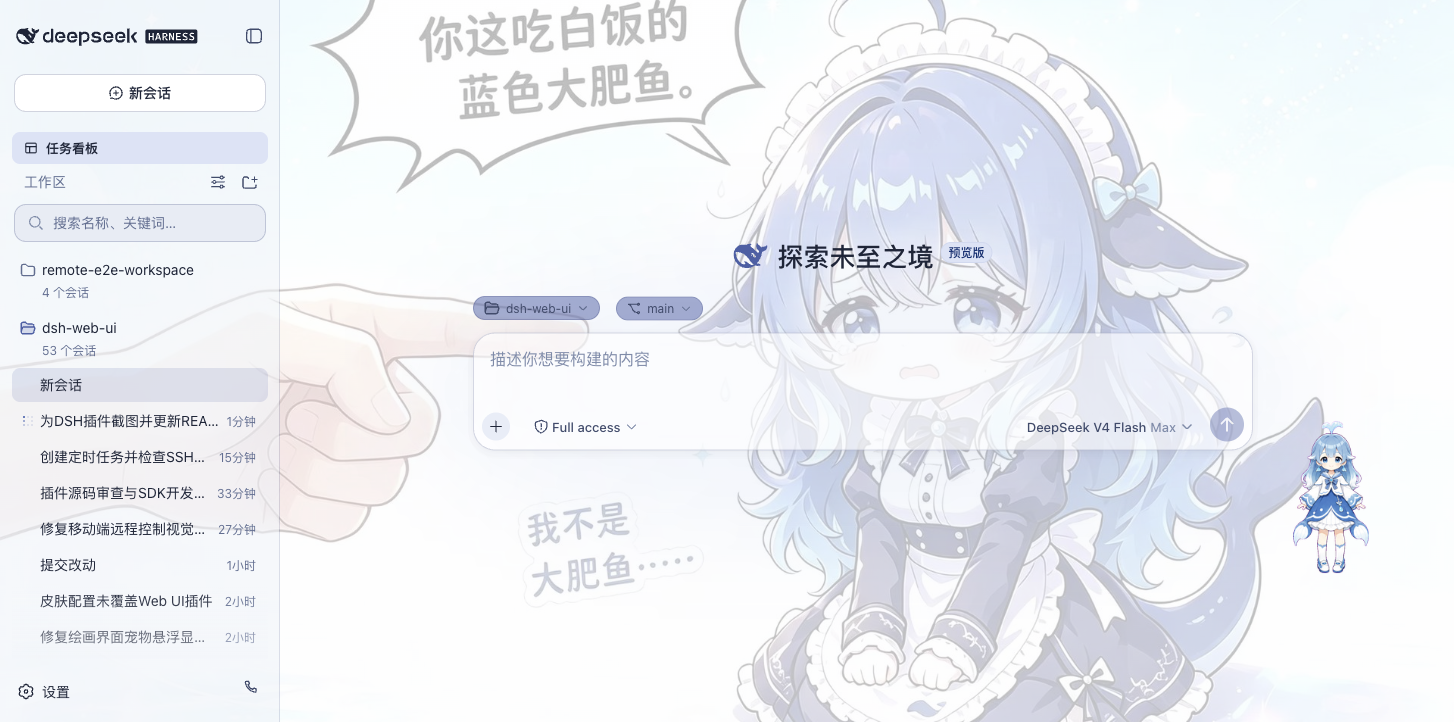
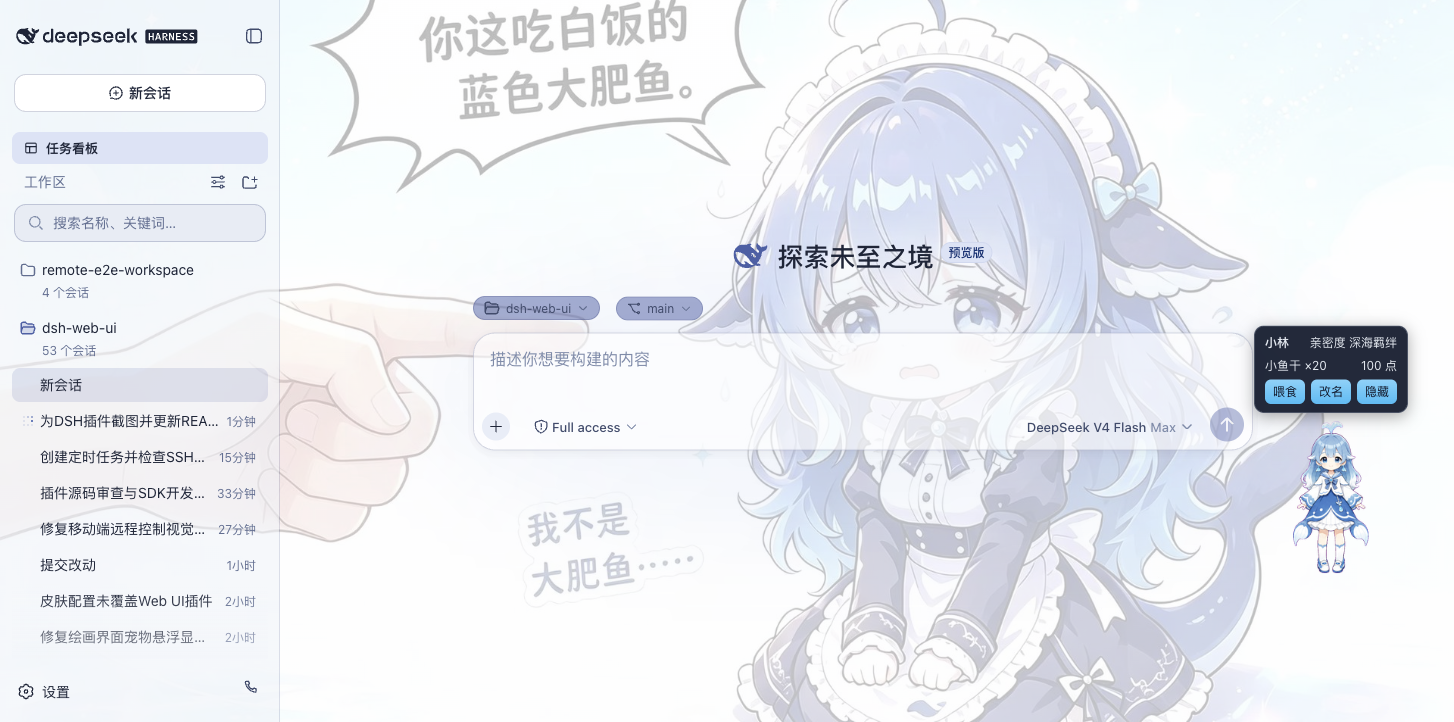
一只常驻界面的鲸鱼娘宠物,会跟随智能体的状态切换动画:思考、等待、工作、庆祝。点击可互动(摸头),投喂小鱼干可提升亲密度,陪伴度从幼鲸一路成长至「深海羁绊」。支持自定义名称、自由拖动位置,也可随时隐藏。
| 陪伴工作 | 互动面板 |
|---|---|
 |  |
实时令牌统计
在输入框下方实时显示生成速度(TPS)、LLM 耗时、上下文占用、缓存命中率以及输入 / 输出 token 数,每次生成的用量一目了然。

移动端远程
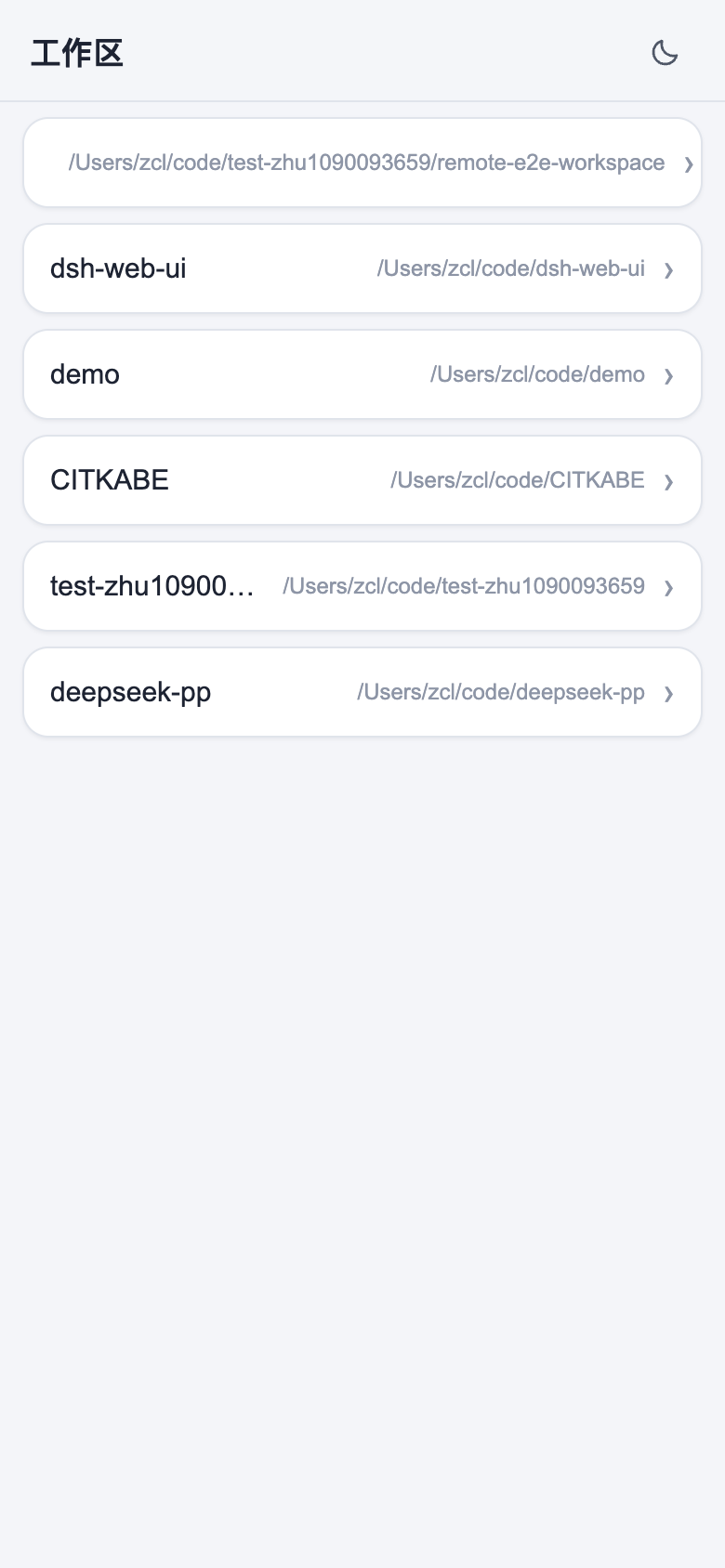
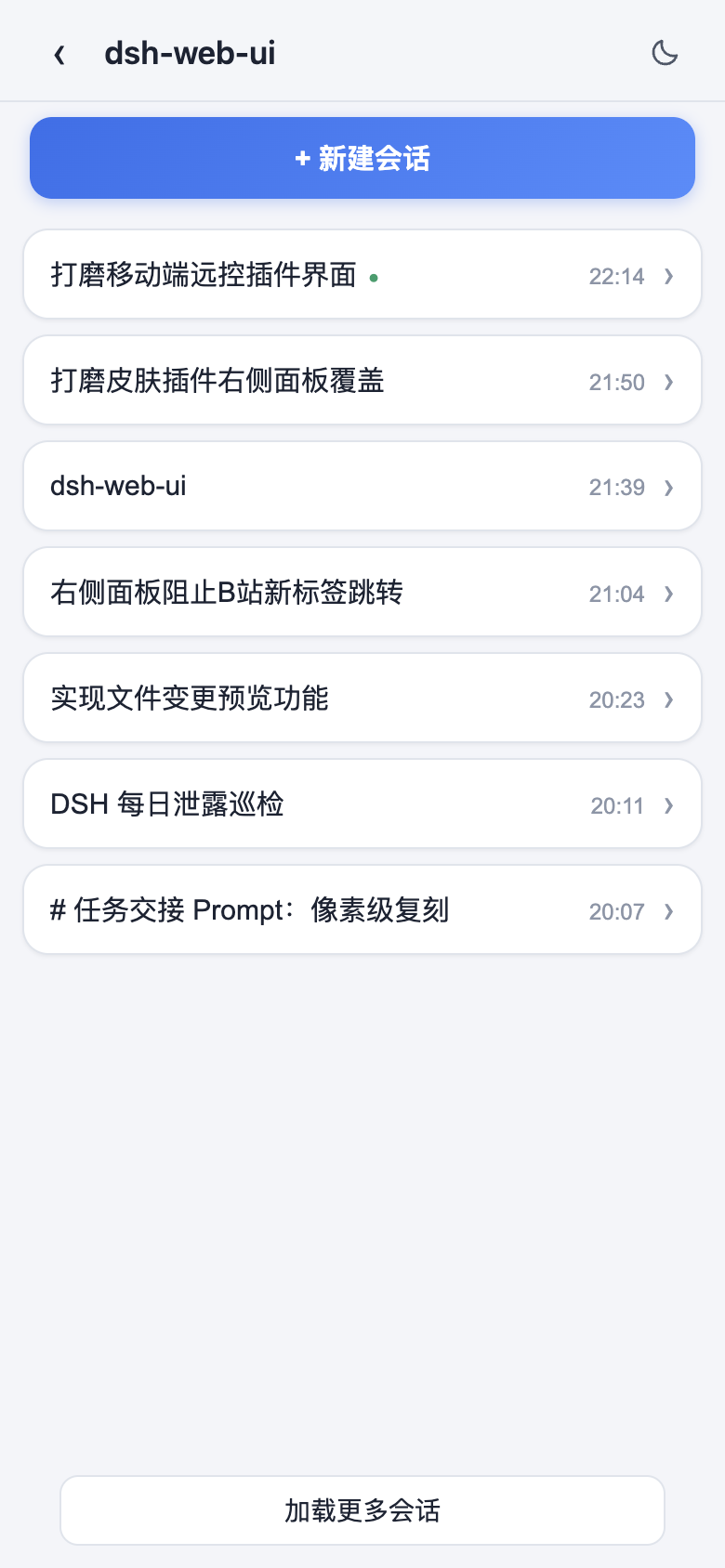
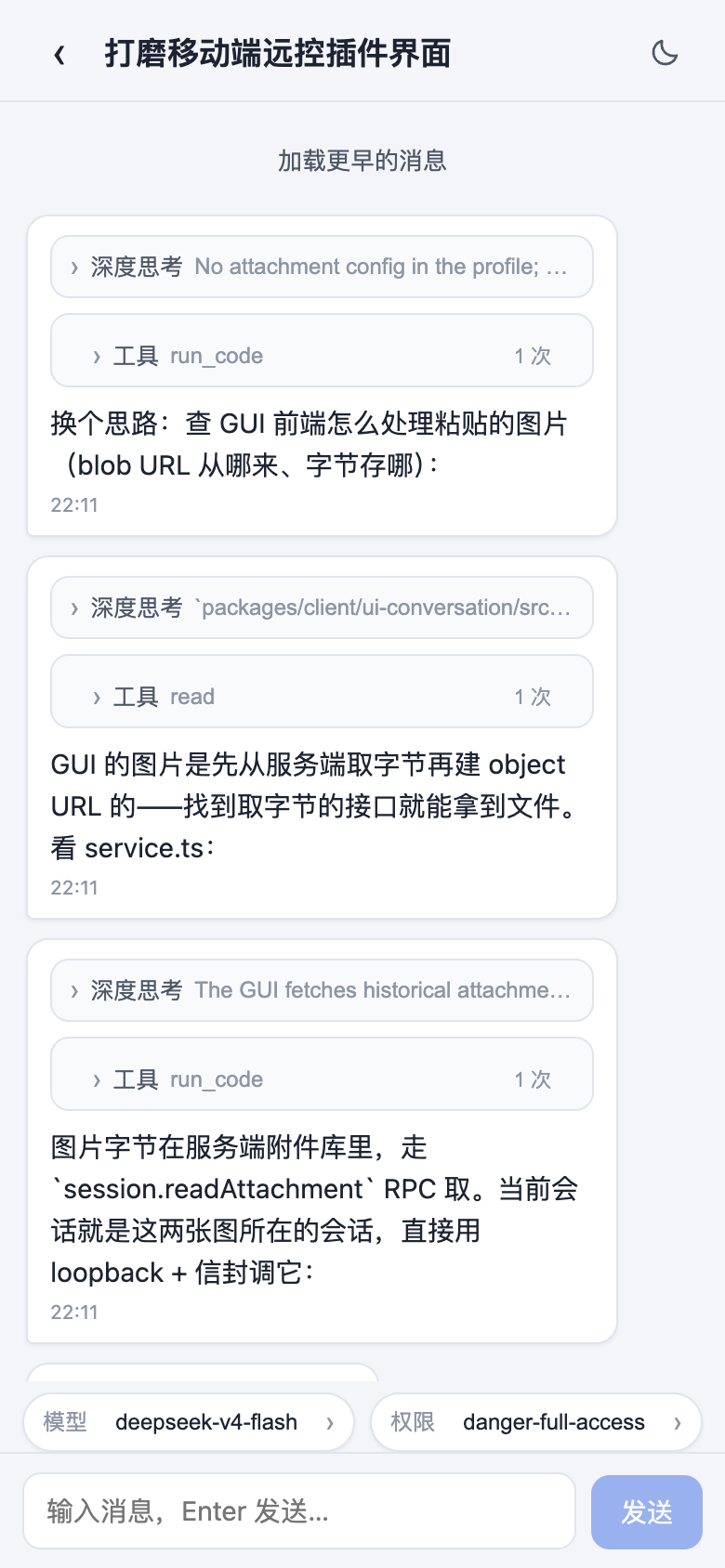
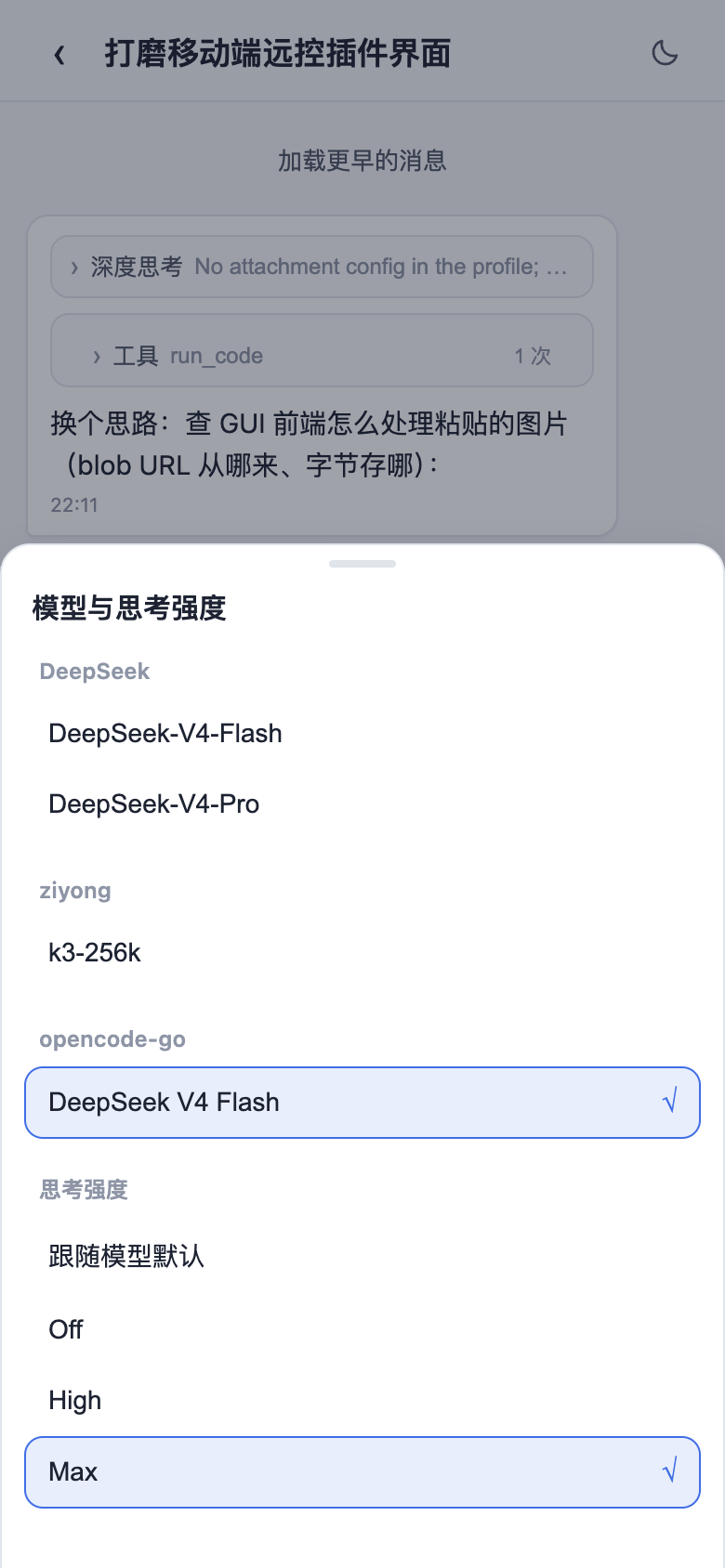
侧边栏底部的手机图标打开配对面板:扫码配对(或复制链接)后,手机进入独立的移动端界面,远程控制当前 dsh web 工作区——查看与新建会话、收发消息、切换模型与思考强度、调整权限预设,全部与桌面端同步。配对令牌一次性且限时,「停止」可随时吊销所有设备;二维码默认走局域网,也可开启 cloudflared 公网隧道,让手机在任意网络配对。
| 工作区列表 | 会话列表与新建会话 |
|---|---|
 |  |
| 聊天(折叠的深度思考与工具调用) | 模型与思考强度选择 |
 |  |
远程连接
侧边栏「SSH」入口打开远程运维面板。主机支持密钥 / 密码认证,可从 ~/.ssh/config 一键导入;配置统一存于 ~/.dsh/dsh-ssh.json。对已配置主机可执行真实操作:
- Web 终端:xterm.js 远程终端,实时输出、随窗口自适应;
- 文件传输:SFTP 上传 / 下载,带进度条与远程目录浏览;
- 端口转发:本地隧道直达远程内网服务(数据库、API、管理后台),仅监听 127.0.0.1;
- 集群执行:一条命令并发跑多台主机,按别名 / 环境 / 标签过滤;
- Agent 直连:Agent 与面板共享同一份主机配置,对话中直接说「连一下 xxx 看看状态」即可由智能体执行远程命令。
设置中心
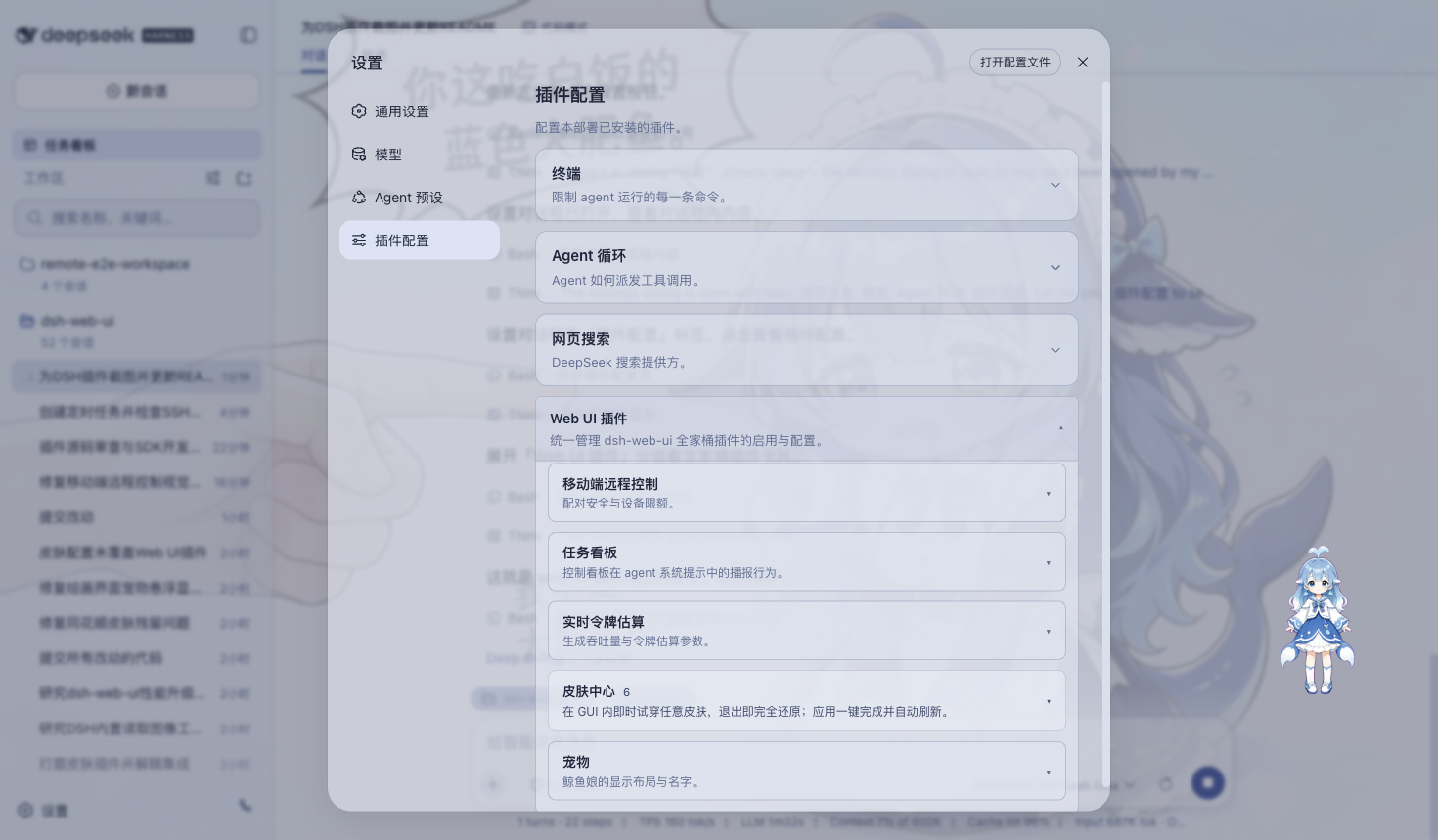
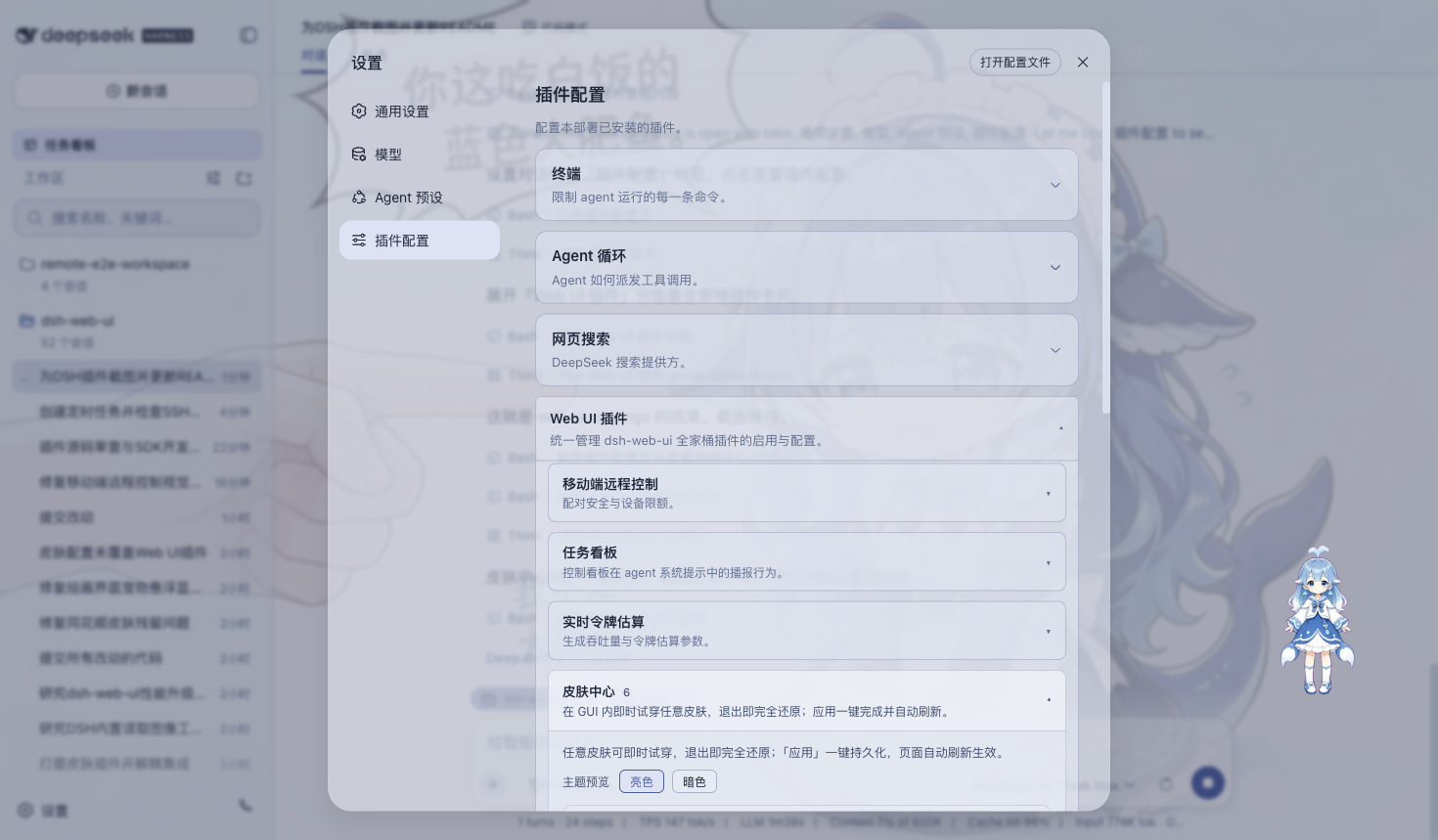
全部插件的开关与参数统一收纳于「设置 > 插件配置」,修改即时生效。桌面版会明确开放移动端远程控制、皮肤中心、实时令牌估算、任务看板、宠物和粒子主题六张配置卡,不会因 DSH Host 的设置命名空间过滤而缺项。设置窗口本身可拖动、从边缘或角落缩放,并会记住上次位置和尺寸;小窗口与高 DPI 下会自动重排和滚动,避免内容重叠或移出屏幕。
插件市场与扩展坞
桌面 profile 只内置 dshmarket 1.3.0 作为默认插件市场。市场安装目标固定为隔离的 desktop profile,支持社区 DSH bundle 的发现、安装、事务回滚和保留升级;运行时重启由桌面宿主统一管理,避免市场自行启动第二个 DSH 进程。项目技能、DSH 技能与 Agents 技能也可在扩展坞中发现并经过安全检查后导入。
皮肤
皮肤中心提供 11 款可选皮肤(含 Harbor 与 QQ2006),均支持先试穿再应用:试穿即时生效、退出完全还原,确认满意后一键应用。
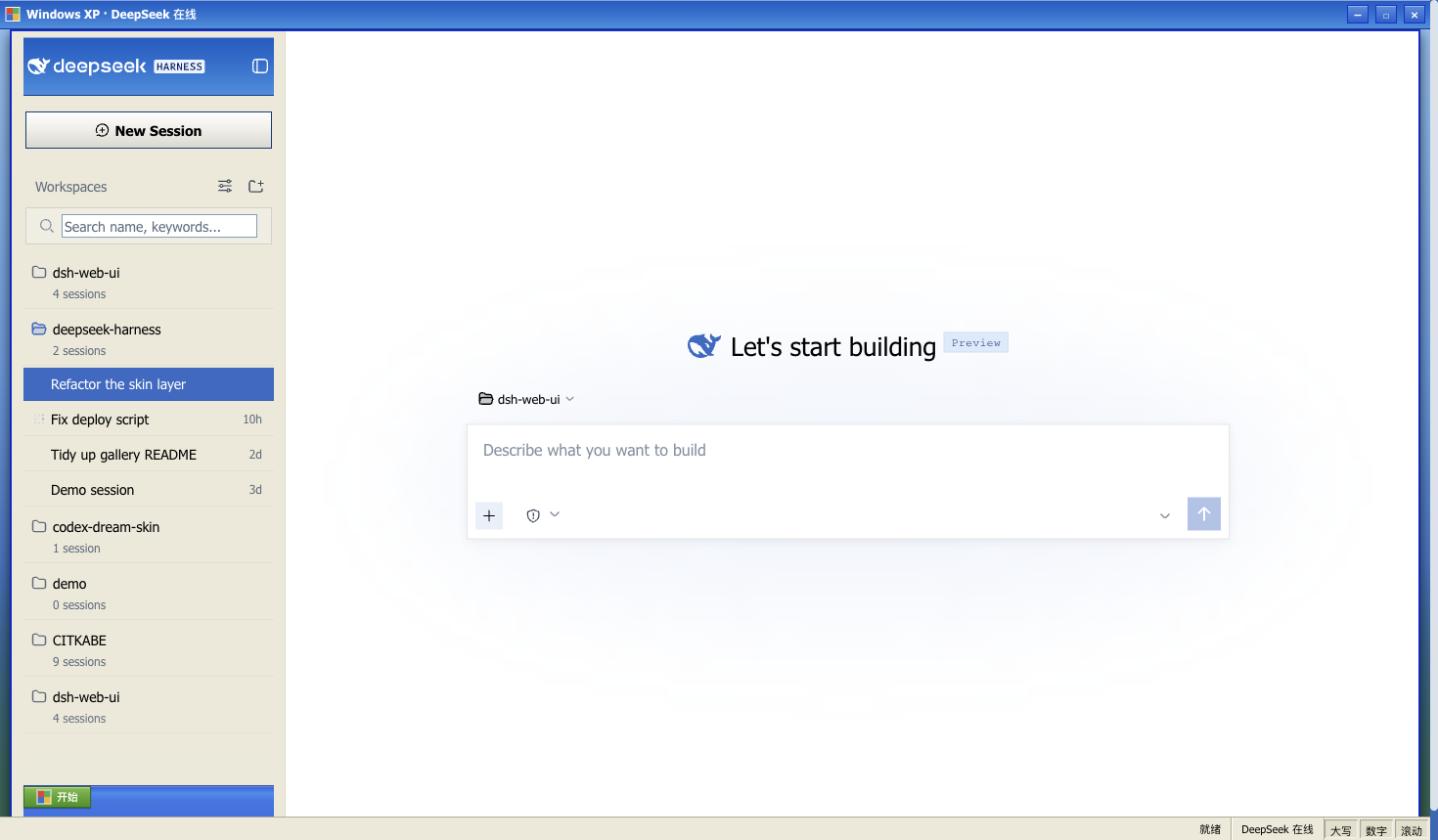
Windows XP(Luna)
还原 Luna 经典界面:蓝色渐变窗口条、绿色「开始」按钮、Bliss 蓝天桌面,全局直角风格。
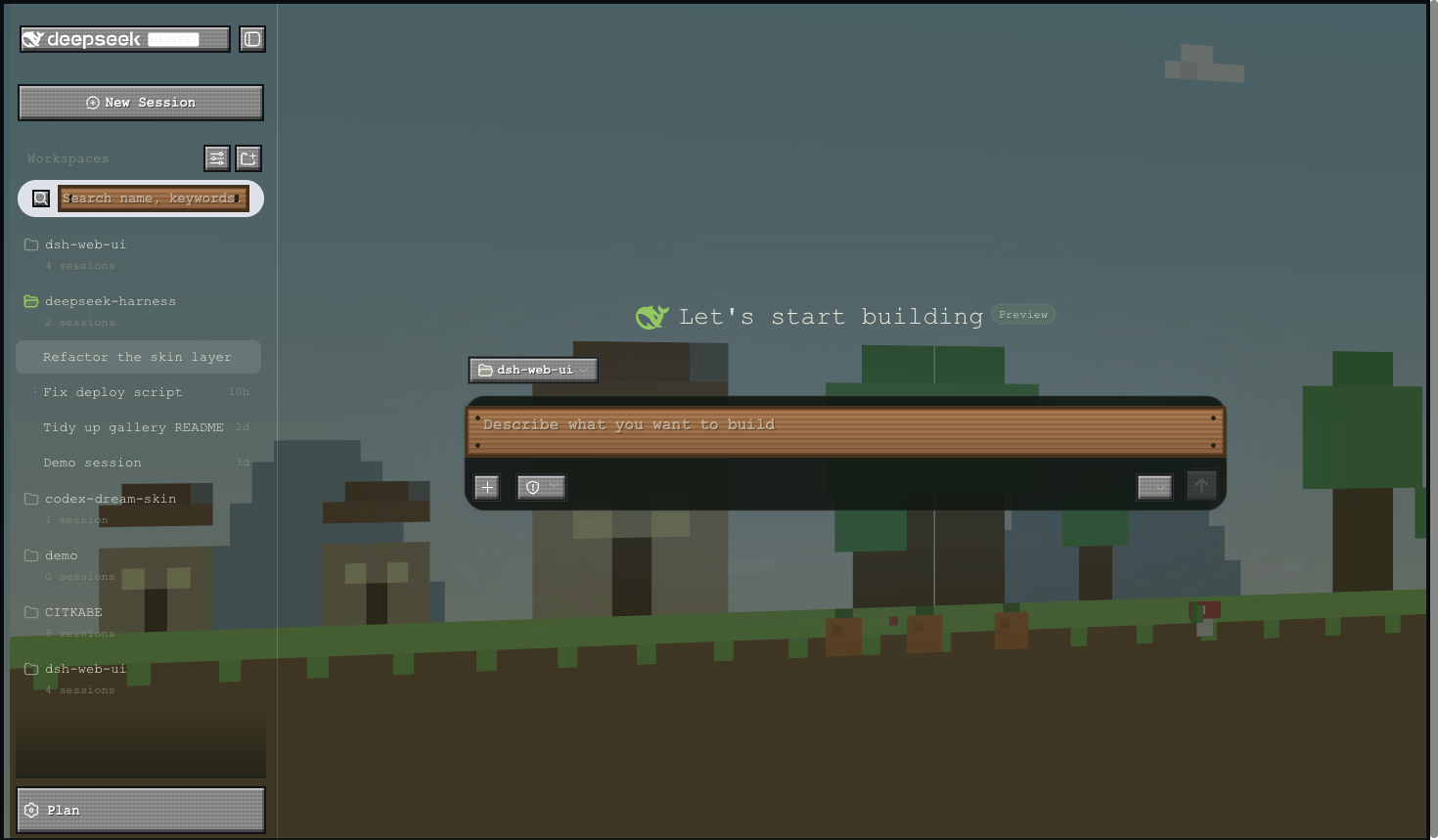
Minecraft 方块世界
以《我的世界》主界面为灵感:像素全景天空盒在界面后方缓慢旋转,按钮为灰石板样式,输入框为木告示牌样式。
Blue Fantasy 蓝色幻想
鲸鱼插画铺于半透明面板之下,靛蓝色调色板贯穿全局,暗色主题下效果尤为突出。
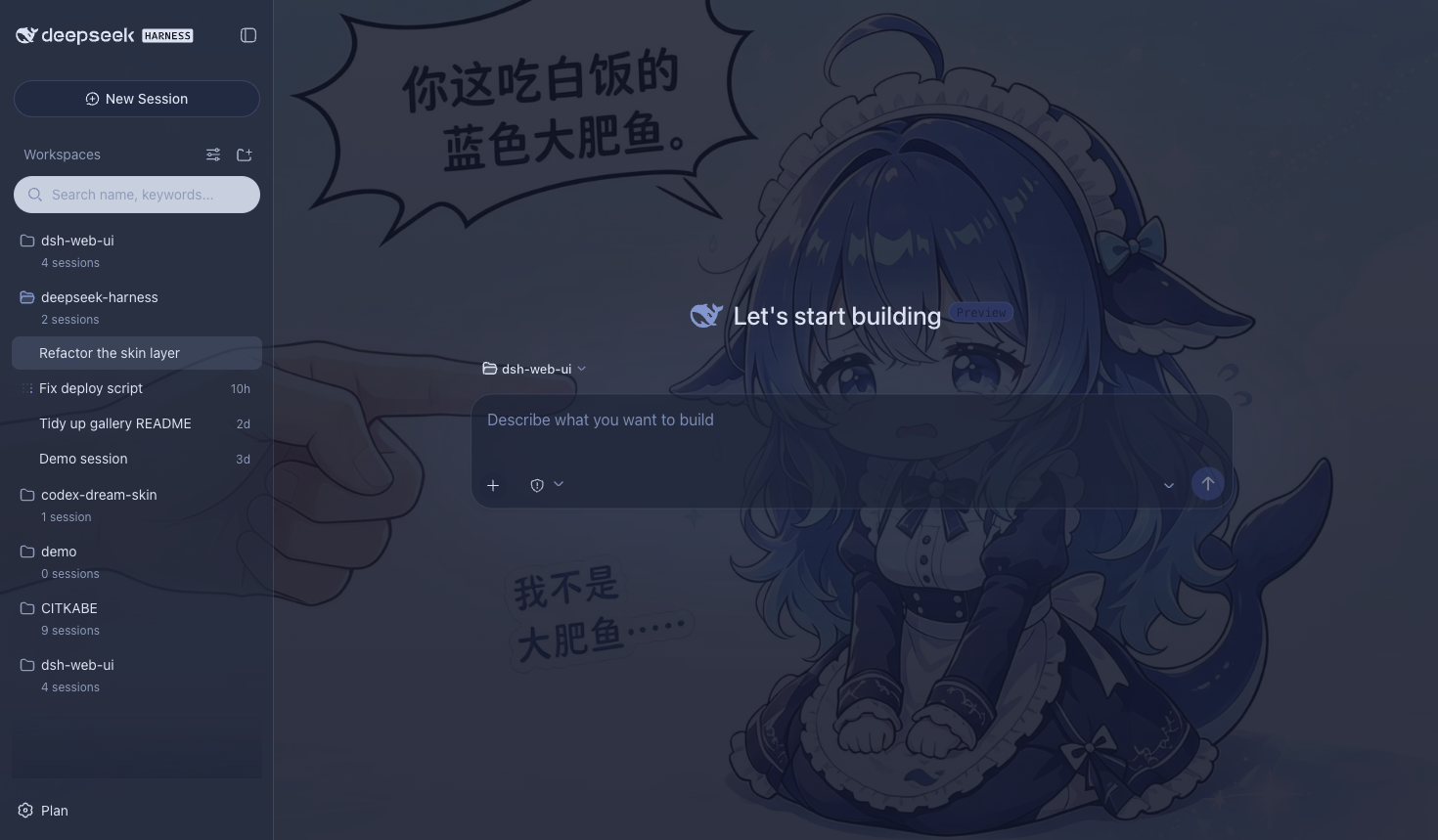
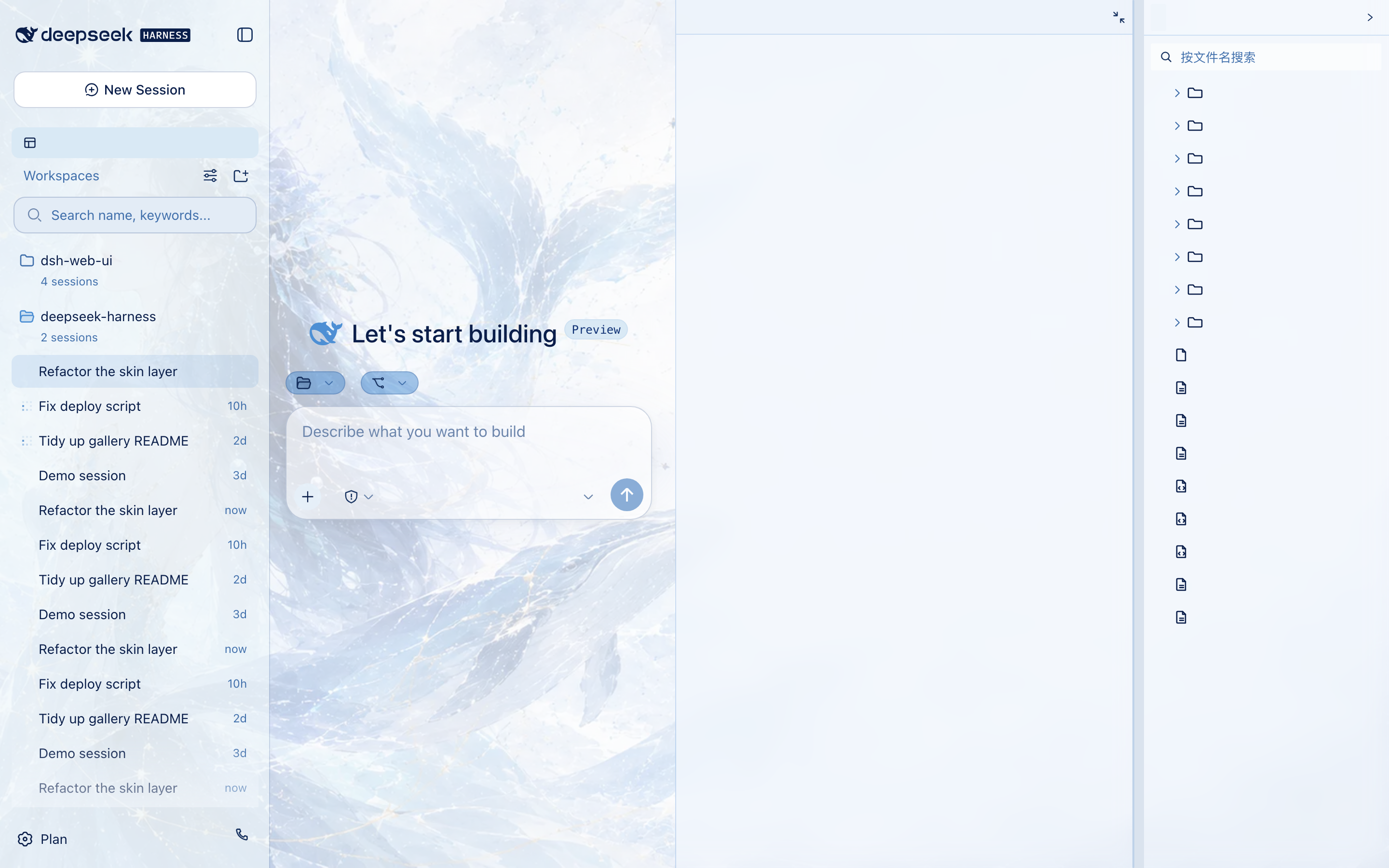
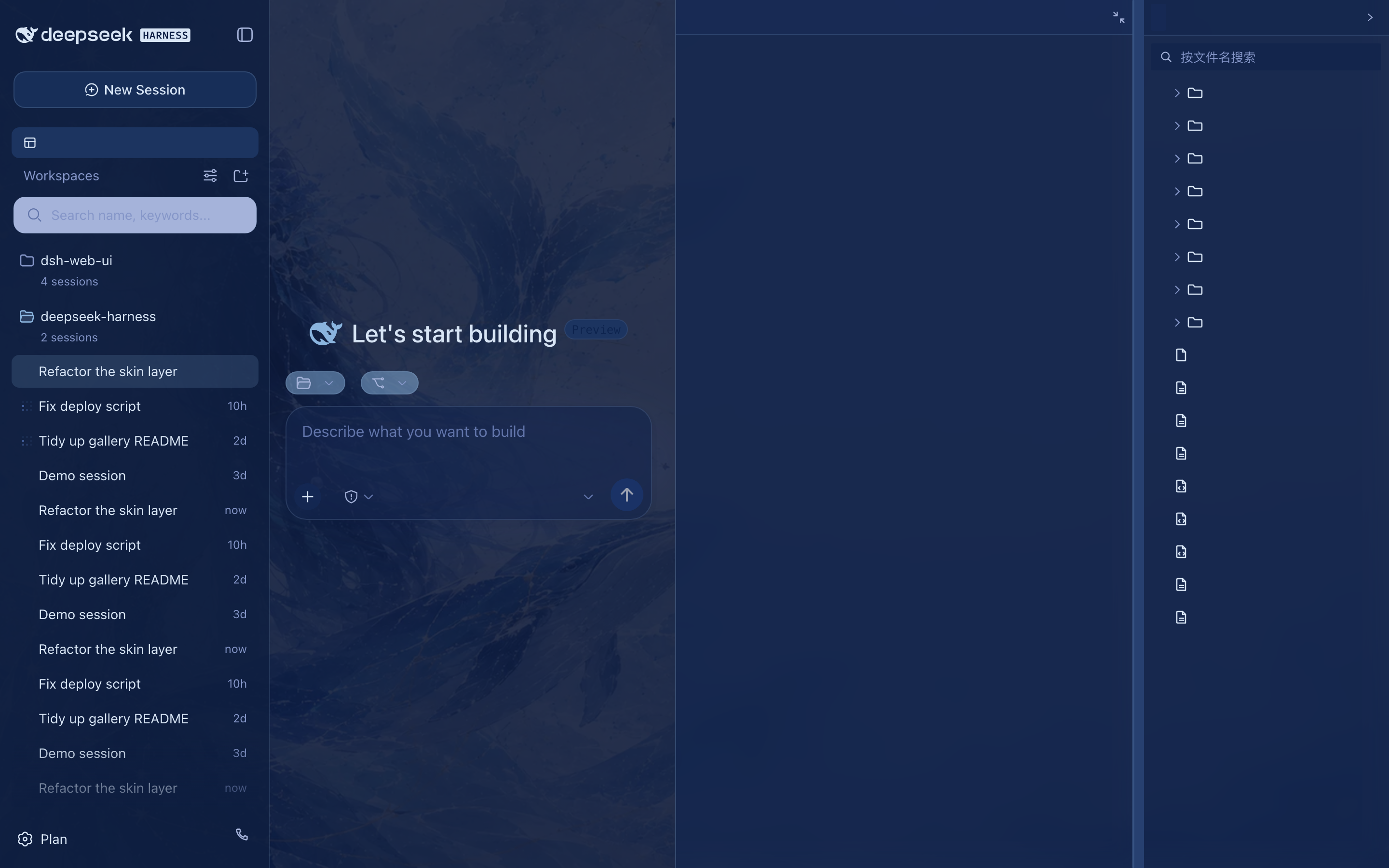
鲸吟(Whale Song)
深海鲸语女神主题:无文字纯氛围背景画(蓝发女神与鲸群居左、冰蓝星座网格与金色细线点缀、右侧大量留白)垫在半透明面板之下,冰蓝 / 浅青 / 深海军蓝 / 钴蓝冷色体系贯穿全局,暗色变体为深海夜航调。
 ·
· 
初音未来(Miku)
电子歌姬主题以青蓝音符、声波状态栏与半透明舞台面板重塑完整界面,同时保持亮色、暗色模式和功能插件可读性。
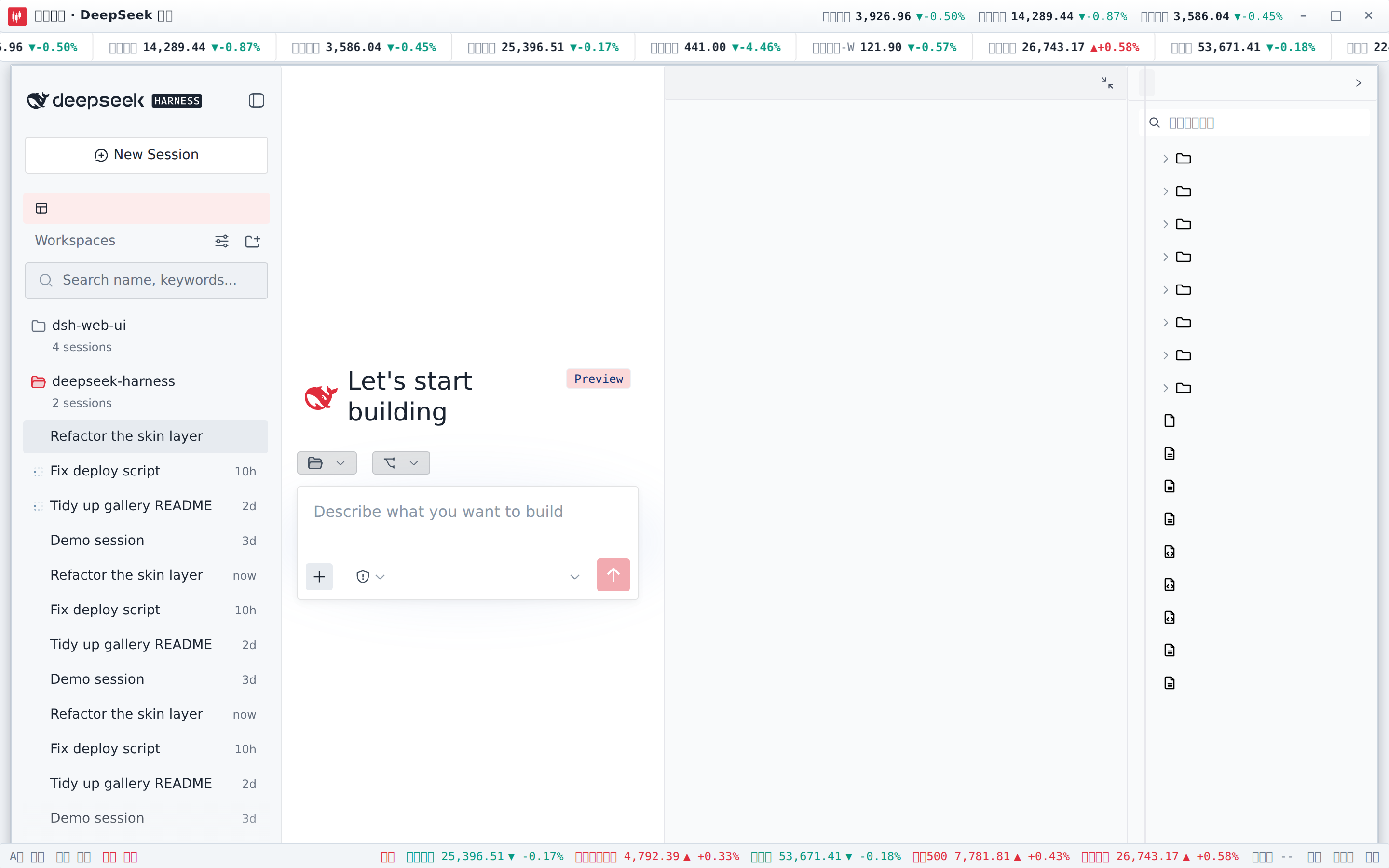
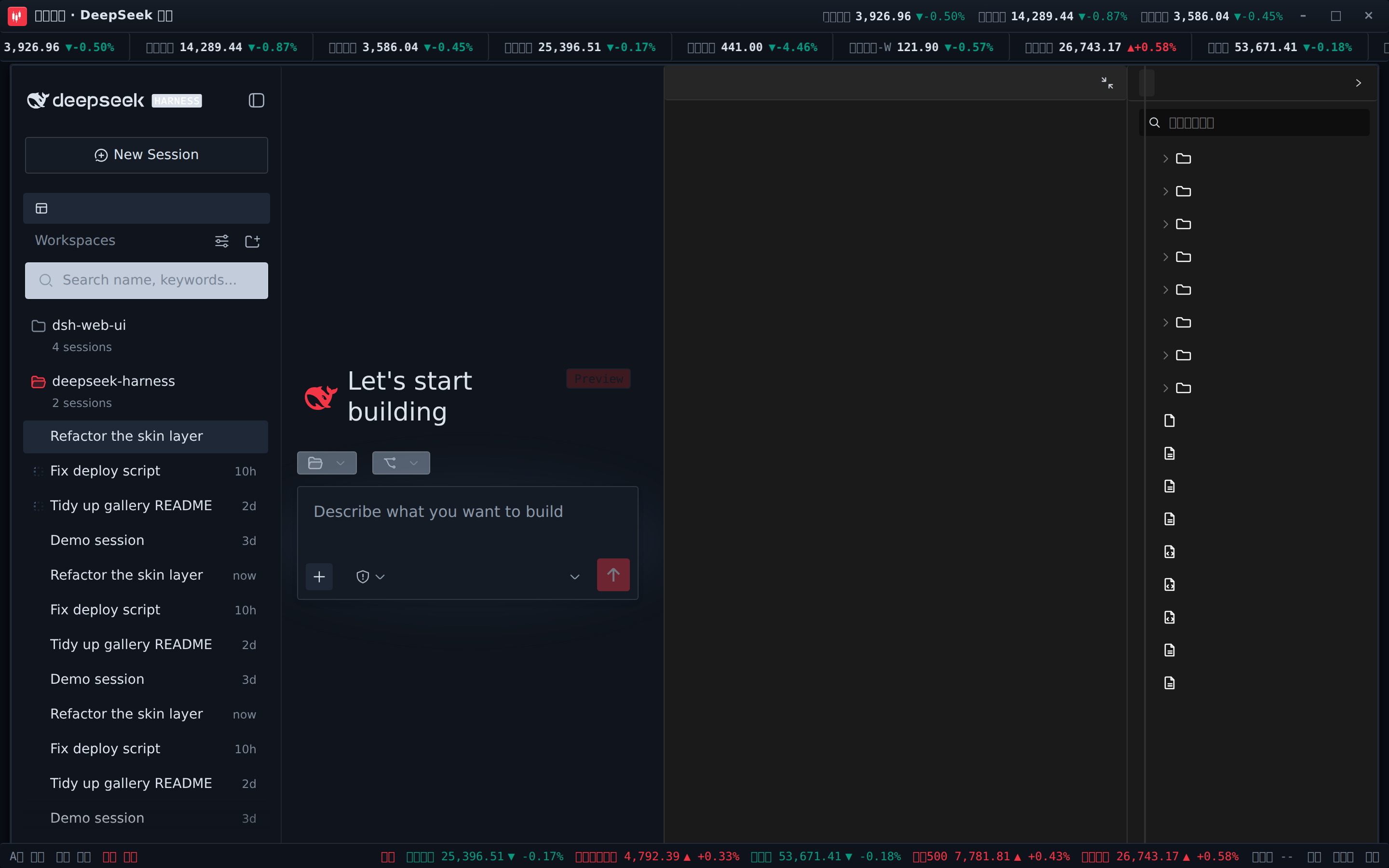
交易终端(Trading Terminal)
带实时行情的炒股皮肤:顶栏滚动跑马灯(A股 / 港股 / 美股 / 指数 / 加密 / 外汇,红涨绿跌),标题栏行情快签,状态栏展示 A股 / 港股 / 美股交易时段与港美股指数。已安装 dsh-fun-ticker 时跑马灯跟随你的自选列表(同源代理取数),已安装 dsh-longbridge 时指数格渲染长桥券商快照;两个插件都没装也能直接走公共行情源(腾讯 / 币安 / Frankfurter)独立工作,所有路径失败都安全降级为 --。
 ·
· 
其余三款:QQ2008 怀旧版(水晶蓝配色与企鹅元素)、同花顺风格(行情元素融入界面)、龙的传人(朱砂龙印主题)。
下载、校验与升级
- 从 GitHub Releases 下载最新的 Windows x64 安装包。
- 运行
DeepSeek-Harness-Desktop-Setup-<版本号>-x64.exe完成安装;DSH、插件、皮肤、pnpm 和原生依赖均已随安装包提供。 - 如需核验文件完整性,请下载同一 Release 中的
SHA256SUMS.txt并比对安装包 SHA-256。
GitHub Releases 是应用内置且默认使用的唯一下载源。如果 GitHub 下载速度较慢,可点击更新窗口的「加入用户群」,通过 QQ 群 1105158177 获取同步提供的最新安装包;应用不会默认启用或宣传第三方镜像为“更快”线路。
应用会检查稳定版 GitHub Release,展示中英双语更新说明,并提供「前往 GitHub 下载」「加入用户群」「稍后更新」。安装仍需明确确认,覆盖升级不会删除既有 DSH_HOME、桌面 profile、社区 bundle、桌宠状态、皮肤配置或已加密的 QQ Bot 凭据。
当前安装包没有商业代码签名,Windows SmartScreen 可能显示“未知发布者”。请只使用本项目 Release 页面提供的安装包;推荐采用默认安装路径,避免过长路径触发传统 Win32 限制。
来源与版权
| 包 | 来源 | 版权 |
|---|---|---|
| dsh-task-board / dsh-git-graph / dsh-aionui-panel / dsh-pet / dsh-particle-theme / dsh-remote-web-ui / dsh-live-stats / dsh-web-ui-settings / dsh-skins / dsh-web-ui-all / skins | 作者 zhu1090093659 个人开发 | BSD-3-Clause(zhu1090093659) |
迁入第三方代码必须保留 LICENSE 与署名;活跃且有上游的第三方优先 fork 或依赖引用,不搬代码。
友情链接
- 本项目积极参与并认可 LINUX DO 社区。
Read the usage guide →
Install steps, key points, FAQ and compatibility for this plugin — auto-derived from indexed fields.
Listing badge

[](https://deepseek-plugin.org/plugins/ningbainb/deepseek-harness-desktop/packages/dsh-skins)Paste this markdown into your GitHub README to link back to this listing. The badge only states the listing — not a security endorsement.