The Plugin Management tab in DSH web version supports npm/git installation, enable/disable toggles, conflict rollback, and failed repair session handling.
ⓘ This plugin is a sub-package of the zhu1090093659/dsh-web-ui monorepo — stars and activity count the whole repository.

- Language
- TypeScript
- License
- Apache-2.0
- Branch
- dev
Install
$ dsh plugin --profile web add @linxin666/dsh-client-ui-plugin-managerRun the command above in your terminal to install this plugin via the dsh CLI. You can switch Profile in the top-right corner. New to dsh? Read the beginner tutorial
Install via your agent
Install the DeepSeek Harness plugin zhu1090093659/dsh-web-ui/packages/dsh-plugin-manager for me: review the repository at https://github.com/zhu1090093659/dsh-web first, then run the install command and verify the plugin loads successfully.
Paste this instruction to the DSH Web GUI assistant — it will install and verify for you.
One-Sentence Positioning
Adds a "Plugin Management" tab to the "Plugins" section of the DSH web settings page, allowing you to install new plugins from npm or git, enable/disable installed plugins (effective on next restart), check for updates and uninstall. Installation conflicts can be one-click reverted or handed to the Agent for fixing. It lets you manage plugins without returning to the command line.
Core Capabilities
- Appends a "Plugin Management" tab to the official "Plugins" settings section (parallel to the official installer Tab), and exposes the same interaction entry as a
pluginManagercordis service for sibling plugins to call. - Installs plugins from npm package names or git repository URLs, continuously returning progress during installation (fetch/download/extract/write phases), git source installations run as background tasks and may take several minutes.
- Lists installed user plugins, provides "effective on next restart" enable toggle, supports update checking (npm source goes through registry), one-click update and uninstall.
- Shows actual changes during each install/uninstall (product line or profile line diffs), can be one-click reverted; each conflict has a "Let Agent Fix" button that automatically initiates a repair session with the workspace in the plugin root directory.
- Official runtime includes startup failure ring: each crashed plugin gives "Let Agent Fix" (failure details as seed) + "Copy Error" two buttons; npm runtime has no failure ring, only installation errors themselves carry repair handoff.
- Shows host's safe mode banner and "Restore Normal Mode" operation; takes effect immediately on official runtime, takes effect after next manual restart on npm runtime.
Technical Implementation
- Language: TypeScript (React browser side + Node host side + pure logic layer shared by both sides)
- Key Dependencies:
@deepseek-ai/cordis(plugin framework + service injection),@deepseek-ai/dsh-host-webserver(register gateway routes),@deepseek-ai/dsh-client-runtime(browser-side workspace/session injection),yaml(profile patch and package.json read/write parsing) - Architecture Pattern: Host/browser dual-half structure + dual-channel write. Host half inserts into web profile via profile bundle layer through
cordis.patch.yml,承担src/host/gateway.ts描述的 CLI 网关与src/host/routes.ts描述的 HTTP 路由; Browser half loads viapackage.json'sdsh.clientdeclaration, registers a Tab tosettings.plugins.tabslot. Write channels are divided into two categories: runtimes with official installer service (DSHCode, 1.0.4 checkout version web) go through official/plugin-installerand/plugin-controlloopback RPC; npm-published official web doesn't have these two channels, this package's host half mounts a loopback gate HTTP gateway, install/uninstall spawns officialdsh pluginCLI as single writer, enable/disable writes profile'sdisabledoverride line. The two channels are completely transparent to callers (unifiedpluginManagerface). - Entry Files:
src/index.ts(host half),src/client/index.ts(browser half)
Use Cases
Suitable for users who use DSH web version as their daily workspace and don't want to frequently switch back to the command line: installing new plugins, disabling a problematic one, checking for npm updates, reverting a failed installation — all can be done by clicking in the settings page. Also suitable for "family bucket" type users: when other developers want to add an "Install/Uninstall button" to their plugins or subscribe to "plugin just installed" events, they can directly ctx.inject(['pluginManager']) to reuse this plugin's capabilities without having to interface with official RPC again.
Prerequisites & Compatibility
| Dependency | Minimum Version | Description |
|---|---|---|
| DSH (@deepseek-ai/dsh-client-*) | ^0.1.0-rc.8 | Official SDK version locked through peer/devDependencies; package.json does not declare engines field |
| Node | ^22.19 or >=24 | Repository shared constraint; this package itself not explicitly declared in package.json |
| Platform | macOS / Windows / Linux | On Windows, npm-generated dsh.cmd is resolved to node.exe + in-package bin.js, avoiding cmd.exe secondary parameter parsing |
| Native Modules | None | All go through Node built-in modules (node:child_process / node:fs / node:http / node:path) and yaml pure JS package |
Installation
dsh plugin --profile web add github:zhu1090093659/dsh-web-ui/packages/dsh-plugin-manager
Configuration
This plugin requires no additional configuration. The Tab does not carry a configuration namespace; enable/disable switches and installation action effective timing are determined by DSH's own restart mechanism (effective on web side after next manual restart).
FAQ
Q: Why can't I see the "Plugin Management" tab in settings after installation?
A: You need to restart dsh web first. Enable/disable switches and installation actions all take effect after the next manual restart; the web side has no in-shell restart capability.
Q: Can this tab be used when accessing the web page from LAN or remotely?
A: No. All gateway routes only accept local loopback requests (quadruple gate: socket address + Host header + same-origin marker), non-local access directly returns 403, same boundary as official installer Tab.
Q: What's the difference between installing from npm and from git repository?
A: Both go through official dsh plugin CLI, but git source requires cloning the repository, may take several minutes and run as background task, progress bar can be viewed in the list; dsh command must be findable in host process's PATH, otherwise gateway will reject.
Q: What if it crashes on next startup after installation?
A: Official runtime has "startup failure ring" under that plugin, you can click "Let Agent Fix" to one-click initiate repair session (workspace is plugin installation root), or click "Copy Error" to take the error message. npm runtime has no failure ring, only installation errors themselves carry repair handoff.
Q: What are the "conflicts" shown during installation? Can they be reverted?
A: Conflicts are the actual product lines or profile lines changed by this installation, can be one-click reverted to state before operation; if cannot revert or don't want to handle manually, each conflict can "Let Agent Fix" for AI automatic handling.
Q: How do other plugins call this plugin's capabilities?
A: Inject via cordis service name pluginManager: after ctx.inject(['pluginManager'], cb), read ctx.pluginManager, can get five methods: list / install / uninstall / status / onChange, onChange callback after each successful install/update/uninstall/enable change.
Q: Can enable/disable switches cause some plugins to never start again?
A: On npm runtime, enable/disable is implemented by writing disabled override line to profile's cordis.patch.yml, but this path is not as well-exercised by official desktop writer, recommend caution for those "family bucket aggregate packages mounted via patch line"; official runtime is not subject to this limitation.
Q: How to completely uninstall?
A: Just restart dsh web after using dsh plugin --profile web remove with corresponding package name. This plugin has no configuration namespace of its own, no need to clean up config files.
Learning Curve
Beginner — install and use, zero configuration; users only need to "click a few times in settings page" to complete plugin installation, enable/disable, update and uninstall, no command line operations needed.
Known Issues & Limitations
- Local loopback only: LAN or remote browsers only show "local operation only" hint, gateway returns 403 for non-loopback requests, same boundary as official installer Tab.
- No startup failure ring and safe mode on npm-published official web: these two interfaces degrade to empty, only installation errors provide repair handoff.
- Enable/disable on npm runtime depends on
disabledoverride line incordis.patch.yml; this path is not as well-exercised as official desktop writer, and cannot usedisabledto bypass loader's duplicate check for shared entry ids (loader deduplication doesn't recognize disabled, writing it will accidentally harm existing plugins). - No in-shell restart on web side: all changes take effect after next manual restart of
dsh web. - Conflict detection during installation reports "what actually changed" (product lines in official mode; profile lines and bundle entries in gateway mode); duplicate insert-id on npm runtime automatically rolls back new plugin after installation, won't touch existing plugins.
- Duplicate mount protection: official CLI's bundle reconciliation adds any dependency declaring
dsh.bundleback todsh.profile.bundles, including packages already mounted via patch line (likedsh-better-sidebar), will causeduplicate prefix routestartup failure; gateway only strips "newly added and already mounted via patch line" entries after each CLI change succeeds, normal entries and user's original entries stay untouched. - Startup pre-check (
--dump-config) only combines patch layer, doesn't import entries: can catch combination failures, can't catch import period failures — the latter still exposes during first real startup. - Upstream CLI residue: official CLI still goes through
cmd.exeshell when forwarding to pnpm on Windows, this package cannot change it, mitigated within this repository through spec metacharacter validation (& | < >, quotes, backticks, control characters).
中文 | English





DeepSeek Harness(DSH)Web GUI 的插件与皮肤全家桶 · 一切皆开发,一切皆插件
梁神模式 · 任务看板 · Git 图谱 · 右侧面板 · 移动端远程 · SSH 运维 · 图像理解 · 鲸鱼娘宠物 · 皮肤中心
是什么
dsh-web-ui 继承 DeepSeek Harness(DSH)「一切皆开发、一切皆插件」的核心理念,也是这一理念在 Web GUI 上最完整的落地:它不只是一个插件包,更是一个可拓展性极强的插件生态。面向 DeepSeek V4 Pro 的「梁神模式」agent 预设,以及任务看板、Git 图谱、右侧面板、移动端远程、SSH 运维、图像理解、鲸鱼娘宠物和皮肤中心——每一样都是独立成包的模块,可插拔、可替换、可再开发;可以一次装齐全家桶,拼出完整的开发工作台,也可以只挑一两个,安静地融入原生界面。所有插件都走官方 profile 机制挂载到 dsh web,不改 DSH 源码;聚合包还能把外部插件(如 dsh-better-sidebar)拼进全家桶,详见 dsh-web-ui-all README。
「一切皆插件」还贯彻到了皮肤本身:皮肤中心 v2 重构后,一款皮肤不再是耦合官方 DSH 的 npm 包,而是一个纯资产目录——一份 skin.json 清单加上样式、贴图与可选特效脚本,交由皮肤中心这一唯一加载器即时加载。皮肤与官方彻底解耦、只与皮肤中心耦合:官方升级不再牵动任何皮肤,新增一款皮肤也只需落一个目录,无需发布、无需安装。插件负责逻辑,皮肤负责外观,边界从此清晰。
| 能力 | 原生 dsh web | dsh-web-ui 全家桶 |
|---|---|---|
| Agent 预设 | 官方预设(Standard / Minimal 等) | 梁神模式:面向 V4 Pro 的两阶段锚定预设 |
| 任务看板 | 无 | 多列看板 + cron 定时真实执行 |
| Git 可视化 | 无 | 分支泳道 + 提交历史图谱 |
| 文件预览与变更 | 无 | 右侧面板:better-sidebar(资源管理器 / 编辑器 / 终端 / Git / 浏览器);旧 aionui 面板已停止支持(默认关闭,设置卡可临时切回) |
| 移动端远程 | 无 | 扫码配对,SSE 实时同步;同一链接也可配对 PC 浏览器远程使用完整 Web GUI |
| 远程服务器运维 | 无 | SSH 面板:终端 / 传输 / 隧道 / 集群 |
| 图像理解 | 无 | describe_image 视觉工具 |
| 主题皮肤 | 默认主题 | 皮肤中心 12 款,先试穿再应用 |
功能插件
梁神模式
DeepSeek V4 Pro 对首轮工具目录很敏感。社区评测里,官方 Standard / PTC 预设只有 91 / 92 分,Minimal 能到 99 / 96,但 Minimal 只有两个工具。梁神模式把这两步拼起来:新建会话时在预设选择器里选「梁神模式」,首轮按 Minimal 开局(只暴露持久 bash 与 str_replace_editor,只放行你自己的消息),轨迹锚定后自动切到 PTC Mode,完整工具注册表、workspace 指令和 skill 目录随后恢复。Windows 原生环境实测(DeepSeek V4 Pro)98 / 99,均值 98.5,不是抽卡,也不需要牺牲完整工具能力。
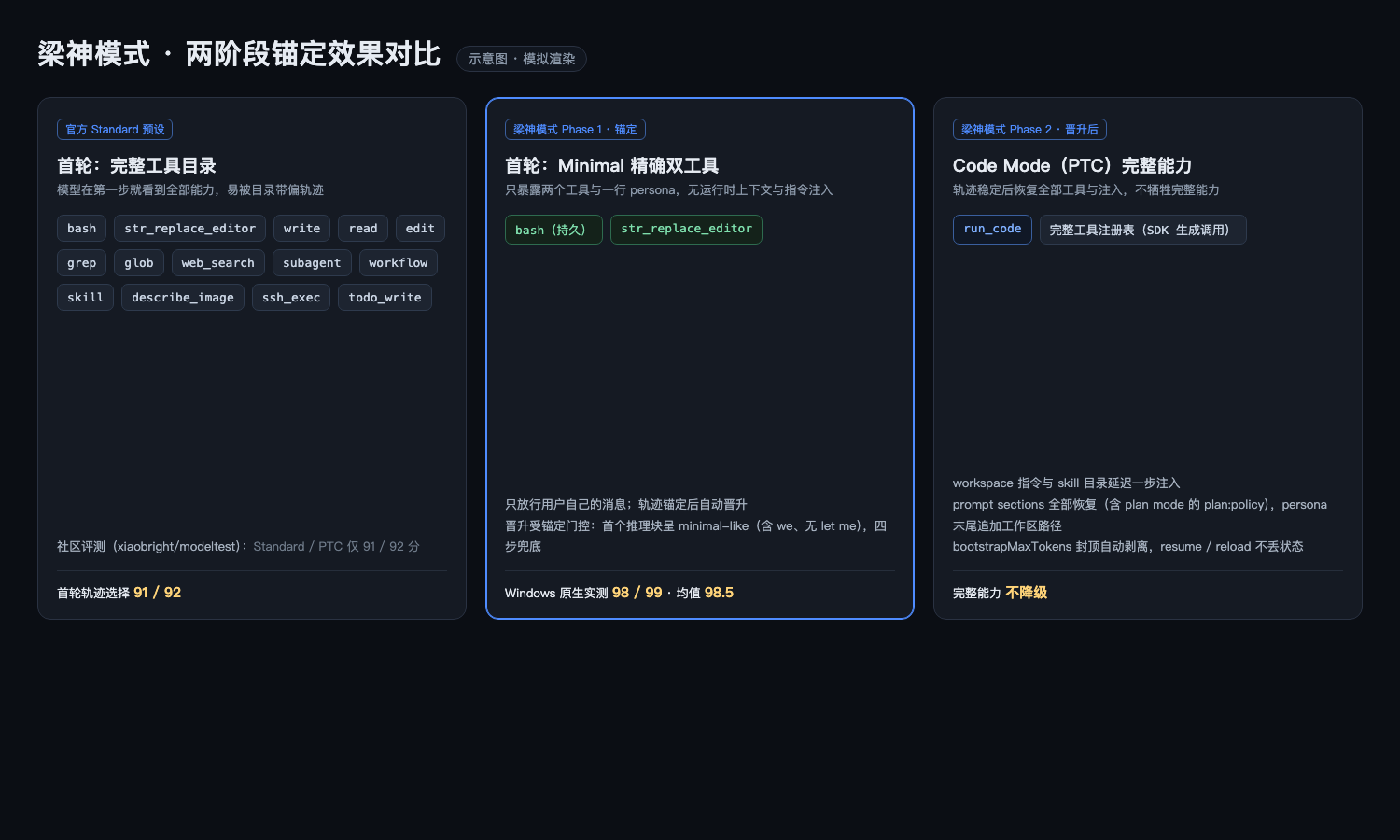
原理、稳定化控制与限制详见 dsh-liangshen README。
任务看板
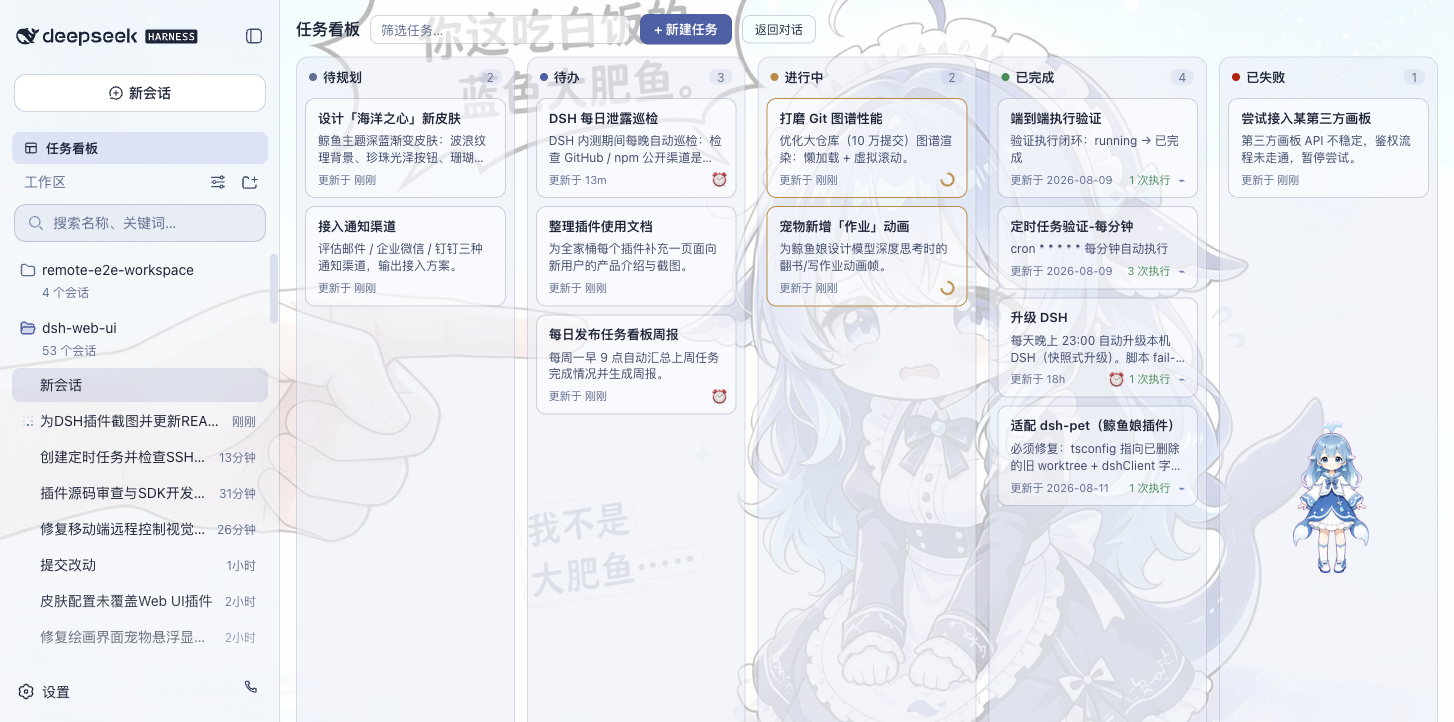
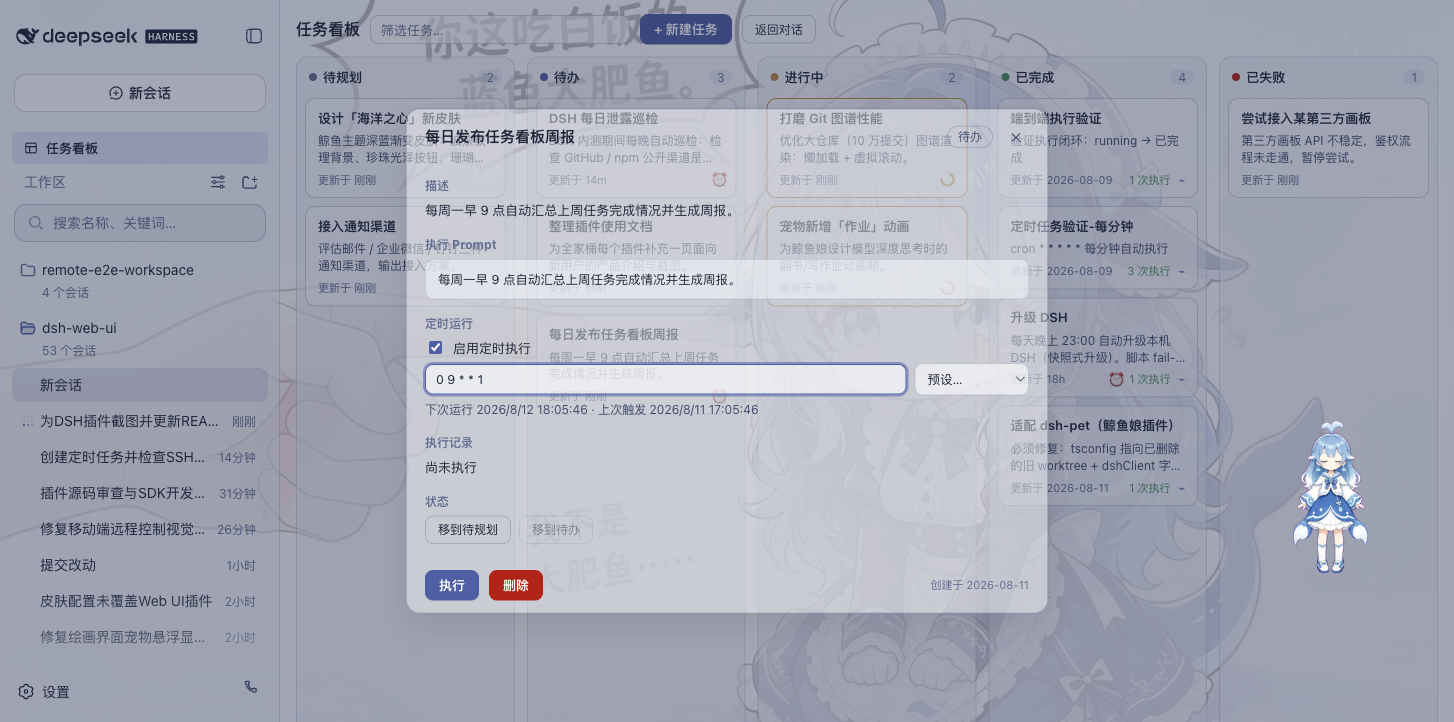
侧边栏点「任务看板」进入。任务按五列摆开:待规划、待办、进行中、已完成、已失败。点卡片上的「执行」,任务交给真实的 DSH 智能体会话去跑,跑完状态自动回写;想复盘就跳回执行会话看完整过程。
任务也支持 Host 定时跑:详情里配 cron 表达式(比如每天 23:00 自动升级 DSH、每周一 09:00 生成周报),关闭浏览器后仍会到点执行和结算。可选的空闲睡眠保护支持 Windows、macOS 和带 systemd-logind 的 Linux,允许屏幕熄灭,同时阻止整机因空闲睡眠;该设置默认关闭。
| 多列看板 | 定时执行 |
|---|---|
 |  |
Git 图谱
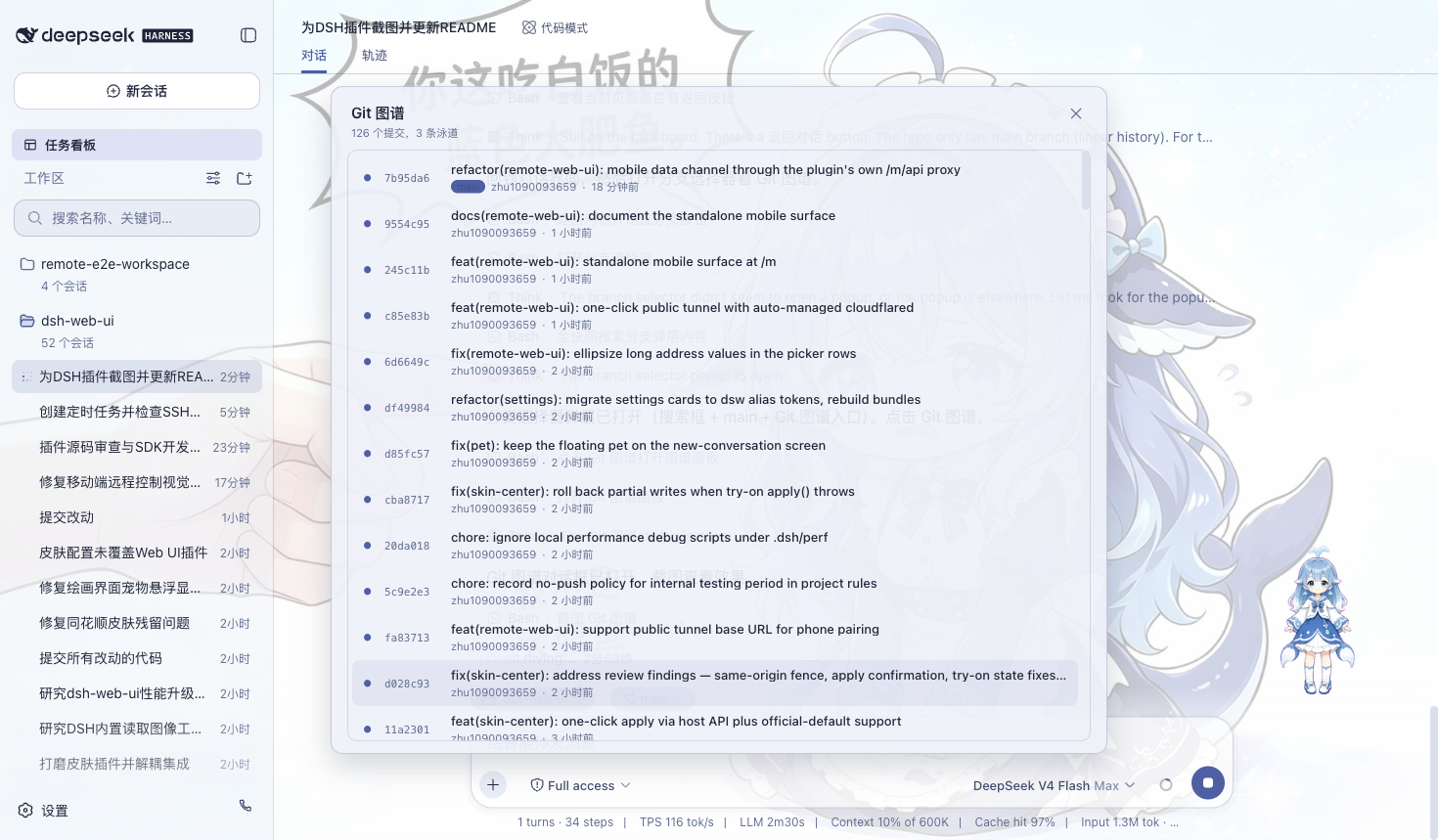
输入框上方有分支选择器,可以切分支、翻提交历史;Git 图谱把分支泳道和提交历史画出来,仓库再大也能顺着时间线找到变更。
移动端远程
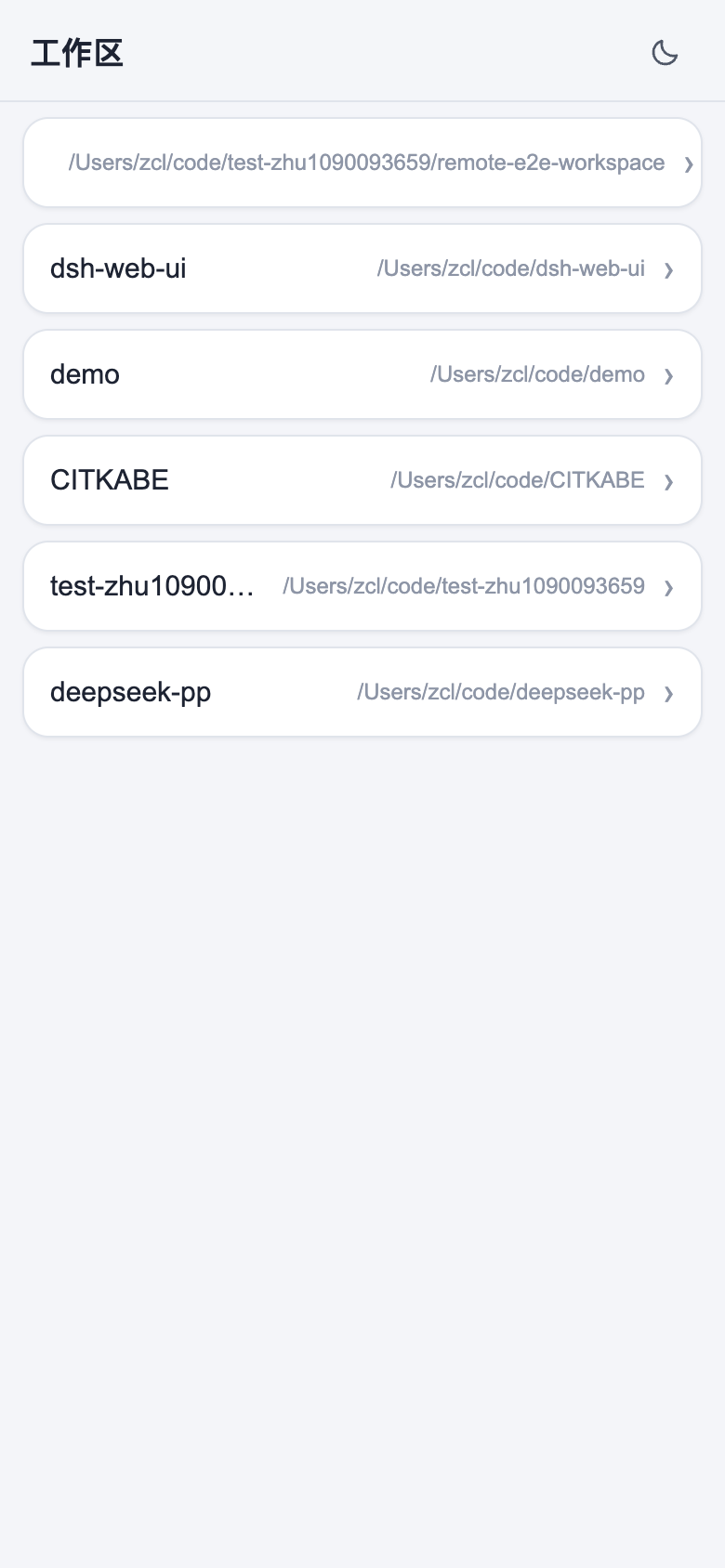
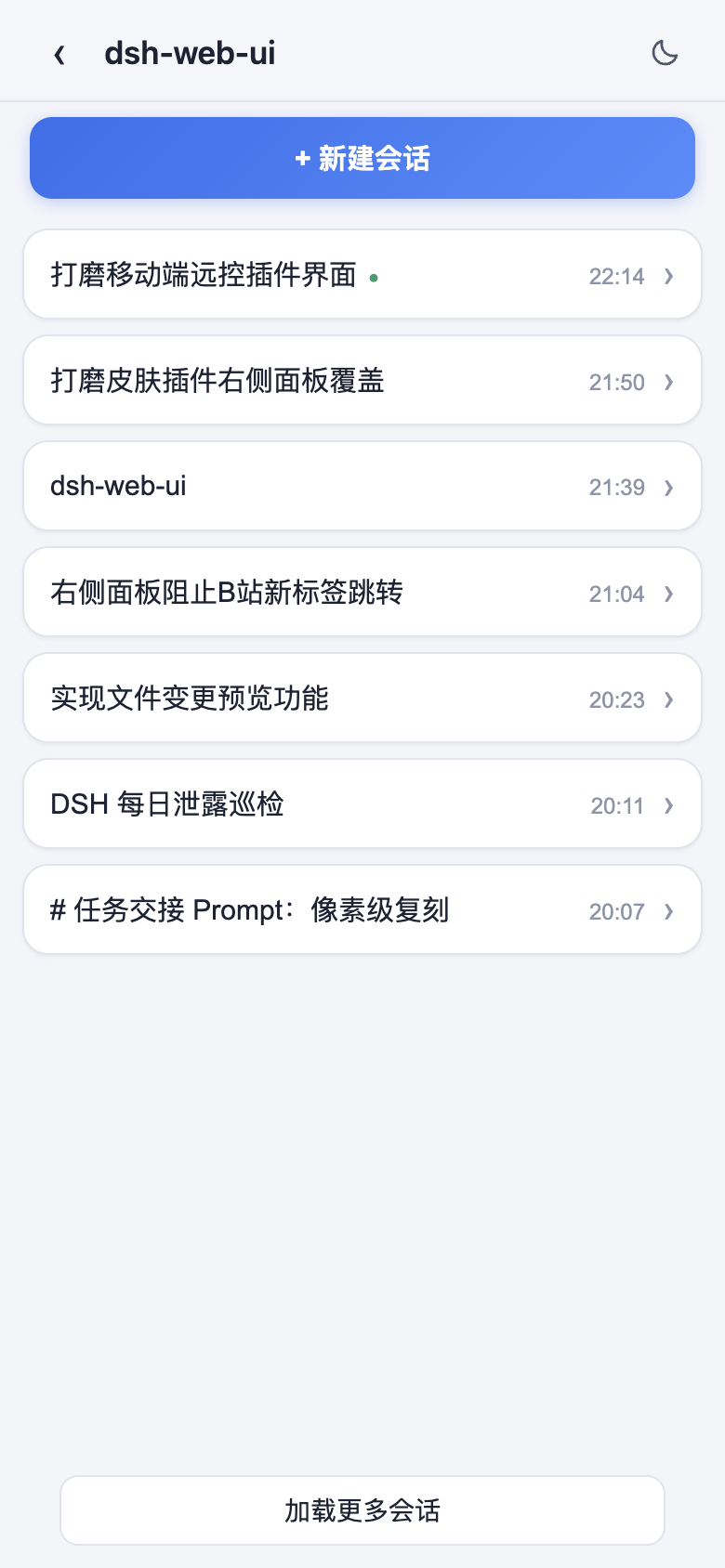
侧边栏底部的手机图标打开配对面板。扫码(或复制链接)配对后,手机进独立移动端界面,远程操作当前的 dsh web 工作区:看会话、开新会话、收发消息、切模型和思考强度、调权限预设,都和桌面端同步。同一份配对链接也能配对 PC 浏览器(手机配对流扩展到桌面 Web GUI):在另一台电脑打开桌面 URL 形态的链接,完整 Web GUI 便在那台设备上运行,流量走配对门控的 /remote/api 通道——未配对设备只有横幅提示、拿不到任何数据。配对令牌一次性、限时,「停止」随时吊销所有设备;二维码默认走局域网,开 cloudflared 公网隧道后手机(和 PC)在任何网络都能配对。PC 远程桌面应优先使用插件自己的设备配对通道,安全上不建议为隧道域名设置 --trusted-host;该 flag 会让 SDK 的 /api 绕过配对门控(详见插件 README)。
实时消息与隧道:移动端靠 SSE(Server-Sent Events)收实时消息。Cloudflare quick tunnel(trycloudflare.com)和 Tailscale Serve 不透传 SSE,普通 HTTP 正常、实时推送到不了;这种网络下插件自动降级轮询,收发消息正常,只是新消息可能晚几秒。要即时推送就用支持 SSE 的隧道(Cloudflare named tunnel、自定义 TCP 端口转发等)。
| 工作区列表 | 会话列表与新建会话 |
|---|---|
 |  |
| 聊天(折叠的深度思考与工具调用) | 模型与思考强度选择 |
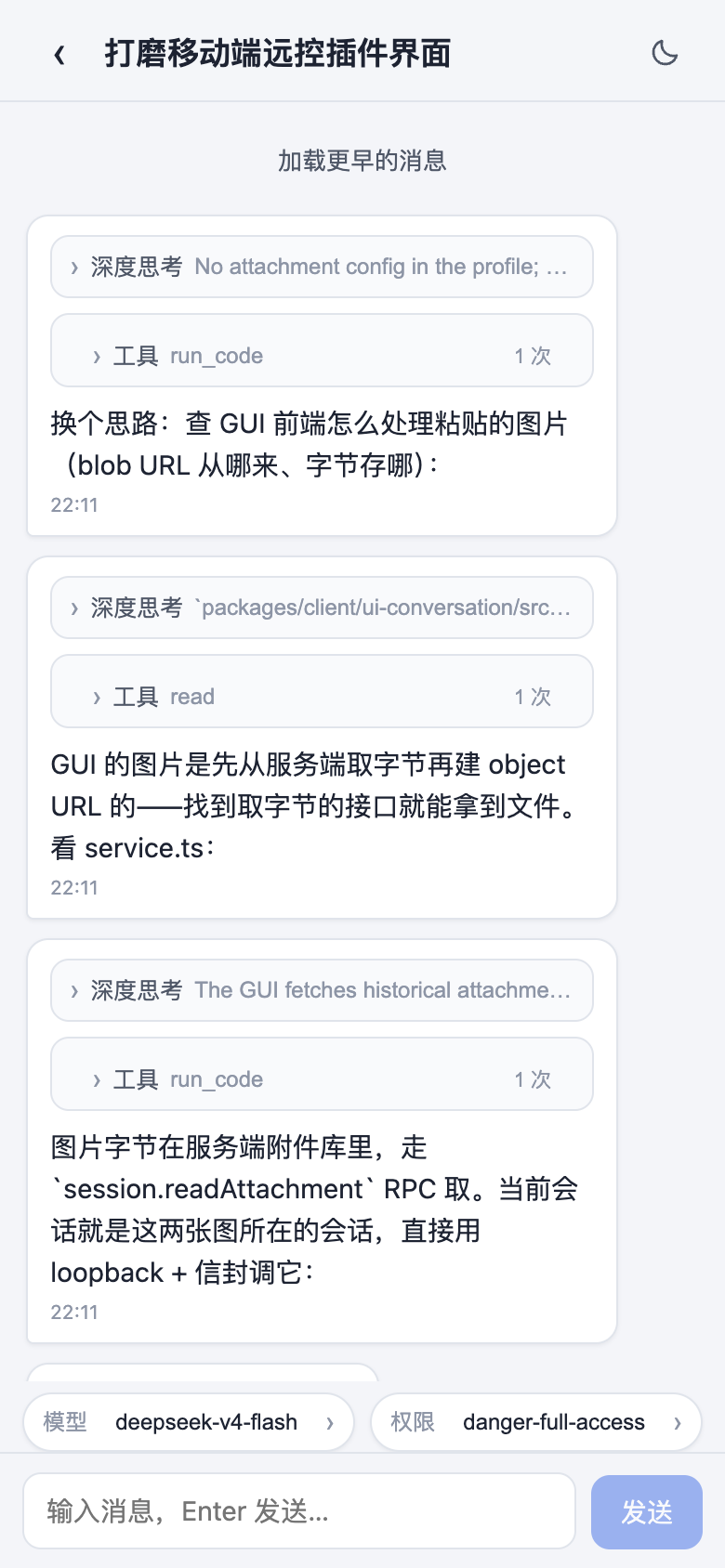 | 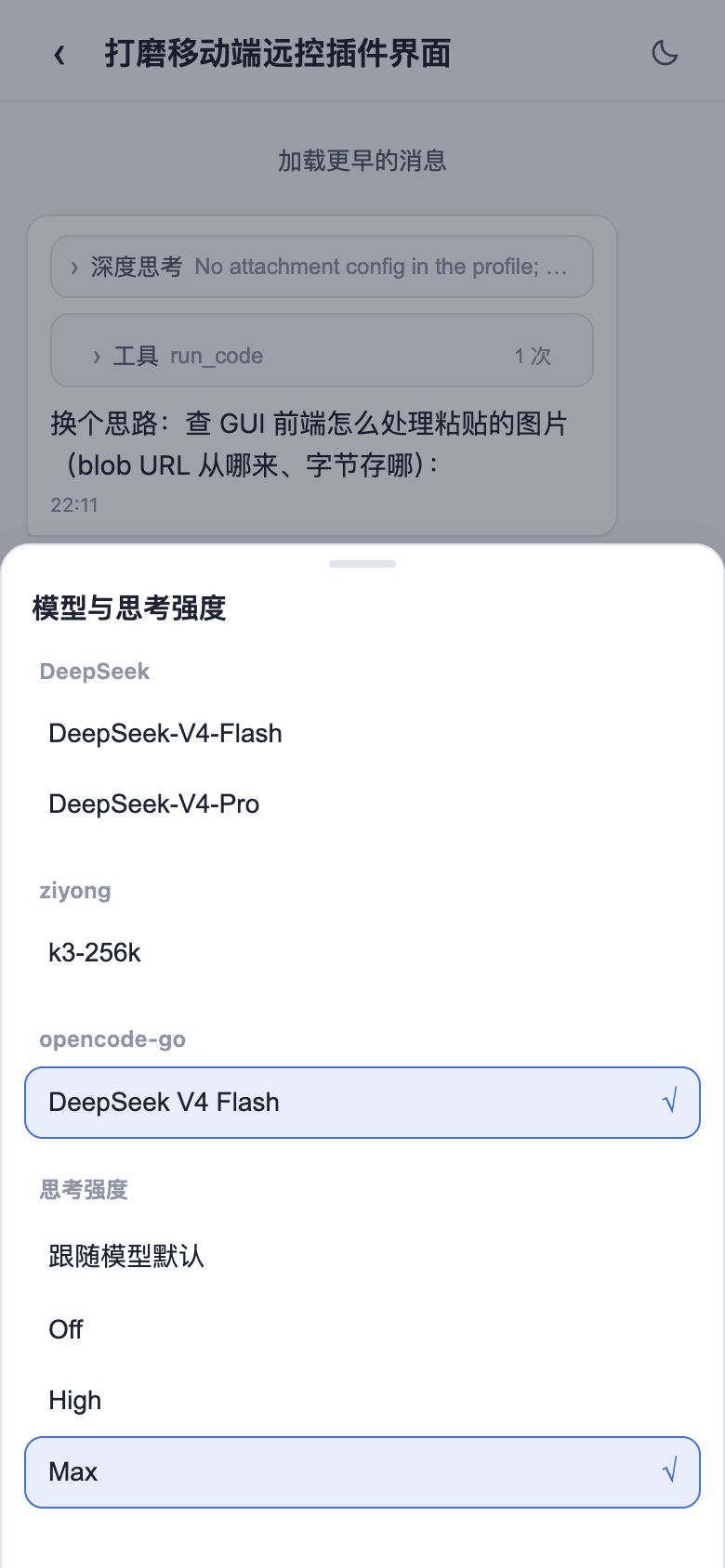 |
远程连接
侧边栏「SSH」入口打开远程运维面板。主机支持密钥 / 密码认证,可从 ~/.ssh/config 一键导入;配置都在 ~/.dsh/dsh-ssh.json。对已配置主机可执行真实操作:
- Web 终端:xterm.js 远程终端,实时输出,窗口大小自适应;
- 文件传输:SFTP 上传 / 下载,有进度条,能浏览远程目录;
- 端口转发:本地隧道直连远程内网服务(数据库、API、管理后台),只监听 127.0.0.1;
- 集群执行:一条命令并发跑多台主机,按别名 / 环境 / 标签过滤;
- Agent 直连:Agent 和面板共用同一份主机配置,对话里说一句「连一下 xxx 看看状态」,智能体就去执行远程命令。
图像理解
给纯文本模型补上视觉:对话里提到图片(本地路径、http(s) URL、会话附件)时,describe_image 把图片发给配置好的 OpenAI 兼容视觉端点(Qwen-VL、GLM-4V、GPT-4o、本地 Ollama 都行)回答,进会话的只有返回的文本,图片本身不进会话记录。纯文本模型输入框没有图片入口,插件在输入框加了个图片按钮:选图后生成附件引用插进草稿,模型就能用 describe_image 分析;工具还支持 prompt 参数传自定义指令(OCR、UI 诊断、翻译),比默认描述准。端点、模型、密钥、默认指令在「设置 > 插件配置 > Image understanding」里配,即时生效。
右侧面板
右侧面板由外部插件 dsh-better-sidebar 提供(聚合包已集成并默认启用),支持其内置功能与第三方插件注册,详见其 README。
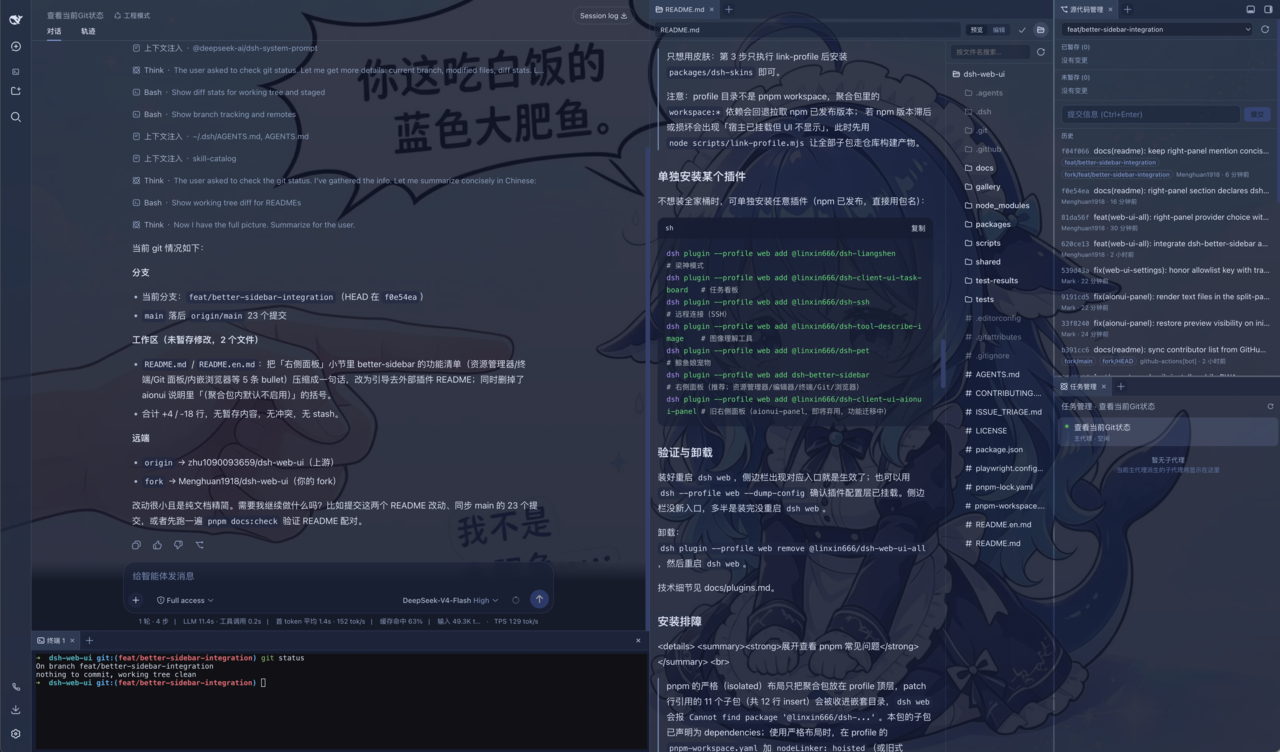
此前的 aionui-panel 右侧面板已停止支持:默认关闭,不再维护、测试或接受修复,后续版本将从全家桶移除;设置 → Web UI 插件 → 侧边卡片 卡内嵌其常用设置。
鲸鱼娘宠物
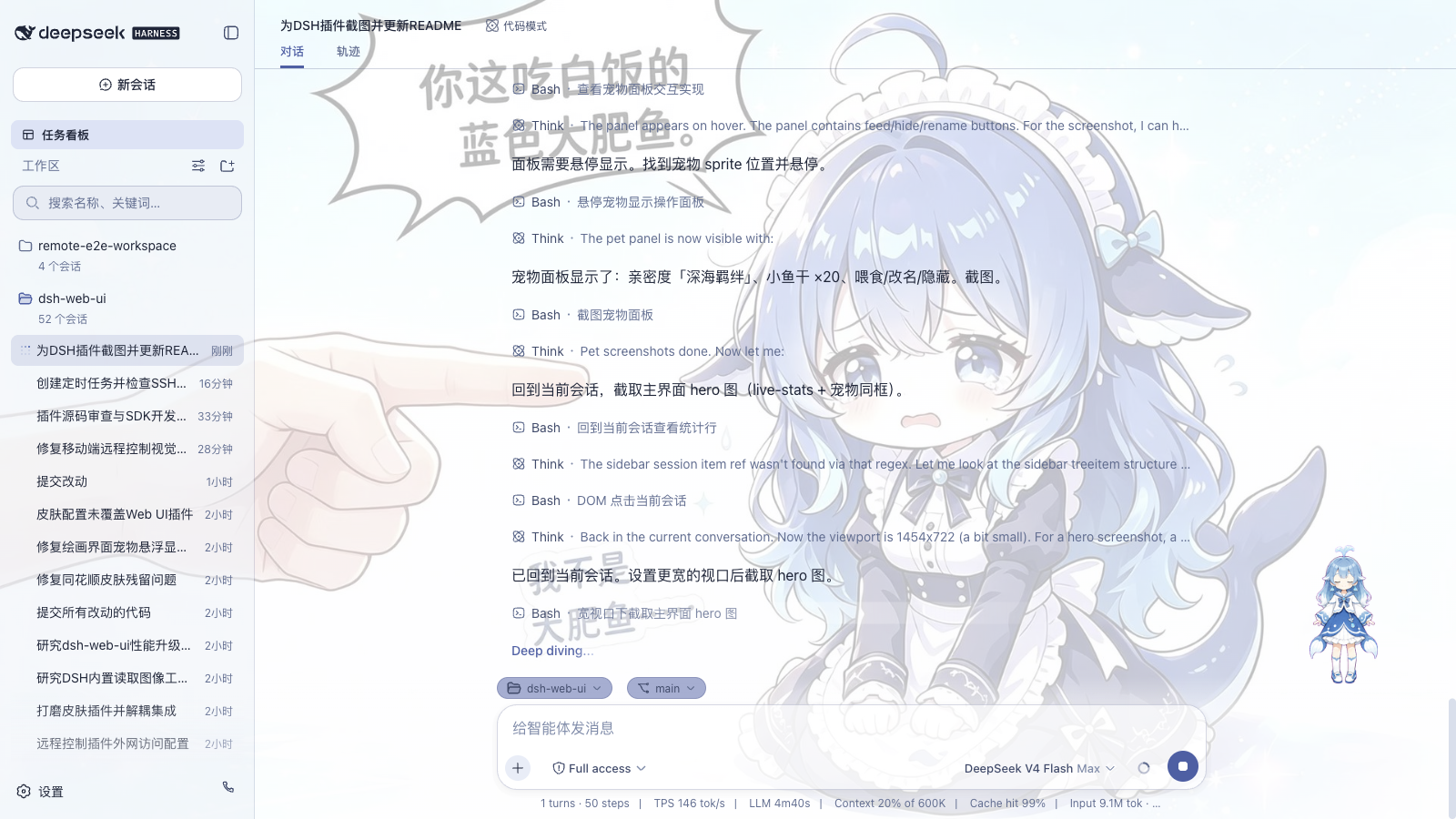
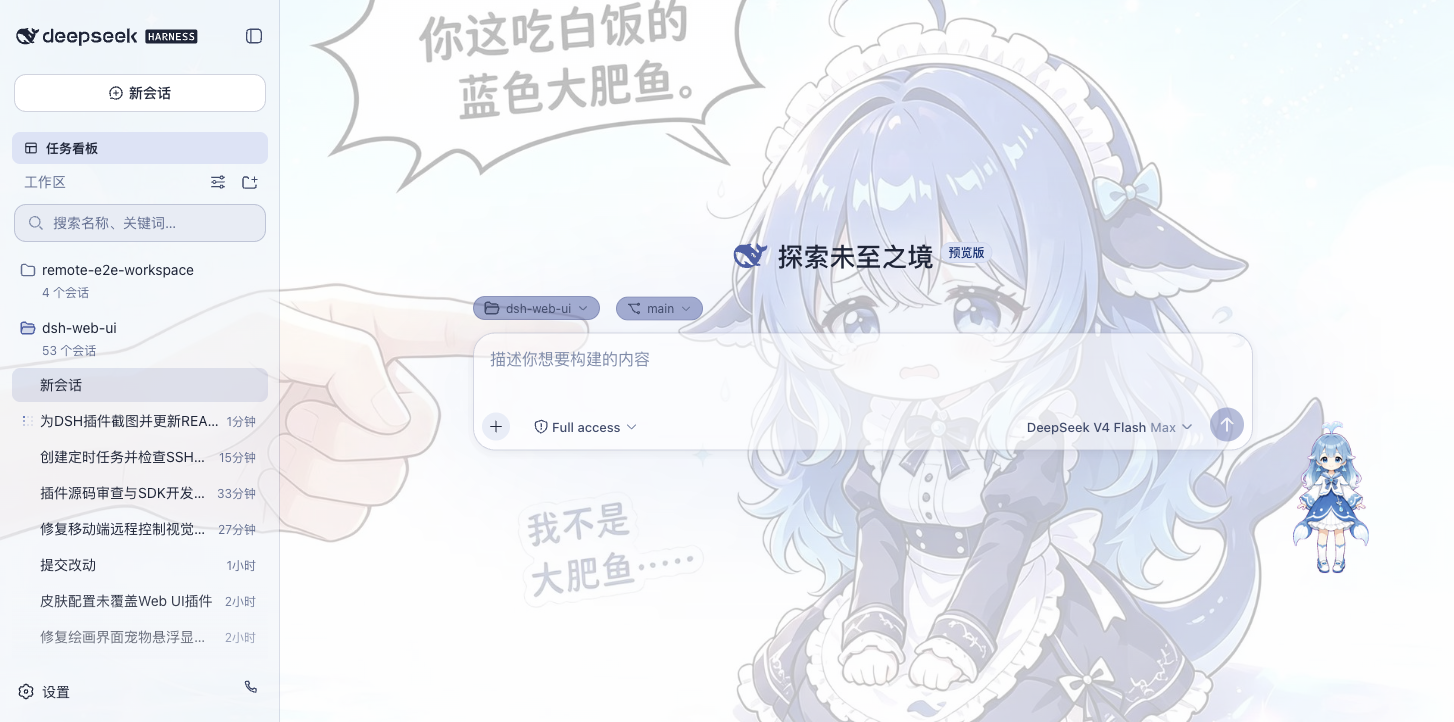
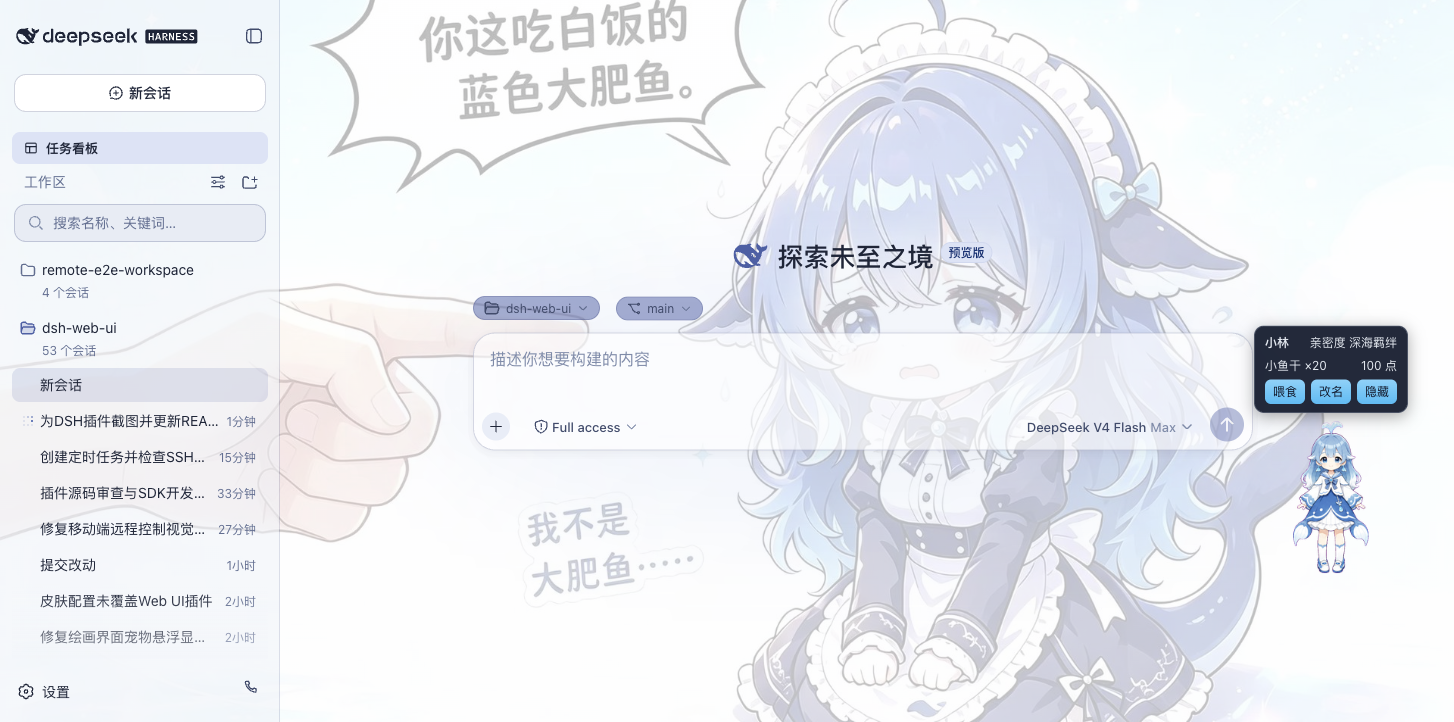
一只常驻界面的鲸鱼娘,跟着智能体状态换动画:思考、等待、工作、庆祝。可以点她互动(摸头),喂小鱼干加亲密度,从幼鲸一路养到「深海羁绊」。名字能改,位置能拖,不想看就藏起来。
| 陪伴工作 | 互动面板 |
|---|---|
 |  |
皮肤
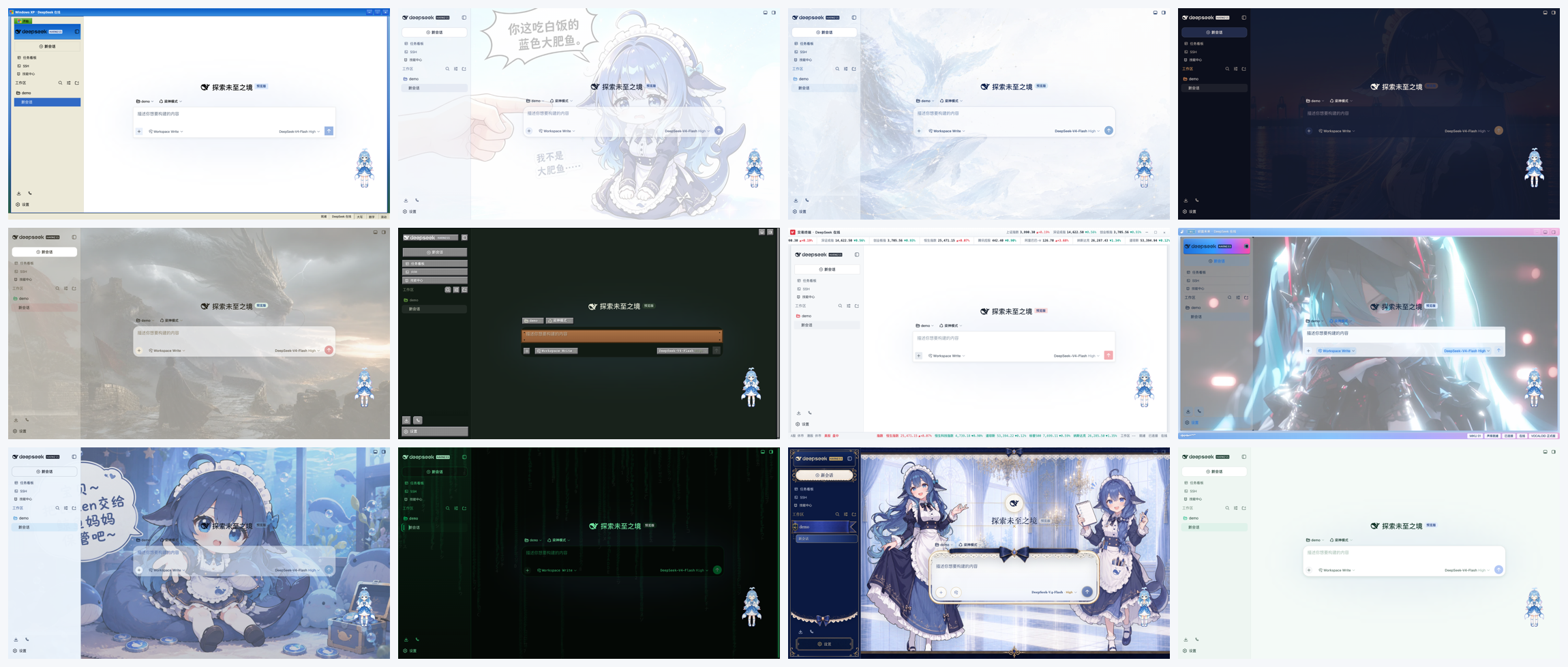
皮肤中心有 12 款皮肤,都支持先试穿再应用:试穿即时生效、退出完全还原,满意再一键应用。
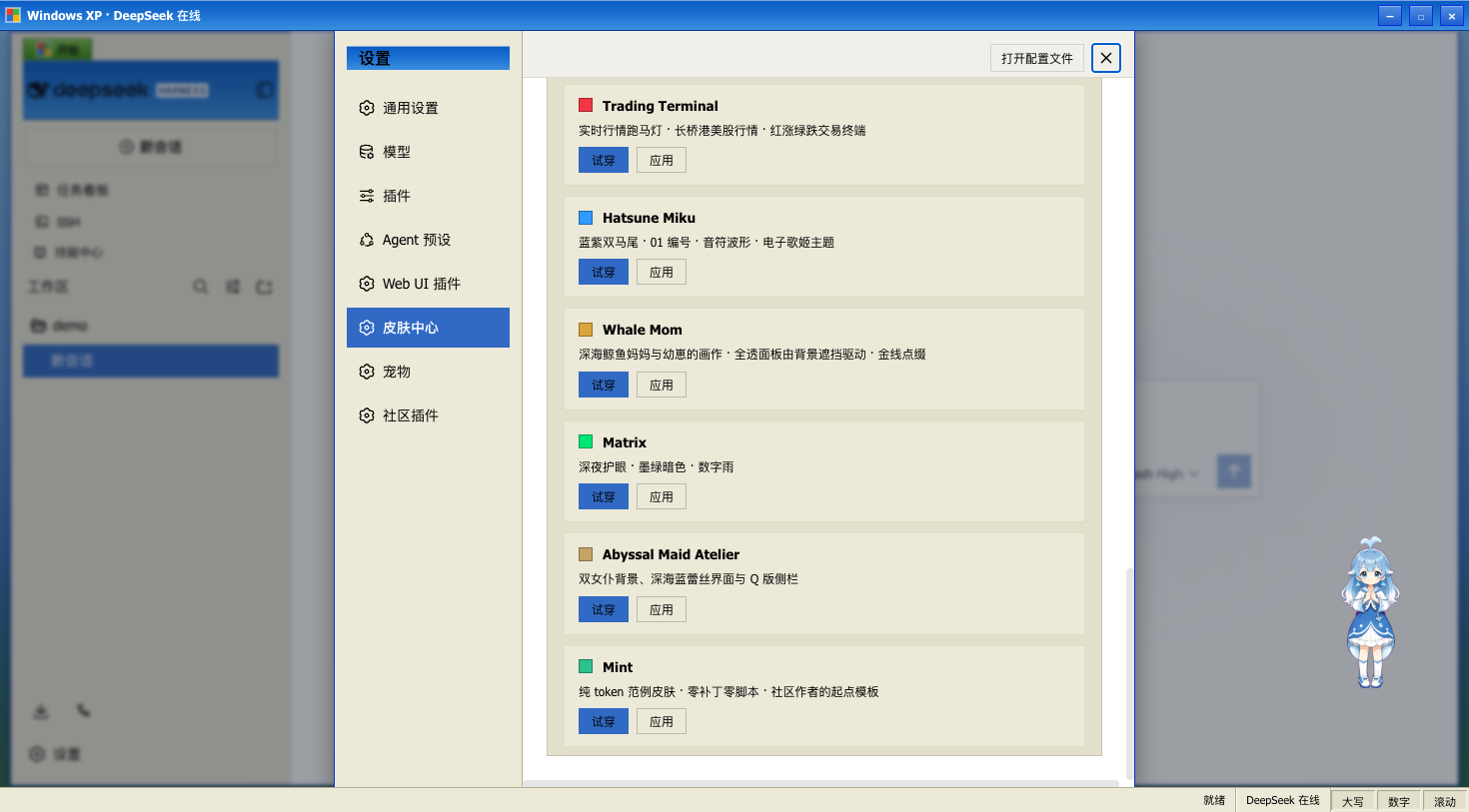
12 款皮肤一览;Maid Atelier 预览见下方:
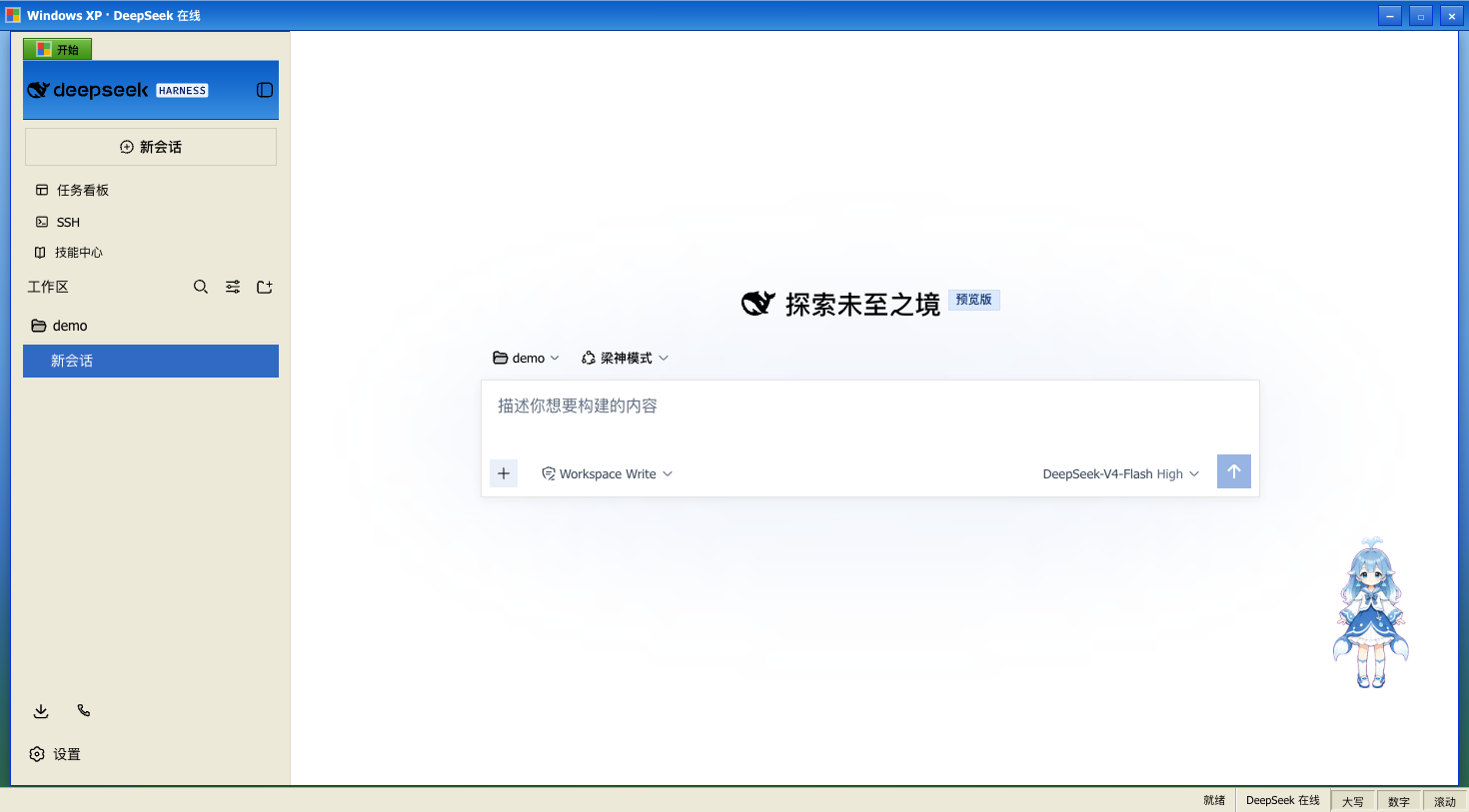
Windows XP(Luna)
还原 Luna 经典界面:蓝色渐变窗口条、绿色「开始」按钮、Bliss 蓝天桌面,全局直角风格。
Blue Fantasy 蓝色幻想
鲸鱼插画垫在半透明面板下面,靛蓝色调贯穿全局,暗色主题下更明显。
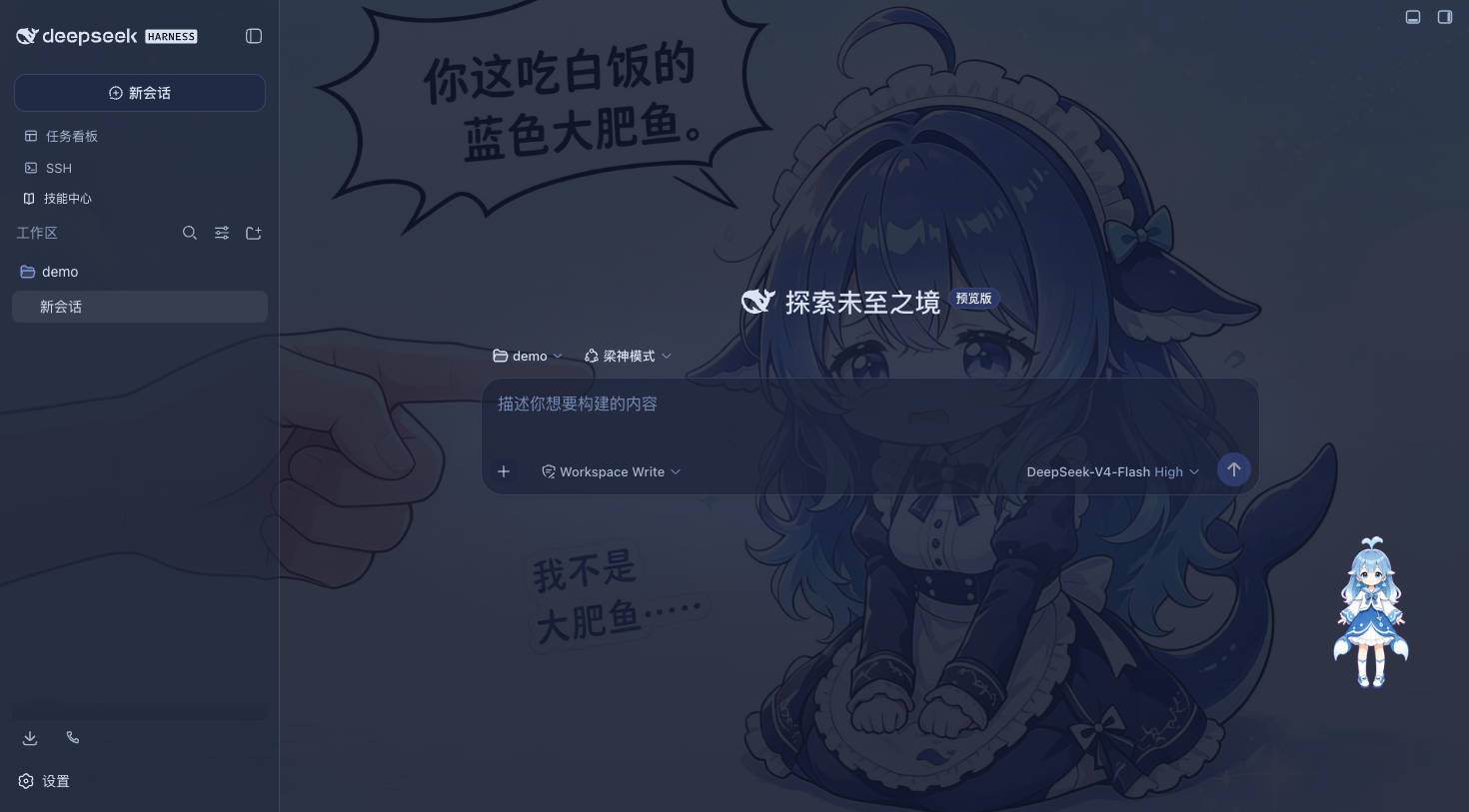
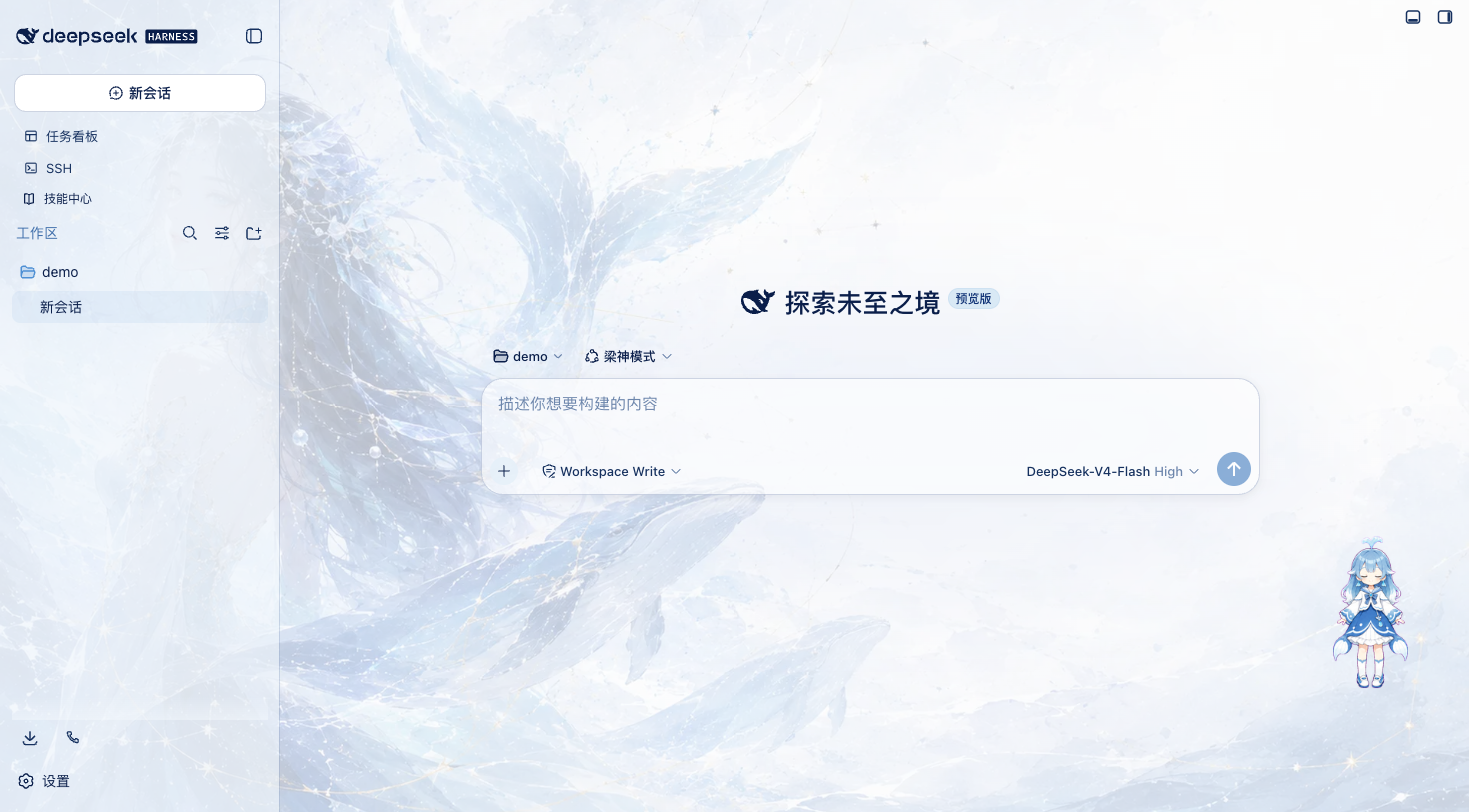
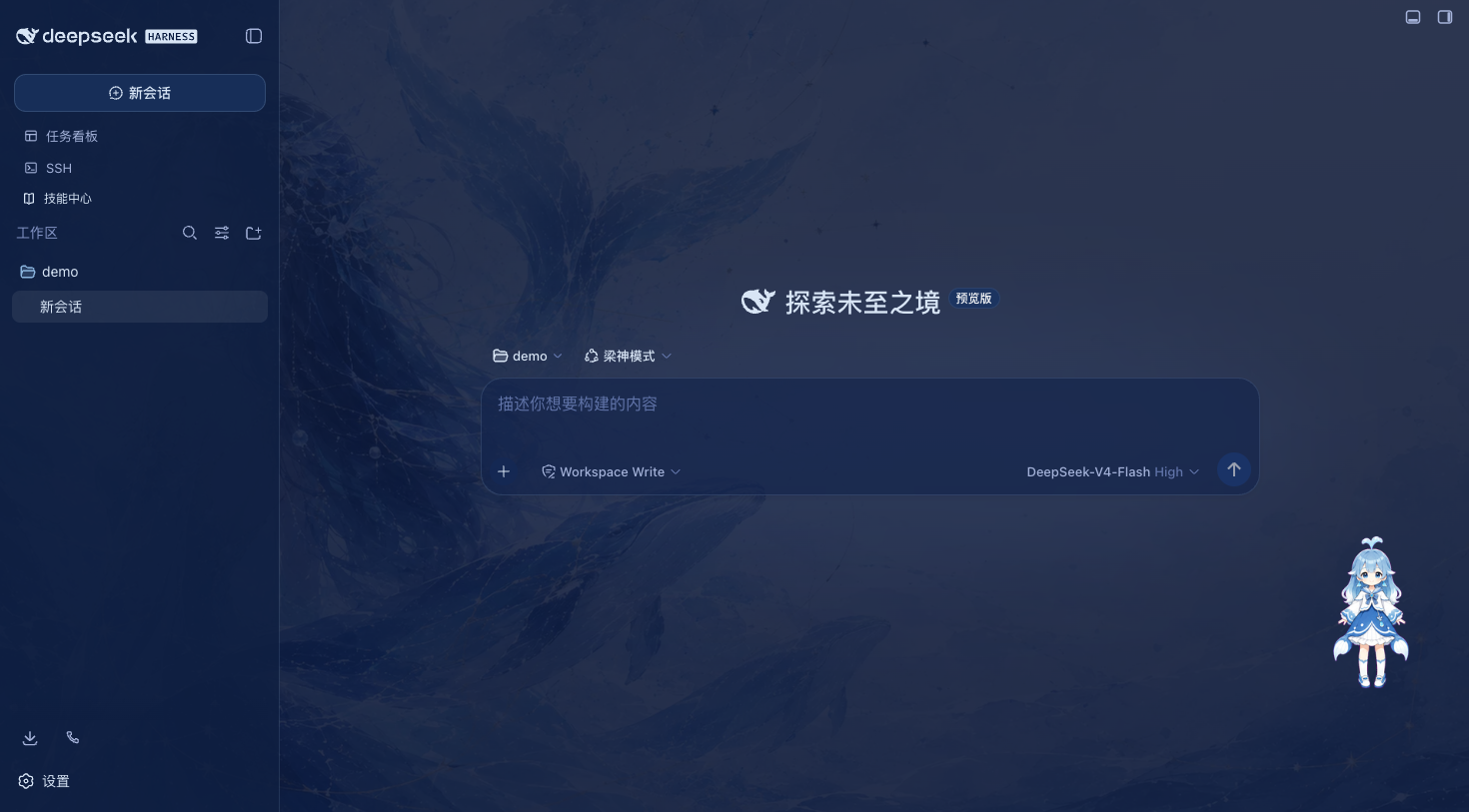
鲸吟(Whale Song)
深海鲸语女神主题:无文字纯氛围背景画(蓝发女神与鲸群居左、冰蓝星座网格与金色细线点缀、右侧大量留白)垫在半透明面板下面,冰蓝 / 浅青 / 深海军蓝 / 钴蓝冷色体系贯穿全局,暗色变体是深海夜航调。
 ·
· 
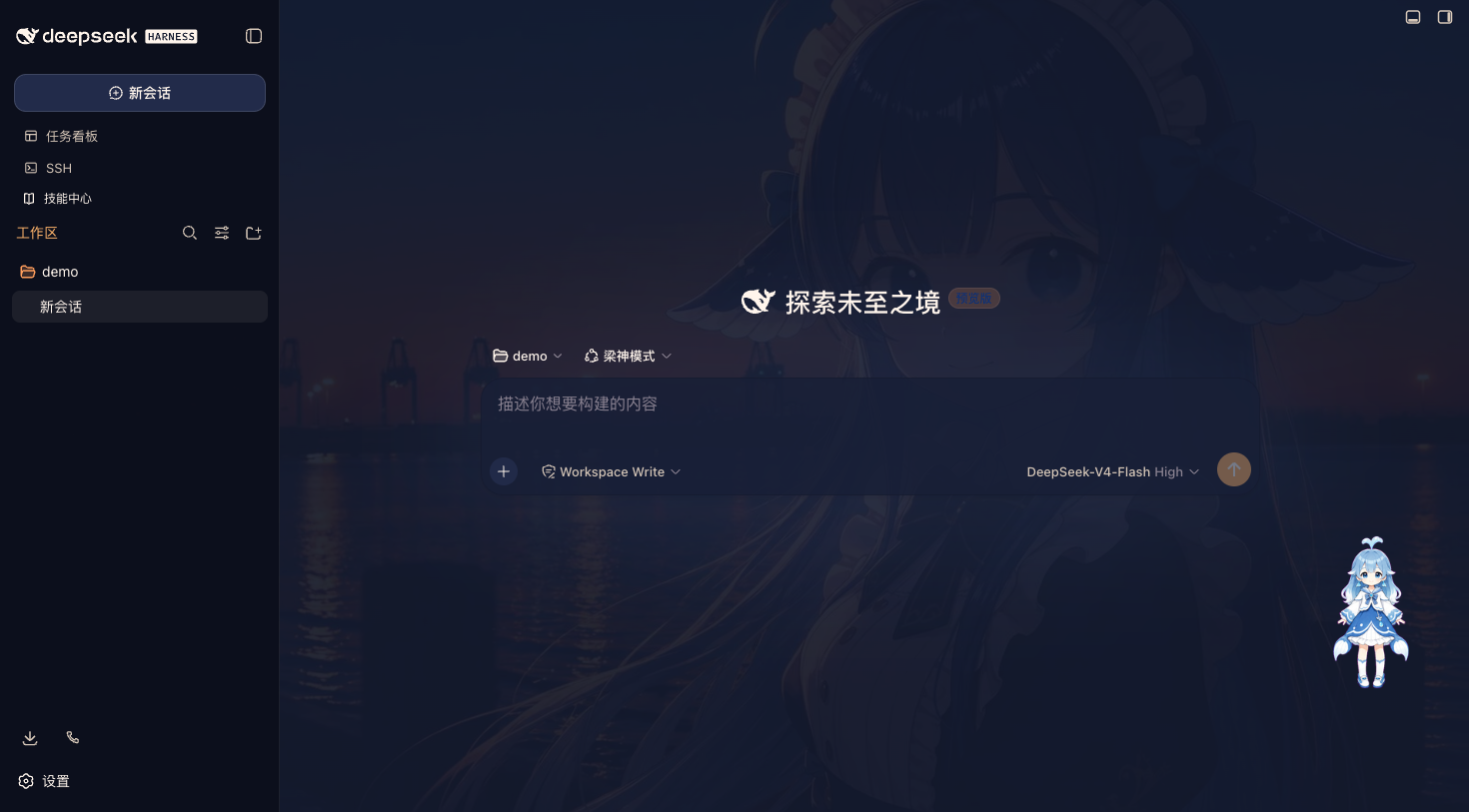
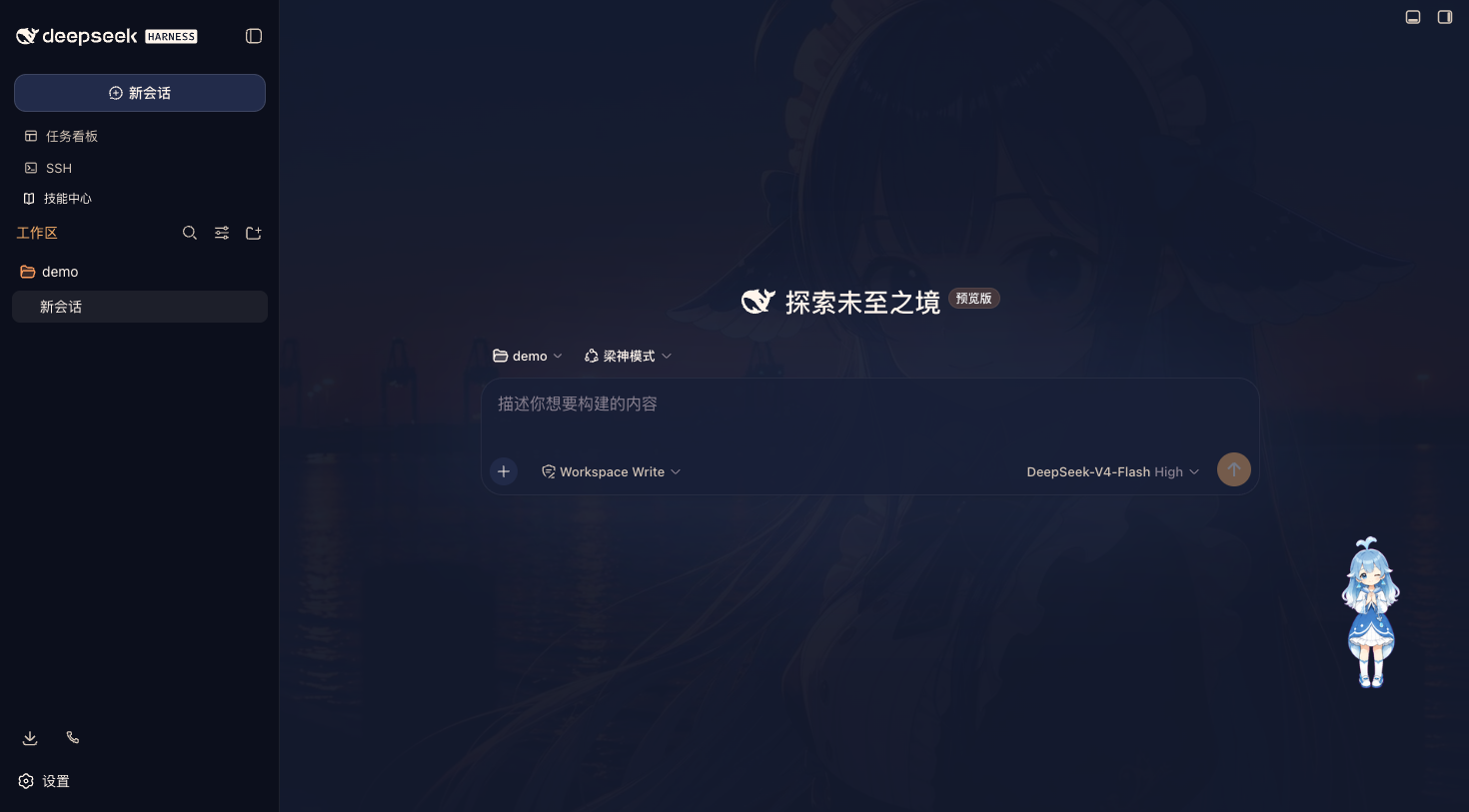
夕港(Harbor)
黄昏港口主题:动漫少女港口背景(暮光蓝天空渐入日落橙)垫在半透明面板下面,深暮蓝底与日落橙主色贯穿全局,亮色是薄暮纱、暗色是深海夜航纱。
 ·
· 
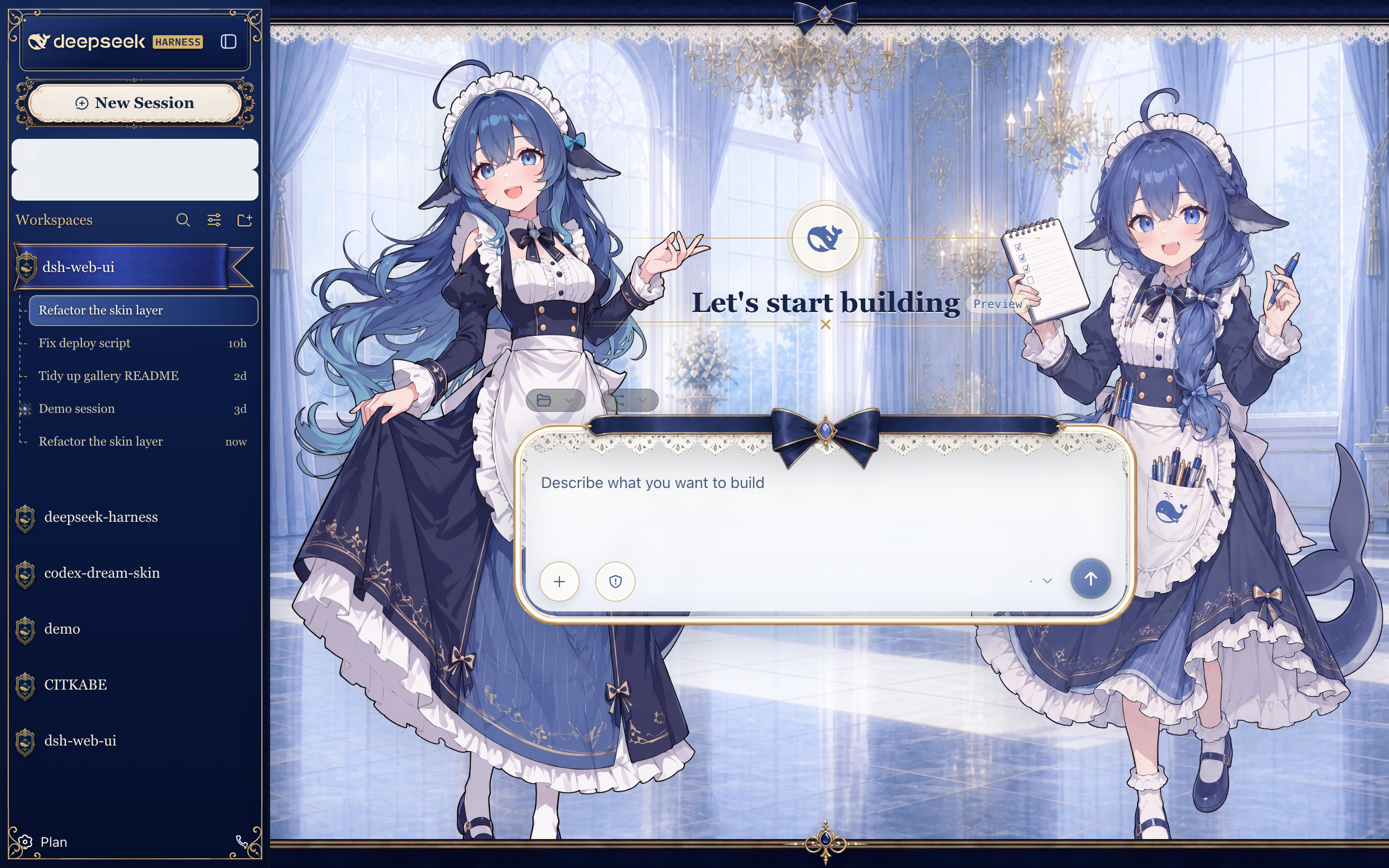
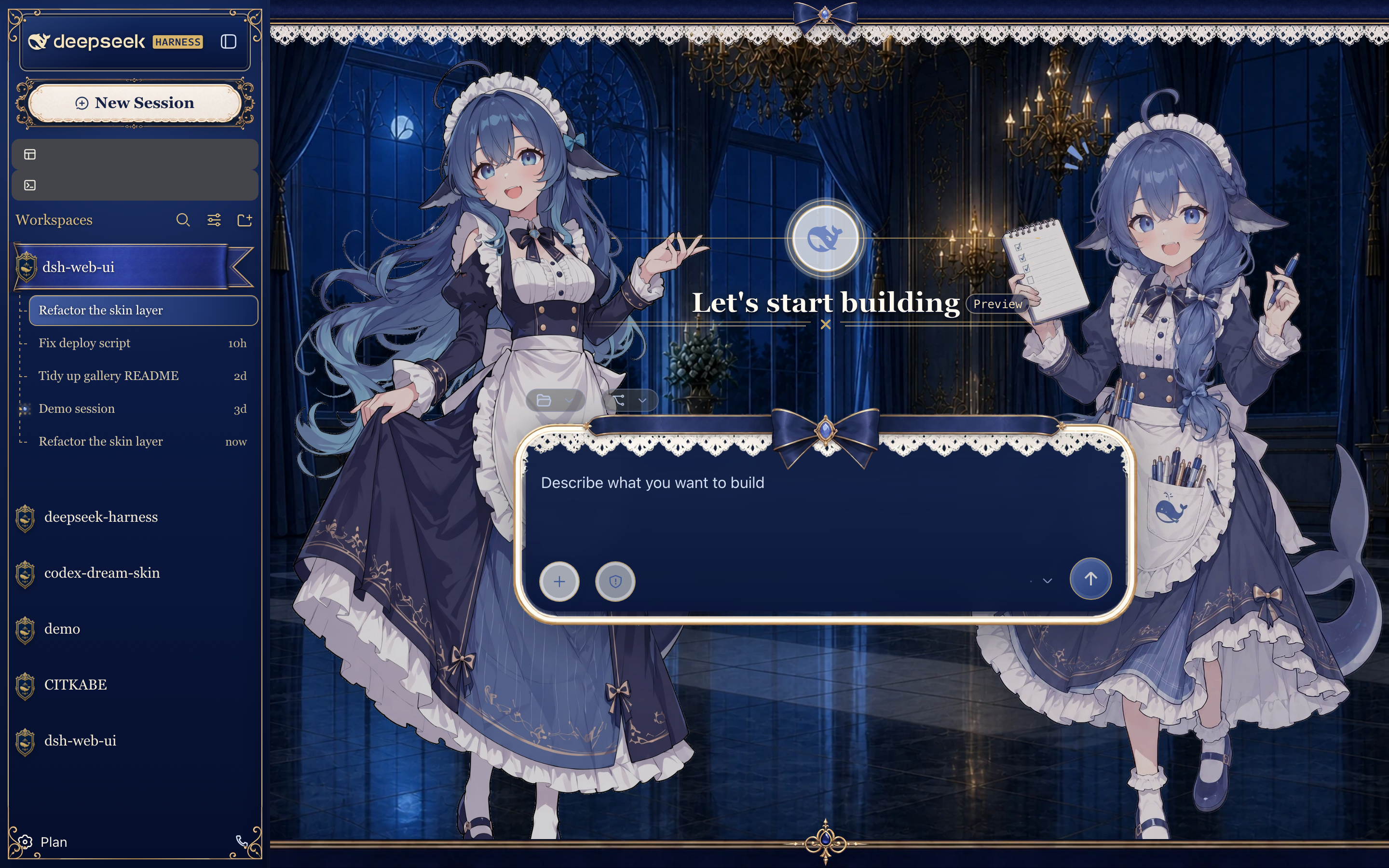
深海女仆工坊(Maid Atelier)
深海蓝工坊主题,包含双角色图层与响应式侧边栏装饰。本皮肤单独采用 CC BY-NC-SA 4.0,仅限非商业使用。
 ·
· 
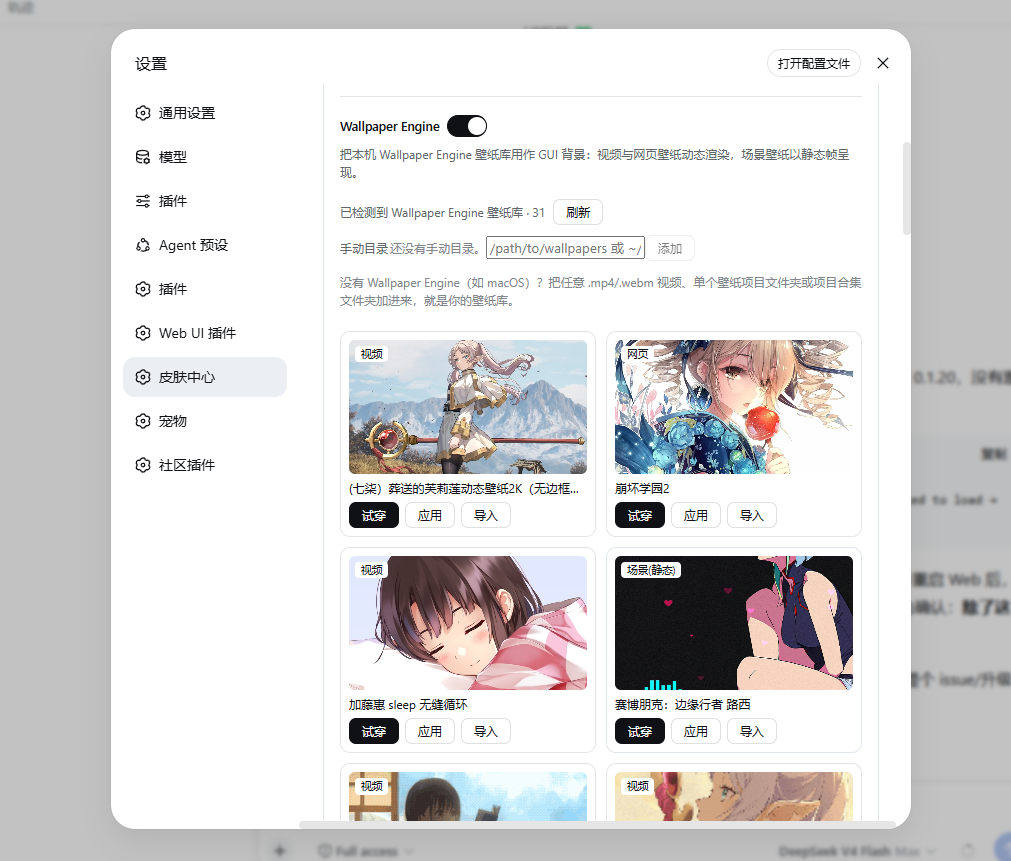
Wallpaper Engine 壁纸
皮肤中心可直接把本机 Wallpaper Engine 壁纸库用作 GUI 背景,支持导入动态与静态壁纸:视频与网页壁纸动态渲染,场景壁纸以静态帧呈现,任意类型也能用「静态帧」模式钉成零动画开销的图片。单张壁纸可导入 skin-center/wallpapers/,脱离 Steam 库也能用,并检测创意工坊原作更新;没有 Wallpaper Engine(如 macOS)时,手动目录可把任意 .mp4/.webm 视频文件夹或壁纸项目文件夹加为壁纸库。壁纸都是本机文件,从不上传或再分发。
快速开始
系统要求
- 已安装 DeepSeek Harness,
dsh web可正常启动。 - npm 安装方式无额外要求;从仓库安装需要 Node.js >= 22 与 pnpm。
三步上手
- 安装聚合包:
dsh plugin --profile web add @linxin666/dsh-web-ui-all@latest - 重启
dsh web,侧边栏出现全部插件入口 - 打开「设置 > 插件配置」按需开关插件,或在皮肤中心试穿皮肤
从 npm 安装(推荐)
插件已发布到 npm(@linxin666 scope),一条命令装齐:
dsh plugin --profile web add @linxin666/dsh-web-ui-all@latest
装完重启 dsh web,侧边栏就有全部插件入口。只要皮肤就装 @linxin666/dsh-client-ui-skin-center。
装到了旧版本? pnpm 11+ 默认的发布年龄门禁(
minimumReleaseAge,内置 24 小时)会把新发布的版本静默隔离,导致按上面命令实际装到上一个版本(如0.1.20而非0.2.0);显式写@latest也一样会被隔离。旧版皮肤中心缺少 "carrier 内建皮肤可解析入口" 的修复,应用皮肤后重启会以ERR_MODULE_NOT_FOUND .../dsh-client-ui-skin-<id>/index.js崩溃。解决办法:在 profile 的pnpm-workspace.yaml设置minimumReleaseAge: 0(或把@linxin666/*加进minimumReleaseAgeExclude),再执行dsh plugin --profile web update @linxin666/dsh-web-ui-all@latest升级到最新版。详见 issue #71。
从 GitHub 仓库安装(开发调试)
插件包已在 npm 发布,仓库安装仅供开发调试(需要 Node.js >= 22 与 pnpm):
# 1. 克隆仓库
git clone https://github.com/zhu1090093659/dsh-web-ui.git
cd dsh-web-ui

# 2. 安装依赖并构建
pnpm install
pnpm -r build

# 3. 把全家桶链接进 web profile(推荐,先链接全部子包再注册聚合包)
node scripts/link-profile.mjs
dsh plugin --profile web add link:$(pwd)/packages/dsh-web-ui-all

# 4. 重启 dsh web,侧边栏即可看到全部插件入口
dsh web
只想用皮肤:第 3 步只执行 link-profile 后安装
packages/skins/skin-center即可。注意:profile 目录不是 pnpm workspace,聚合包里的
workspace:*依赖会回退拉取 npm 已发布版本; 若 npm 版本滞后或损坏会出现「宿主已挂载但 UI 不显示」,此时先用node scripts/link-profile.mjs让全部子包走仓库构建产物。
单独安装某个插件
不想装全家桶时,可单独安装任意插件(npm 已发布,直接用包名):
dsh plugin --profile web add @linxin666/dsh-liangshen@latest               # 梁神模式
dsh plugin --profile web add @linxin666/dsh-client-ui-task-board@latest    # 任务看板
dsh plugin --profile web add @linxin666/dsh-ssh@latest                     # 远程连接(SSH)
dsh plugin --profile web add @linxin666/dsh-tool-describe-image@latest     # 图像理解工具
dsh plugin --profile web add @linxin666/dsh-pet@latest                     # 鲸鱼娘宠物
dsh plugin --profile web add dsh-better-sidebar@latest                     # 右侧面板(推荐;资源管理器/编辑器/终端/Git/浏览器)
dsh plugin --profile web add @linxin666/dsh-client-ui-aionui-panel@latest  # 旧右侧面板(aionui-panel,已停止支持,仅过渡保留)
验证与卸载
装好重启 dsh web,侧边栏出现对应入口就是生效了;也可以用 dsh --profile web --dump-config 确认插件配置层已挂载。侧边栏没新入口,多半是装完没重启 dsh web。
卸载:dsh plugin --profile web remove @linxin666/dsh-web-ui-all,然后重启 dsh web。
技术细节见 docs/plugins.md。
安装排障
展开查看 pnpm 常见问题
pnpm 的严格(isolated)布局只把聚合包放在 profile 顶层,patch 行引用的 11 个子包(共 12 行 insert)会被收进嵌套目录,
dsh web会报Cannot find package '@linxin666/dsh-...'。本包的子包已声明为 dependencies;使用严格布局时,在 profile 的pnpm-workspace.yaml加nodeLinker: hoisted(或旧式public-hoist-pattern: ['@linxin666/*']),再重新安装即可。
首次安装若提示
ERR_PNPM_IGNORED_BUILDS(pnpm 拒绝依赖的构建脚本),按提示把cloudflared/cpu-features/ssh2加入 profile 的pnpm-workspace.yamlallowBuilds后重新执行即可。
pnpm 11 release-age 门禁:新版本发布后 24 小时内(
minimumReleaseAge内置默认值),pnpm 11 会静默装回更旧的@linxin666/*版本(如[email protected]配旧版皮肤中心),显式写@latest同样被隔离。旧版皮肤中心 Apply 皮肤时会写入独立皮肤包引用,导致dsh web启动崩溃(ERR_MODULE_NOT_FOUND ... dsh-client-ui-skin-*)。在 profile 的pnpm-workspace.yaml中排除全部@linxin666/*包后再安装或更新:minimumReleaseAgeExclude: - '@linxin666/*'
常见问题
装完重启了,侧边栏还是没有入口?
A: 先确认插件装进了 web profile(命令里的 --profile web),再用 dsh --profile web --dump-config 确认插件配置层已挂载;还不行就看上文「安装排障」。注意页面刷新不够,要重启 dsh web 进程。
定时任务为什么没有到点执行?
A: 定时调度由 dsh web Host 完成,不要求浏览器标签页保持打开。Host 停止、系统睡眠或长暂停期间错过的触发点按「错过即跳过」处理,不排队补跑;同一任务正在运行时到点也会顺延到下一个匹配点。若需要允许息屏但阻止整机因空闲睡眠,可显式开启任务看板的电源保护设置。
手机配对后收不到实时消息?
A: Cloudflare quick tunnel 和 Tailscale Serve 不透传 SSE,这种网络下插件自动降级轮询,消息正常收发,只是新消息可能晚几秒。要即时推送就用支持 SSE 的隧道(Cloudflare named tunnel、自定义 TCP 端口转发等)。
皮肤试了不满意怎么办?
A: 皮肤支持先试穿再应用:试穿即时生效、退出完全还原,没点「应用」就不落盘,随便试。
只想用皮肤,或者只装某一个插件?
A: 只要皮肤就装 @linxin666/dsh-client-ui-skin-center;只装某一个插件就用「单独安装某个插件」里的包名,两者都走 npm 安装。
装了全家桶还能再单独装同一个插件吗?
A: 可以。聚合包的行 id 统一带 web-ui- 前缀(如 web-ui-describe-image),与独立包自己的 id(如 describe-image)不冲突,dsh web 不会再报 duplicate loader entry id;同一插件双源加载时 host 半区只注册一次,浏览器半区按包名去重。两个来源并存没有额外收益,建议只保留一个。注意:profile 里按 id 写的配置行,若插件来自聚合包要用 web-ui- 前缀的 id(如 remote-web-ui 的 autoTunnel 配置行写成 web-ui-remote-web-ui);独立安装时仍用插件原 id。
已知限制
- 任务看板由 Host 调度,关闭浏览器后仍可运行;Host 停止或整机睡眠期间错过的触发点跳过、不补跑。可选电源保护默认关闭,只阻止空闲系统睡眠,不拦截合盖、手动睡眠、休眠或关机,详见 dsh-task-board README。
- SSH 密码与 passphrase 口令以明文保存在
~/.dsh/dsh-ssh.json(权限 0600);断线重连可能重放非幂等命令,远程输出原样返回、不脱敏,安全模型见 dsh-ssh README。 - 移动端靠 SSE 实时推送:Cloudflare quick tunnel 和 Tailscale Serve 不透传 SSE,插件自动降级轮询,新消息可能晚几秒。
- 仓库安装需要 Node.js >= 22 与 pnpm,仅供开发调试;npm 安装不受影响。
社区
社区交流群在这里,和开发者、其他用户一起聊用法、报问题、提想法。QQ 扫码加入「DSH Web UI 交流群」:
也可以加 Discord 社区,或直接到 GitHub Issues 报 Bug / 提需求。
友情链接
- DeepSeek Harness Desktop —— 为 DeepSeek Harness (DSH) 生态打造的现代化桌面端体验。
- LINUX DO —— 有理想的新社区。
- dshfind —— 面向 DeepSeek Harness 的学习与分享社区,聚合论文精读、插件超市与用户排名。
- deepseek-plugin-store —— DeepSeek Harness 独立社区插件商店,发现、安装并提交经过验证的插件、工具与扩展。
- dsh-data-agent —— 为 DSH 定义专用 Data Agent 预设,让 AI 帮你查询、更新、分析数据。
- dsh-TUI —— Claude Code 风格全屏交互终端插件,补位官方缺失的终端 TUI:像素鲸鱼顶栏、实时工作状态行、思考流式展开、双击 Esc 回滚、上下文进度条与 TPS 仪表。
- dsh-tianshu-tui —— 基于官方 DeepSeek Harness 的交互式终端 UI 插件,在官方基础上增加 TDD 与证据门等工作流。
- dsh-genui —— 助手回复内联渲染生成式 UI(dsh-ui fence):布局、图表、表单、Mermaid、3D 与面板停靠,组件交互回传模型。
- dsh-annotation —— DSH Web 选中批注插件:选文字、写批注、随消息发送,模型按 Annotation N 逐条对照回复。
参与贡献
- 先读 CONTRIBUTING.md 再开 PR;用户可见变更请附截图或验证证据。
- 提交信息遵循 Conventional Commits(如
fix(task-board): 修复 xxx),代码、文档与提交信息全程禁止 emoji。 - 新插件与皮肤用脚手架生成:
node scripts/dsh-plugin-new <name>、node scripts/dsh-skin-new。 - 提交前过门禁
pnpm typecheck && pnpm test && pnpm docs:check;完整开发流程见 docs/development.md。
许可证
本仓库以 Apache-2.0 授权。迁入第三方代码必须保留 LICENSE 与署名;活跃且有上游的第三方优先 fork 或依赖引用,不搬代码。
来源与版权
| 包 | 来源 | 版权 |
|---|---|---|
| dsh-task-board / dsh-git-graph / dsh-aionui-panel / dsh-pet / dsh-remote-web-ui / dsh-web-ui-settings / dsh-liangshen / dsh-skins / dsh-web-ui-all / skins | 作者 zhu1090093659 个人开发 | Apache-2.0(zhu1090093659) |
| dsh-client-ui-skin-matrix | 贡献者原创(Matrix 深夜护眼暗色皮肤) | Apache-2.0(贡献者 seanchen 声明) |
| dsh-tool-describe-image | 移植自 whitelonng/dsh-plugin-describe-image(deepseek-harness packages/vision/tool-describe-image) | Apache-2.0(zhu1090093659) |
| dsh-better-sidebar | 外部集成插件 omdsh-dev/DSH-better-sidebar(右侧面板,npm 依赖引用) | MIT(omdsh-dev) |
贡献者


喜欢这个项目?点个 Star。
报告 Bug · 请求功能 · 查看 Releases
Read the usage guide →
Install steps, key points, FAQ and compatibility for this plugin — auto-derived from indexed fields.
Listing badge

[](https://deepseek-plugin.org/plugins/zhu1090093659/dsh-web-ui/packages/dsh-plugin-manager)Paste this markdown into your GitHub README to link back to this listing. The badge only states the listing — not a security endorsement.