为 DeepSeek Harness 注入 LM Studio/Ollama 本地模型、Codex 子代理、文件/终端/网页工作区及快捷键与桌面主题同步能力。

- 语言
- TypeScript
- License
- Apache-2.0
- 分支
- main
安装
$ dsh plugin --profile web add github:lencx/Minke#path:packages/harness-overlay在终端中运行以上命令,通过 dsh CLI 安装此插件。可在右上角切换 Profile。 第一次用 dsh?看这篇新手教程
对话式安装
帮我安装 DeepSeek Harness 插件 lencx/Minke/packages/harness-overlay:先查看仓库 https://github.com/lencx/Minke 确认安全性,然后执行安装命令并验证插件加载成功。
把这段指令粘贴给 DSH Web GUI 里的助手,由它代你完成安装与验证。
一句话定位
Minke 的产品定制层,注入到 DeepSeek Harness 宿主运行时中,给 Harness 增加本地模型(LM Studio、Ollama)桥接、可执行一次性子任务的 Codex 子代理,以及文件/终端/网页侧栏工作区、可配置快捷键、桌面主题与语言同步等桌面化能力。
核心能力
- 通过可插拔 lifecycle,发现并管理 LM Studio 与 Ollama 两个本地模型服务;用户启动的实例不会被插件侧重新配置
- 托管 OpenAI 兼容的回环服务端点(
openAICompatible),让用户手动接入任意自部署的兼容服务 - 注册 Codex CLI 子代理(
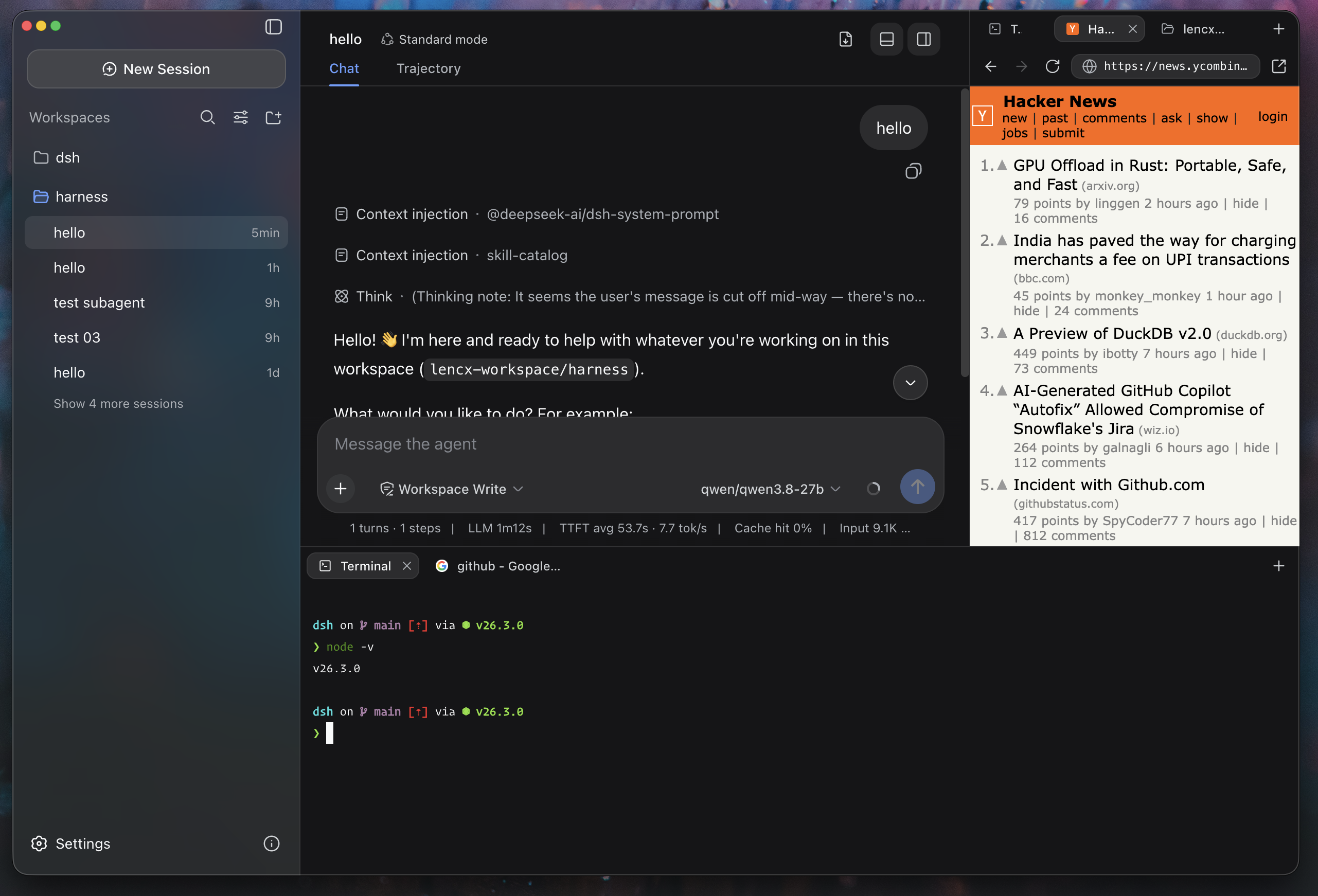
provider: codex),把自包含任务委派给codex app-server --stdio - 提供 Files、Terminal、Web 三类可分屏的工作区标签页(右侧/底部容器,标签页可拖拽与配置)
- 提供桌面快捷键系统(默认 8 个动作,可重绑定并持久化到 desktop 端)
- 与宿主 Harness 同步 locale(zh/en)与 theme 切换,让桌面原生窗口跟随主题
- 安装后拦截开发用 onboarding 提示,将"开发者内测"提示从用户视角中旁路
技术实现
- 语言: TypeScript + React 19(client 端用 JSX、host 端无渲染逻辑)
- 关键依赖:
@deepseek-ai/cordis(插件框架)、@deepseek-ai/schemastery(配置 schema 与 default)、@deepseek-ai/dsh-llm-pi-ai(LLM 适配层,挂在本地服务 ready 之后)、@deepseek-ai/dsh-subprocess(CLI 解析与子进程 spawn)、xterm+codemirror+shiki(terminal/file/web 三类标签页渲染) - 架构模式: 通过
cordis.patch.yml与宿主打 4 个组合 slot:minke-overlay(产品层)、model-runtime(本地服务生命周期)、subagent-codex(Codex 委派)、tool-subagent-codex(Harness tool 包装);host 端src/index.ts仅占位,浏览器侧实现在src/client/*,通过 Cordis effect 在 disposal 时清理本地服务进程 - 入口文件:
packages/harness-overlay/src/model-runtime/index.ts(host 侧 main)、packages/harness-overlay/src/client/index.tsx(client 侧 bootstrap)
适用场景
日常用 DeepSeek Harness 做编码/写作、会希望 LM Studio 或 Ollama 已经在跑、想直接在同一个窗口里开几个文件标签、改改终端与翻翻网页页面的人。也适合想把 Codex CLI 的一次性任务接到 Harness 主对话里、而不想离开当前会话再去切终端的人。
前置依赖与兼容性
| 依赖 | 最低版本 | 说明 |
|---|---|---|
| Node | >=24 | 由宿主 Minke 桌面 runtime 决定;构建脚本和 Electron Forge 也要求此基线 |
| 平台 | macOS / Windows / Linux | 跨平台桌面,macOS 多 titlebar/半透明 surface 适配;Win/Linux 走平台默认样式 |
| 原生模块 | 无 | overlay 包不直接声明原生依赖;运行时由宿主 Electron 提供 |
| DSH 版本 | 未声明 | overlay 不在 package.json 写 peerDependencies,由宿主 Minke 桌面端控制可用 DSH |
安装方式
dsh plugin --profile web add github:lencx/Minke/packages/harness-overlay
配置项
| 配置 | 类型 | 说明 | 默认值 |
|---|---|---|---|
lmStudio.enabled | 布尔 | 是否启用 LM Studio 行(仅影响 UI 可见性,不影响服务可用性) | false |
lmStudio.lifecycle | 枚举 | external=只发现已运行 / ensure-running=缺失时拉起 / managed=本插件启动的实例在卸载时回收 | external |
lmStudio.command | 字符串 | 显式 lms 可执行路径(覆盖自动查找) | "" |
lmStudio.baseURL | 字符串 | 显式回环 Base URL;端口为 0 会被拒绝 | ""(自动用 http://127.0.0.1:1234/v1) |
lmStudio.apiKeyEnv | 字符串(credential-ref) | 用于 LM Studio 的鉴权环境变量名 | LM_API_TOKEN |
lmStudio.defaultContextWindow | 整数 | 派发给 LM Studio 模型的默认上下文窗口 | 32768 |
lmStudio.defaultMaxTokens | 整数 | 派发给 LM Studio 模型的默认 max_tokens | 8192 |
ollama.enabled | 布尔 | 是否启用 Ollama 行 | false |
ollama.lifecycle | 枚举 | external / ensure-running(不支持 managed) | external |
ollama.command | 字符串 | 显式 ollama 可执行路径 | "" |
ollama.baseURL | 字符串 | 显式回环 Base URL;端口为 0 会被拒绝 | ""(自动用 http://127.0.0.1:11434/v1) |
ollama.defaultContextWindow | 整数 | Ollama 模型默认上下文窗口 | 32768 |
ollama.defaultMaxTokens | 整数 | Ollama 模型默认 max_tokens | 8192 |
openAICompatible[] | 数组 | 手动接入的兼容 OpenAI 回环服务端点,包含 id / displayName / baseURL / apiKeyEnv | [] |
| 快捷键 | action → binding | 通过 IPC 持久化;最大 128 条,规则 Mod(+Ctrl/Meta/Alt)?(+Shift)?+Key(详见 shortcut-contract.ts) | palette.open=Mod+K、settings.open=Mod+,、session.new=Mod+N、session.back=Mod+[、session.forward=Mod+]、sidebar.toggle=Mod+S、tabs.toggle=Mod+P、tabs.bottom.toggle=Mod+B |
环境变量 MINKE_LM_STUDIO_ENABLED | 0/1 | 与 MINKE_LM_STUDIO_COMMAND 同时设置时把 lifecycle 改为 ensure-running | 未设置 |
环境变量 MINKE_OLLAMA_ENABLED | 0/1 | 与 MINKE_OLLAMA_COMMAND 同时设置时把 lifecycle 改为 ensure-running | 未设置 |
环境变量 LM_STUDIO_BASE_URL | URL | 覆盖 LM Studio Base URL | 未设置 |
环境变量 OLLAMA_BASE_URL | URL | 覆盖 Ollama Base URL | 未设置 |
常见问题
Q: 这是只跟桌面版本绑定,还是也能作为 DSH 插件单独装?
A: 都可以。Minke 桌面应用内部已经 compose 这层 overlay;用户通过 dsh plugin ... add 安装的是同一份代码,会被注入到 Harness 运行时。Source-of-truth 行为是同一份 contract(cordis.patch.yml)。
Q: 配了本地模型但列表里看不到我的模型怎么办?
A: 模型发现走 OpenAI 兼容的 /v1/models 端点,LM Studio 还额外合并 v1 loaded-instance 元数据。如果是 LM Studio,先确认 lms server status --json 能拿到端口;如果服务是外部启动且当前上下文窗口与配置不一致,overlay 不会替用户重加载,会提示回到 LM Studio 客户端手动 reload 一次。
Q: Ollama 启动后会发生什么?
A: 当 overlay 拉起的 ollama serve 进程跟随宿主 Minke 进程生命周期,本插件 disposal 时它会被终止(与 LM Studio 的 one-shot CLI 行为不同,LM Studio 的 CLI 不会停止共享服务)。
Q: Codex 子代理跟"Codex IDE 登录"是一回事吗?
A: 不是。overlay 只是把任务以 stdio 方式交给已经在 PATH 上的 codex app-server;账号登录、模型选择、sandbox 与 workspace 设置都由 Codex CLI 自己负责,overlay 不持有这些状态。
Q: 桌面版会改我电脑上的哪些数据?
A: 桌面偏好统一放在 ~/.minke 目录下;浏览器会话数据保留在本地;DSH 自身的会话与模型设置仍由 Harness 默认路径管理。此 overlay 不写入 settings.yaml。
Q: 装上后切换中英文要在哪里改?
A: 跟宿主 Harness 的 locale/change 同步,无需在此 overlay 内单独切换;桌面原生窗口标题栏、菜单等会跟随同一份 locale snapshot。
Q: 如何验证我这台 LM Studio 服务配对成功?
A: 在 Models 页找到 LM Studio 行,确认该行没有"未找到 CLI"的提示(意味着自动找到 lms),且模型列表非空;如果是外部启动且当前 loaded instance 上下文与配置值不一致,会得到 LM_STUDIO_CONTEXT_TOO_SMALL / LM_STUDIO_CONTEXT_PREPARATION_FAILED 类的错误码。
上手难度
进阶 — 需要懂本地模型服务的端口/上下文窗口、可执行文件查找,以及 DSH 的多 fiber / plugin 注入模型,普通用户只用 GUI 路径也能用好,但要排障就绕不开这些。
已知问题与限制
- LM Studio 的
lms是 one-shot CLI,即便将 lifecycle 设为managed,它启动后会留下一个独立共享服务进程,overlay 仅在"确认是该实例启动"的子集里清理(详见 README 35-43 行) - 当 LM Studio 实例是外部启动时,overlay 不会替用户重新加载,会报错并要求用户在 LM Studio 客户端内 reload(核心码
LM_STUDIO_CONTEXT_PREPARATION_FAILED等) - 回环 Base URL 显式传入时,端口 0 会被拒绝(必须是可达的连接端口)
- DSH 版本未在
package.json声明 peer 关系,由宿主 Minke 桌面 runtime 决定可用范围;overlay 单独装的情况下行为依赖宿主的版本契约 - Minke 仍处于活跃迭代阶段,features、打包方式、本地数据 schema 都可能变更(参仓库根
README.md第 24-25 行提示) - macOS 上当前预发布构建未做 Apple 公证,需要
xattr -dr com.apple.quarantine解除(这是宿主 Minke 桌面侧的打包问题,不在 overlay 范围)

Minke
A native desktop workspace for DeepSeek Harness
English · 简体中文




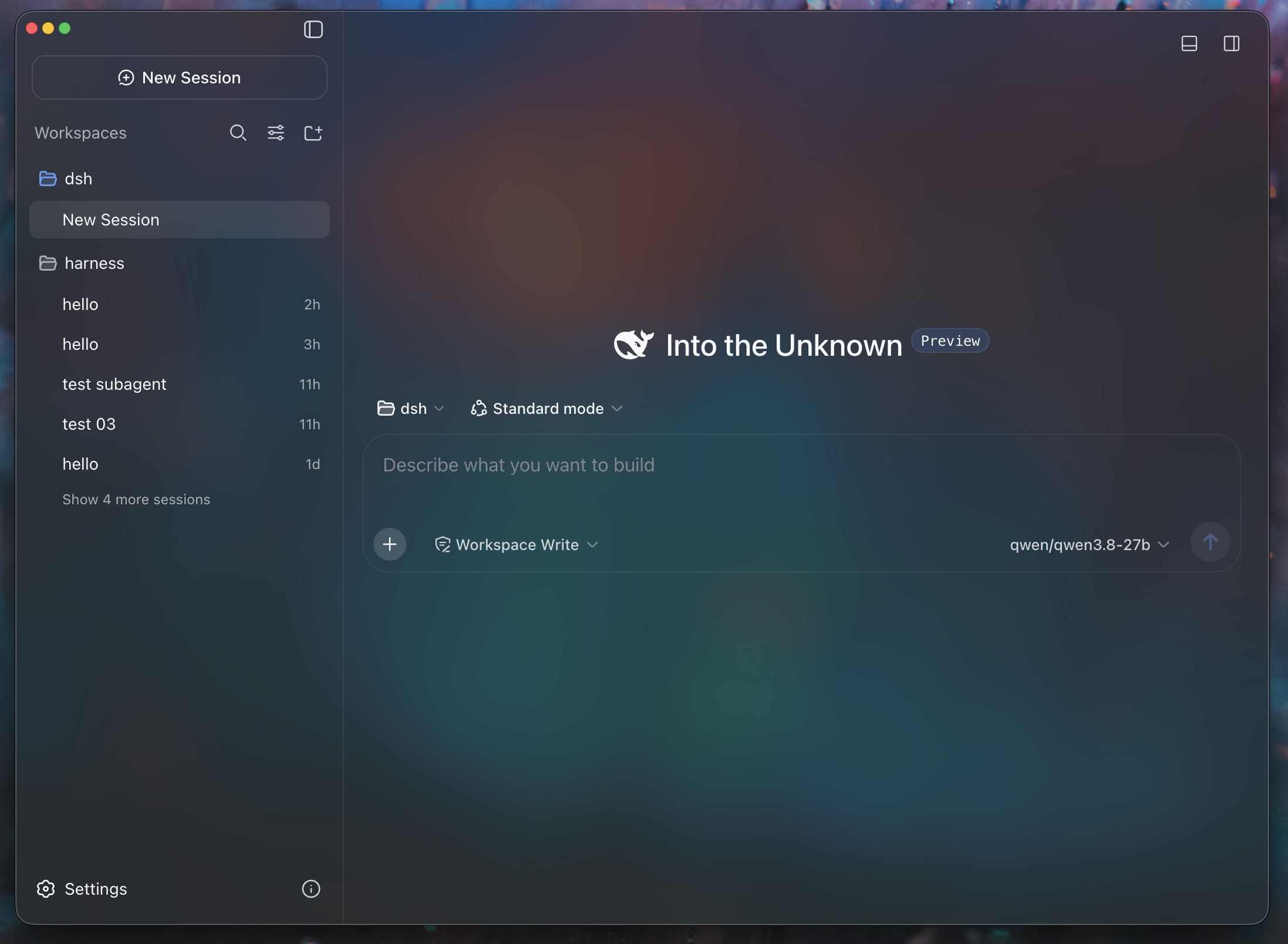
Minke brings DeepSeek Harness to the desktop as a focused, local-first workspace for agentic work. Conversations, project files, terminals, web tools, and native desktop actions stay within reach—without fragmenting your workflow across multiple apps.
[!IMPORTANT] Minke is under active development. Features, packaging, and the local data schema may change as the project evolves. Minke is an independent community project, not an official DeepSeek product.
Highlights
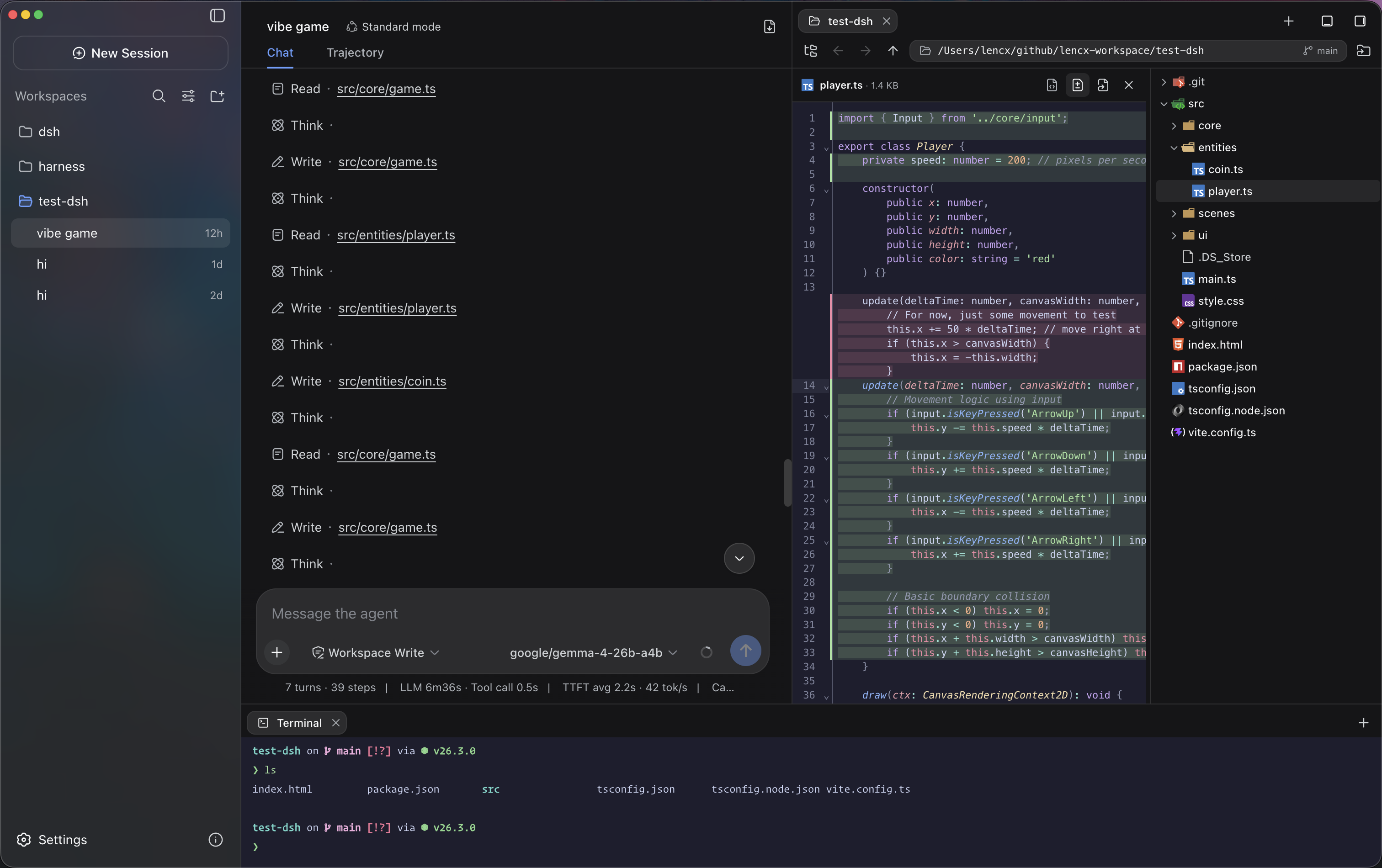
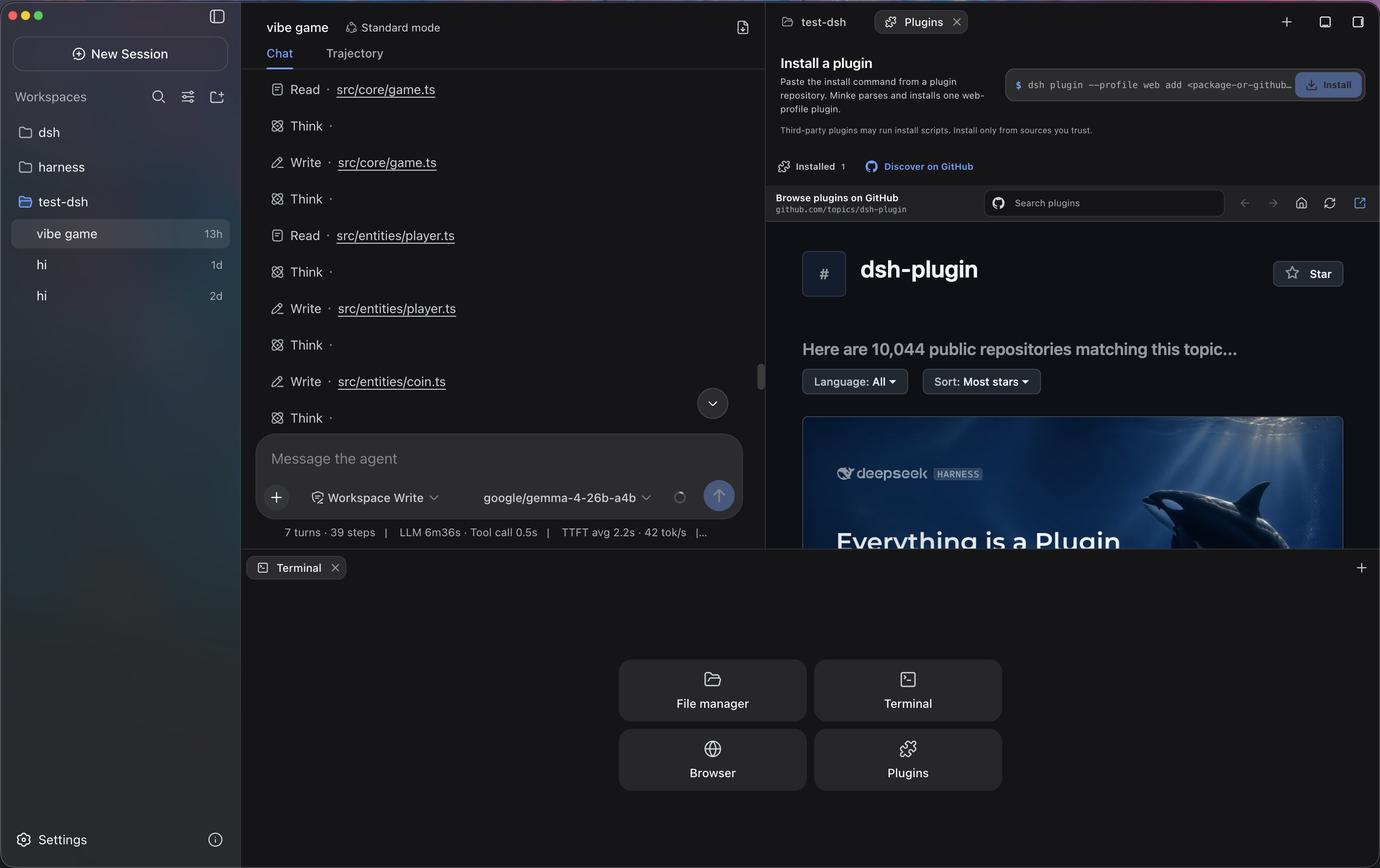
- More than a chat window — Independent right and bottom Tabs keep Files, Terminal, Browser, Plugins, and Session details beside the active conversation. The Plugins workspace supports GitHub discovery, installation, status checks, repair, and removal. Files supports navigation, syntax-highlighted previews, editing, and diffs, while Terminal connects to a real PTY on the Minke host.
- A real remote workspace, not screen sharing — Minke Host projects supported desktop capabilities into a responsive Web UI. From a phone or tablet you can continue conversations, start agent tasks, work with project files, and use the host terminal without streaming pixels from the Electron window.
- Installable as a PWA — Open Minke through a secure HTTPS address and install it to the home screen for a standalone, app-like experience. The PWA provides branded launch surfaces and early connection feedback, while deliberately avoiding caches of authenticated workspace traffic.
- Private remote access — Minke can expose its responsive workspace through an application-managed remote route. The currently validated path is Tailscale Serve over HTTPS; Tailscale Direct IP and Cloudflare Access integrations remain experimental until they complete release testing.
- Local model integrations — Minke can discover and connect to LM Studio, Ollama, and other loopback OpenAI-compatible services. Optional lifecycle management can start supported local runtimes when needed without taking ownership of services that were already running.
- Fast keyboard-driven control — The global Command Palette (
Mod+K), configurable shortcuts, native menus, Session history navigation, log export, synchronized themes, and English and Chinese UI keep common actions close at hand. - Safe, recoverable data migration — Choose where Minke stores its data, then preview and merge existing Sessions, plugins, and settings. Minke deduplicates identical files, preserves conflicts and source directories, and switches only after the restart-time migration succeeds; starting with a clean data home remains an option.
- Local-first and cross-platform — Application state and browser session data stay on your machine under the Minke data boundary. Automated releases target macOS, Windows, and Linux, including a portable AppImage.
 |  |
 |  |
Mobile access with Tailscale
Minke remote access is a responsive Web client backed by Minke Host—not a video stream or touch-controlled projection of the Electron window. From a phone you can continue conversations, start agent tasks, manage project files, and use a terminal that runs on the Minke computer.
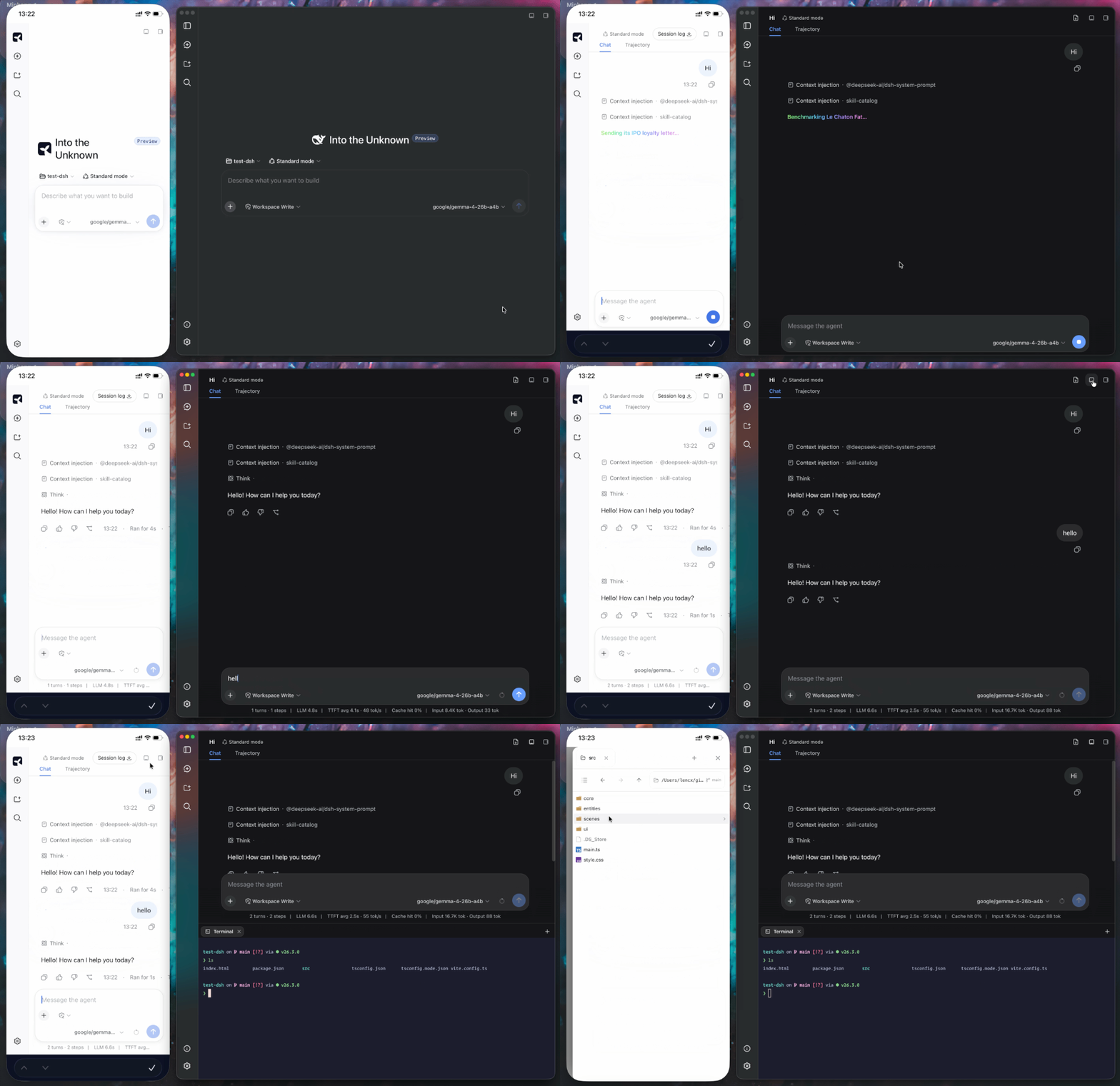
[!NOTE] The only remote route currently tested end to end is Tailscale Serve over HTTPS. Tailscale Direct IP and Cloudflare Access are available as advanced integrations, but have not yet completed release validation and should be treated as experimental.
Minke can expose its Web UI privately through Tailscale Serve. It keeps Harness on the local loopback address, does not bind it to the LAN, and does not enable the public Tailscale Funnel.
- Install Tailscale on the Minke computer and the phone, sign both into the same tailnet, and confirm the computer is connected.
- In Minke, open Settings → Remote access, enable Access through Tailscale, then choose Restart Minke when prompted.
- Return to Remote access, then copy or open the displayed
https://…ts.netaddress on the phone.
Install as a PWA
Open the Tailscale HTTPS address, choose Install Minke in the sidebar, and accept the browser install prompt. On iPhone or iPad, use Share → Add to Home Screen. The installed app launches in standalone mode; when connectivity is poor it shows connection or offline feedback instead of silently presenting cached workspace content.
Minke owns a foreground Serve session and stops it when the app exits. The remote page can start agent tasks and use local tools already authorized in Minke, so grant tailnet access only to people you trust.
Installation
Download Minke only from the official GitHub Releases page. The links below always point to the latest stable release.
| Platform | Architecture | Package |
|---|---|---|
| macOS | Apple Silicon (arm64) | Download .dmg |
| macOS | Intel (x64) | Download .dmg |
| Windows | x64 | Download .exe |
| Linux | Debian / Ubuntu (x64) | Download .deb |
| Linux | Fedora / RHEL (x64) | Download .rpm |
| Linux | Any distro (portable) | Download .AppImage |
Release checksums are available in SHA256SUMS.
macOS
-
Download the
.dmgfile and open it. -
Drag
Minke.appinto the Applications folder. -
Current pre-release builds are not notarized. Open Terminal and remove the quarantine attribute from the installed app:
xattr -dr com.apple.quarantine "/Applications/Minke.app" -
Open Minke from the Applications folder.
[!CAUTION] Removing the quarantine attribute bypasses a macOS security check. Run this command only for
Minke.appdownloaded from the official Releases page, and never replace the path with a broad directory. You can also try Apple's Open Anyway flow under System Settings → Privacy & Security.
Windows
- Download the Windows x64
.exeinstaller. - Run the installer and follow the on-screen instructions.
- Windows may show a reputation-based warning for a new pre-release build. Continue only after confirming that the installer came from the official Minke Releases page.
Linux
Download the package for your distribution, then open it with your graphical package manager or install it from a terminal.
Debian / Ubuntu:
sudo apt install "/path/to/minke-package.deb"
Fedora / RHEL:
sudo dnf install "/path/to/minke-package.rpm"
Replace the example path with the downloaded package path.
Build from source
Build Minke on the same operating system and CPU architecture as the package you need. The build produces distributables for the current host under out/make; this project does not support cross-platform packaging from a single host.
Prerequisites:
- Git with submodule support. The
vendor/deepseek-harnesssubmodule must be checked out. - Node.js 24 or newer.
- pnpm 11.7.0, with the repository dependencies installed before running the scripts.
- macOS: an Apple Silicon or Intel Mac with Xcode Command Line Tools. The
.dmgtarget can only be built on macOS. - Windows: a Windows x64 host. Visual Studio 2022 Build Tools with the Desktop development with C++ workload may be needed if a native dependency must be compiled locally.
- Linux: a Linux x64 host with a native build toolchain,
fakeroot,dpkg, and eitherrpmorrpm-build.
On a fresh checkout, first install the repository dependencies, then prepare the Harness runtime:
pnpm run harness:stage
This command installs and builds the pinned DeepSeek Harness source, then stages the reusable desktop runtime under runtime/host. Run it after a fresh checkout, or whenever the pinned Harness source or runtime contract changes.
Start Minke in development mode with:
pnpm start
pnpm start refreshes the Minke integration in the prepared runtime and launches the development app.
Create the distributable package for the current platform with:
pnpm make
pnpm make performs a full runtime stage again before writing the platform package to out/make.
中国用户
如在使用中遇到问题,或希望进一步交流 Minke,可关注公众号「浮之静」,发送 dsh 获取进群码。也欢迎大家贡献 PR 或分享给更多朋友,您的每一次 Star 都是对开源项目的巨大支持,感恩。

查看使用指南 →
该插件的安装步骤、关键要点、FAQ 与兼容性说明(基于已收录字段派生)。
收录徽章

[](https://deepseek-plugin.org/plugins/lencx/Minke/packages/harness-overlay)把这段 markdown 粘贴到你的 GitHub README,链接回本插件详情页。徽章只声明已被本站收录,不代表安全认证。