为 DSH Web 端增加 Codex 风格的 `@` 文件选择器:选择路径后只向模型注入存在性引用,不读取文件内容;内置文件过滤与按工作区隔离的设置项。

- 语言
- JavaScript
- License
- MIT
- 分支
- main
安装
$ dsh plugin --profile web add github:omdsh-dev/dsh-at-file在终端中运行以上命令,通过 dsh CLI 安装此插件。可在右上角切换 Profile。 第一次用 dsh?看这篇新手教程
对话式安装
帮我安装 DeepSeek Harness 插件 omdsh-dev/dsh-at-file:先查看仓库 https://github.com/omdsh-dev/dsh-at-file 确认安全性,然后执行安装命令并验证插件加载成功。
把这段指令粘贴给 DSH Web GUI 里的助手,由它代你完成安装与验证。
一句话定位
为 DeepSeek Harness 的 Web 端输入框加上 Codex 风格的 @ 文件选择器:选中或手动输入路径后,插件只把"路径 + 类型"这一行引用消息追加到模型输入,文件内容始终由 agent 用自己的工具读取,不会通过本插件泄露给模型。
核心能力
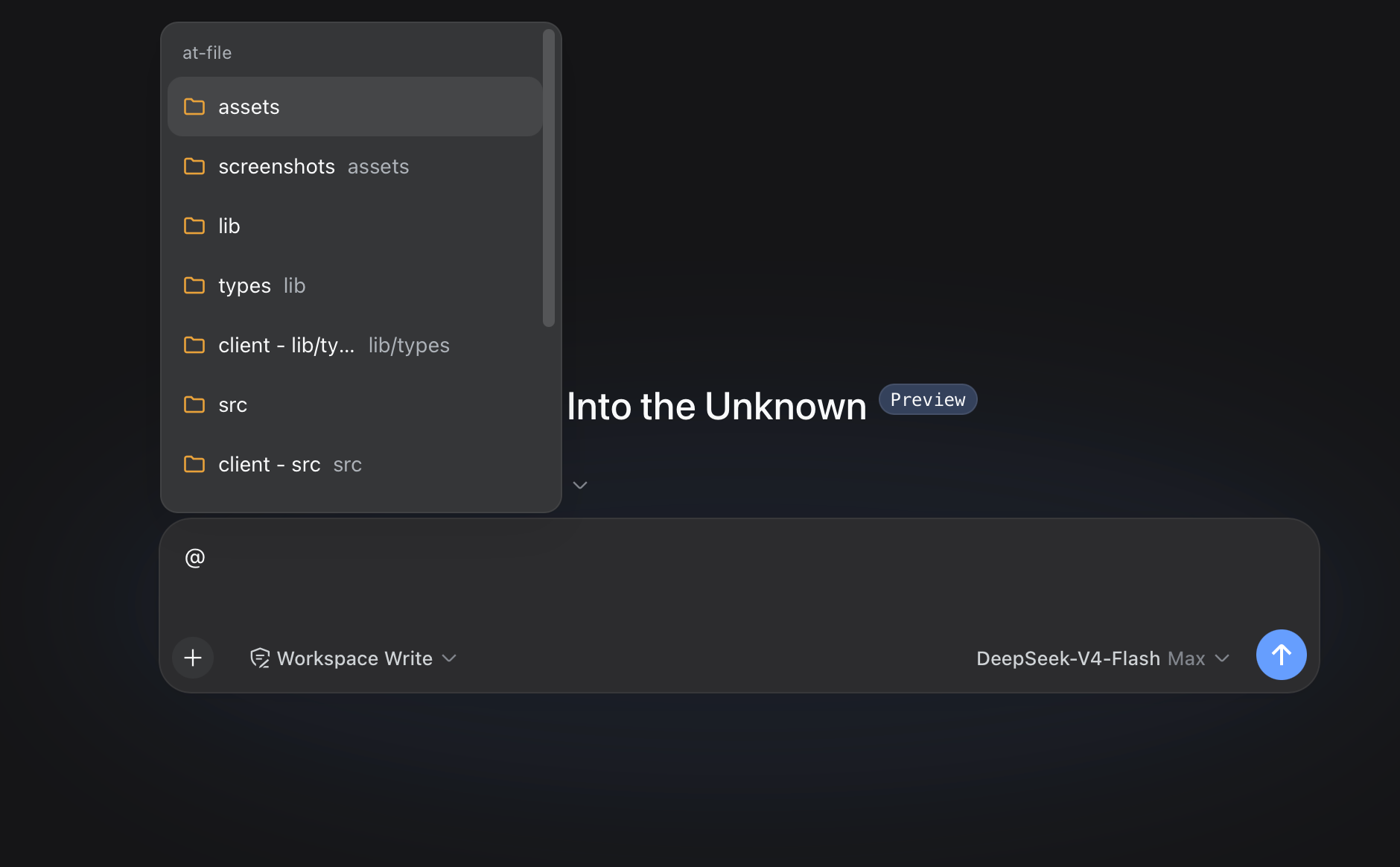
- 在 Web 输入框敲
@弹出工作区文件 / 目录选择器,支持纯文本关键词匹配、按/分段匹配前缀与紧凑排序 - 把选中或手输的
@path在 agent 每轮 step 开始前校验存在性,校验通过后注入<workspace-reference path="…" kind="file|directory" />这条只含路径和类型的引用消息 - 在 Settings → File mentions 提供启用开关、Global / Workspace 两层文件名过滤规则(Exact 与 Regex,支持区分大小写)与粘贴文本策略,全部通过插件自己的
atFile/updateSettings端点持久化 - 选择器支持 ArrowRight 进入目录、跨 pane 文件夹浏览;点击引用栏里的路径会走 Harness 的
host.openPath端点用系统方式打开 - 默认索引自动跳过
.git、node_modules、build、dist、__pycache__、Xcode / Unity / Unreal 等 60+ 个常见产物目录与desktop.ini/Thumbs.db/.DS_Store等系统元数据文件
技术实现
- 语言: TypeScript(ESM);同一 package 内同时打包 host half 与 client half,client half 由 DSH web 服务器作为
/plugins/dsh-at-file/client.js单文件下发 - 关键依赖:
zod(运行时唯一依赖,用于 wire codec 校验);@deepseek-ai/cordis(插件容器)、@deepseek-ai/dsh-typert-protocol+@deepseek-ai/dsh-typert-registry(强类型 endpoint 注册)、@deepseek-ai/dsh-agent+@deepseek-ai/dsh-llm(pre-step 钩子与 UserMessage 构造) - 架构模式: 双半宿主插件。host half 用 Cordis 装载
AtFileRuntime(@Remote装饰) +ctx.typert.register(TYPERT_MANIFEST)走严格注册表声明 wire endpoint,并通过agent/pre-step事件在每个 agent 作用域里挂上mentionPreStep钩子;client half 用ctx.remote.$mount挂载同名 Remote、inputTriggers.registerSource注册@触发器、ctx.slots.register注册 dock + 文件夹导航 + 设置面板 section - 入口文件: 宿主
src/index.ts(导出apply/Config),客户端src/client/index.ts(导出apply/inject),挂载声明在cordis.patch.yml+package.json#dsh.bundle.patch+package.json#dsh.client.inject
适用场景
当你希望让 DSH agent 操作当前工作区里的具体文件,但不希望把整个文件内容提前塞进 prompt——例如"重写 src/runtime.ts 的第 30 行附近"或"看下 docs/spec.pdf 是否覆盖异常流程"——只需在输入框里写一段带 @path 的文字,agent 就会看到一行存在性引用,再按需读取。另一个典型场景是用插件的设置页统一管理"哪些文件名不该出现在 @ 菜单里",把 *.lock / *.min.js 等干扰项在 Global 里一次性屏蔽。
前置依赖与兼容性
| 依赖 | 最低版本 | 说明 |
|---|---|---|
| DeepSeek Harness (DSH) | 未声明 | package.json:51-66 全部 @deepseek-ai/dsh-* 与 @deepseek-ai/cordis 走 peerDependencies: * / ^4.0.1-rc.1,未给出最低 DSH 版本号;建议按当前 DSH 主线使用 |
| Node.js | 未声明 | 仓库没有 engines 字段,@types/node 锁在 ^24.0.0(package.json:131),请按 DSH 自身要求选用 |
| 平台 | macOS / Windows / Linux | 仅使用 node:fs / node:fs/promises / node:path,无原生模块 |
| 原生模块 | 无 | package.json:115-117 运行时只依赖 zod,无 native binding |
安装方式
dsh plugin --profile web add github:omdsh-dev/dsh-at-file
配置项
宿主侧配置(写在 ~/.dsh/profiles/web/cordis.patch.yml)
| 配置 | 类型 | 说明 | 默认值 |
|---|---|---|---|
maxIndexedFiles | number | 单次工作区索引最多收录的文件 / 目录条目数;超额立即停止并返回 truncated=true | 5000 |
ignoreDirs | string[] | 索引时按 basename 跳过的目录;设为 [] 则索引所有目录 | 内置 60+ 个 .git / node_modules / build 等 |
用户偏好(在 DSH 设置 → File mentions 面板里改,通过 atFile/updateSettings 持久化)
| 偏好 | 类型 | 说明 | 默认值 |
|---|---|---|---|
| 启用 at-file | boolean | 关闭后 @ 选择器、引用栏、pre-step 注入全部停用 | true |
| 忽略粘贴文本中的 @ | boolean | 关闭后从外部粘贴的 @路径 会和手输一样被识别 | true |
| Global 文件过滤 | Exact / Regex 规则列表 | 所有工作区共享的 basename 过滤;旧版字符串规则会被视作不区分大小写的 Exact 规则 | 内置 desktop.ini / Thumbs.db / .DS_Store |
| Workspace 文件过滤 | Exact / Regex 规则列表 | 仅对当前工作区生效的附加规则,每个工作区独立保存 | 空 |
常见问题
Q: 粘贴进来的 @路径 会被识别吗?
A: 默认不会。客户端在粘贴时用 U+2060 不可见字符给 @ 打标记,Host 在 scanMentions 里识别到带标记的 token 就跳过;同时 Settings 里的 ignorePastedMentions 默认开启,双重保险。需要在外部复制的 @路径 上也走选择器流程,把"忽略粘贴文本中的 @"关掉即可(src/paste.ts:7 / src/mention.ts:42-55)。
Q: 插件会把文件内容发送给模型吗?
A: 不会。mentionPreStep 只做两件事:在用户消息里扫 @path、对每个 token 走 stat 确认存在并判定文件还是目录,然后把 <workspace-reference path="…" kind="…" /> 这一行追加到 prompt。文件字节从不进入 wire、从不离开 Host;模型要读文件,靠的是当前 agent 会话里挂的 read / read_image 等工具(src/mention.ts:1-8)。
Q: 我能引用工作区之外的文件吗?
A: 不能。resolveMention 用 path.relative(cwd, absolute) 判定越界:.. 或以 .. 开头的结果一律丢弃;isAbsolute(token) 也直接拒掉。手输一个 /etc/passwd 这样的绝对路径,结果就是 prompt 里看到一段普通的 @/etc/passwd 文字,不会被转成引用(src/mention.ts:64-81)。
Q: 选择器里怎么过滤文件?
A: 打开 Settings → File mentions:Global 列表是所有工作区共享的基底,Workspace 列表是当前工作区的附加规则;每条规则独立选 Exact / Regex 与是否区分大小写,Regex 写错保存前会被前端拒绝,Host 的 schema 也会再次拒绝(src/contract.ts:66-79 / README.md:60-66)。
Q: 大工作区索引会不会卡?
A: indexWorkspace 用 opendir 流式逐条读取(不一次性 readdir),不跟随 symlink,命中 maxIndexedFiles 立刻停并把 truncated 标志置位。默认 5000 上限 + 30 秒 session 缓存已经够大多数项目;超大仓库可在 cordis.patch.yml 里把上限调到 10000 以上(src/files.ts:99-158)。
Q: PDF 怎么办?
A: 选择器把 PDF 当成普通路径条目;模型是否能读 PDF 取决于当前会话的 agent 工具集——DSH 提供 read 处理 UTF-8 文本、read_image 处理支持的图片,PDF / Word 等需要会话里挂对应工具,插件自身不读取文件内容(README.md:98)。
Q: 怎么升级?
A: 重跑同一条 dsh plugin --profile web add … 命令,然后重启 dsh web;lib/ 已提交到仓库,profile 安装无需触发构建脚本(README.md:46-49)。
Q: 缓存什么时候清?
A: 客户端按 session 缓存 30 秒(INDEX_TTL_MS),Host 端按 cwd 缓存;过滤规则变化或连接 reset 会立刻清缓存(src/client/source.ts:34 / src/client/index.ts:157-161)。
上手难度
入门 — 单条 dsh plugin add + 硬刷新浏览器即可使用;进阶在于按团队习惯在 Settings 里维护 Global / Workspace 过滤规则,以及在 cordis.patch.yml 里调 maxIndexedFiles 上限。
已知问题与限制
- 索引条目数硬上限:
maxIndexedFiles默认 5000,超额立刻停止并返回truncated=true;超限之外的合法路径需要手输才会被引用(src/files.ts:124-128 / src/index.ts:52) - 符号链接一律跳过:walk 不跟随 symlinked 目录,避免链接循环;软链文件本身也不入索引(src/files.ts:130-133)
- 默认排除目录覆盖广:60+ 个内置 basename 包含主流 IDE、构建工具、依赖缓存的产物目录;如需索引
node_modules等,必须把ignoreDirs显式设为[](src/defaults.ts:4-65) @pathtoken 不允许包含空白或另一个@:/@[^\s@]+/g决定边界,超长路径或带空格的 Windows 短名不会被自动识别(src/mention.ts:34)- 粘贴文本默认不识别:复制自其他应用的
@路径不会出现选择器,需要在设置里关掉"忽略粘贴文本中的 @"(src/paste.ts:7 / README.md:25) - 文件读取完全依赖 agent 工具:插件不读取文件,也不保证 PDF / Office 等格式有处理能力,需要会话自带对应工具(README.md:98)
- 节点 / DSH 版本未在 package.json 声明:
engines字段缺失,DSH 的所有@deepseek-ai/*peerDependencies 走*,需自己保证 DSH 与之兼容(package.json:51-66)
Workspace path references for the DeepSeek Harness web interface. Type @ in the composer to search the current workspace and insert a file or directory path.
Usage
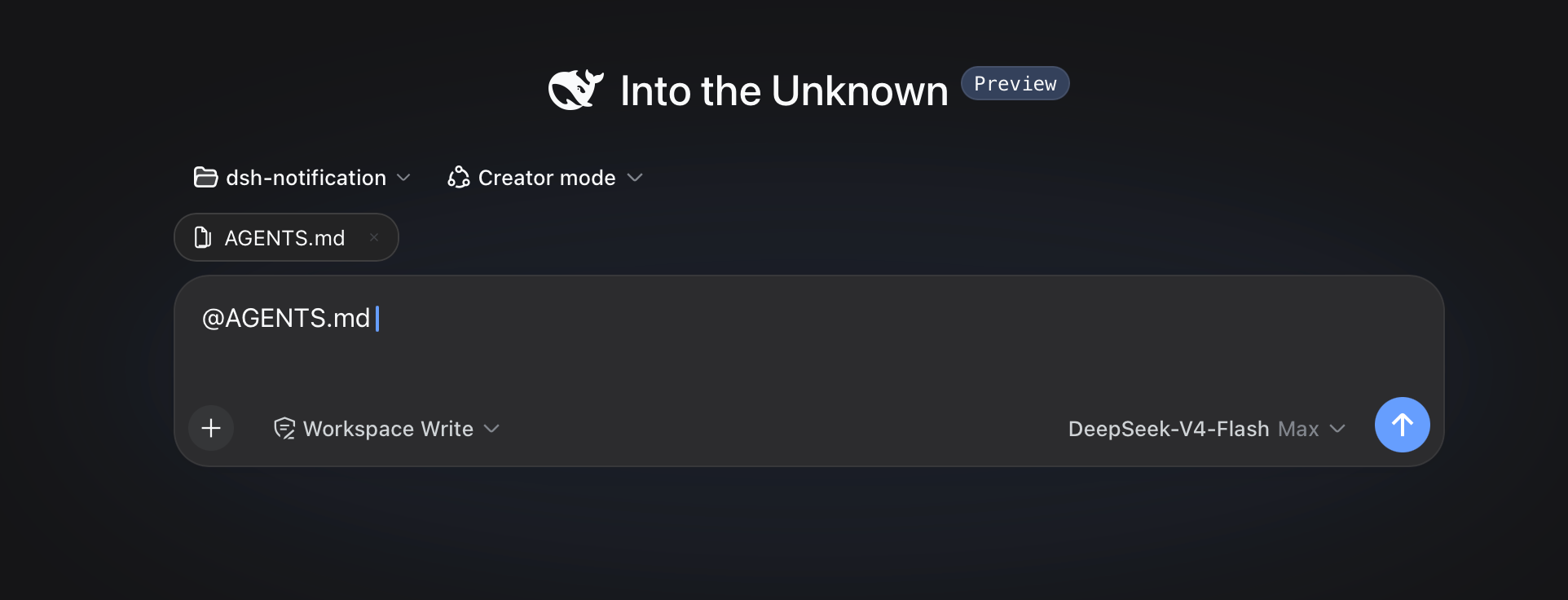
Choose a result from the @ menu. The selected path remains visible in the draft and can be opened or removed from the reference bar.
Review @docs/spec.pdf
Before the agent starts a step, the plugin confirms that the path exists inside the active workspace. It then adds a short reference message:
<workspace-reference path="docs/spec.pdf" kind="file" />
The reference contains the workspace-relative path and its kind. The plugin does not open the referenced file or list the contents of a referenced directory. The agent can inspect the path with the tools available in the current session when the task requires it.
Pasted text is treated as ordinary text by default. An @path copied from another application does not open the picker, appear in the reference bar, or create a workspace-reference marker. Turn off Ignore @ mentions in pasted text in Settings -> File mentions if you need the older behavior.
File format and file size do not change this behavior. A PDF follows the same path-reference flow as any other workspace file.
This mechanism applies to version 0.3.0 and later. Earlier releases read file content during submission and enforced file-size limits.
Path Picker
Plain queries match filenames. Exact names, prefixes, and compact matches rank ahead of looser results, without matching letters scattered across a long directory path.
A query containing / matches path segments in order. For example, src/view can find src/client/view.ts. A trailing slash such as src/ searches within that path.
When a directory is highlighted, press ArrowRight to enter it. The draft advances to @path/ without a trailing space, and the candidate menu stays open for the next selection. Enter and pointer selection keep the existing behavior and finish the directory reference.
Each result shows the filename first and its parent directory underneath. Duplicate filenames include the parent directory in the main label. Built-in SVG icons distinguish folders, source files, text, PDFs, images, data and configuration files, archives, and other files.
The default index skips common version-control directories, IDE metadata, dependency trees, caches, and build output. The list covers VS Code, Visual Studio, JetBrains IDEs, Fleet, Eclipse, Android and Gradle, Xcode, CMake, Flutter, .NET, Unity, Unreal, and common JavaScript and Python output directories. OS metadata files named desktop.ini, Thumbs.db, and .DS_Store are excluded by default.
Install or Update
dsh plugin --profile web add https://github.com/omdsh-dev/dsh-at-file/archive/refs/tags/v0.6.3.tar.gz
Use the same command to update an existing installation. Restart dsh web after installation so the Host and browser client load version 0.6.3.
File Filters
Open Settings -> File mentions to manage file-name filters.
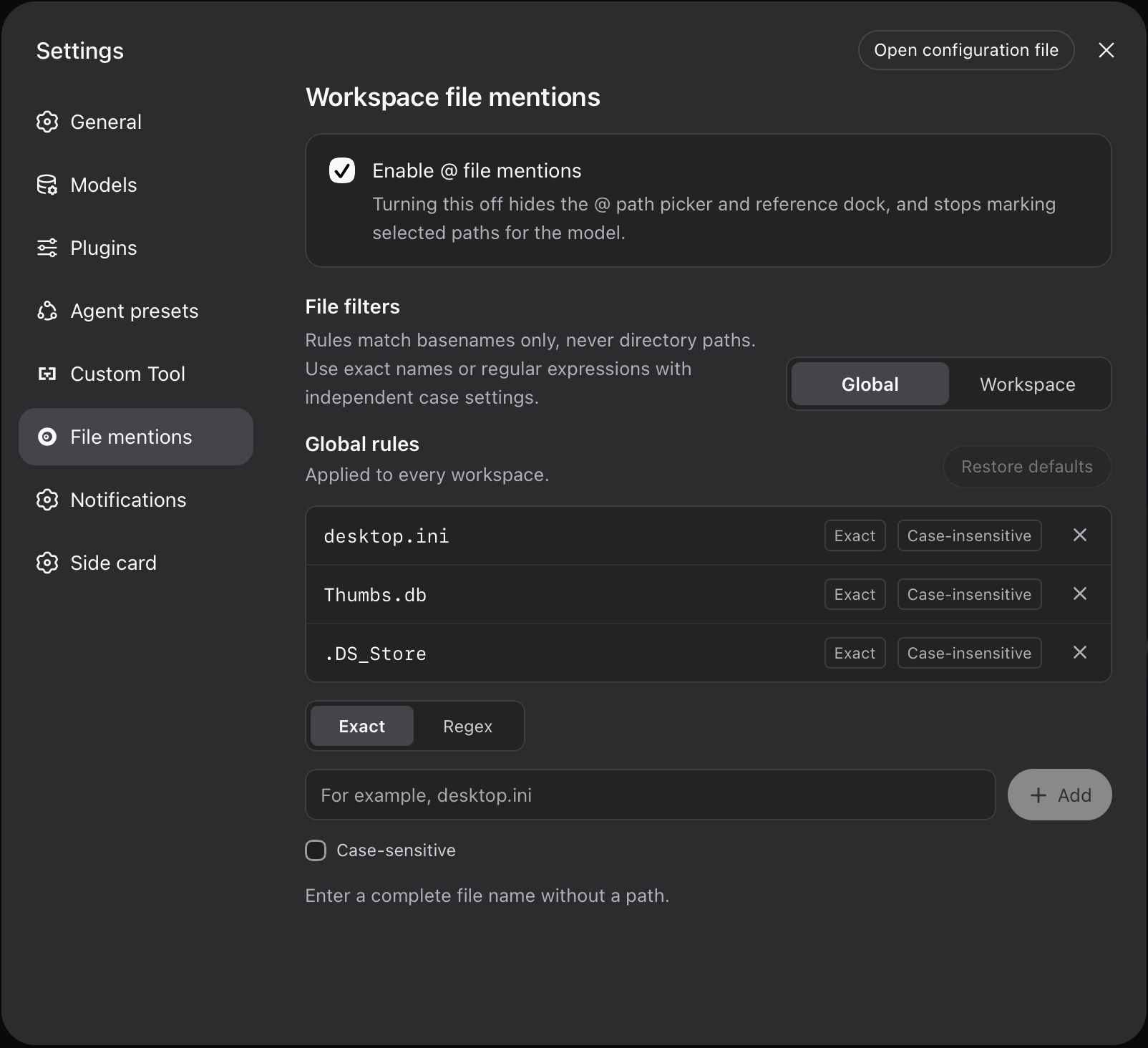
- Global contains rules shared by every workspace.
- Workspace contains additional rules for the selected workspace path. Each workspace keeps its own list, and the panel shows the global rules it inherits.
Each rule has its own matching mode and case setting:
- Exact matches one complete basename. Path separators are not accepted.
- Regex runs a JavaScript regular expression against the complete basename. It does not receive the parent directory or workspace path.
- Case-sensitive can be enabled independently for any Exact or Regex rule. It is off by default.
Rules are added and removed individually. An invalid regular expression is shown before saving and is also rejected by the Host. Restore defaults resets the global list to the built-in file names. Clear workspace rules removes only the selected workspace's additions.
Settings are saved in the DSH web profile through the plugin's own Host connection. Existing string values in ignoreFiles and workspace lists continue to work as case-insensitive Exact rules. A change clears the affected index cache, so the next @ search uses the saved rules.
Configuration
The available options apply to the path picker index:
maxIndexedFilessets the maximum number of indexed workspace entries.ignoreDirsreplaces the built-in list of directory names excluded from the picker. Set it to[]to index every directory.
Add the complete configuration to the selected profile's cordis.patch.yml. The usual path is ~/.dsh/profiles/web/cordis.patch.yml.
- id: dsh-at-file
  config:
    maxIndexedFiles: 10000
Omitting ignoreDirs keeps the built-in list. When you provide it, include every directory name you want excluded.
Path Handling
- The picker indexes regular files and directories in the active workspace. Configured directory names and symbolic links are skipped.
- Global and workspace file-name filters are combined during the Host index walk, before entries count toward
maxIndexedFilesor reach the browser. - The Host accepts workspace-relative paths. Absolute paths and paths that escape the workspace are ignored.
- Reference markers are created from typed text and picker selections. Pasted
@tokens are ignored when the default setting is enabled. - Clicking a referenced path uses the Harness
host.openPathendpoint. - The picker index is cached per session for 30 seconds.
- An
@pathtoken cannot contain whitespace or another@character. maxIndexedFileslimits picker results. A manually entered path can still be referenced when it exists inside the workspace.
The active agent may lack a tool for a particular file format. DSH provides read for UTF-8 text and read_image for supported images. PDF support depends on the tools available in the session.
Development
pnpm install
pnpm run check
pnpm run test
pnpm run build
The development setup expects the official deepseek-ai/deepseek-harness repository at ../deepseek-harness, its default clone directory. Built files under lib/ are committed so profile installation does not require package build scripts.
License
MIT
查看使用指南 →
该插件的安装步骤、关键要点、FAQ 与兼容性说明(基于已收录字段派生)。
收录徽章

[](https://deepseek-plugin.org/plugins/omdsh-dev/dsh-at-file)把这段 markdown 粘贴到你的 GitHub README,链接回本插件详情页。徽章只声明已被本站收录,不代表安全认证。